Products


AI Platform


Asana Foundations
Company Type
No articles found for this topic.
No articles found for this topic.

Visit our pricing page for more information.
Portfolio and project workload are available on Asana Advanced, Enterprise, and Enterprise+ tiers, as well as legacy tiers Business and Legacy Enterprise.
Visit our pricing page for more information.
Workload gives you a visual snapshot of team capacity and a closer look into what your team is working on across projects — all in one place.
You can view workload based on task count or effort. You also can set capacity for each team member to quickly see when someone has too much work.
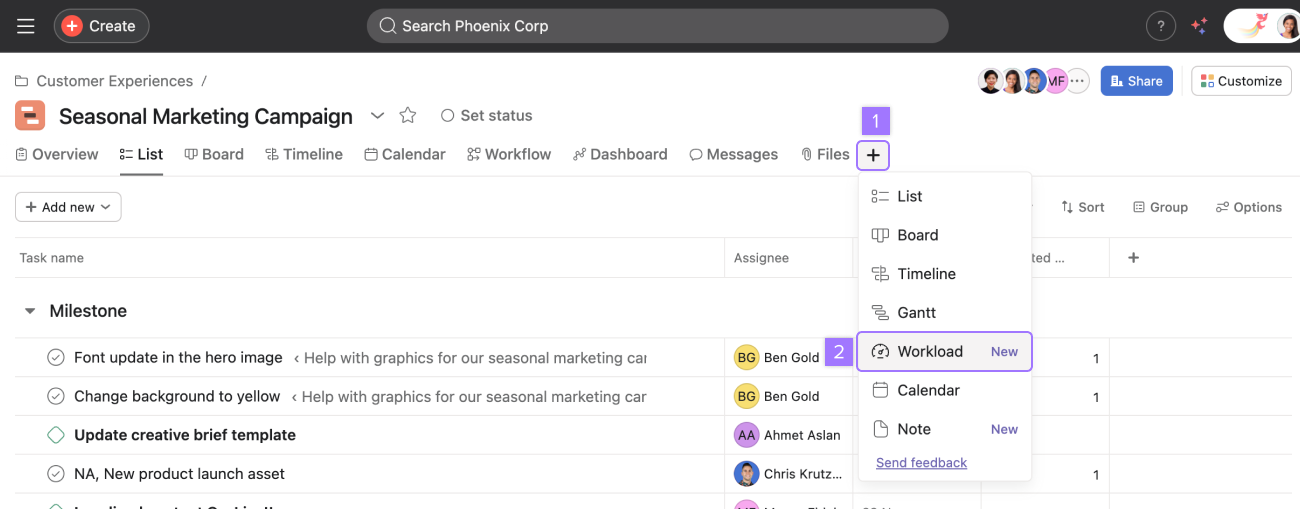
Add a workload tab to your projects by clicking the + button in your project header and clicking Workload.
Click portfolios on the sidebar, select a portfolio, and then navigate to the Workload tab.

User lists are populated by anyone who has work assigned to them in the projects in the portfolio.
Note
Create a team portfolio to see your team’s work across projects. Create a portfolio across teams to see important projects you own that are shared by multiple teams.
Set custom fields based on priority to get a sense of task weight.
Filter your workload view by role and person by clicking the Show button.
Click the Filter button to hide specific projects, show or hide subtasks, show completed or incomplete tasks, and show tasks, milestones, or approvals.
Universal workload is available on Asana Enterprise and Enterprise+ tiers, as well as legacy tier Legacy Enterprise. Visit our pricing page for more information.
Universal workload allows you to view the global capacity of a team by pulling data from tasks and subtasks across all projects into a workload view. Tasks and subtasks must be assigned, have a due date, and belong to a project to be accounted for in the capacity trendline.
Click the Share button at the top right corner of your workload view to share your universal workload. Whoever is looking at the workload view must have permission to see the task. Otherwise the task will not show up on the workload view.
Within the workload view, click Filter. Chose from:
Available on Asana Enterprise, and Enterprise+ tiers.
To show total values, click Options, select Layout options, and toggle on Show total values.
Universal workload supports the creation of saved views as new tabs. See this article on project customization and views for more on saved views.
View and edit the effort of your team members using workload. Use hours, points, or percent as your workload effort.
When you choose hours or points as effort, they are divided evenly over any days they are spread over. If a task takes more than one day to complete, effort will be split evenly over weekdays. If a task goes from Friday to Monday, it will be 5 hours on Friday and 5 hours on Monday.
Decide the percentage of time that should be spent on a specific task and distribute it over as many days as needed. If you plan to work on a task for 50% of your time in a week, that task will take up 50% of your time throughout the entire week.
Use start dates to account for tasks that take more than one day to complete.
Workload doesn't spread effort during weekends unless it needs to. If you have a 10-hour task with a start date of Monday and due date of Sunday, it will take 2 hours per day during weekdays. However, if a task has a start date of Saturday and a due date of Sunday, then it will take 5 hours per day.
Hover on an individual's chart to see a count of their tasks on a given day.
Hover over a specific day column header to view multiple team members' total tasks on a given day. Hover over a person's name to see their total task count or effort over time.
Click on the caret to show projects and tasks per person in drill-down view.
You can open the project status modal by clicking the project name.
Drag and drop tasks to reschedule the time or reassign them to another person within a project.
Multi-select bulk rescheduling: press the
Command/Controlkey, and click on all the tasks you want to reschedule and/or reassign while pressing theCommand/Controlkey.
Click on the Zoom button to select between Days, Weeks, Months, Quarters, Half-Years, or Years. Click on Today to quickly come back to the present day.
Use zoom to adjust your view based on your work planning and monitoring time frame.
You can view the number of subtasks on a particular task directly from workload.
The subtask count will appear next to the task name on workload in drill-down view.
You can view a colleague's next time off on workload and capacity plans. Tasks may still be assigned during this time period, but conflicts are indicated by a small warning sign with an explanation. Asana users can manage their out of office information via their profile settings.
Note the shaded area in the above example. Jamie is OOO from 8 January to 9 January, and their task due on 8 January conflicts with this period.
Want to learn more? Check out all the features of Asana Workload.
Have workload management questions? Ask the Community.

