Products


AI Platform


Asana Foundations
Company Type
No articles found for this topic.
No articles found for this topic.

Visit our pricing page for more information.
Access to a task in Asana is contextual and there are a variety of situations that affect who can access a task. This article explains how to identify a task's permission settings and how to provide or limit access to a task.
| Task | Accessible by |
| Private task | Only task collaborators |
| Public task | All organization members |
|
Task in a private to members project | Task collaborators and project members |
| Task in a team only project | Task collaborators, project members, and team members |
| Task in a shared with organization project | Task collaborators, project members, team members, and organization members |
Private tasks that don't belong to a project are only visible to collaborators. A banner at the top and the project field displays privacy information and project association. Tasks created in My tasks default to private.
Below is an example of a private task with no project association, only visible to collaborators.
Give access to private tasks by making the task public, adding it to a project with other members, or adding someone as a collaborator. Before adding the task to a project, be sure to note the project's permissions.
To limit access to a task, remove it from any project, remove all collaborators, or make it private. Do not remove yourself as a task collaborator or you'll lose access to the task as well.
Public tasks are visible to everyone in your organization. The project field indicates whether the task belongs to a project.
Your ability to interact with a task is primarily inherited from your membership level in the project.
1. Project-based permissions
If a task is in a project, your project-level role determines your task permissions:
2. Task collaborator default (Task SAL)
Projects can be configured to set a default access level for task collaborators.
Assigned-task elevation
Being assigned a task grants you temporary "elevated" permissions while you are the assignee, even if your project-level access is restricted.
Multi-homed task permissions
When a task lives in multiple projects (multi-homing), Asana applies the highest permission level across all those projects.
Example: If you are a "Viewer" in Project A but an "Editor" in Project B, and the task lives in both, you will have "Editor" permissions for that task.
Capability summary table
|
Action on a task |
Task Editor |
Task Viewer |
Task Commenter |
|
Edit Title/Description |
✅ |
❌ |
❌ |
|
Change Custom Fields |
✅ |
❌ |
❌ |
|
Post Comments/Likes |
✅ |
✅ |
✅ |
|
Change Assignee/Due Date |
✅ |
❌ |
✅ |
|
Complete Task |
✅ |
❌ |
✅ |
|
Delete task |
✅ |
❌ |
❌ |
Related resources
To learn more about specific access levels and how to manage your team’s privacy, visit these articles:
Adding someone as a task collaborator provides them access to a task. Organization members already have access via search.
Adding the task to the project gives project members access. Before adding the task, note the project's permissions and project members.
Limiting access to a public task that doesn't belong to a project?
By removing all task collaborators, except yourself, organization members will no longer receive task notifications, but can still access the task by searching for it.
Click the task actions button from the task details pane, and select Make private. Since the task doesn't belong to any project, it will only be visible to you and the collaborators.
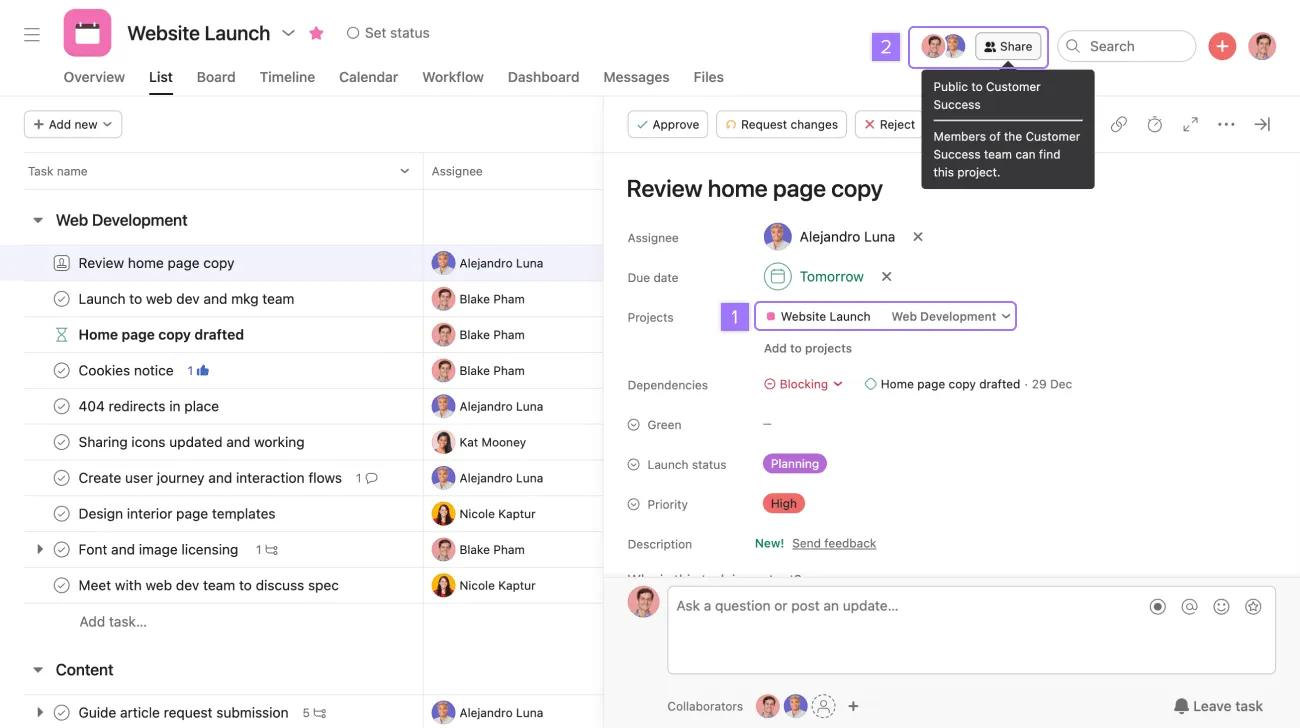
To verify that a task is in a project with the shared with organization or team only privacy setting, the project field indicates the project the task belongs to. Within the project, the header indicates the project privacy.
Team only: Project members, task collaborators, and members of the team the project lives in.
Shared with organization: All members of the organization.
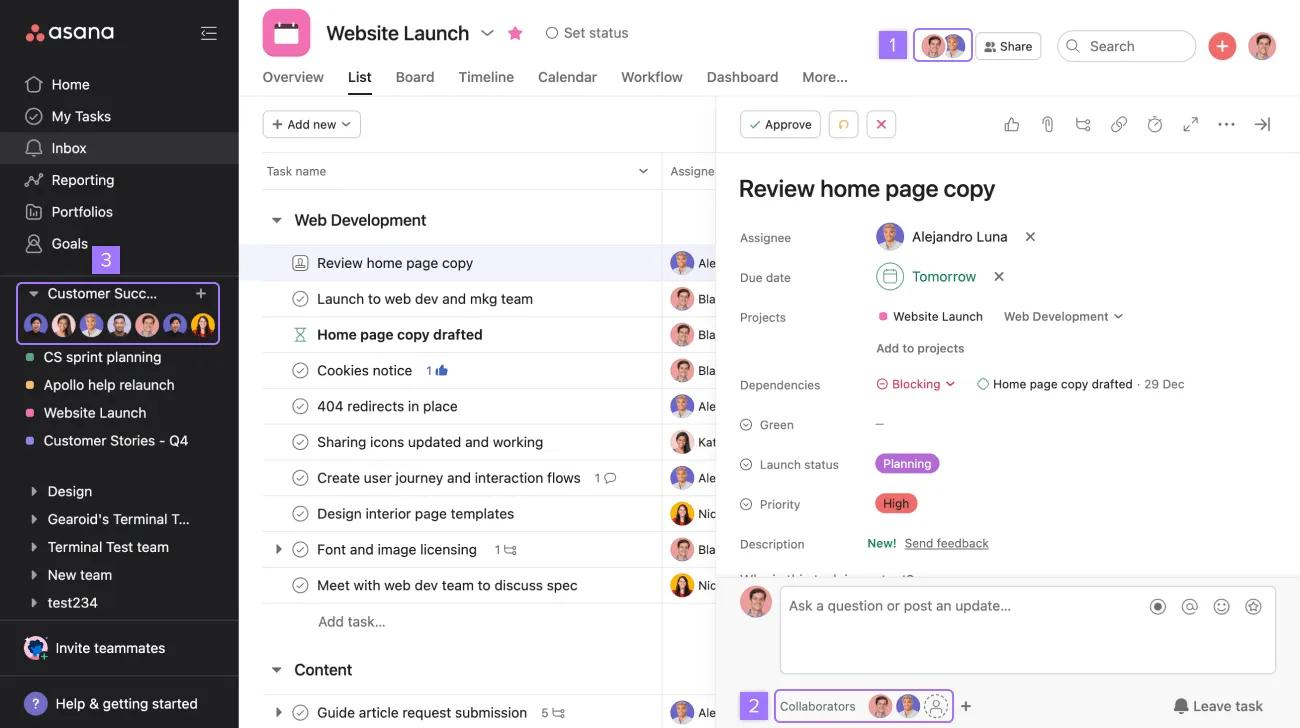
Add someone as a task collaborator — This will provide them with updates on the task. If they're already a project member or team member, then they can already access the task.
Add someone as a project member — This gives them access to all tasks in the project. If they're a team member, then they can already access the task.
Add someone as a member of the team — This gives them access to all tasks in the project.
Tasks in projects that have the shared with organization privacy setting are already accessible by every organization member.
How do I limit access to this task?
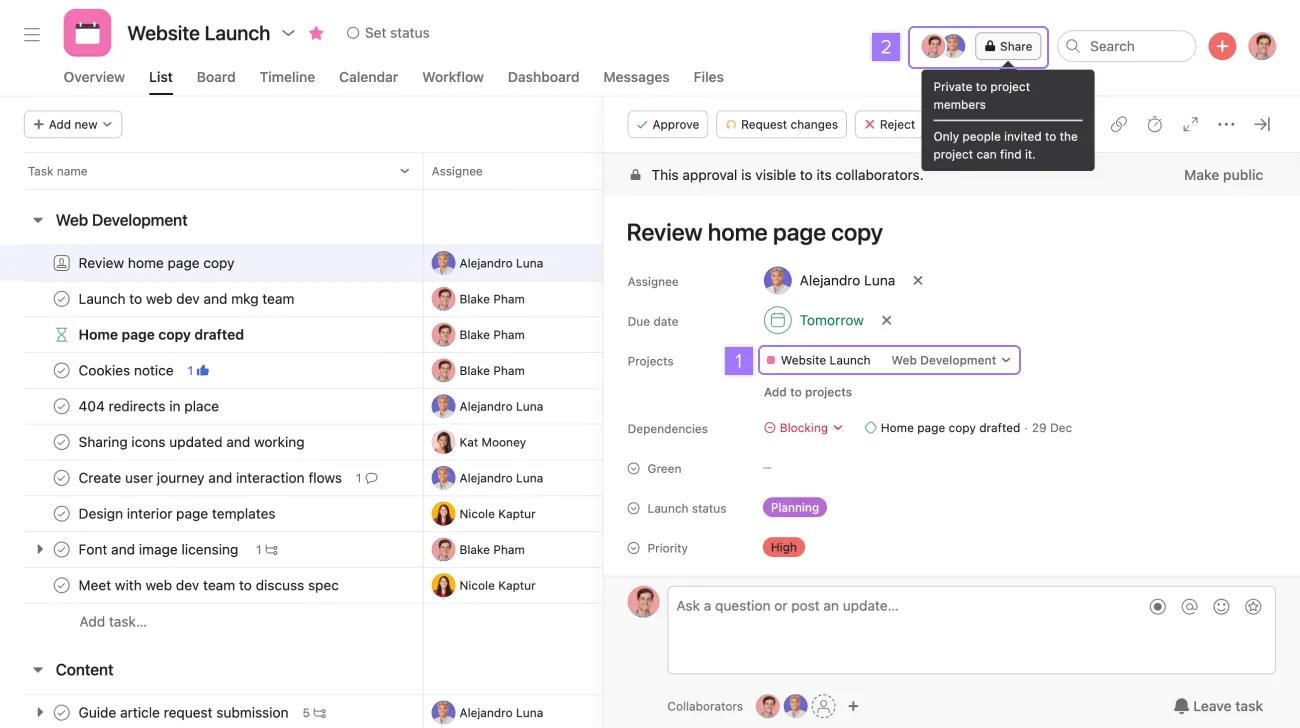
Project members and task collaborators can see this task.
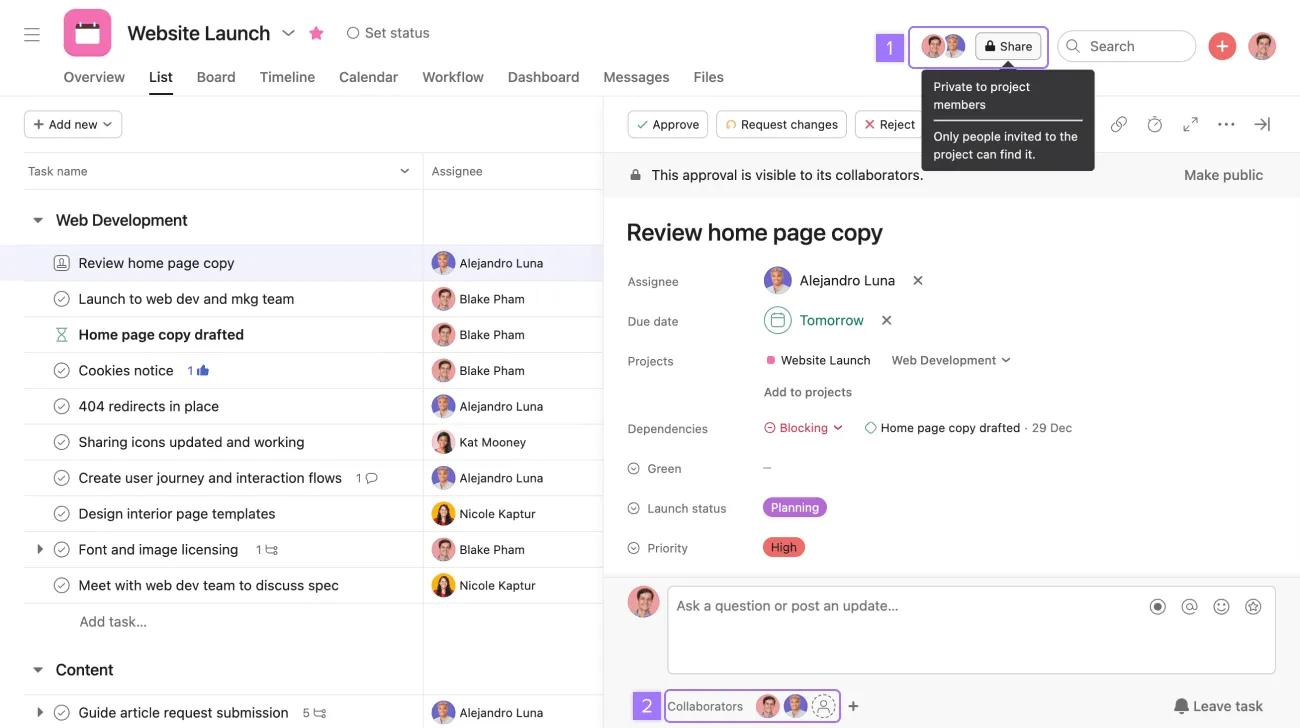
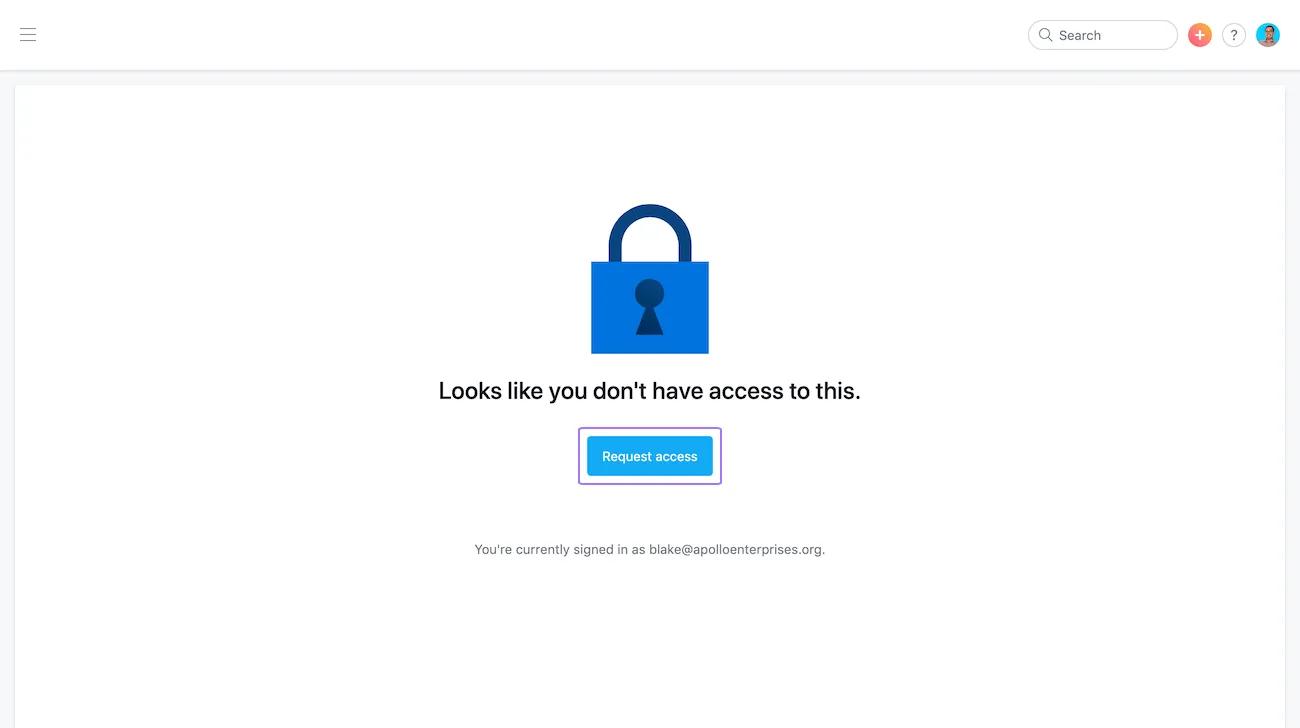
You can reach out to the assignee of a private task to request access:
If the task has no assignee, the request goes to the task creator, if they still have edit access. If the creator doesn't have edit access, the first collaborator with edit access receives the request. If the task is accessible to members of a project, the request will go to the project owner. If the project doesn't have an owner, the request goes to a member with edit access in that project.
Looking for a better way to manage your work? Get started with a free Asana trial. Try for free

