Products


AI Platform


Asana Foundations
Company Type

Visit our pricing page for more information.
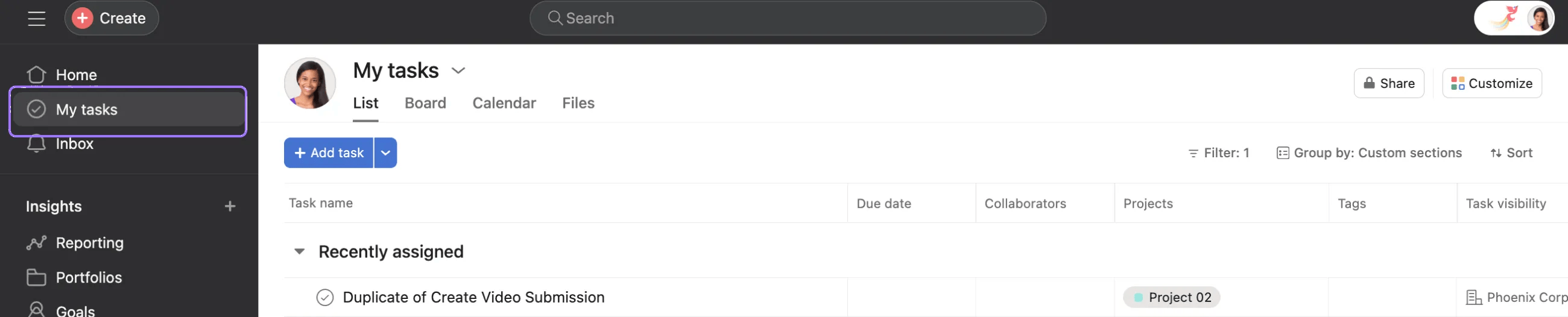
My Tasks acts as your individual to-do list and automatically gathers tasks assigned to you across all projects, enabling you to see and organize your work in one centralized place. You can view these tasks in different formats such as a list, board, or calendar, providing flexibility in how you manage and prioritize your work.
To access My Tasks, click My tasks from the sidebar.
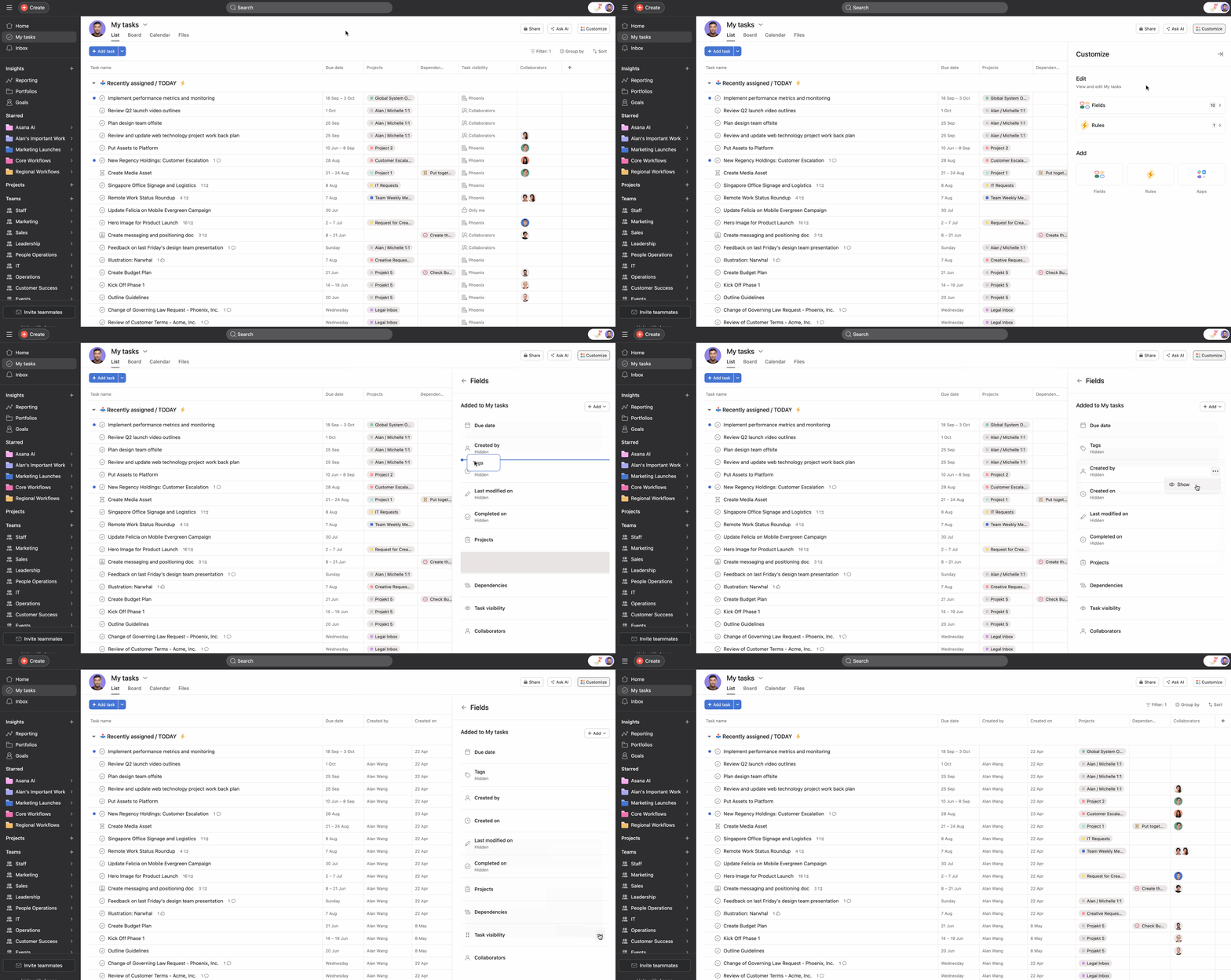
You can customize your My tasks by:
 Creating tasks
To create a task from My tasks, click the + Add task button at the top left or click Add task under the desired section.
All new tasks you create in My tasks are automatically assigned to you and private to you. Add them to projects to make them visible to the rest of your team. When others create tasks in your My tasks, these tasks are automatically assigned to you and private to you and all collaborators (e.g., the person who created it).
Although tasks created in your My tasks are automatically private to you, if you multi-home a task, it becomes visible to members of that project. There's a task visibility column in your My tasks where you can see to whom the task is visible.
When using the list view, unread tasks will display a blue dot next to the task name. A blue dot indicates that you have not viewed the task since it was assigned to you. Click the task to open the task details pane, and the blue dot will disappear.
You can create your own sections in My tasks to organize your work. Rename, reorder, create and delete sections to design your perfect personal organization system.
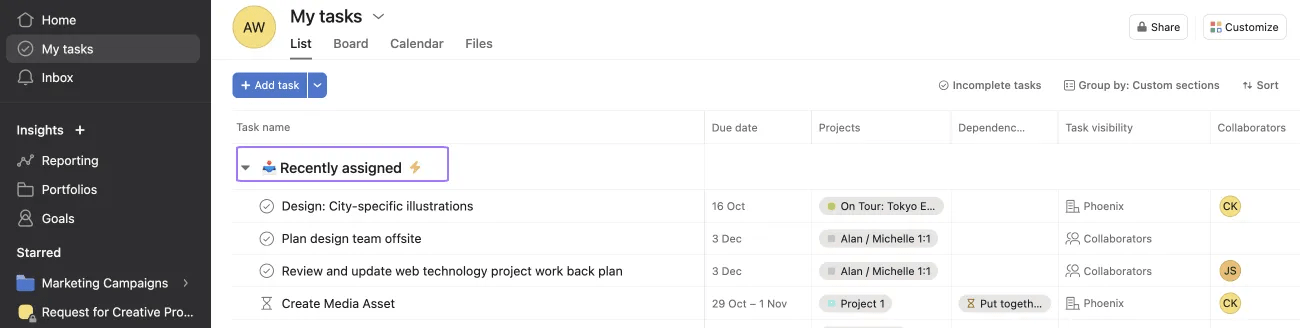
When a task is first assigned to you, it will appear under the Recently assigned section in your My tasks. You can rename this section to whatever you want, but don't forget that it's the "special" section where tasks appear when assigned to you. You cannot delete this section.
Note
If you create a task by sending an email to x@mail.asana.com, it will first appear under Recently assigned in your My tasks.
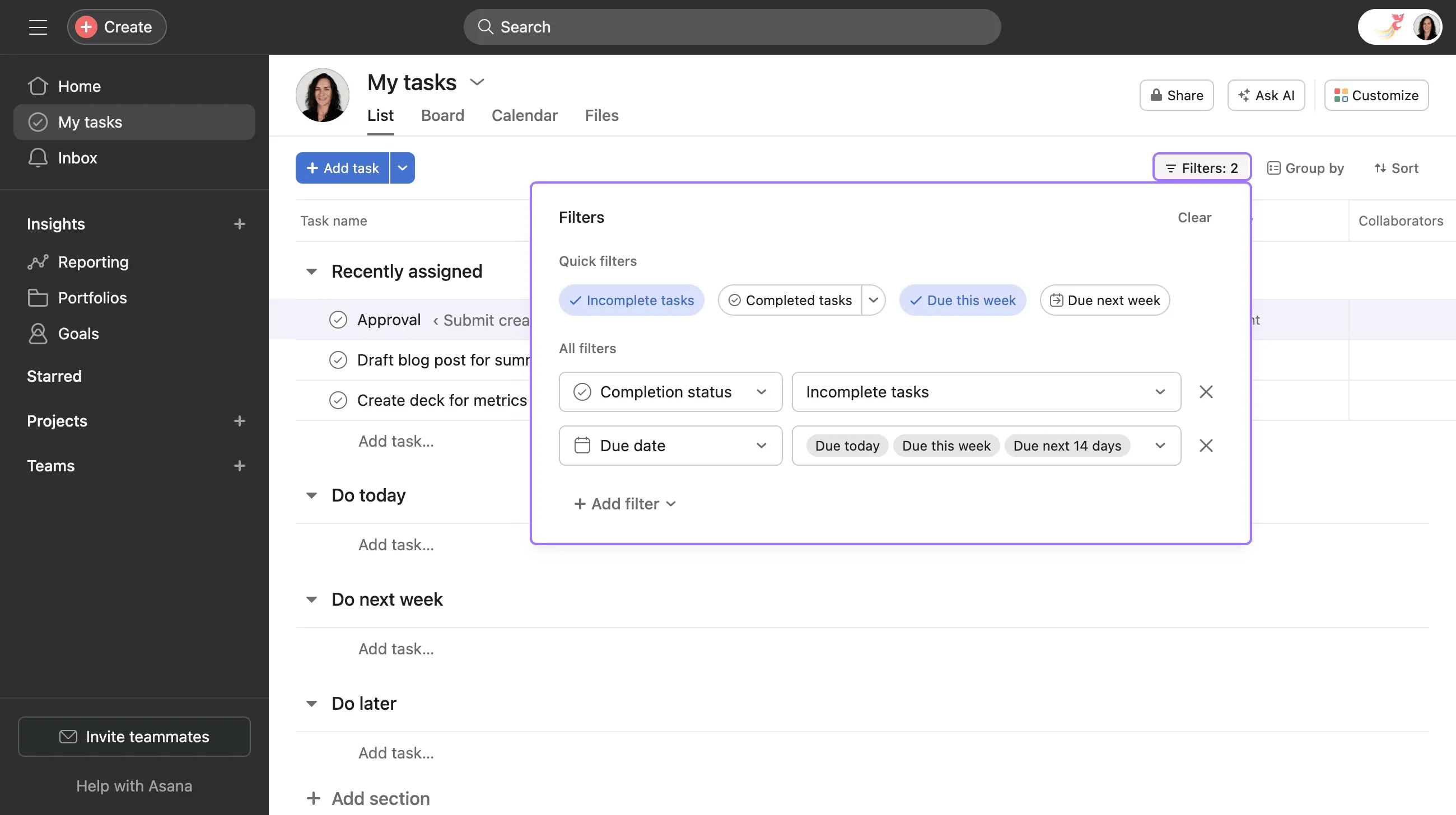
Sort your tasks list to view your tasks in a way that suits you. My tasks will automatically save your Sort, Filter, and View preferences for next time.
Please note that project views will not save automatically. Learn how to save your project view.

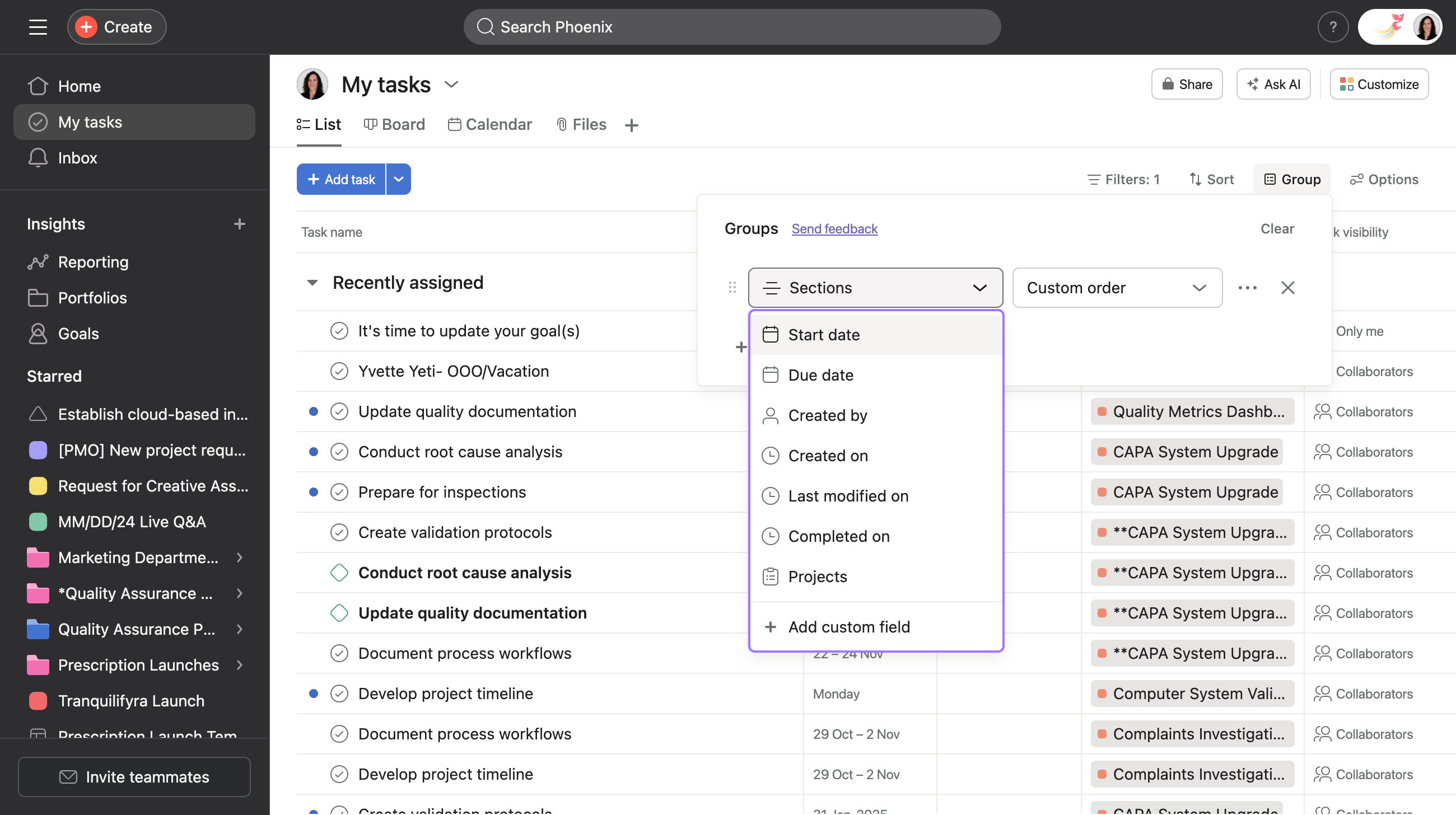
You can use Group by in My tasks when in board and list view to group tasks by section, or another field. Tasks can be grouped differently across List and Board views. In the example below, tasks are grouped by a priority custom field.

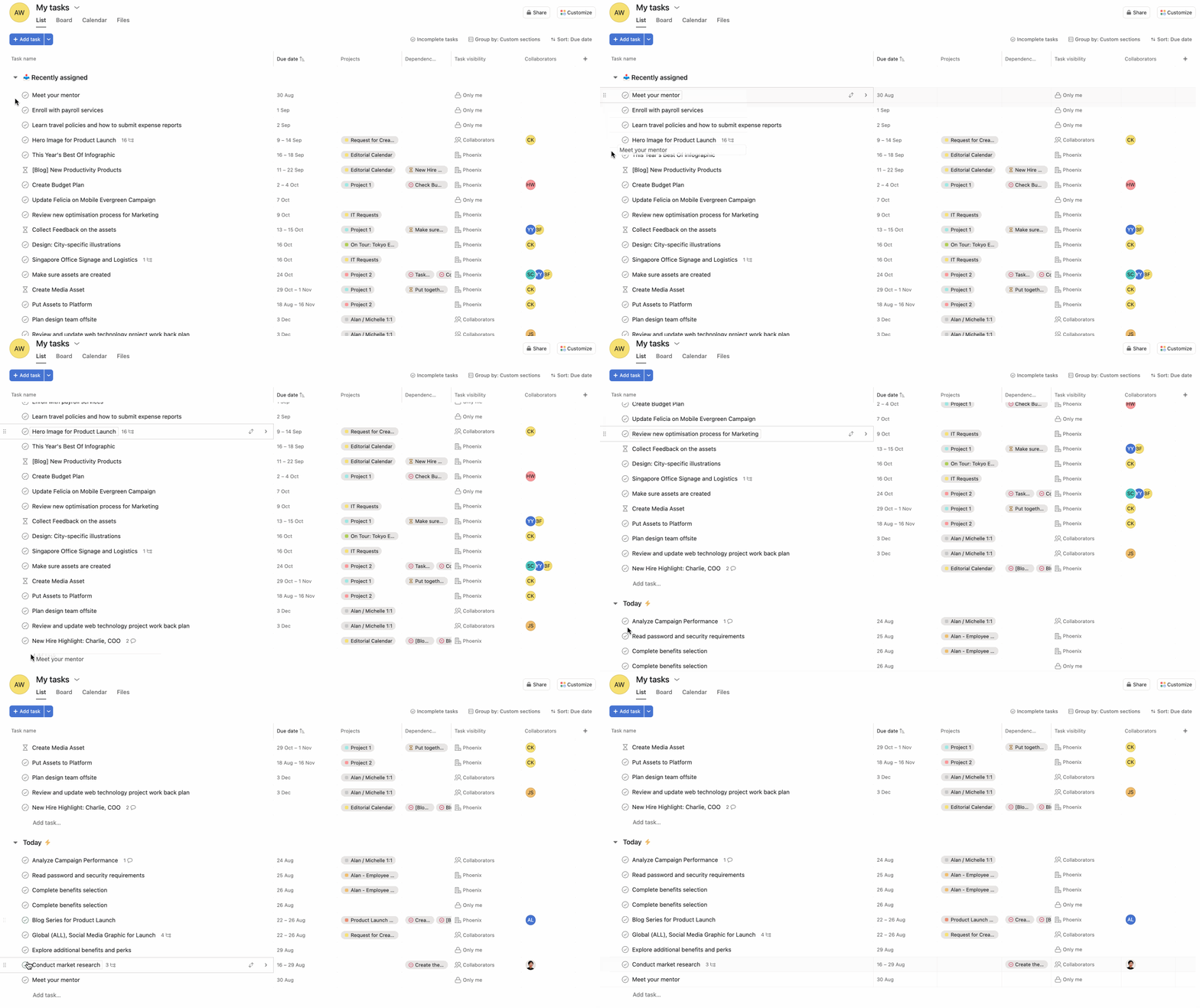
You can reorder your My tasks list using drag and drop, provided your task list is not sorted by due date.
The ability to integrate your most-used apps isn’t just limited to projects. You can add apps to your My tasks to integrate with the tools your team uses most.
To add an app to My tasks, click the Customize menu in the top-right corner of your My tasks page, and choose an app from the list. The app’s field will appear in each of the tasks in your My tasks, so you can seamlessly integrate the app into your workflow.
With My tasks membership, you can request and be granted access to manage someone else’s My tasks. You can also grant access to allow selected people to manage your My tasks.
This is useful for workflows where you need to sort, order or create sections for another person’s My tasks list or where you want selected individuals to do this for you.
If you visit another user’s My tasks, unless they’ve explicitly granted you access, you’ll see:
You won’t be able to reorder tasks, see sections, or create sections. You also cannot view or add custom fields.
Before you're granted access, you can only sort by Due Date and Project and after you've been granted access, you will be able to also sort by None and Likes.
Being granted access to a person’s My tasks will not affect the privacy of tasks. For example, if you couldn’t see a task before being granted access, you still won’t be able to see that task after being granted access.
 How to access another member's My tasks list view:
To request access to another member’s My tasks, navigate to their My tasks lists view, click the drop-down arrow, and select Request access to manage. Requesting access creates a task for the requested individual.

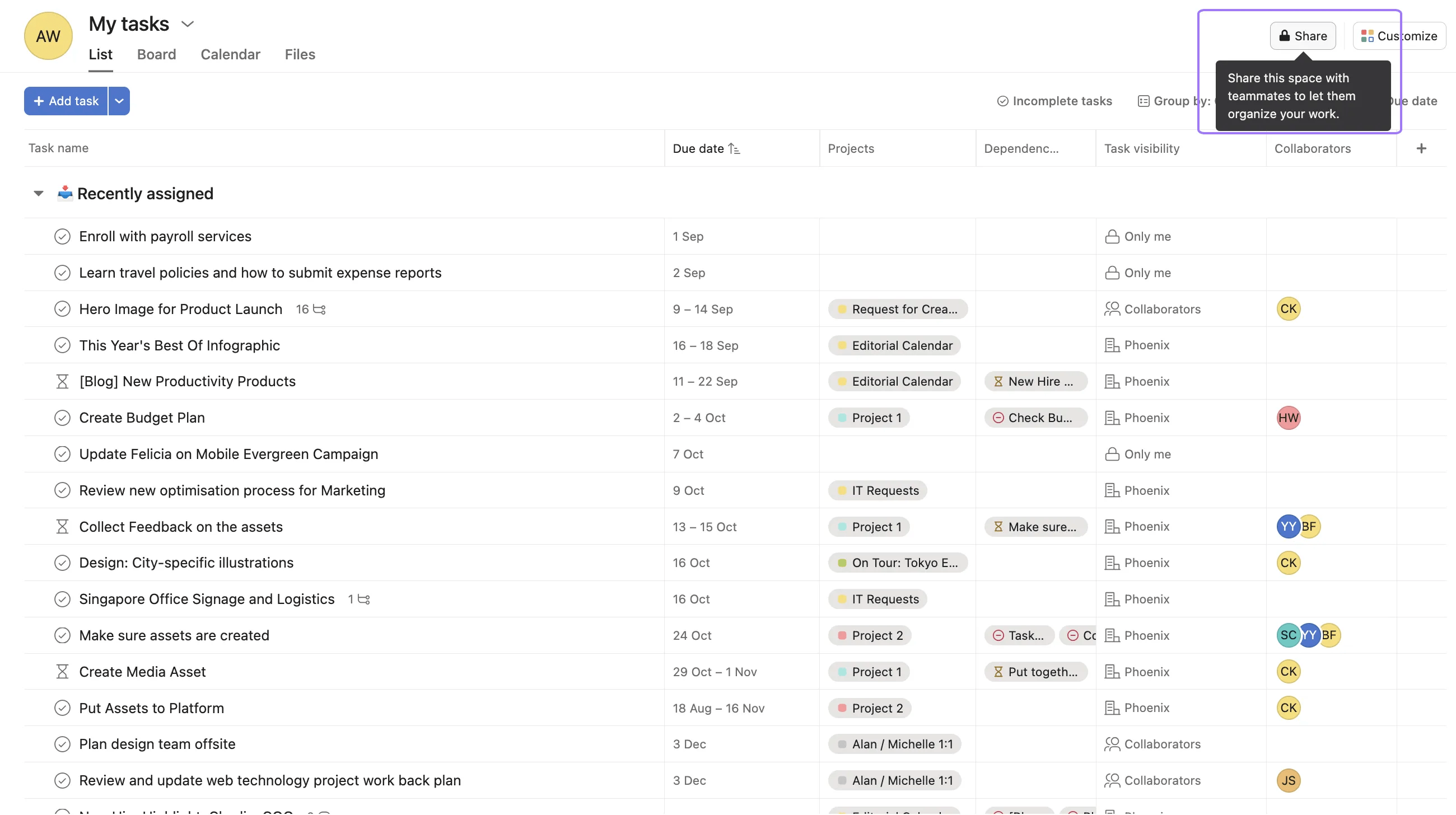
Granting access creates an inbox notification for the individual who has been granted access.
Want to learn more? Check out all the features of Asana My Tasks.
Want to organize My Tasks better? Ask the Community for tips and inspiration!

