Products


AI Platform


Asana Foundations
Company Type

Visit our pricing page for more information.
Available on Asana Starter, Advanced, Enterprise, and Enterprise+ tiers, as well as legacy tiers Premium, Business, and Legacy Enterprise.
Visit our pricing page for more information.
Task templates make it easy to standardize tasks in your project so you can use those templates to quickly set up the same tasks over and over again. This enables you to create repeatable workflows and saves time, as you don’t have to start from scratch every time you create the same task.
Note
Task templates are only available within projects. However, it is possible to duplicate tasks that are not part of a project.
Like what you see? Get started with a free Asana trial today.
Try for freeYou can set the task type on task templates, such that any task created from the template will also be of that task type.
Assignees can be set task templates to help in streamlining repeat workflows.
Task templates allow for you to set relative due dates. This means that instead of creating tasks that are always due on absolute dates (e.g. Jan 21st), task templates can be created in a a way that their associated resulting tasks have due dates set to any number of days in the future, relative to when the template is created.
Linking task templates to projects can streamline workflows by efficiently organizing templates related to specific initiatives and goals into either lists or boards.
Adding dependencies to task templates will allow for you to mark a task as waiting on another task. This will help teams with collaborative workflows to easily see which tasks they’re waiting on from others so that they know when to get started on their portion of work.
Subtasks must be added to task templates in order for dependencies to be enabled.
Tags give task templates additional context and also help to group and categorize similar tasks for easy viewing.
Adding attachments to task templates allows for you to attach creative briefs, images, documents, PDFs and more.
Editing an existing template
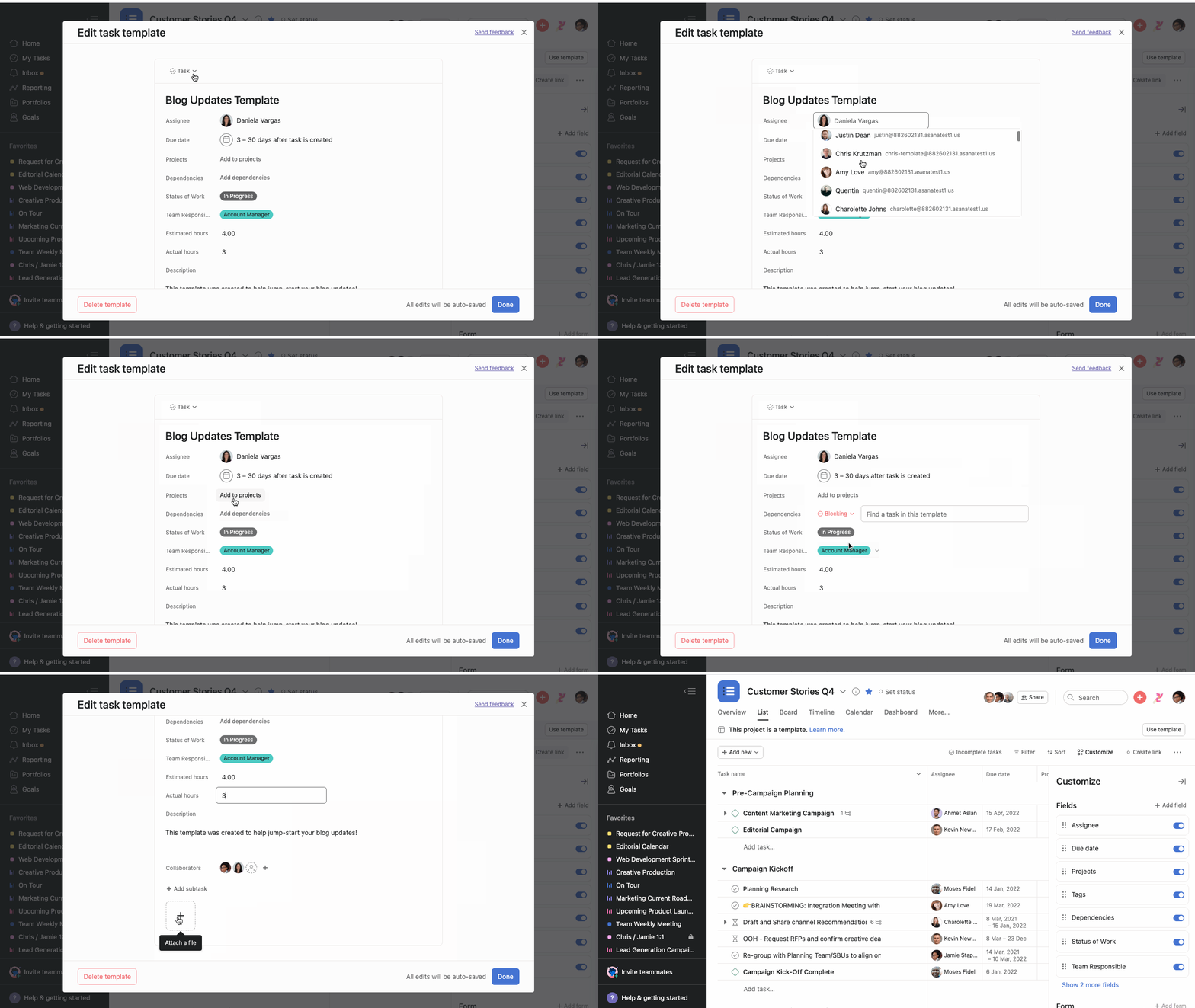
Once you have edited your template details, click Done to save it.
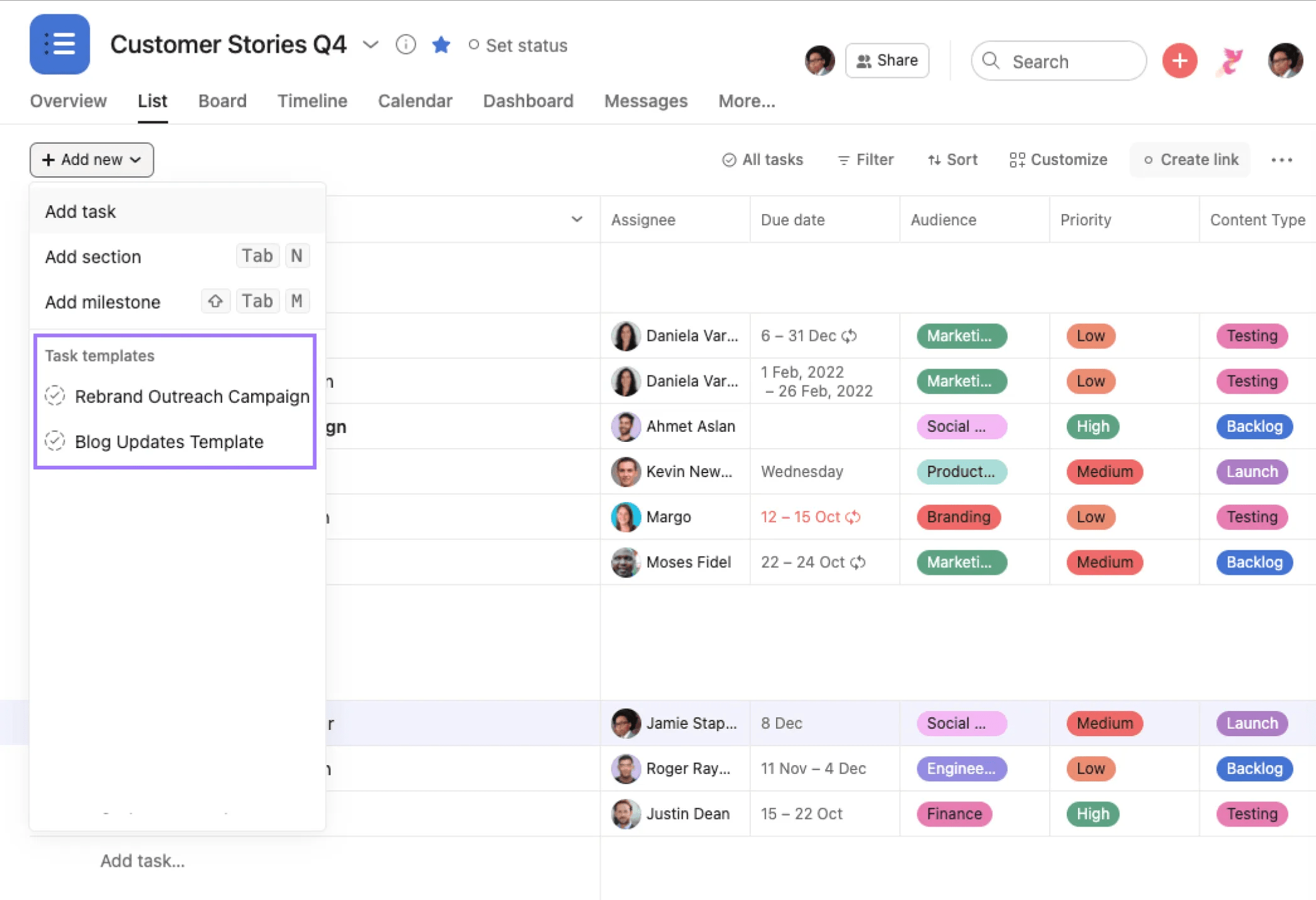
Templates can be used to create tasks using any of the add task entry points within your project. Task templates within a project can be viewed and accessed by clicking on the Add new dropdown or on the + button next to your section headers. This will display an additional dropdown menu with all project relevant task templates.
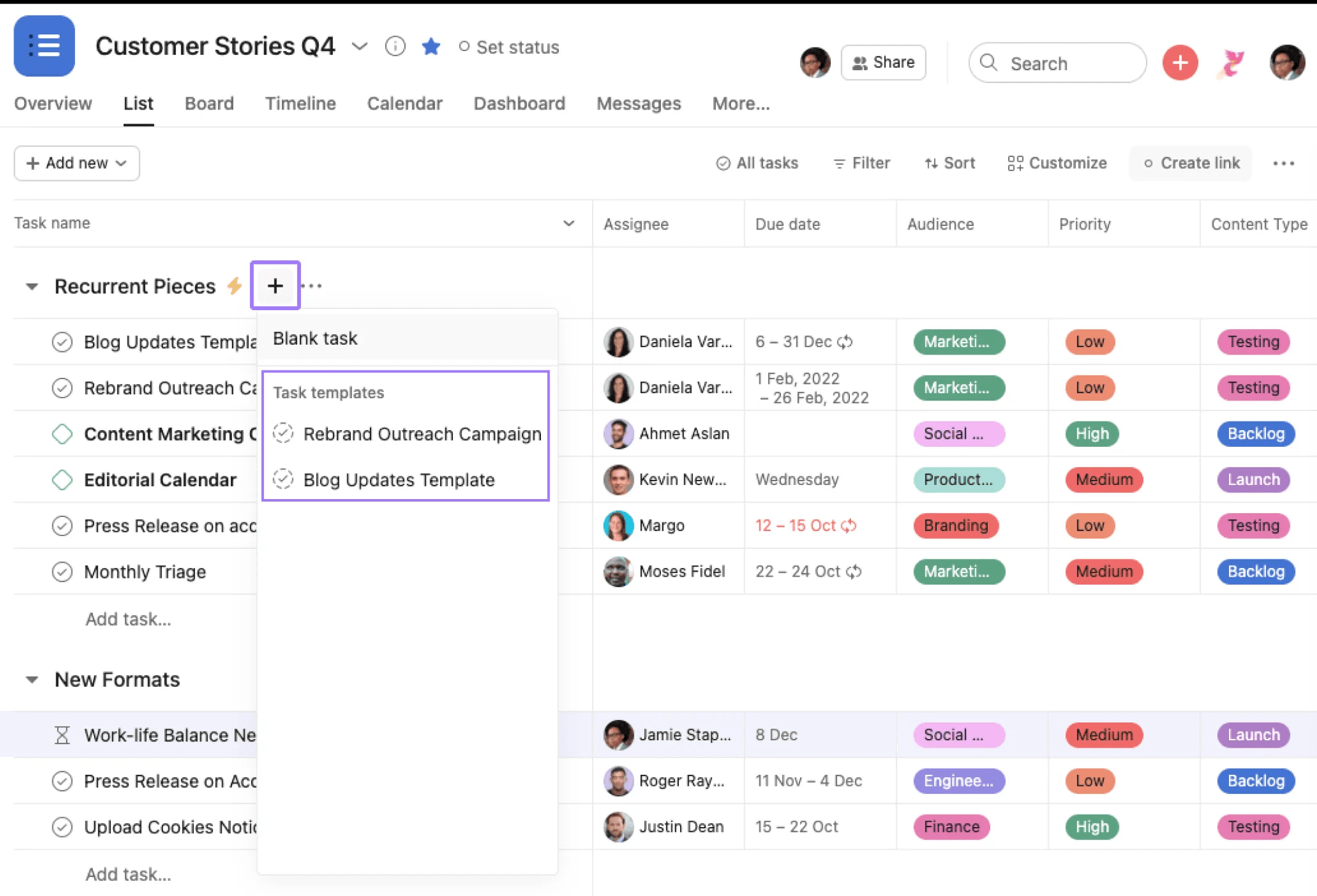
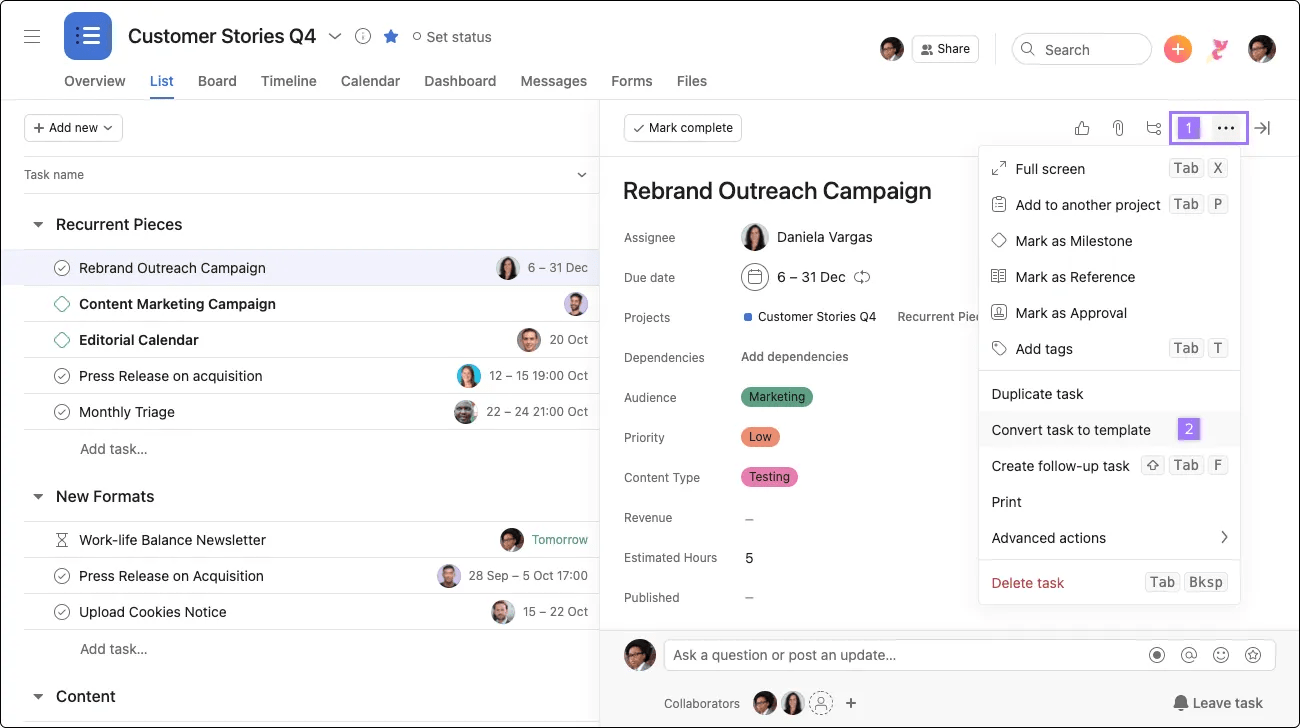
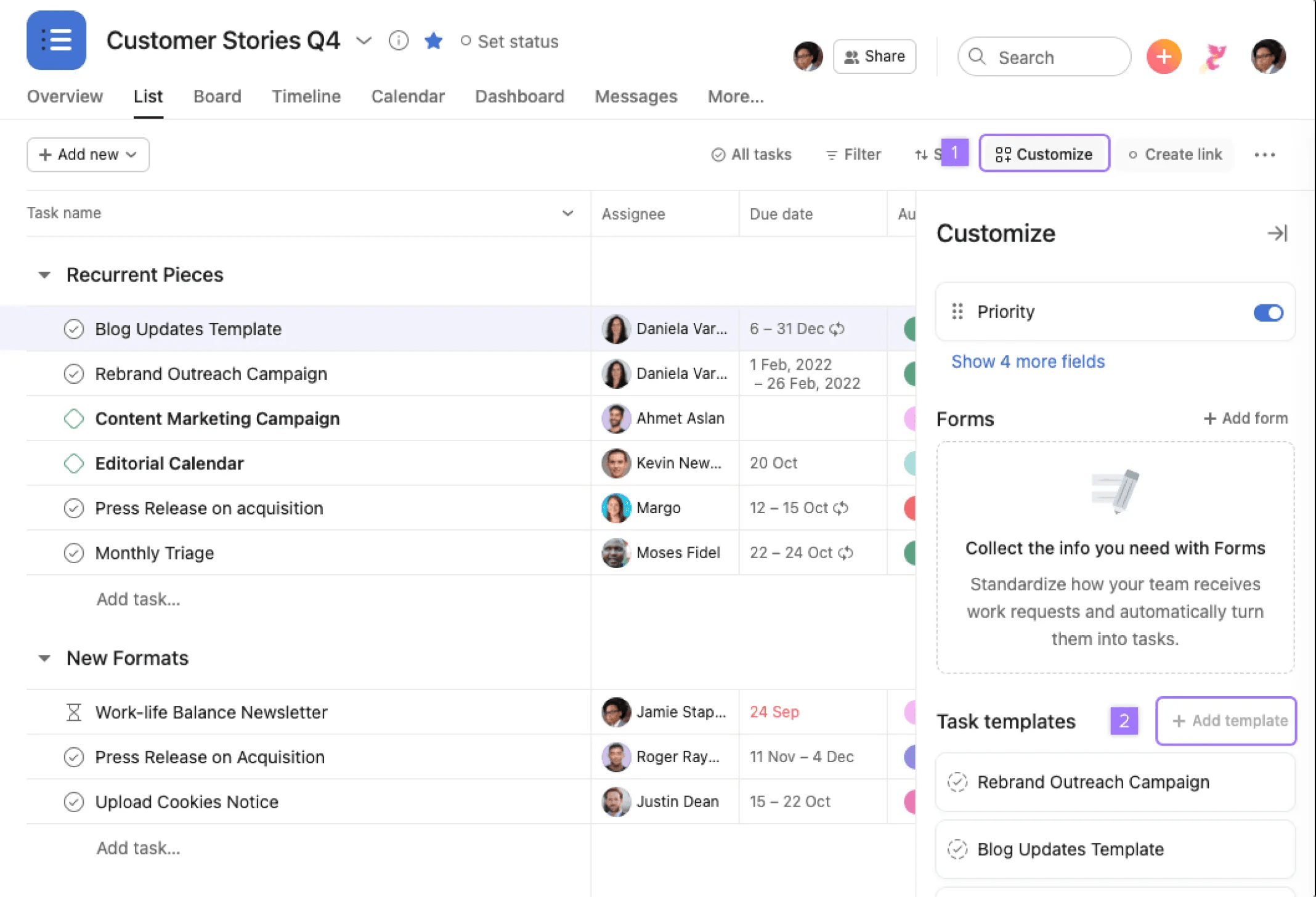
You can create a task template by clicking the three dot icon on an existing task and selecting "convert task to template," or by clicking the Customize button in your project toolbar and selecting "Add template."
Task templates are only available within projects, though you can duplicate individual tasks that are not part of a project.
Guests within an organization cannot edit or create task templates.
Check out forum tips for building better task templates.
Want to learn more? Check out all the features of Asana Project Task.

