Asana's Android app isn't just useful for keeping up to date with progress on the go. You can also create tasks and projects, edit their details, and even update project progress when you're away from your desk.
Related articles
Creating a task
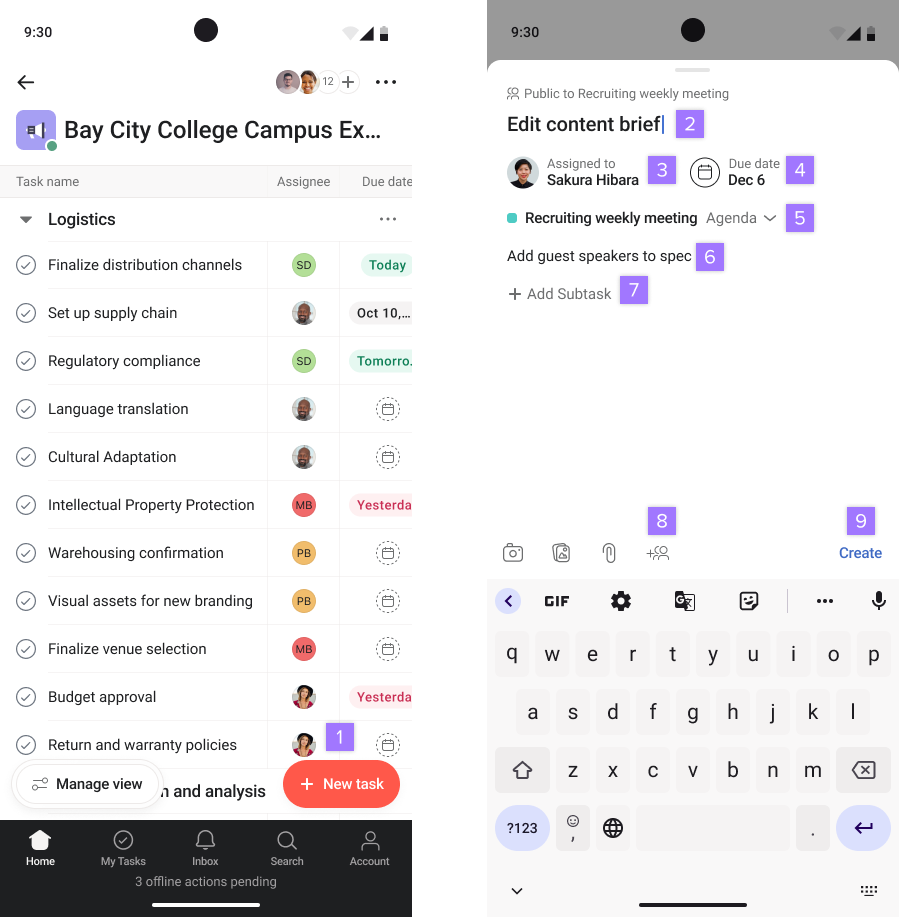
To create a task:
- Tap the New task button
- Add a task title
- Tap to add an assignee
- Add a due date
- Add your task to a project
- Add a description
- Add a subtask
- Tap to add collaborators
- Tap Create
 Note
Note
By default, tasks you create in My tasks will be private to you. Upon creating your task, privacy indicators will be visible, indicating if the task is private or public.
View or edit a task's details
Task editing lets you include all of the necessary information needed within your tasks such as custom fields, description, projects, subtasks, and attachments. Having all relevant information within your tasks allows you to trust that everything is in the right place.
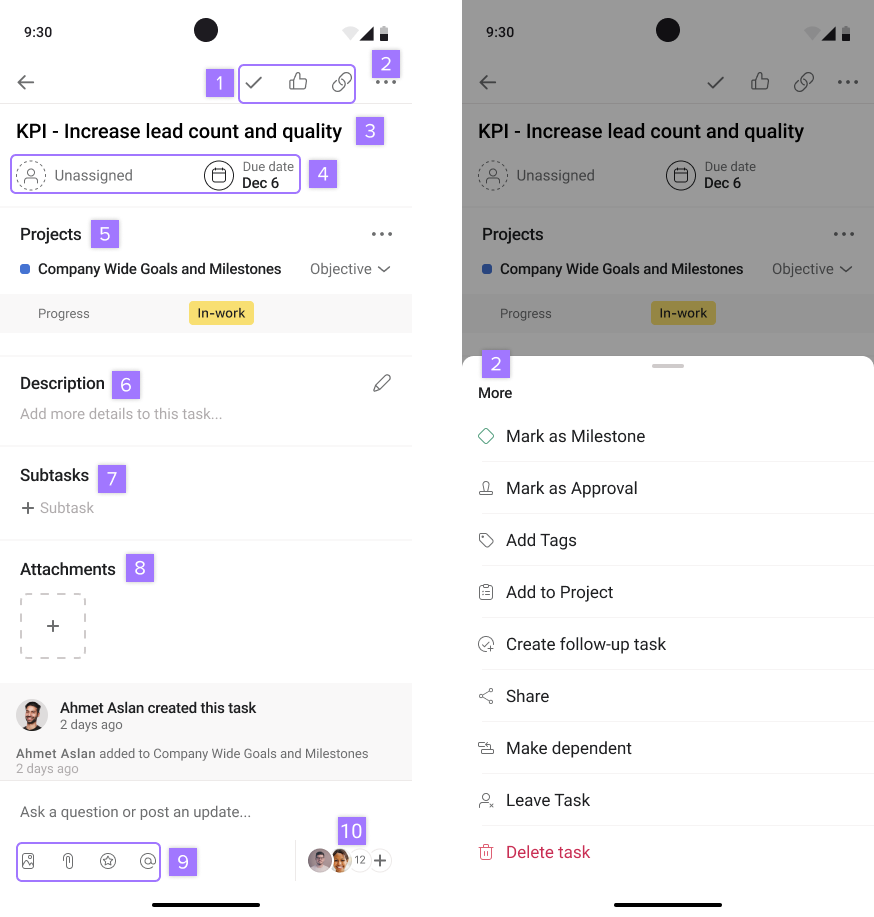
From the task edit details screen you can:
- Mark a task as complete, like a task or forward a task
- Tap the three dot icon to see more options
- Add a task title
- Edit the assignee or due date
- Multi-home the task to projects
- Add a task description
- Create subtasks within your task
- Add attachments
- Add an image, attachment, appreciation or link
- Add collaborators to your task
Sorting and filtering your tasks
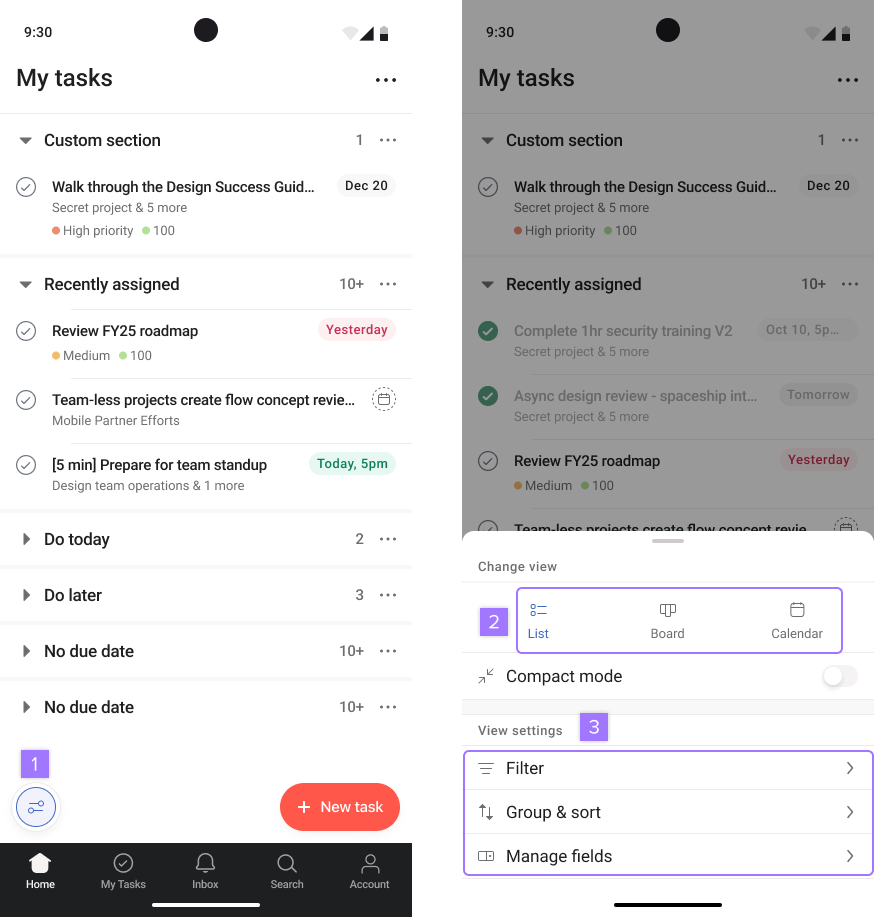
From your My tasks or projects, you can:
- Tap the Filter button
- Change your view
- Filter tasks and change the sorting option
Creating a project
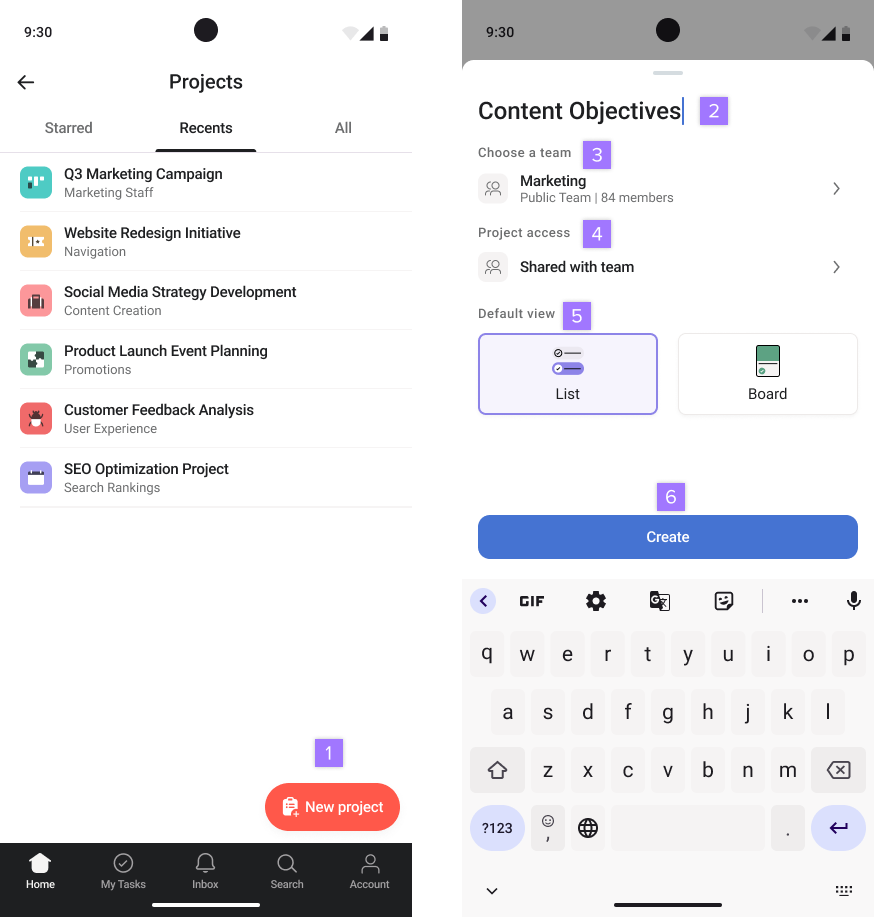
To create a project you can:
- Tap the + New project button
- Add a project name
- Choose a team
- Choose the project's access
- Choose the default view
- Tap Create
Edit a project
To edit a project:
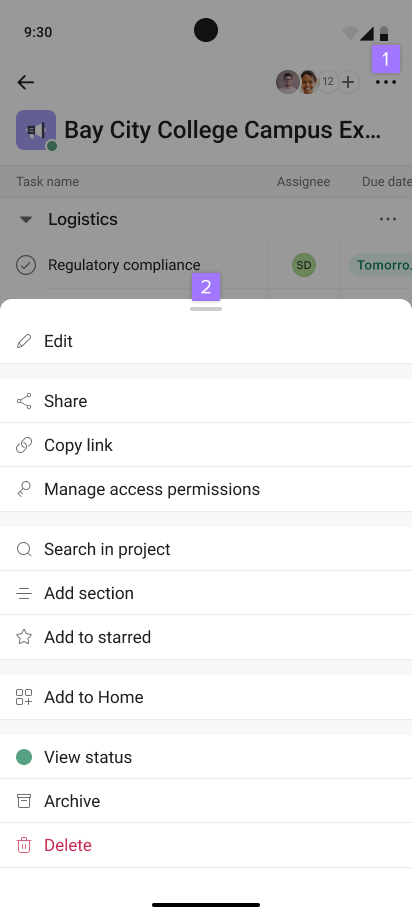
- Tap on the three dot icon
- From here you'll see a list of details you can edit
Updating your project status
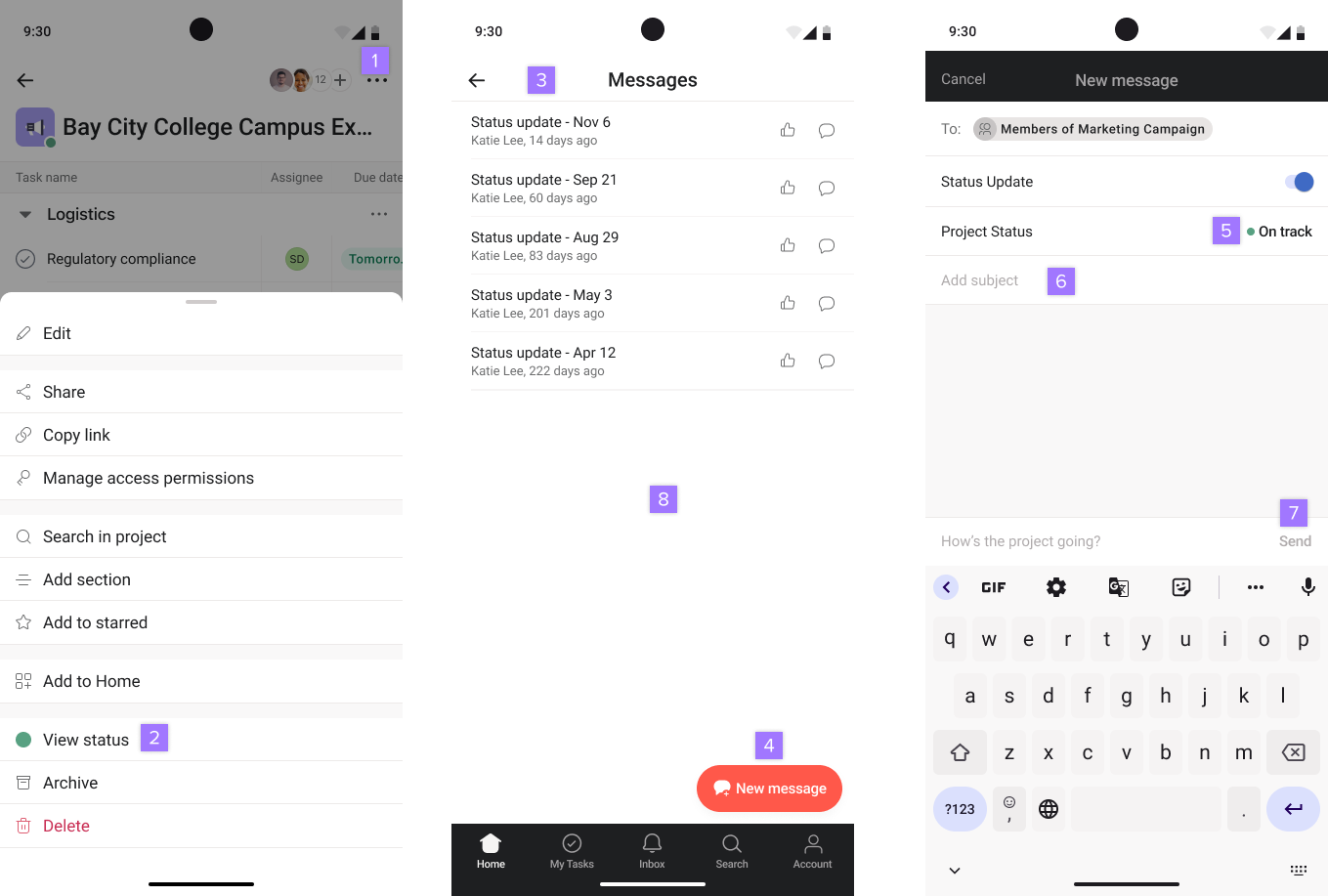
To update your project’s progress:
- Tap the three dot icon
- Tap View status
- From here, you'll see a list of previous status updates
- Tap New message, to create a new status update
- Choose whether your project is On Track, At Risk or Off Track
- Add a subject and a description
- Tap Send when your status update is ready to be shared
Project overview tab
The project overview tab allows you to track a project's progress easily from your Android device. By streamlining project information and key actions, the overview tab empowers you to stay productive and informed while on the go.
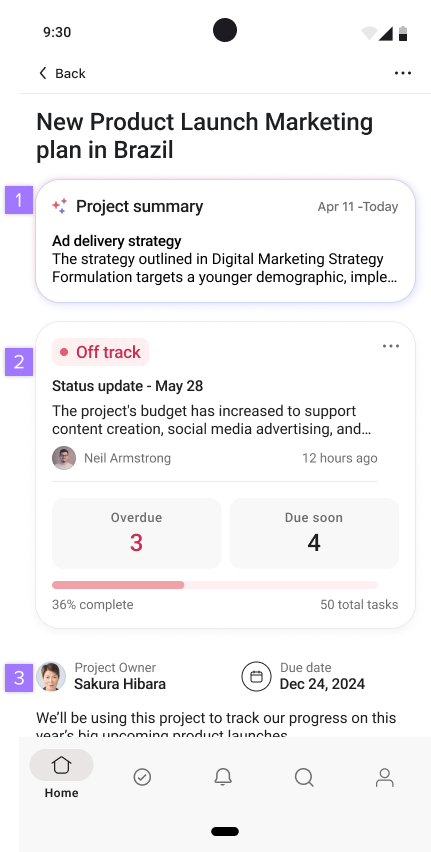
From the overview tab you can view:
- Project smart summaries
- Status updates
- Project owner and due date
Project smart summary
Project smart summaries on the Asana Android app provide a quick, high-level overview of progress on a project, making it easier for team leads and project managers to stay informed. Tap on the summary to read the full details.