Products


AI Platform


Asana Foundations
Company Type
No articles found for this topic.
No articles found for this topic.

Visit our pricing page for more information.
Take your work with you wherever you go with Asana's mobile app for iOS and Android. Whether you're commuting, traveling, or working from different locations, the mobile app keeps you connected to your team and helps you stay on top of your tasks.
This article features tips and best practices for getting started with our mobile app.
You can take action offline, and your changes will sync when you're back online.
Note
Create new tasks from anywhere with Asana’s mobile app. Delegate work right away by assigning tasks to your team, set due dates, and provide meaningful context in task descriptions all from your phone. You can easily attach files, documents, and images directly from your mobile device or from your cloud storage so that stakeholders have all the information they need to get work done.
On mobile you can still manage tasks in a sophisticated way through subtasks, milestones, and dependencies. Breaking down work into manageable subtasks is just as easy via the mobile app, as is setting milestones to track project progress and creating task dependencies to ensure work is coordinated.
Don't forget you can create tasks using voice input on iOS. Asana's iOS app can transcribe audio into text and create tasks with assignees and due dates based on what you say.
You can take action offline, and your changes will sync when you're back online.
Asana’s inbox keeps you updated on task, project, and team activities in real-time. Access it by tapping the Inbox icon on the bottom navigation bar.
Your inbox displays real-time updates across your Asana projects, including task assignments, due date changes, comments, and more. Each notification provides a snapshot of what’s new and lets you take quick actions such as marking notifications as read, liking a comment, or even replying directly within the inbox.
Inbox helps you stay organized on the go, making it easy to keep up with changes in your projects and tasks.
My Tasks is where you can view and manage all tasks assigned to you, helping you stay organized and focused on what needs to get done. Access My tasks by tapping the My tasks icon in the bottom navigation bar.
With My Tasks in the Asana mobile app, you can manage your workload seamlessly and ensure you’re always on top of your priorities, no matter where you are.
Kick off your work week more intentionally by setting a focus for the week. Capture your top priority for the week and see it displayed across mobile and web. Because this focus stays visible across platforms, setting a focus leads to better planning, actions, and outcomes.
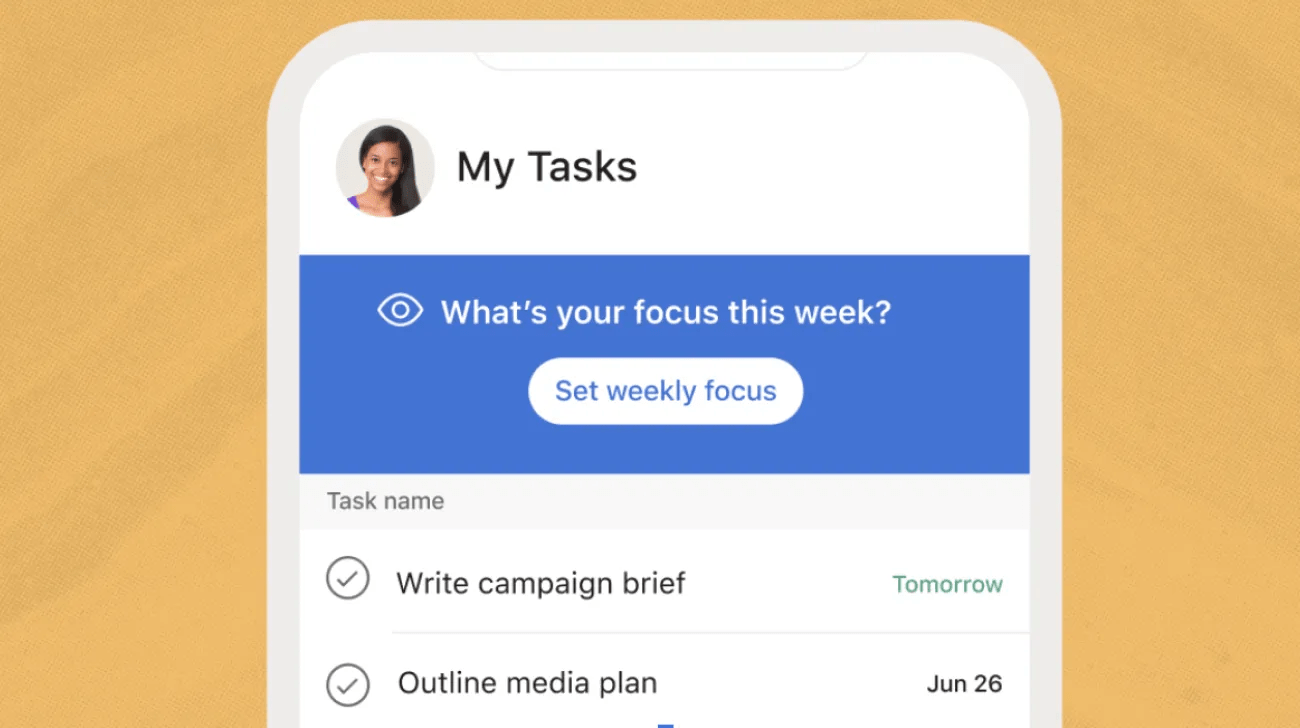
On Monday mornings, mobile users are prompted to set a weekly focus. Weekly focus set on mobile will appear on desktop and web versions of Asana also, but will not be editable there. Your weekly focus will appear at the top of your My tasks during the week to help guide your planning.

