Products


AI Platform


Asana Foundations
Company Type

Visit our pricing page for more information.
In this article, you'll learn how to access and modify your email notification preferences, ensuring that you stay informed about your tasks and projects without being overwhelmed by emails.
To stay informed on activity in Asana, you can receive email notifications or use your inbox.
There are different scenarios where you can choose to receive an email notification from Asana, each with their own granular settings.
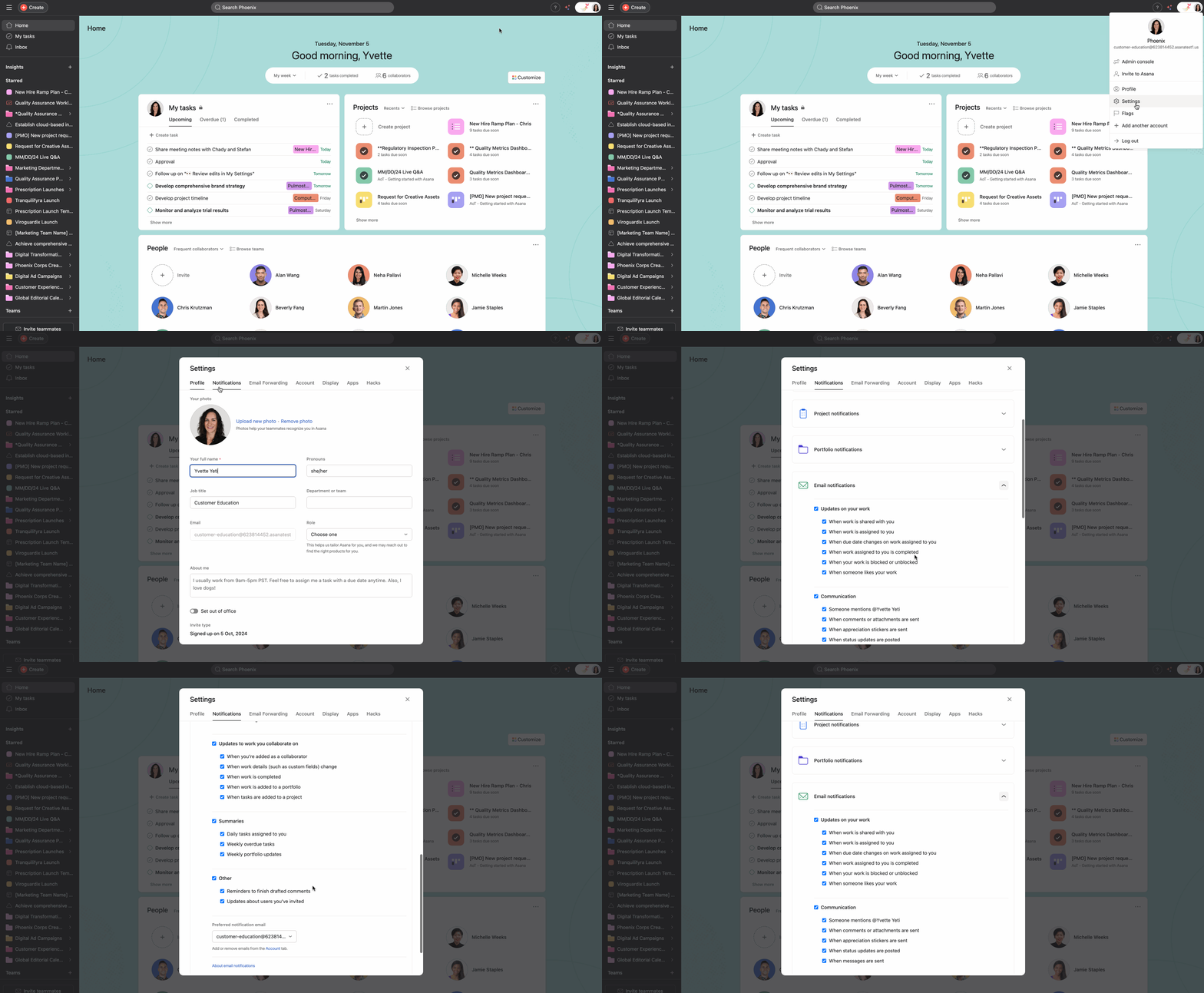
If you do not want email notifications, you can turn them off using the instructions in the section above and use your inbox exclusively to stay up to date in Asana.
To receive fewer notifications and minimize inbox noise:
Note
Notifications on deleted teams and deleted projects cannot be turned off as they contain links that allow you to recover them.
How to filter notifications:
Go to Inbox, where you can filter notifications by:
See how others manage Asana email notifications in the forum.
Granular email notification settings allow Asana users to customize the types of email notifications they receive according to their personal preferences and their workflow needs.
Toggle the relevant email notifications on or off using the checkbox beside the notification description.
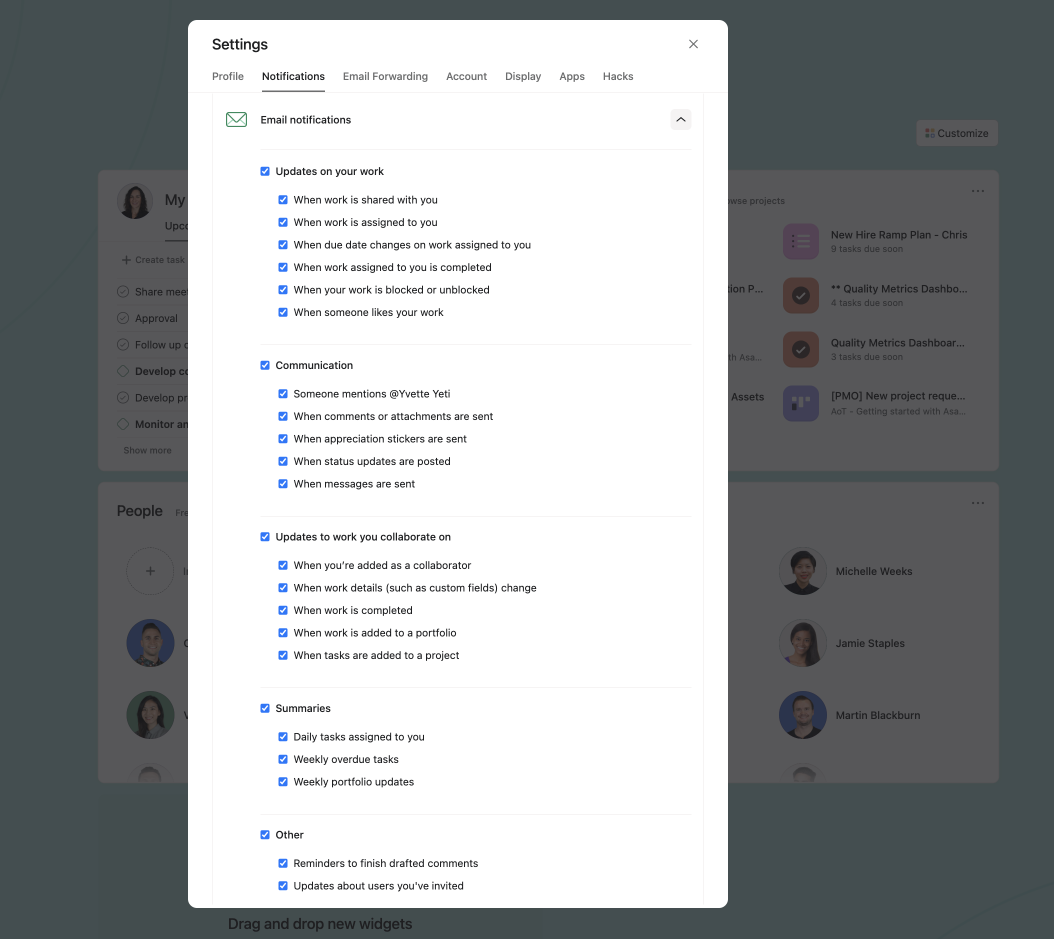
We will send out a clear daily update (Mon-Fri, excluding weekends) on what you need to focus on in Asana that day. This email will include any or all of the three applicable sections:
Tasks due soon: These are the tasks that are assigned to you that are due within the next 5 days.
Tasks recently assigned: This section will display tasks that were recently assigned to you, regardless of whether the task has a due date or not.
Tasks you've assigned to others: This section will display tasks that you have recently assigned to others, regardless of whether the task has a due date or not.
Overdue tasks will not appear in daily summary emails.
If you do not have tasks in one of these categories, this section will not appear in the email.

You will receive an email notification for the following activities:


Activity notifications are only sent out for actions and changes performed by others; you will not receive a notification for actions you perform yourself.
Collaborate or remove yourself as a collaborator on tasks and messages to start or stop receiving inbox notifications.
Inbox notifications generate automatically as you complete and take action on your tasks.
Reply to an email notification to:
These tips can be found at the bottom of your email notifications.
Do not save the reply-to address in your contacts list. It will change.
Weekly report emails are available on Asana Advanced, Enterprise, and Enterprise+ tiers, as well as legacy tiers Business and Legacy Enterprise.
We will send an email once a week containing project Status Updates in your portfolios.
You can receive a maximum of 20 weekly report emails per week.
When you have tasks that are past their due date, you will receive a weekly overdue tasks reminder to your inbox. These reminders are sent on a weekly basis.
If you're receiving multiple notifications within an hour of each other, Asana will batch them into a single email. Critical notifications like task assignments will always be sent individually, but updates around new tasks created or completed will be batched.

We wait 30 seconds before delivering email notifications (i.e., email notifications about non-batchable stories).
The 30 second threshold for receiving email notifications only applies for critical notifications. For example a task assigned to you is a critical notification. For less important notifications, the wait period is 60 minutes.
If you happen to archive those notifications within the 30 second interval, we will suppress those emails.
Different types of notification have different batching behaviors.
Batched means that notifications are collated in one single email to avoid clutter and un-batched means notifications are sent out separately for each individual update.
Asana users receive email notifications when comments or @mentions are being made to a task they are collaborating on.
All members of that project should receive email notifications when comments or @mentions are made.
For all project members to receive email notifications ensure that the project they are working out of has all the member's notifications boxes ticked in Member Settings.
If there is a project owner change or a member request in a project, project members will only receive custom field notifications if they are collaborating on a task, or following a task where the field value has been changed.
Like what you see? Get started with a free Asana trial today. Try for free.

