Tickets are the individual pieces of development work in Command by Asana. Each ticket holds the context your team needs to do the work: a description, an owner, attachments, and links to code, releases, and related tickets. A ticket can be assigned to a person or to a coding agent.
Related articles:
Create a ticket
Click Add ticket to open the ticket creation modal. The modal gives you one place to enter the details your team needs to understand and plan the work.
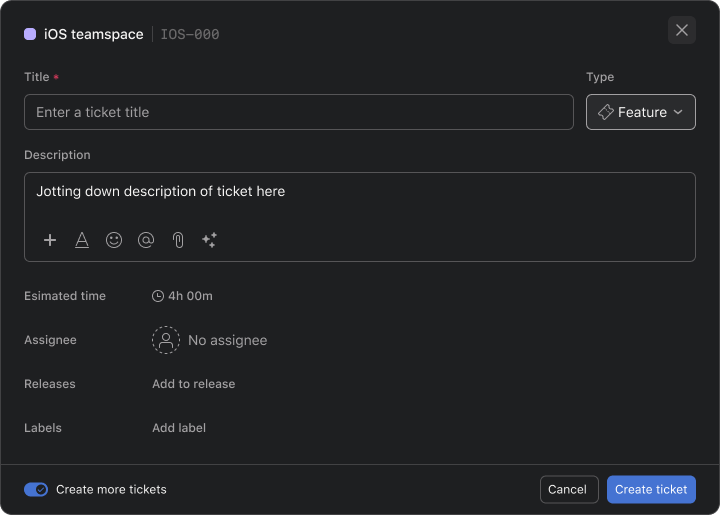
- Enter a short, descriptive name in Title. The title appears in teamspace and helps teammates find the work later.
- Add context in Description. Include the problem, requested change, or other details that will help the person working on the ticket understand the goal.
- Select Bug, Feature, or Task from Type. The selected type indicates what kind of work the ticket represents.
- Choose a person in Assignee to make ownership clear. The selected assignee can use the ticket details to understand the work and take action.
- Add one or more values in Labels to organize the ticket. Labels help your team group related work and find tickets with shared characteristics.
- Select a release in Releases to connect the ticket to a planned delivery. The ticket then appears with the other work associated with that release.
- Add supporting files in Attachments. Attached files remain available from the ticket so teammates can review relevant designs, logs, or other reference material.
- Click Add ticket to create the ticket. The ticket is added to Command with the details you provided.
Create several tickets in a row
To add a batch of tickets without reopening the form, select Create more tickets before you select Add ticket. After each ticket is created, the form clears and stays open for the next one.
Track ticket progress
Each ticket has a status that shows where the work stands:
- Not started: planned but not picked up yet.
- In progress: someone is working on it.
- In review: the work is done and in code review.
- Completed: the work is done.
Each ticket also shows its time in its current status. Tickets that stay in a status much longer than usual are highlighted, so your team can spot stuck work.
For tickets in your plan, Command also shows a forecast of when the ticket is likely to be done. Learn more in Understanding forecasts in Command.
Work on a ticket
Open a ticket to see its details, files, and progress. From the ticket, you can:
- Review code activity. If your Teamspace is connected to GitHub, linked branches and pull requests appear on the ticket, along with code changes and review time. Learn more in Command GitHub integration.
- Start a coding agent. Hand the ticket to a coding agent, follow its session, and continue the conversation with it. Learn more in Coding agents in Command by Asana.
- Add dependencies. Mark a ticket as Blocked by another ticket when it depends on that work, or as Blocking when other work depends on it.
- Discuss the work. Leave comments to discuss the ticket with teammates.
- Review history. Open the Activity tab to see every change made to the ticket.
As the work changes, you can update the title, description, assignee, labels, releases, and attachments at any time.
Organize and prioritize tickets
- Set priority: Drag tickets up or down in your Teamspace to set their priority. Command uses this order to plan cycles and calculate forecasts. Learn more in Understanding cycles in Command.
- Group work: Add labels and releases to group related tickets. In a ticket's metadata popover, press R to add or remove a release. Learn more in Working with releases and labels in Command.
- Update tickets in bulk: Select several tickets to change their labels or releases at once.




