Products


AI Platform


Asana Foundations
Company Type

Visit our pricing page for more information.
Asana accounts are free and are tied to individual users. Asana accounts grant access to shared workspaces and organizations to enable collaboration with other Asana users.
With a single Asana account, you can create or join multiple workspaces and organizations to collaborate with various groups of Asana users. The spaces you belong to are their own separate entities, each with their own unique set of people, projects, and tasks.
Explore Asana's paid features for free. Get started with a free Asana trial today.
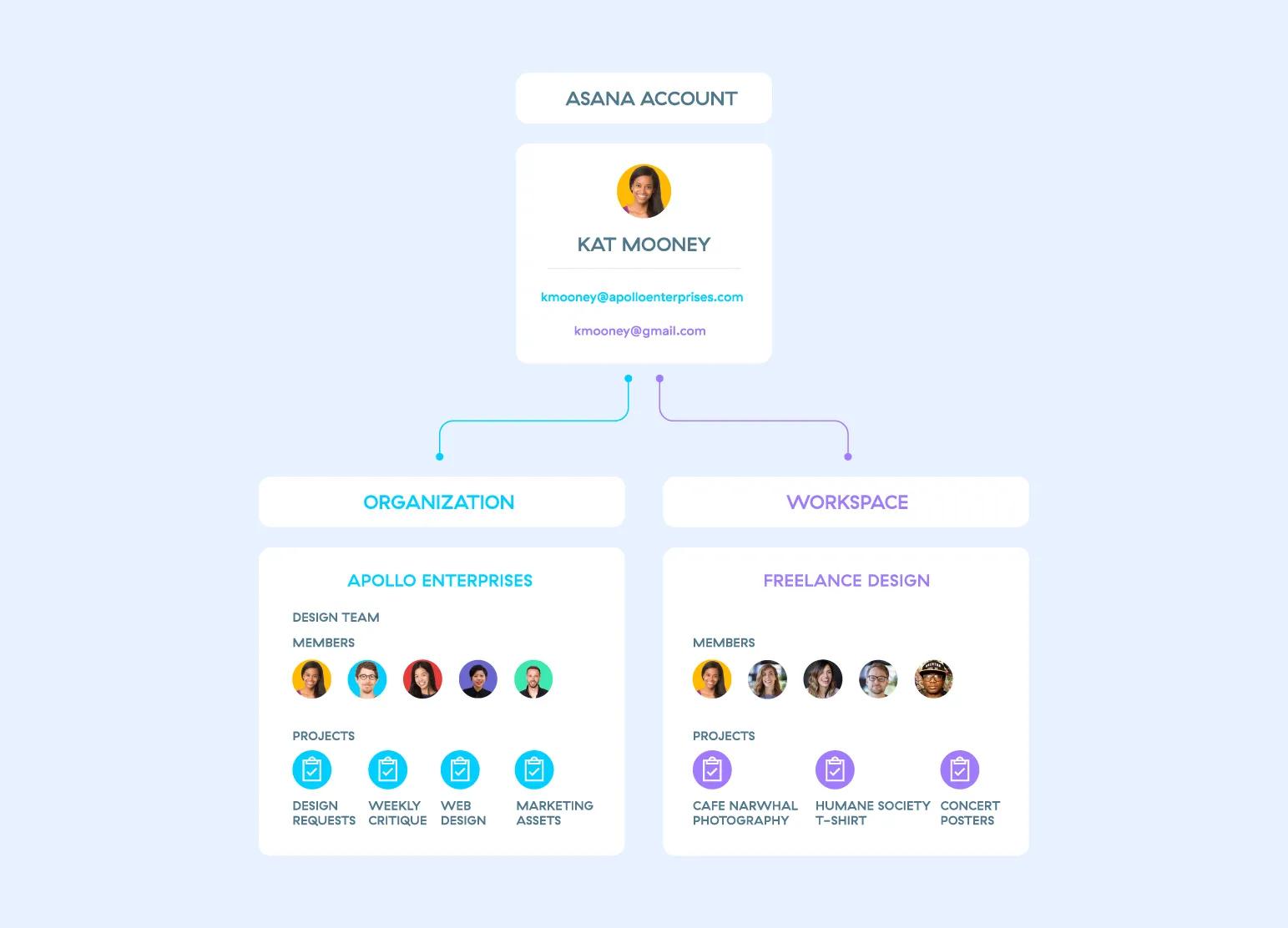
Since each workspace and organization are their own separate entities, your colleagues cannot see the other spaces you belong to, nor can you see the other spaces your colleagues may belong to. Learn more about privacy between these spaces.
Note
You can sign up for Asana yourself, or you can accept an invitation to join. Creating an Asana account is free.
We'll ask for your name and email address when you sign up. You can add other email addresses to your account later. Use your work email if you want to belong to your company's Asana organization. If you sign up with your work email and there is an existing organization set up under this corporate domain, you can then request to join the teams within the organization.
You don't need to maintain multiple accounts. You can join, create, or leave any number of organizations or workspaces from a single account.
To create an account for yourself, visit https://asana.com and select Get Started.
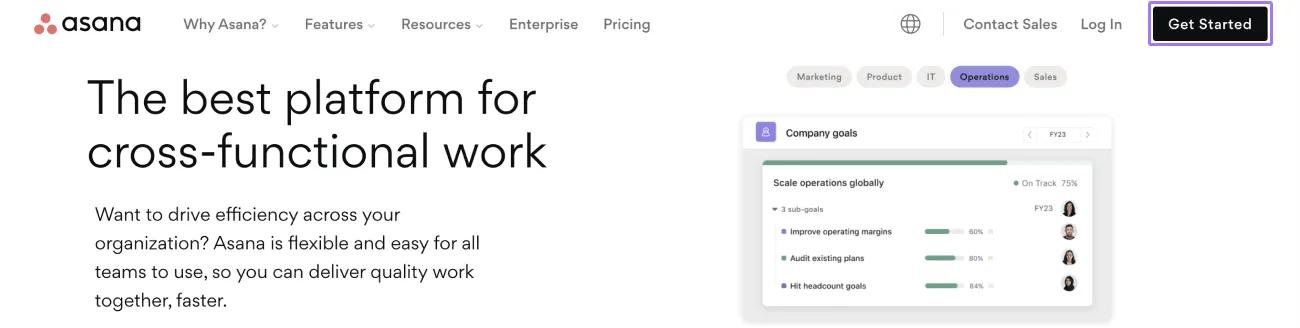
You can choose to sign up:
If you choose to sign up with your Google account:
When you receive an invitation:
Uploading a profile photo is optional. You can always do so later from your settings.
To log in to Asana, visit https://app.asana.com/ or https://asana.com. You may wish to bookmark one of these.
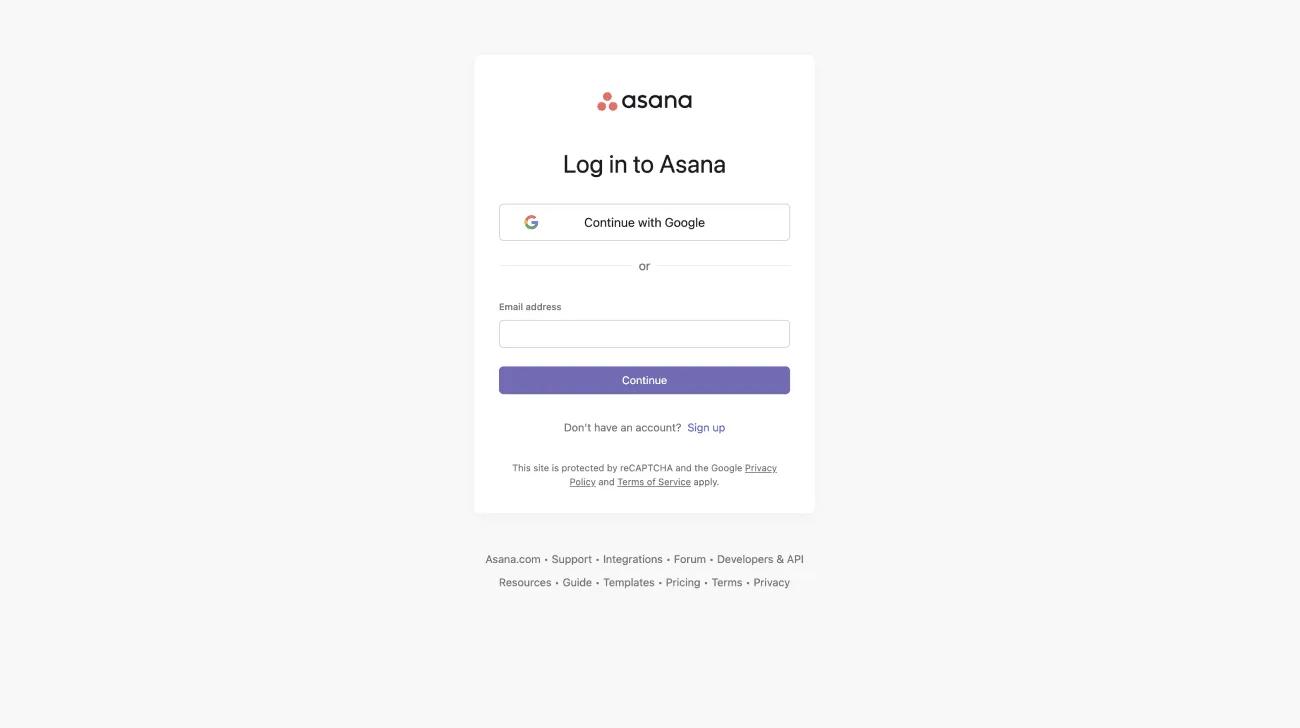
If you currently log into your account via Google and want to switch to a logging in via password, you can request a password reset link.
Available on Asana Enterprise and Enterprise+ tiers, and legacy tier Legacy Enterprise.
If your organization has SAML enabled, a password isn't required to log into your account. Your account will be authenticated with just your email address.
To log into your account with SAML enabled:
Alternatively, users in SAML-enabled organizations can also log into their accounts using a custom URL. Just add your company's email domain at the end of the URL, https://app.asana.com/a/ to access your custom login portal.
For example, members of the acme.com organization can log into their accounts from https://app.asana.com/a/acme.com
Members of organizations with SAML requirements must log into their account using their SAML related email address, regardless of how many email addresses they have on their account.
Users should get an email to notify them that we have noticed a new login to their account. This is a security feature recognising we detect login activity.
This email will go out to users when they:
This applies to logins with username and password, Google SAML-based single sign-on (SSO) authentication.
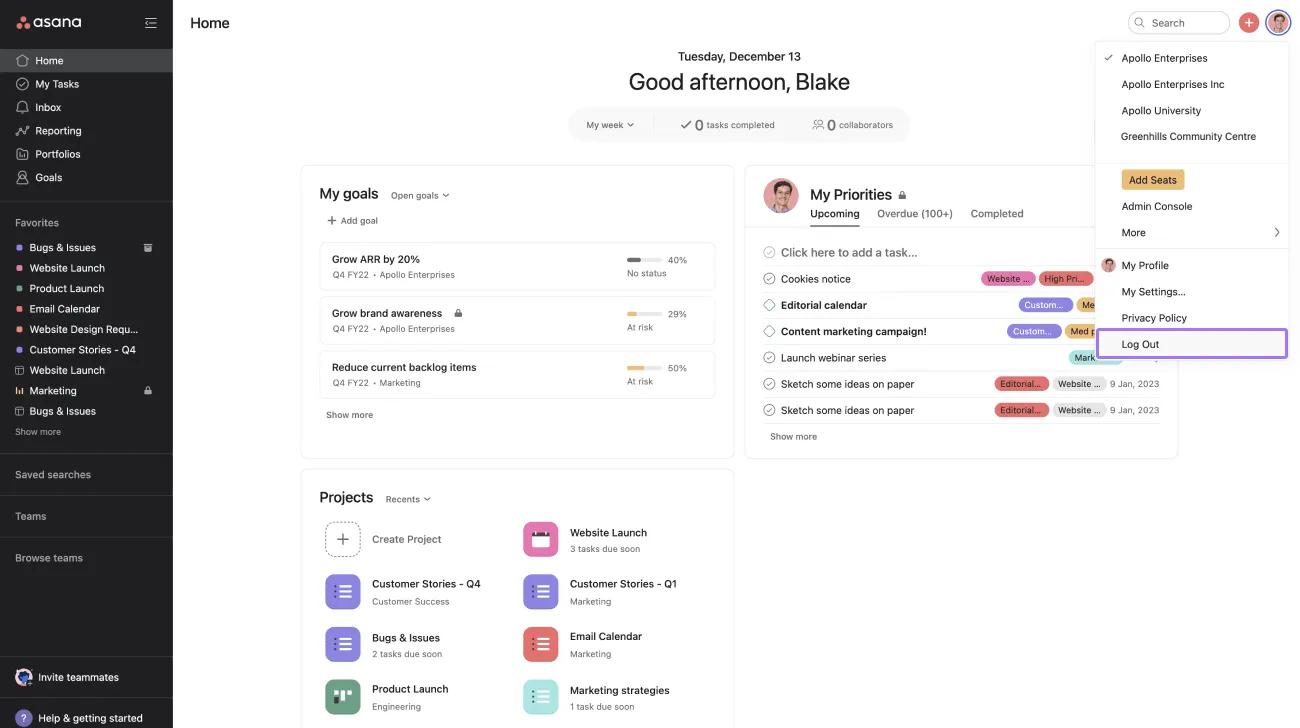
When you log out from Asana, you will be logged out from all active sessions including mobile sessions.
You create your Asana password when you sign up. If you signed up with your Google account, you do not have an Asana password, but you can make one by using the Forgot your password? link.
If you forgot your password or want to change it, you can reset your password from the login page.
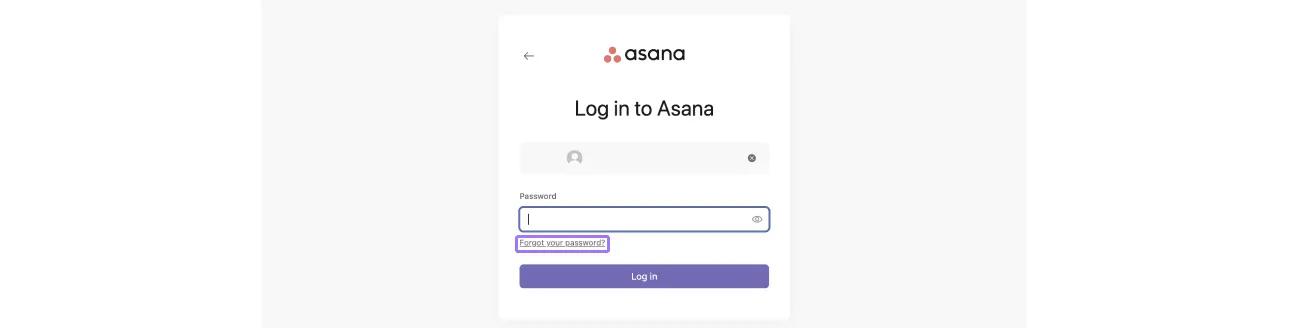
Click the Forgot your password? link from the login page and follow the prompt in the next page
Check your email's inbox for a password reset email.
Organization members with multiple email addresses on their account, will receive the password reset link to the email address associated to your organization's domain.

