Products


AI Platform


Asana Foundations
Company Type

Visit our pricing page for more information.
Smart chat is available on Asana Starter, Advanced, Enterprise, and Enterprise+ tiers.
Smart chat helps you quickly find information, gain insights, and even take action to move work forward. With smart chat, you can ask detailed questions about tasks, projects, and goals. You can get accurate answers pulled from across your Asana organization, and quickly create and update tasks. Smart chat can also provide guidance on Asana's features by referencing articles from the Asana Help Center.
To get started, open the smart chat interface by clicking the stardust icon in the top-right of your Asana window, right next to your profile photo. Next, select one of the suggested questions or simply type your question in plain language, there's no need for complex prompts or previous experience with LLMs.
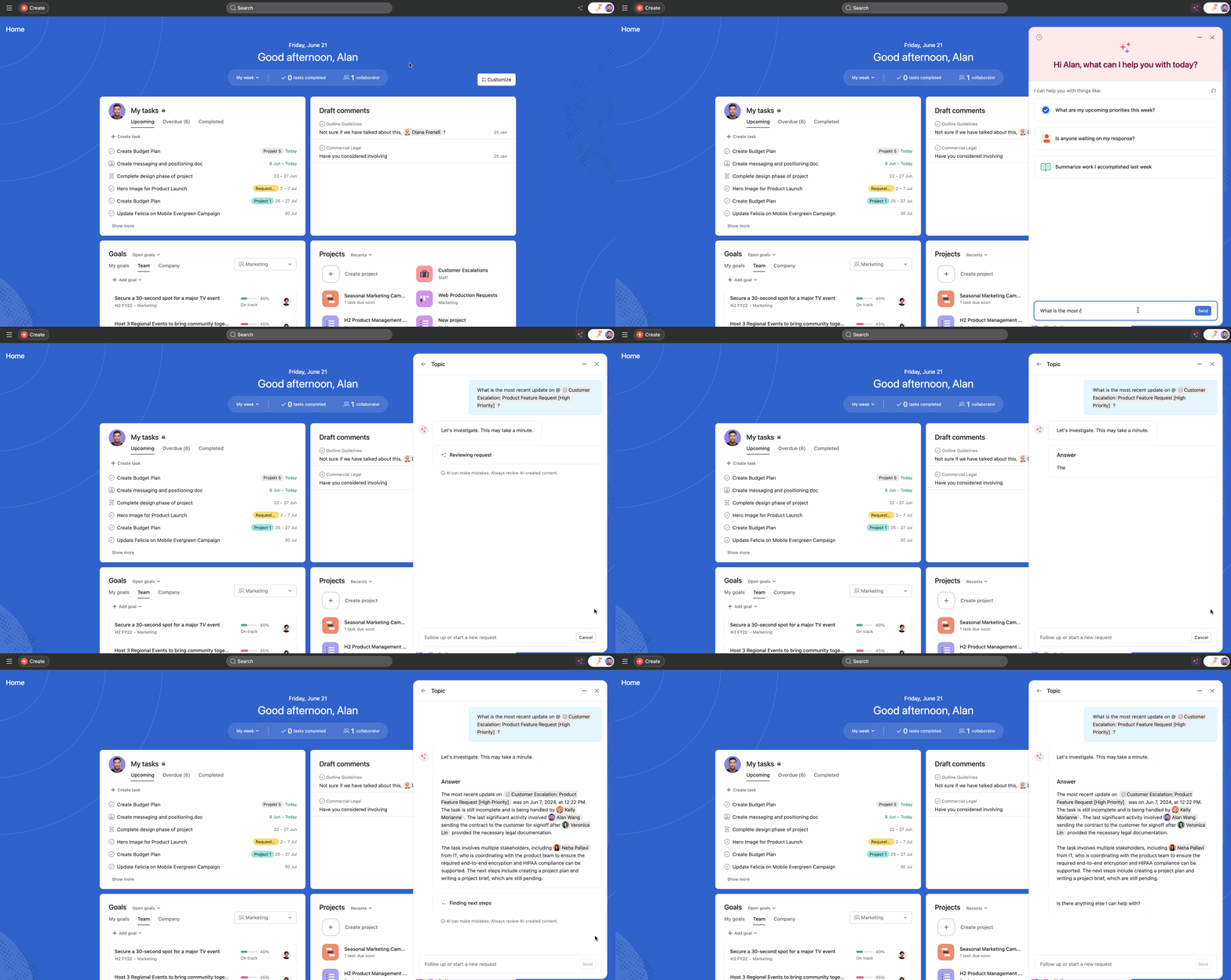
To get the most relevant and actionable responses from smart chat, keep the following in mind:
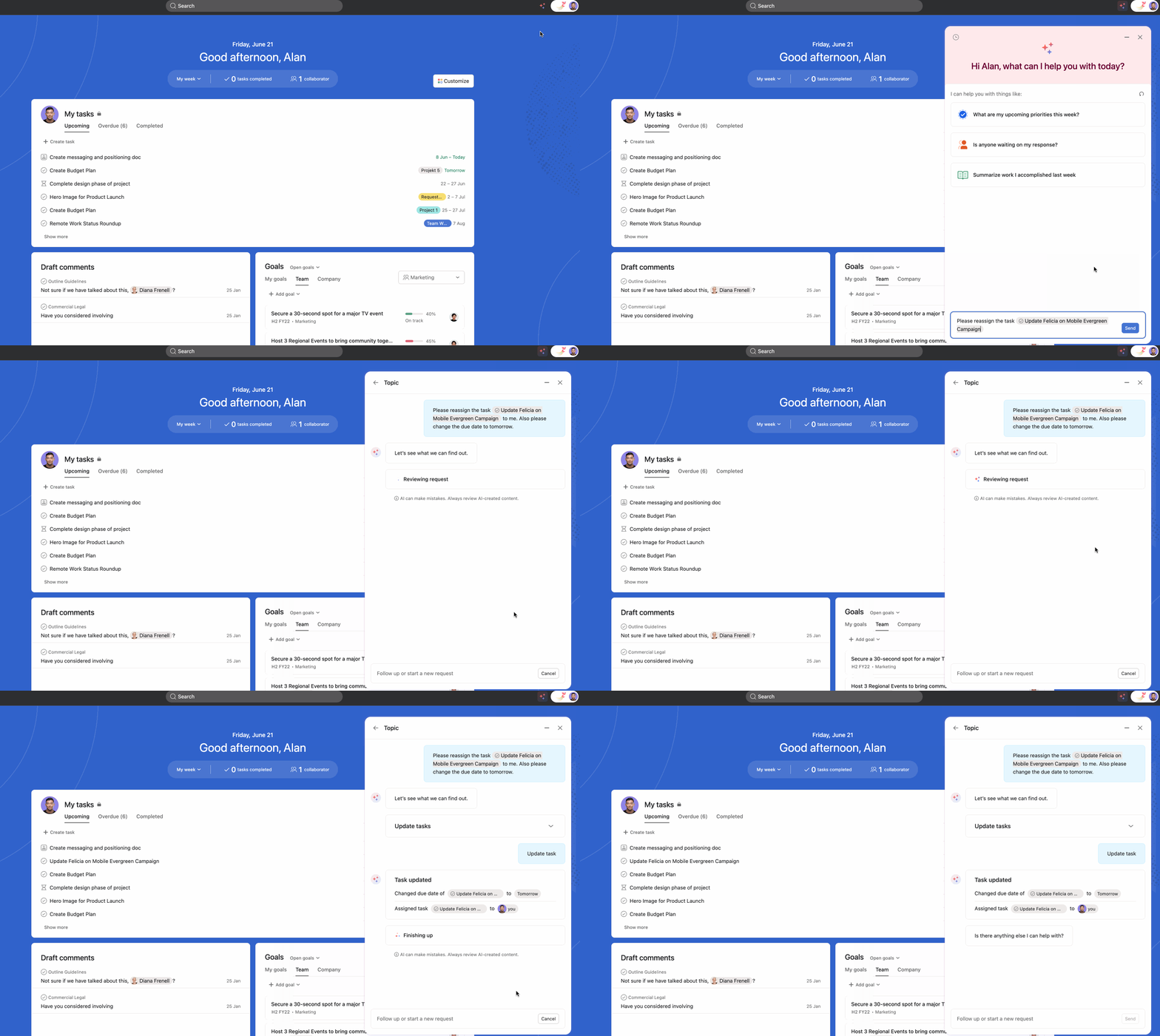
For instance, you could say: "Please create a task for @Max Mustermann to review the latest designs, due next Friday", or "Change the assignee of the @Edit budget overview task to @Joe Bloggs". This allows you to capture action items and update progress without navigating away from your chat.
You can upload files and link third-party attachments directly to smart chat. This streamlines your workflow by allowing you to provide context through documents, spreadsheets, images, and other files when working with Asana's AI features. Whether you're creating action items from meeting notes, importing tasks from a CSV, or generating a project from a creative brief, you can attach the relevant files to ensure AI has the full context it needs.
Too broad:
Specific and effective:
Smart chat is particularly useful for questions that would otherwise require multiple clicks or filters to answer, such as:
The more precise your input, the more smart chat can tailor its analysis to your needs. With practice, you'll quickly learn how to leverage your new AI assistant to work smarter and faster.
You can ask about any topic related to work in your organization. See the below examples for some ideas.
Smart chat can answer questions about projects and tasks in Asana, from high-level overviews to more complex or nuanced questions.
Note
You can ask about “this project” or “this task” on projects and tasks you’re currently viewing, otherwise remember to @mention the specific object you’re interested in.
Examples:
Smart chat is great at helping you manage and prioritize work assigned to you. Catch up on unread conversations, find and update overdue tasks assigned to you, get an overview of recently assigned tasks, and get a rundown of upcoming tasks.
Examples:
You can ask questions about using Asana, and smart chat will quickly provide answers along with links to additional resources in the Asana Help Center for further learning. Try asking questions like:
To view past topics, open up smart chat and click on the clock icon in the upper left corner. All your previously asked questions will be displayed sorted by the time they were last modified.
Smart chat is available on Asana Starter, Advanced, Enterprise, and Enterprise+ plans. Admins can enable it in the admin console by toggling on both "Asana AI - Anthropic" and "Asana AI - OpenAI". Once activated, it can be accessed by all users in the organization via the stardust icon. Smart chat is not available to users with view only licenses. If your organization enables Asana AI, smart chat appears only for members with eligible licenses.
Visit our article on Asana AI features and admin controls for more information.

