Now that you’ve created a few tasks and projects, it’s time to start collaborating with your team and get the most out of Asana. In this article, you’ll learn how to invite others to Asana and best practices to set your team up for success.
Related articles
Understanding team member types
Before sending invitations, it's helpful to understand the difference between organization members and guest users:
- Organization members are people within your business who can create and join teams, access projects, and complete tasks across your organization
- Guests are people from outside your business who can only access what you specifically share with them
 Note
Note
Invited users do not count toward your paid seat count until they accept the invitation and activate their account. Guests do not count toward your paid seat count regardless of invitation status.
Proposing the value of Asana
Here are some of the benefits of using Asana that you can share with your team:
- Asana enables real-time collaboration with team members, ensuring seamless teamwork and timely completion of tasks.
- It helps manage individual work and boosts personal productivity by improving organization and time management.
- Each task has a single owner and a due date, making it clear who is responsible for its completion and providing a timeline for when the work is expected to be finished.
- Asana allows you to share project progress, updates, and key metrics with your manager or stakeholders, ensuring that everyone is informed and aligned on the status of the work.
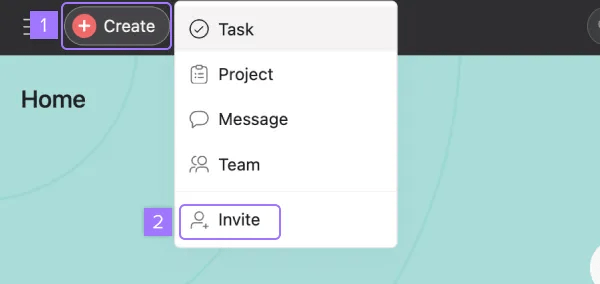
The fastest way to invite team members is through Asana's Create button:
- Click the Create button (plus icon)
- Select Invite from the dropdown menu
- Choose your invitation method:
- Invite with email: Enter your teammate's email address and click "Send"
- Invite with link: Copy the invitation link to share directly
Note
To invite with email, select a team and a project you want to add them to. To invite with a link, select a team you want to add them to.
Invite from team pages
This method is particularly useful when you need to assign new members to specific teams.
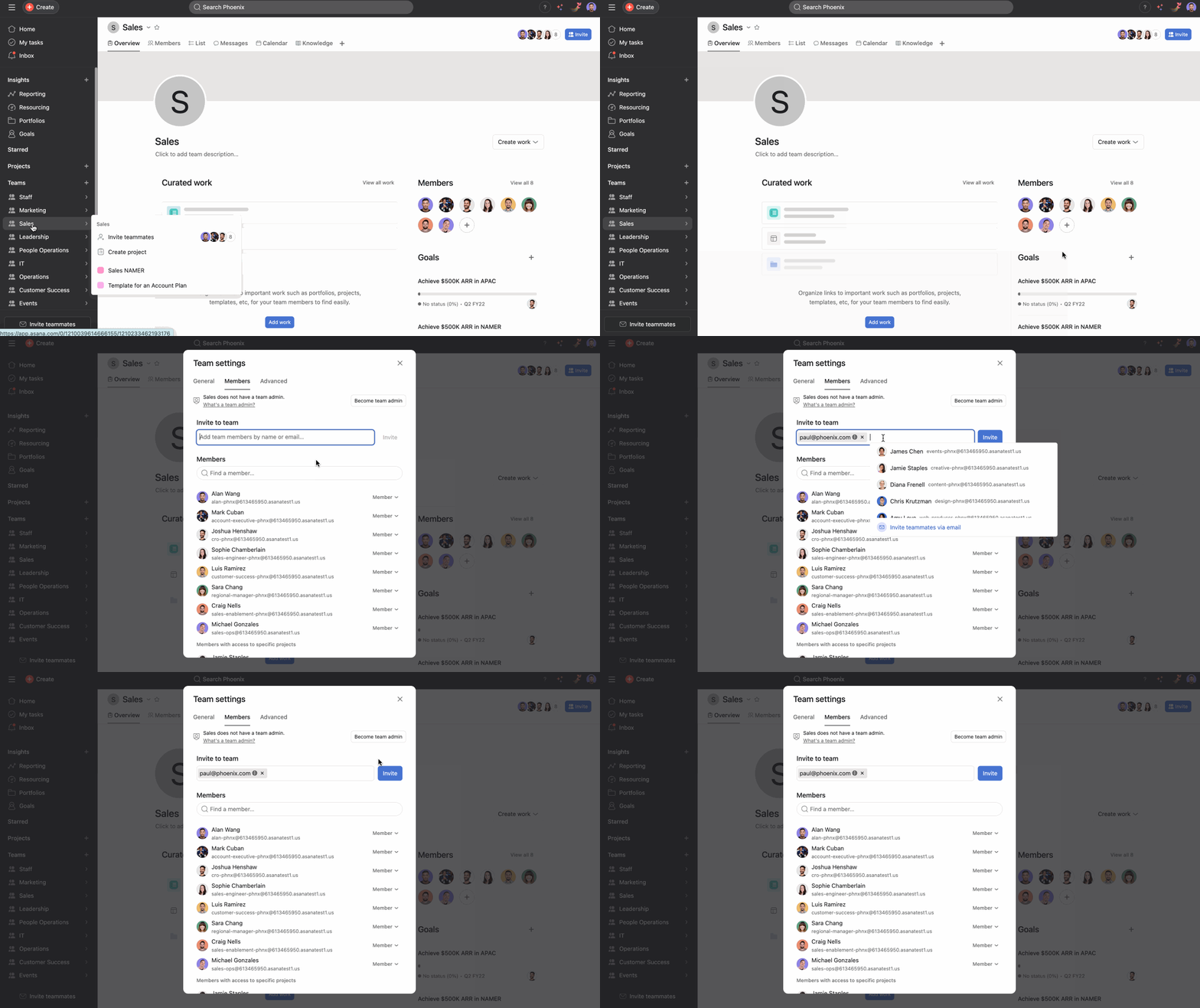
When you want to add members to a specific team:
- Navigate to your team's overview page
- Click the + button under Members
- Enter the email addresses of people you want to invite
- Click Invite
Invite from projects or portfolios
You can add teammates directly to projects or portfolios.
- Open the project or portfolio where you want to add team members
- Click the Share button at the top-right corner
- Enter email addresses or select from your contacts
- Choose their permission level (admin, editor, commenter, or viewer)
- Click Invite
After choosing any of these options and inputting your teammates’ emails, an Asana invite will be emailed to them on your behalf. Ensure you’re using work email addresses so everyone ends up in your organization together.
Learn more about inviting people to your organization.
Mobile app invitations
On your mobile device:
- Open the Asana app and tap Account
- Under organizations, select Invite next to your organization's name
- Choose teammates from your contacts or type their email address
- Tap Send invite
Bulk invitations for larger teams
For organizations adding multiple team members, consider using CSV import for large-scale onboarding.
Troubleshooting common invitation issues
Invitation not received?
- Check spam/junk folders
- Verify the email address is correct
- Ensure the recipient's email server isn't blocking Asana emails
Permission errors?
Enhancing team onboarding
After inviting team members, help them get started:
- Share relevant project templates and workflows
- Provide access to your organization's Asana best practices
- Schedule a brief orientation to explain your team's processes
- Connect them with the Asana Academy for additional training
- The Help Center is a great resource for learning how to use the different features within Asana
Additional resources




