Products


AI Platform


Asana Foundations
Company Type

Visit our pricing page for more information.
This article covers how to manage users in your organization; learn how to invite users to join your organization and teams using invite links. Discover how to invite guests, remove users from an organization or leave an organization.
There are two ways to join an organization that someone else at your company has created:
If you're already using Asana with another email address, add your company email address to your Asana account, and you will automatically join the organization.
You can add someone to your organization by inviting them to one of your teams.
Shareable invite links make it easy to invite lots of people to a team or project. Users can share the link through a variety of channels (via email, Slack, text, etc.). They can even post it in their team’s onboarding wiki or a Google Doc.
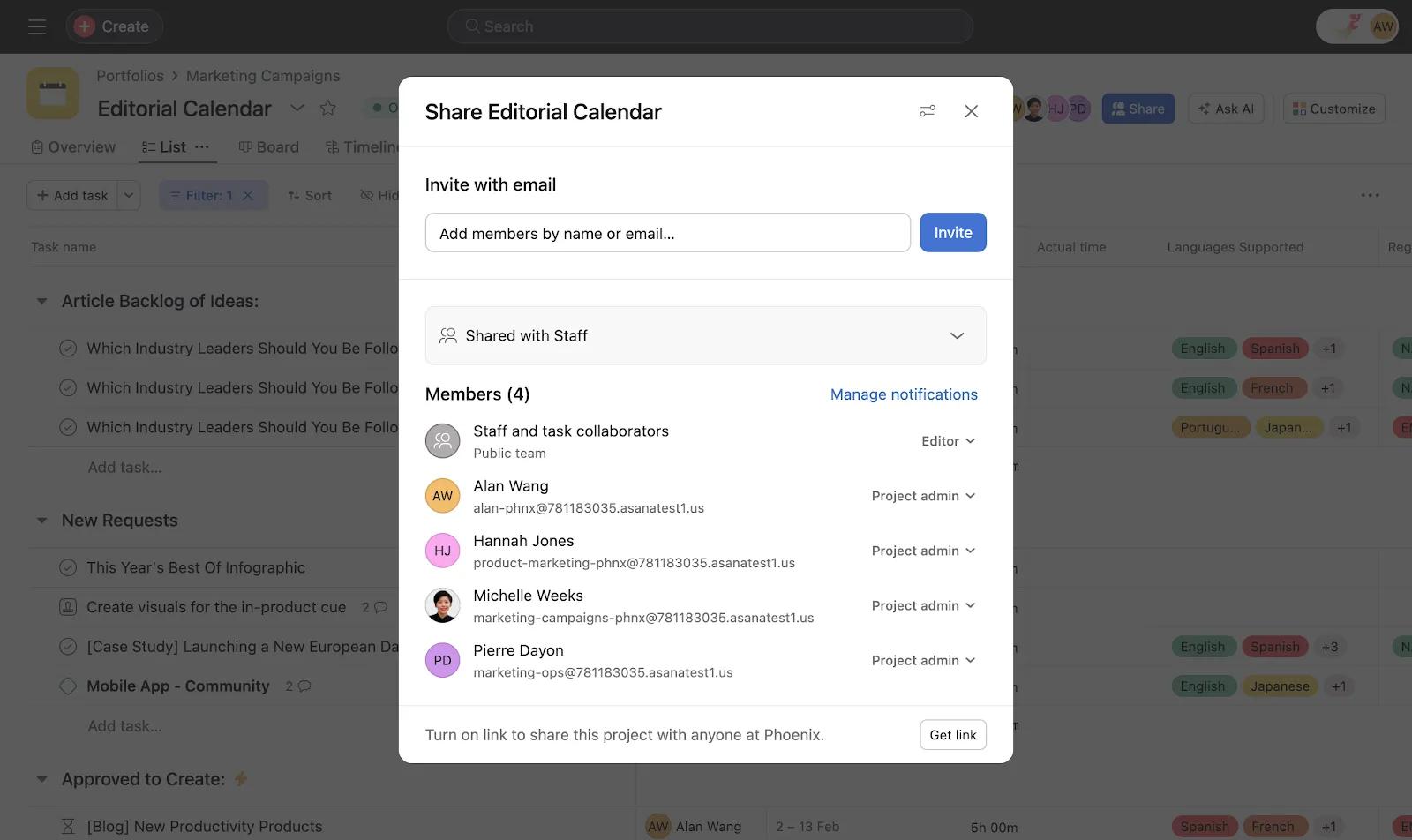
When somebody joins a project with a shareable invite link, they will have the default edit/comment permissions for that project.
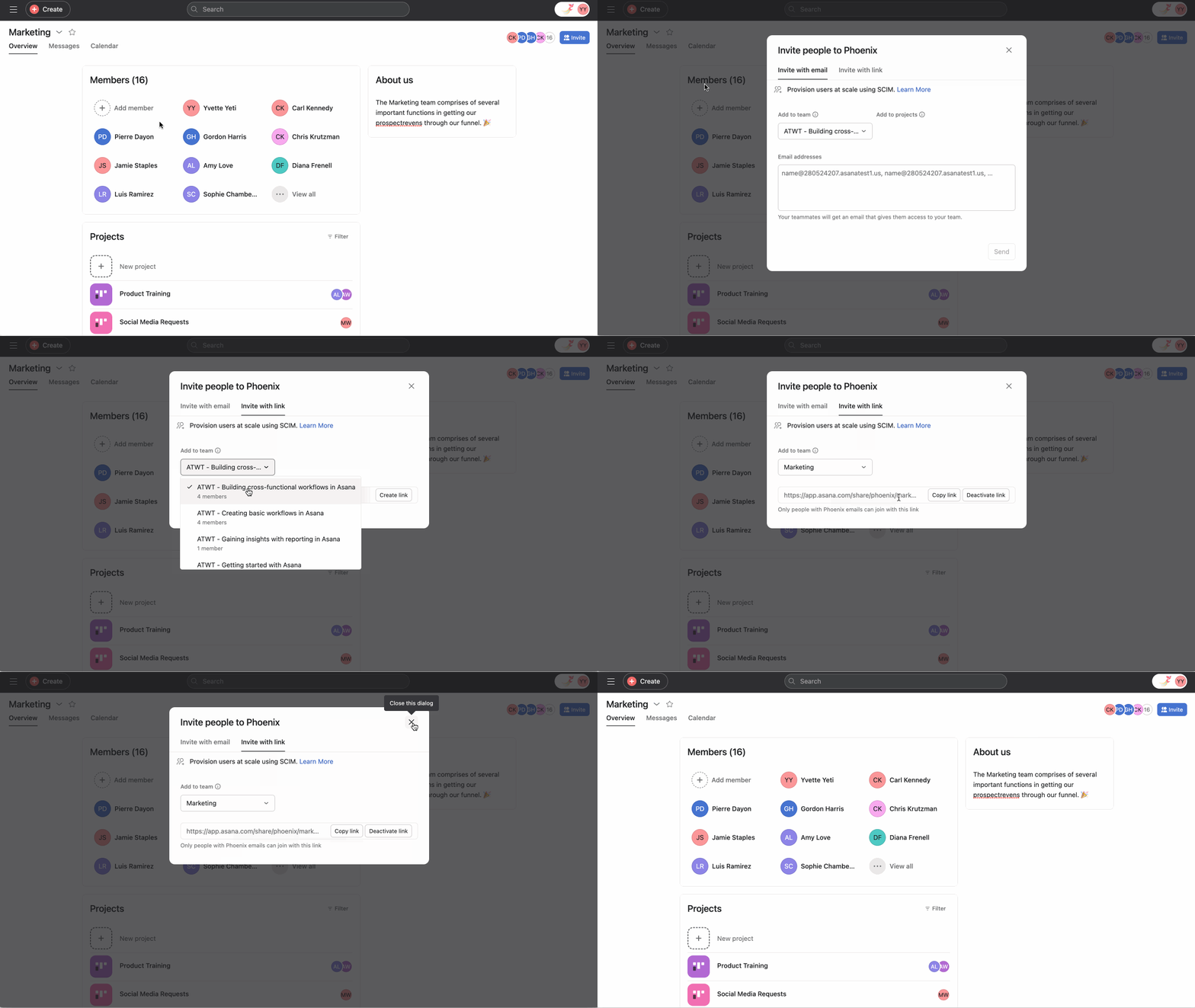
Should you wish to invite guests to your project/team, please use the Invite with email option.
Organization guests cannot join teams or projects using the shareable invite links - only organization members with an email address that matches the organization’s domain can join using shareable links. Choose Invite with email for guests.
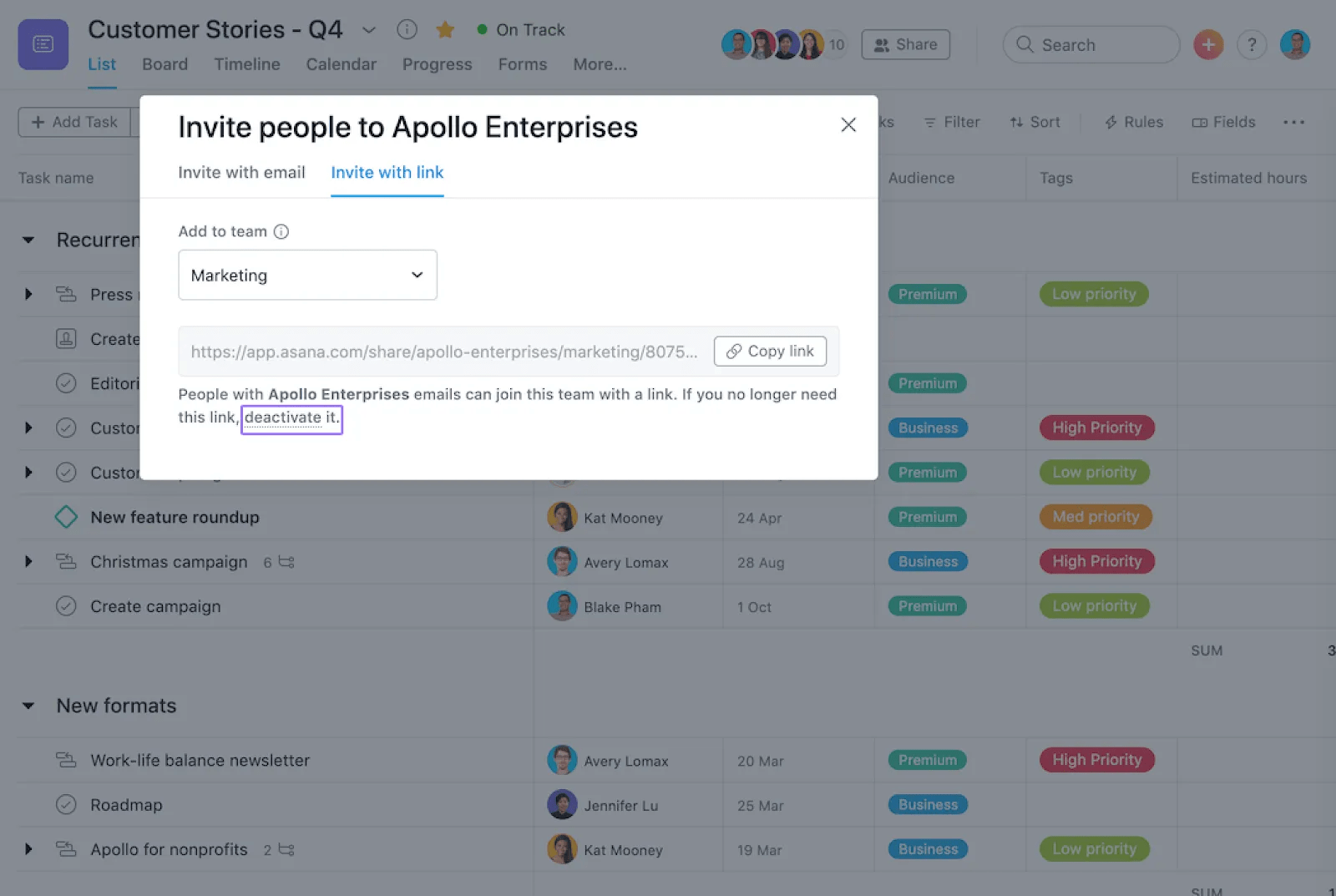
Clicking deactivate will permanently deactivate the link. No one will be able to use the link again.
Note
Learn more about account deactivation.
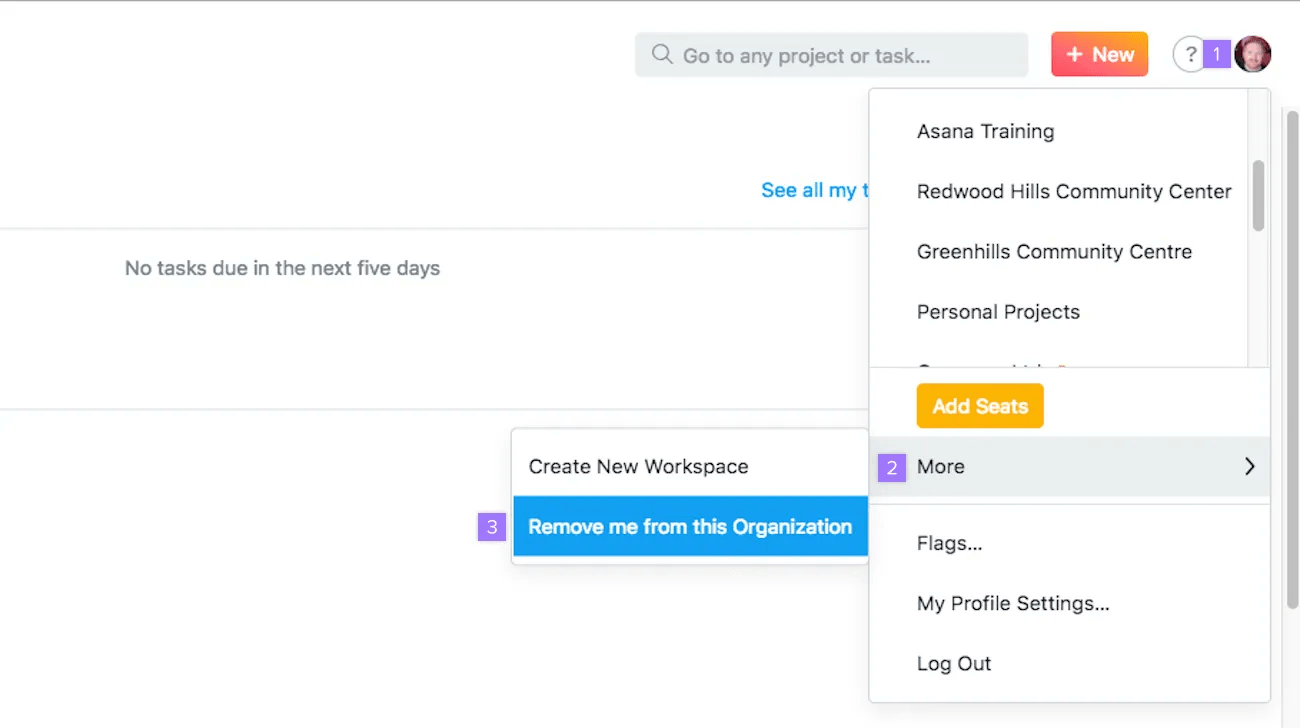
Once you leave an organization, you will no longer have access to its projects and tasks.
If you are an organization member, this will remove your organization affiliated email address from your Asana account. Before leaving, be sure to first add a personal email address to your account so that you can continue to access your Asana account.
Removing a corporate email address from your account will subsequently remove you from the organization.
You can remove any user from your organization to strip them of access to your organization and its projects and tasks.
When someone is removed from your organization, the tasks, projects, messages, files, and comments the person created will remain intact, but their assigned tasks will be left unassigned.
To ensure no tasks go unaccounted for, it is a good idea to go into the person's My Tasks and reassign their tasks before deprovisioning them.
Please note that deprovisioning a user from your organization will result in their company email address being removed from their account; if the address is added back to their account, they will reappear in your organization. Additionally, if the user does not have an alternative email address associated with their Asana user account, deprovisioning them from your organization may result in them being locked out of Asana.
To remove somebody from an organization, the following must be true:
If you are not in the same team or already have removed someone from the team, invite the person into a team for the sole purpose of removing them from your organization immediately after.
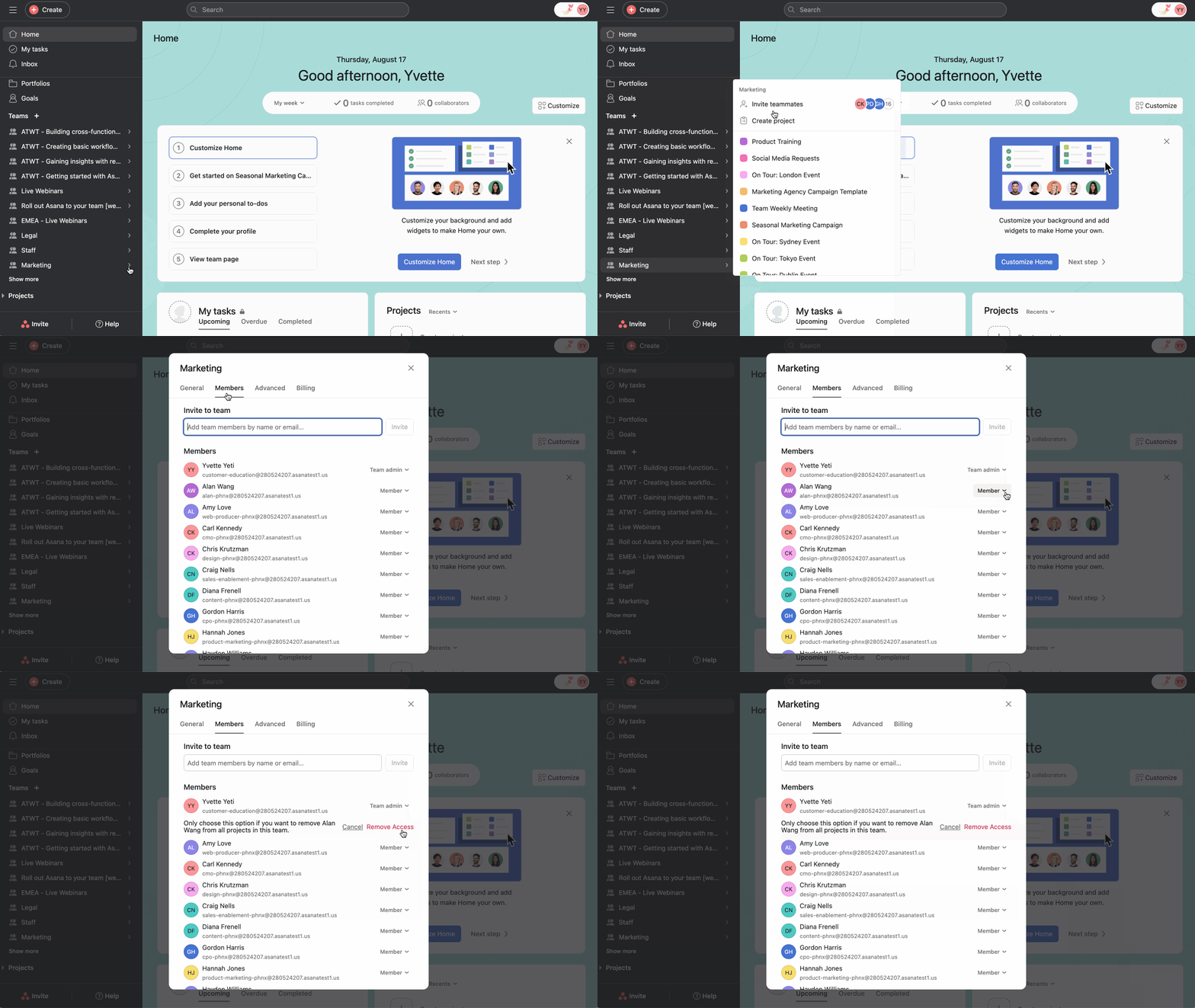
In paid organizations, only admins can deprovision members.
Learn more about account deletion.
Guests are subject to clause 2.4(b) (Acceptable Use Terms) of Asana’s Subscriber Terms. Guest accounts are intended to be used to collaborate with external business partners such as clients, contractors or customers. Customers using Asana's service are not permitted to provide employees, or employees of its affiliates, with access to the Asana service as guests instead of acquiring end user subscriptions for such employees.

