Products


AI Platform


Asana Foundations
Company Type
No articles found for this topic.
No articles found for this topic.

Visit our pricing page for more information.
Google Calendar is a scheduling calendar service that allows you to easily schedule meetings and manage your time by keeping all your calendars in one place.
The Google Calendar + Asana integration helps teams plan, schedule, and stay on top of their day.
Available on Asana Starter, Advanced, Enterprise, and Enterprise+ tiers, as well as legacy tiers Premium, Business, and Legacy Enterprise.
With rules, teams can go from manually scheduling meetings to automatically creating a Google Calendar meeting with project collaborators when an Asana task reaches a certain stage.
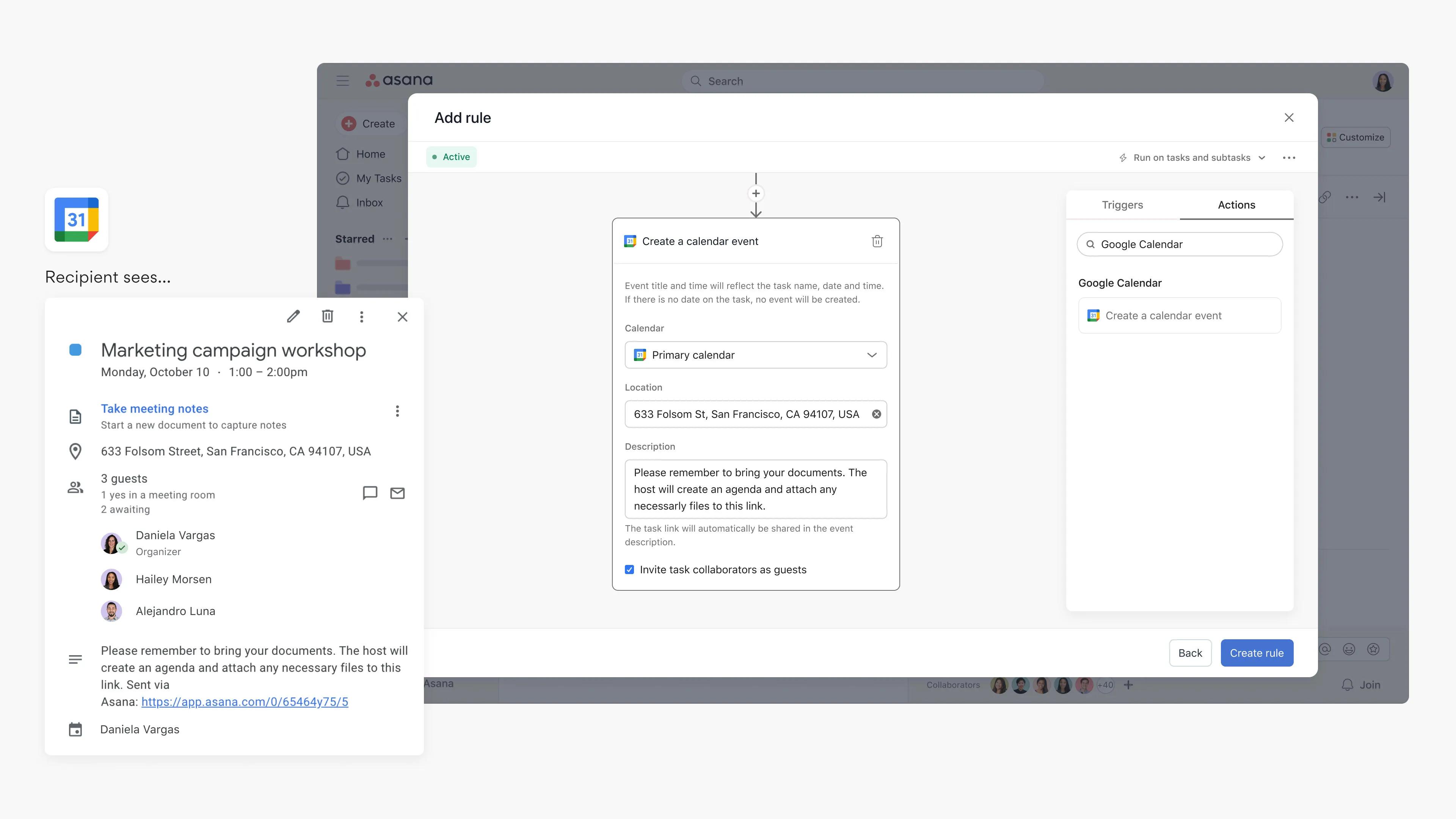
For example, using rules, teams can create a trigger that adds an event to a team calendar when a task is moved to a "Scheduled" section and also invites task collaborators to the event. Teams can also use this for recurring task scenarios; i.e., they can create a recurring "Send agenda for meeting" task, which sends out an event invite when the task is completed.
Teams can also add event widgets to tasks to link related work and show key details on the task, such as event time and organizer. For example, when scheduling a client meeting, users can link the meeting to a task so that task collaborators know the meeting has been scheduled. Event widgets will be automatically added for events created by the "Google Calendar with Rules" integration.
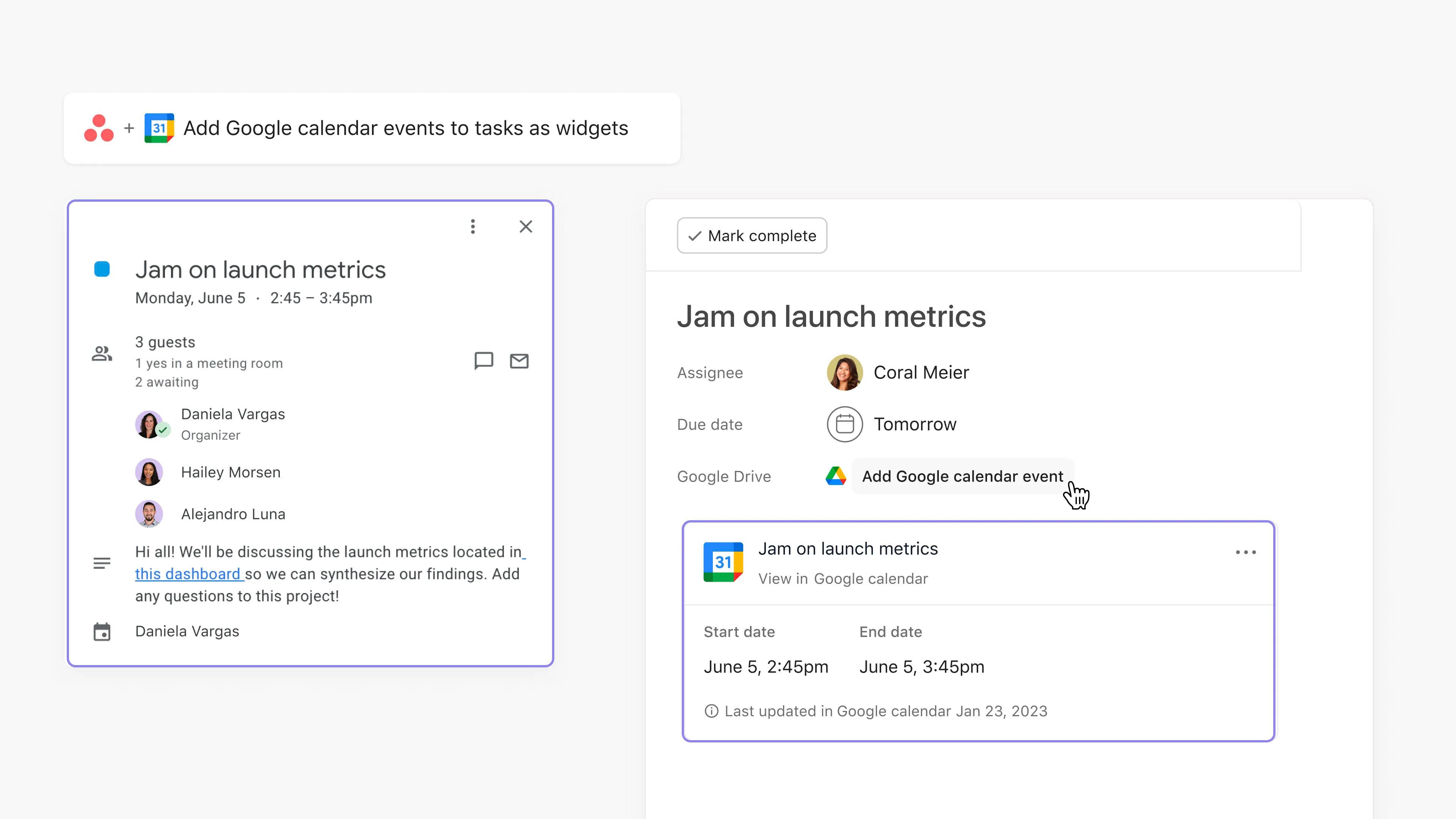
After you’ve set up the Google Calendar integration, here’s how to set up the data sync setting for event widgets:
With the data sync setting, teams can easily ensure events stay updated with the tasks that were used to schedule them. This setting allows teams to configure the Asana task fields that should stay updated in the calendar event if an event is attached.
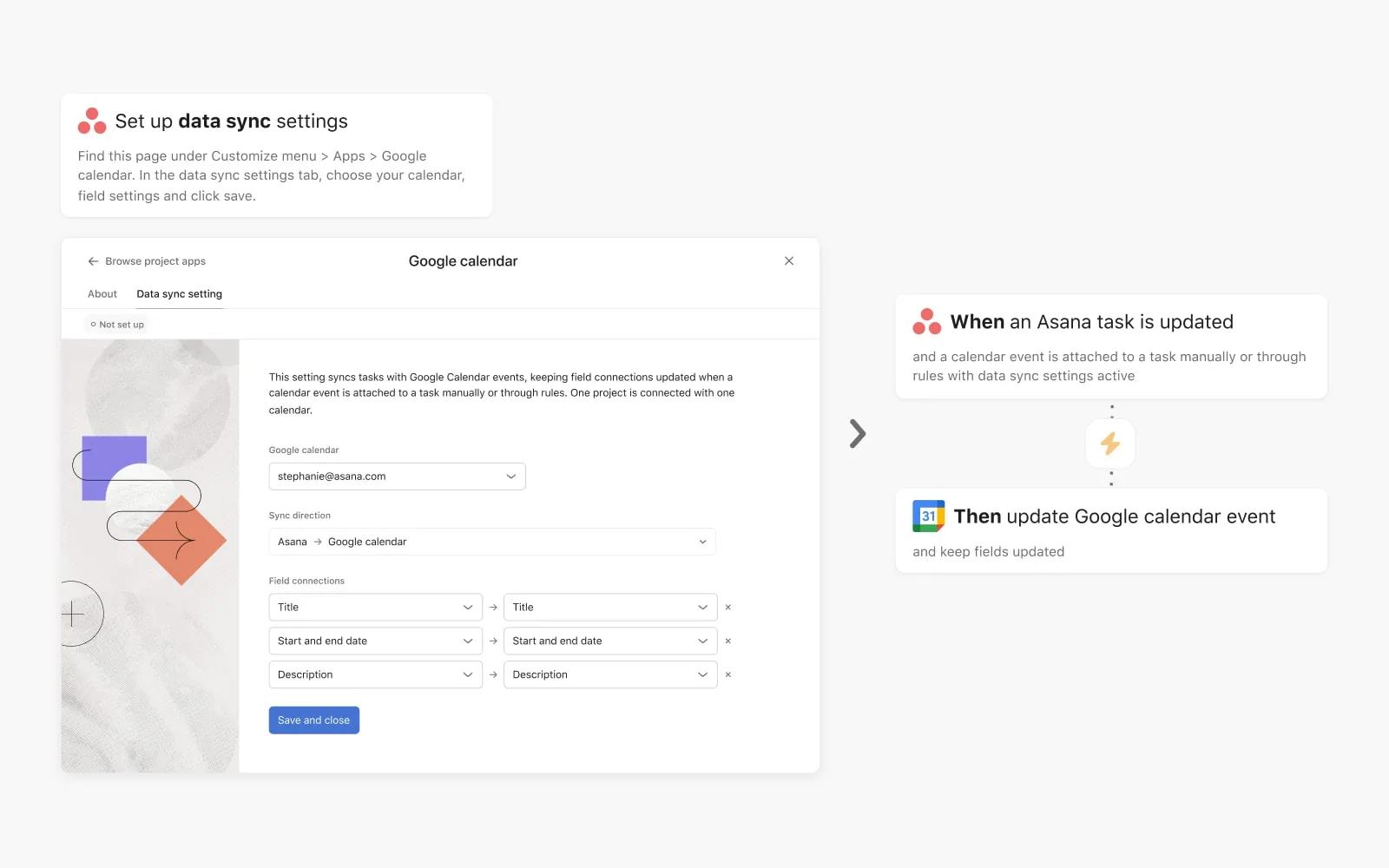
For example, if a rule is used to automatically schedule an event, the event organizer can edit the due date and time from the Asana task, and the change is reflected in the calendar event.
The data sync settings only syncs events up to one personal work calendar.
Teams can also easily sync all tasks in an Asana project, or My tasks to their Google Calendar to ensure work doesn't slip through the cracks. Milestones or deadlines coming up for projects will be visible in Google Calendar when syncing a project's tasks. In syncing My tasks, tasks to be completed each day are visible in Google Calendar, helping teams stay focused.
Here’s how to use project sync for for all tasks in a project or My tasks into Google Calendar:
Tasks to be completed each day are visible in Google Calendar, helping teams stay focused
Note
This is a one-way sync from Asana to your calendar. Updates to your calendar will not be reflected in Asana.
Plan, schedule, and stay on top of your day, and use Asana Rules to automatically schedule events on your calendar.
Install the Google Calendar + Asana integration

