Products


AI Platform


Asana Foundations
Company Type
No articles found for this topic.
No articles found for this topic.

Visit our pricing page for more information.
Use the Asana for Gmail add-on to turn emails into tasks, assign responsibility, set due dates, and sync to projects. This add-on must be downloaded from the Gmail Add-on marketplace and works with the Gmail app on Android and iOS.
You'll also be able to select which, if any, of the email attachments you want to add to the task in Asana.
If you are the admin for your domain, you can install the add-on for your entire organization. Please note that it can take up to 7 days for the add-on to show up with admin install.
Additionally, admins are now required by Google to enter the OAuth2-client-id to safelist the app. Asana's OAuth2-client-id is the following: 923474483785-sqf6uk8vq1rqe853il0g2h4m98ji2fq6.apps.googleusercontent.com.
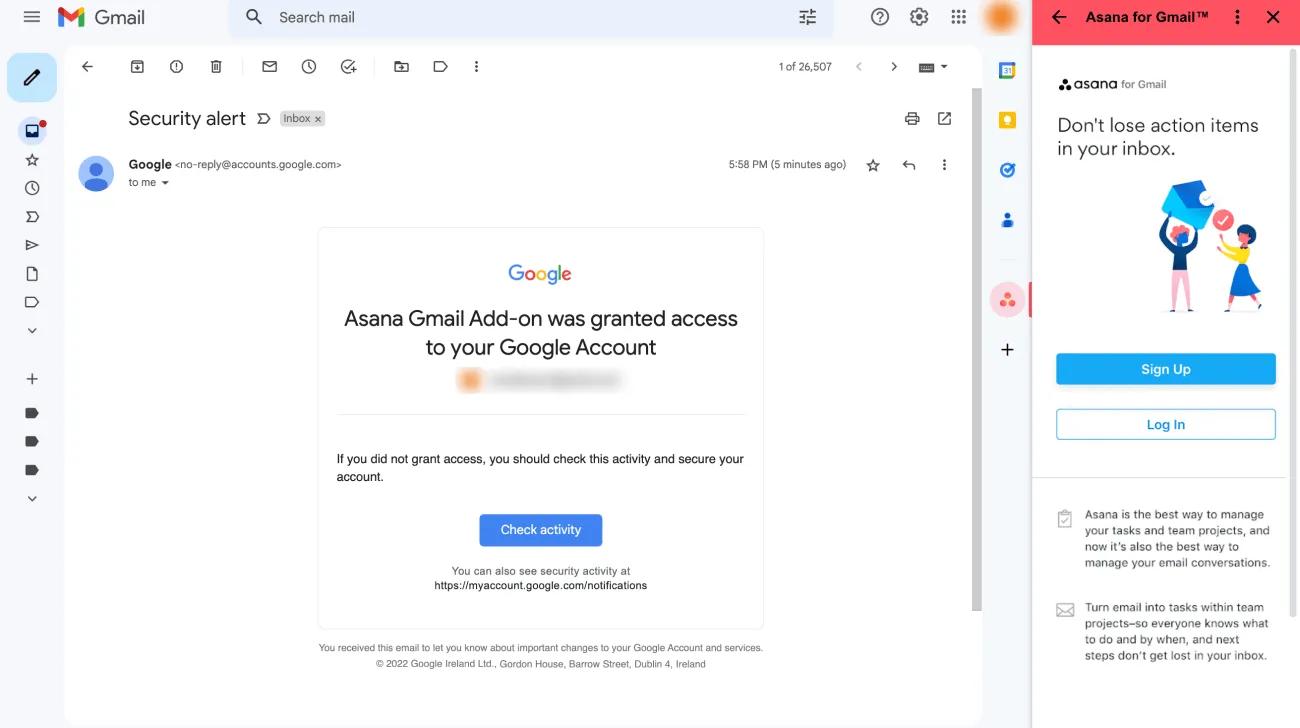
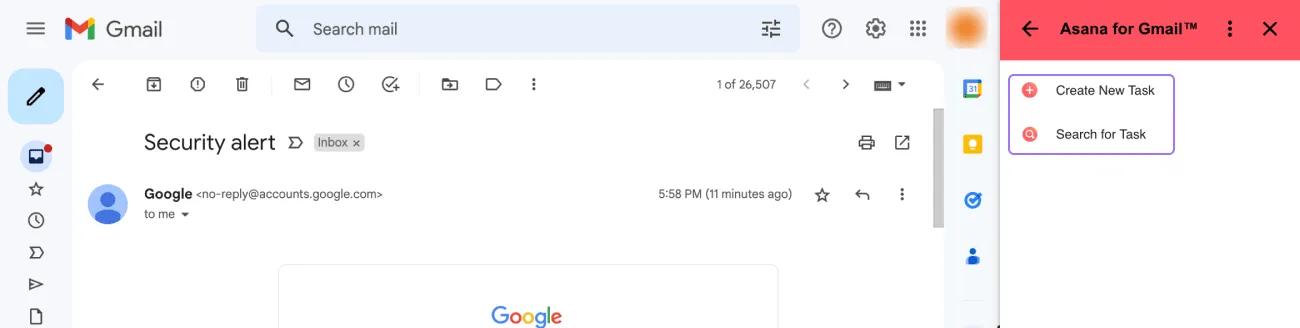
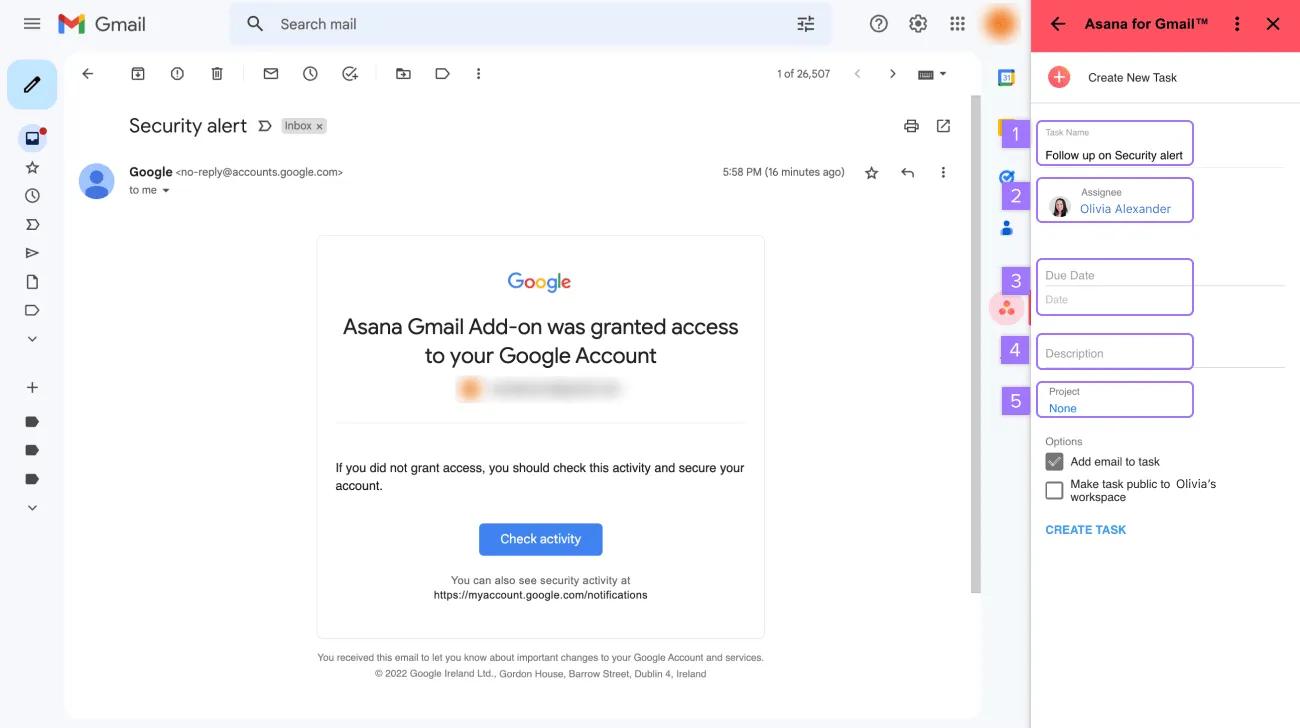
Email sync allows you to sync future email replies to tasks in Asana. This means you no longer need to create multiple Asana tasks each time you receive a new email reply and removes the “middle man” by ensuring email context is being shared with all collaborators contributing to the same task or project.
When creating a new task using the Gmail add-on, you can enable the Sync future replies to this task feature. All future replies within this email thread will be automatically synced to the Asana task as comments.
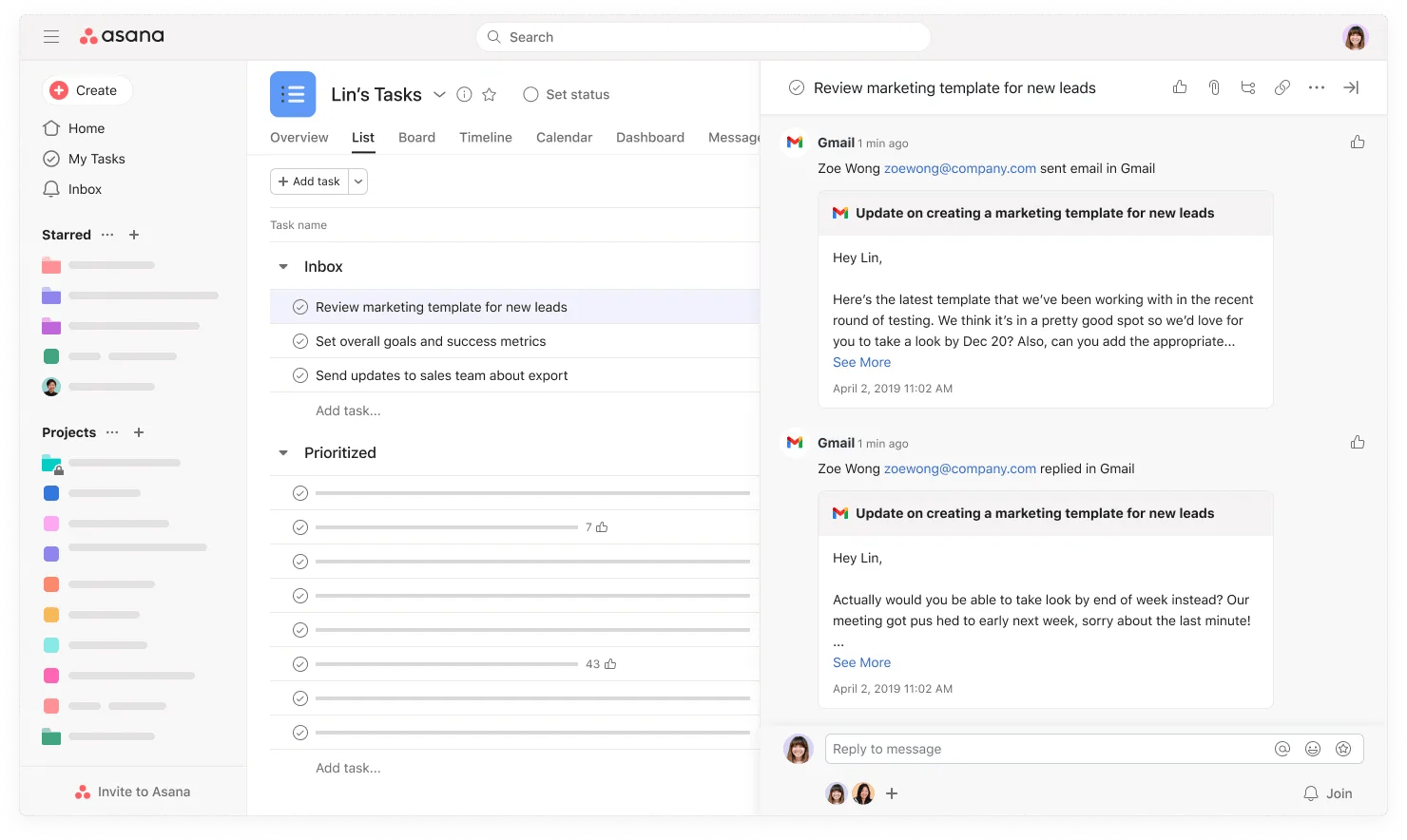
Once a task has been synced with an email thread, you can add collaborators to the task to share the email context without needing to regularly update the task each time a new email reply is received.

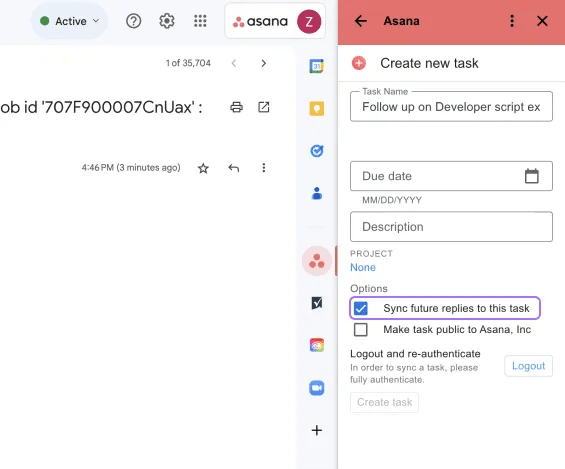
Email syncing can be stopped in two ways:
Email syncing is also available on the Gmail mobile app. To set up email syncing on mobile:
Please note, this option will only be available via mobile if it has been previously installed on the Gmail web app.
Any users that are added to the task that is synced with an email thread can see the synced email messages.
When you create a task and want to sync an email thread with more than 5 messages, only the most recent 5 messages are pulled into the task. However, any future email messages are synced from that point on.
Unfortunately not, HTML is converted into text when displayed in Asana.
This can happen if a user has logged in with the incorrect email address. The email address used to log into Gmail must match the email address used for completing the authentication process for the Asana for Gmail add-on.
Note
Looking for a better way to manage your work? Get started with a free Asana trial. Try for free.

