Products


AI Platform


Asana Foundations
Company Type
No articles found for this topic.
No articles found for this topic.

Visit our pricing page for more information.
Available on Asana Advanced, Enterprise, and Enterprise+ tiers, as well as legacy tiers Business and Legacy Enterprise. Visit our pricing page for more information.
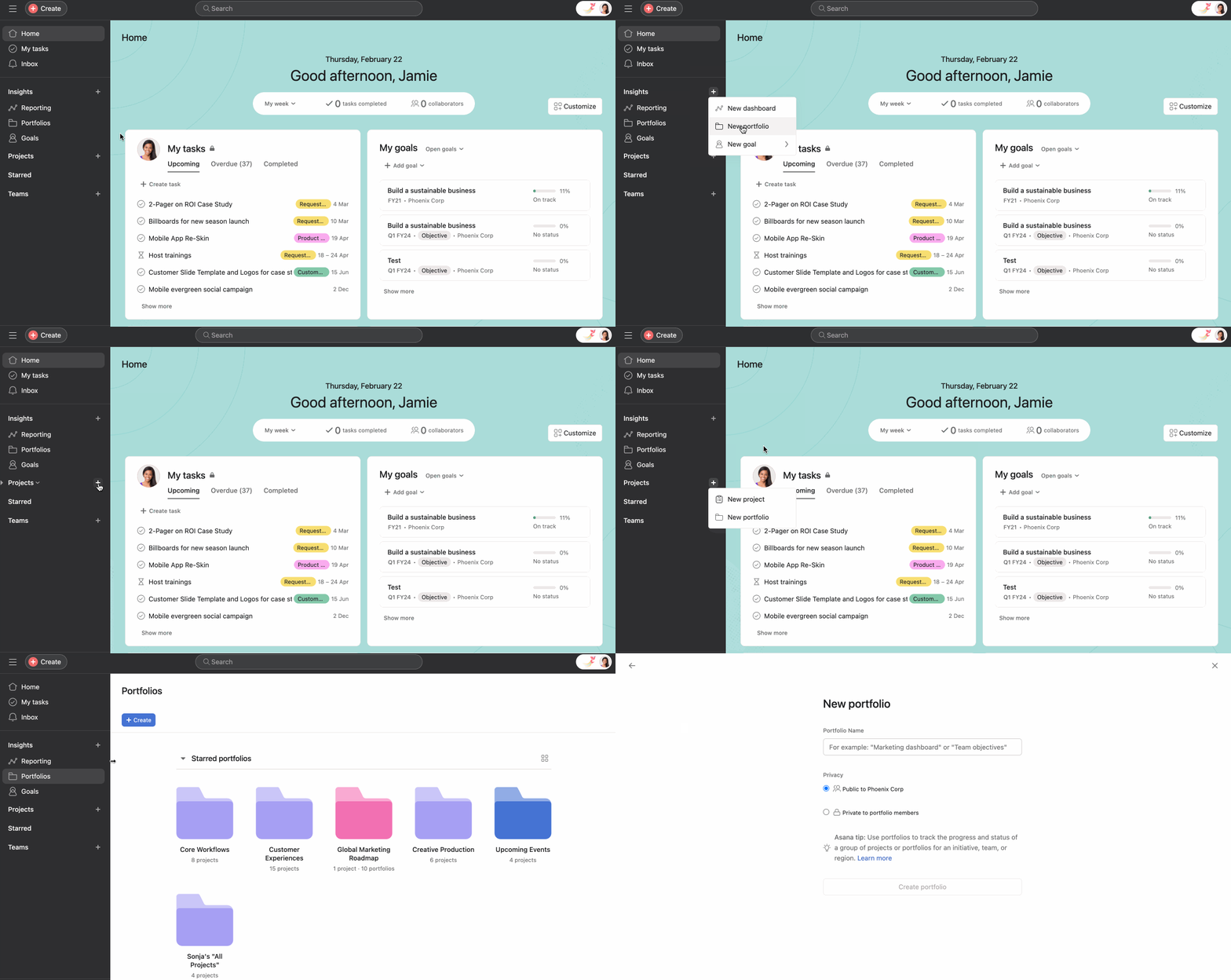
Portfolios provide a holistic view of all your important projects in one place. With project portfolio management you can organize your most important projects, monitor their health in real-time, and drill down for more information, while keeping your team updated on progress. You can also access portfolios on Android and iOS devices.
Explore portfolios for free. Start a free Asana trial today.
Learn how to leverage portfolios in our Gaining insights with Reporting virtual training. Register now.

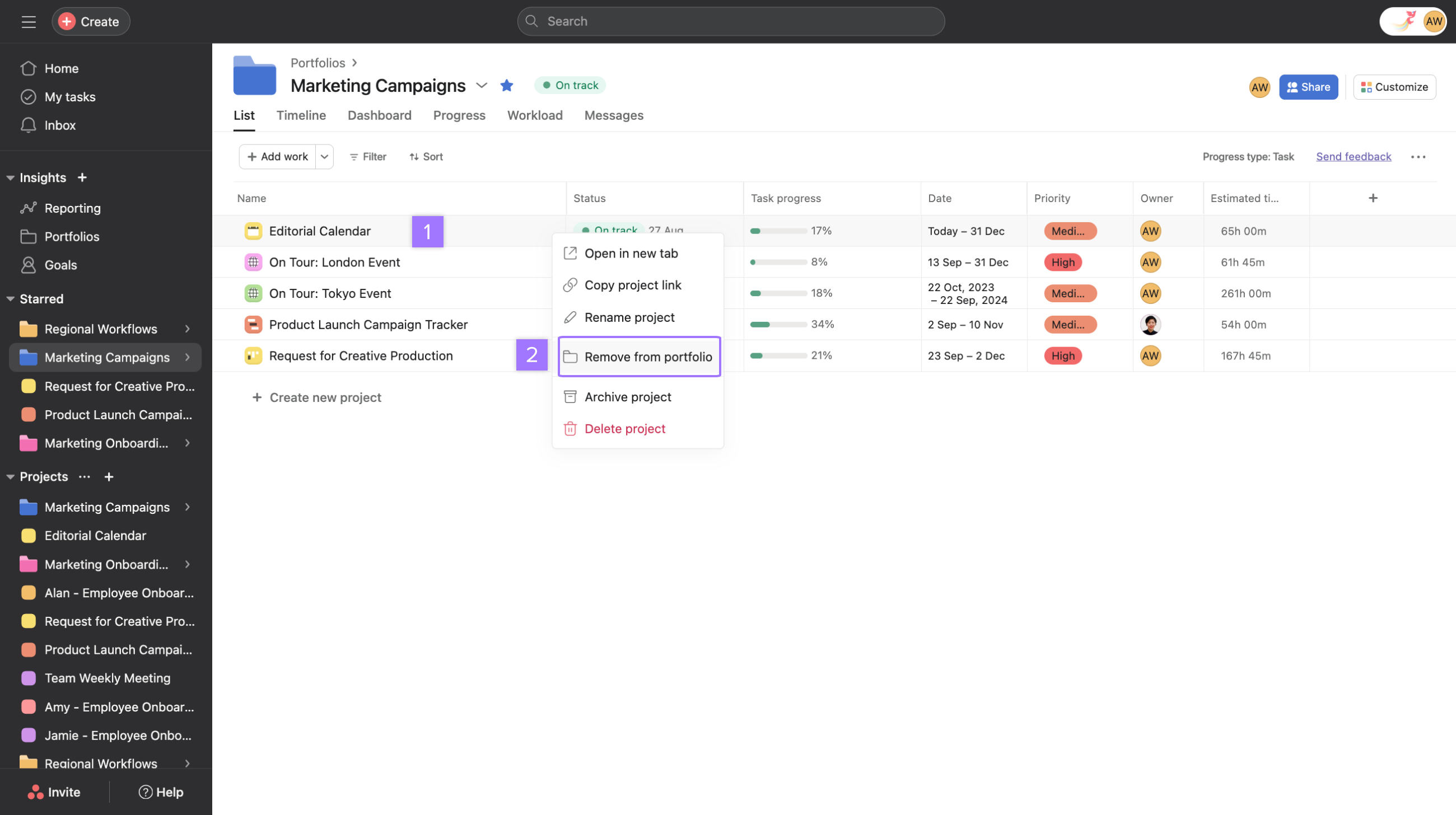
You can remove a project from your portfolio at any time.
Note
Discover tips for organizing and managing portfolios in the forum.
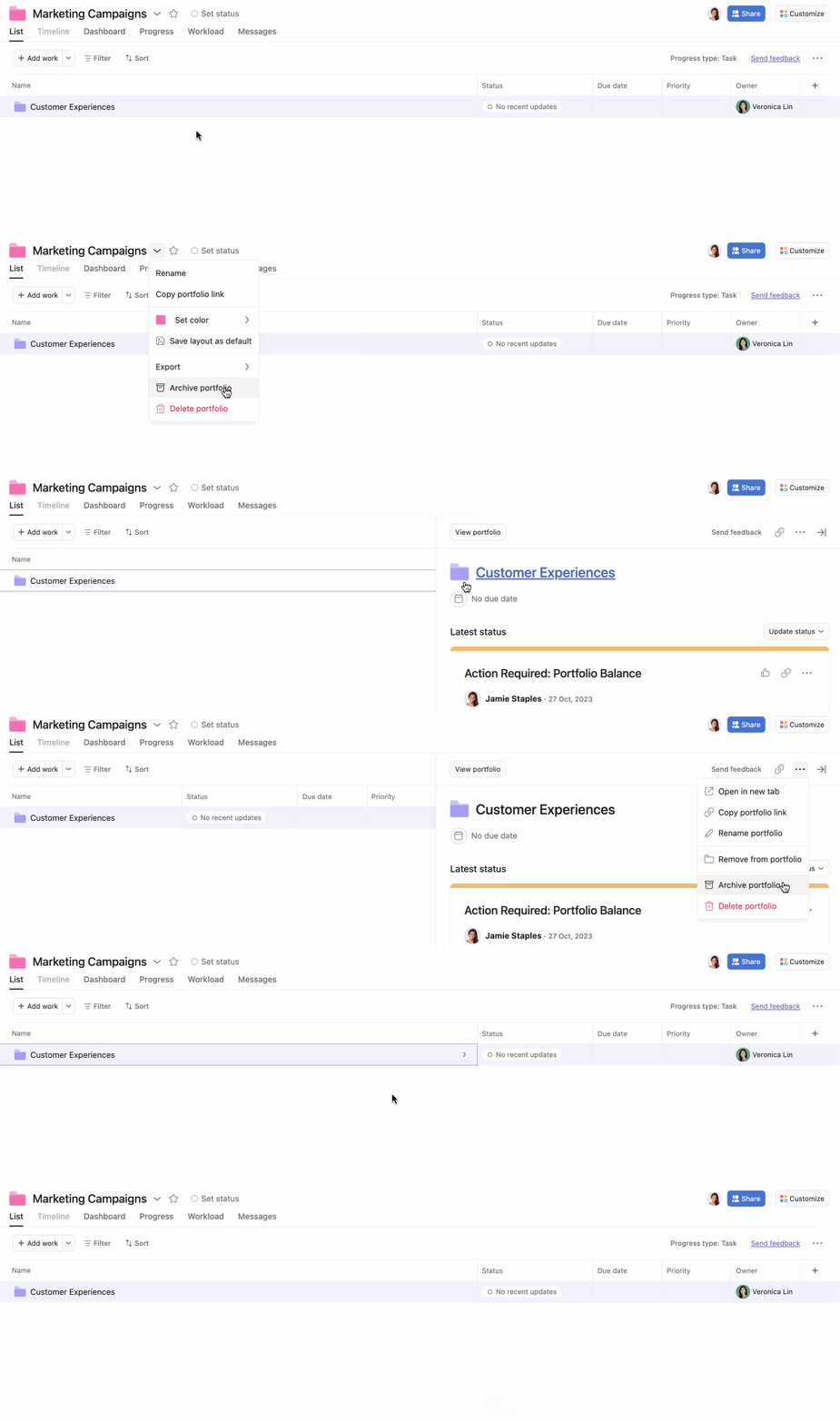
Archiving portfolios allows you to archive portfolios that are no longer active, helping you focus on active portfolios while preserving the historical record of the portfolio.
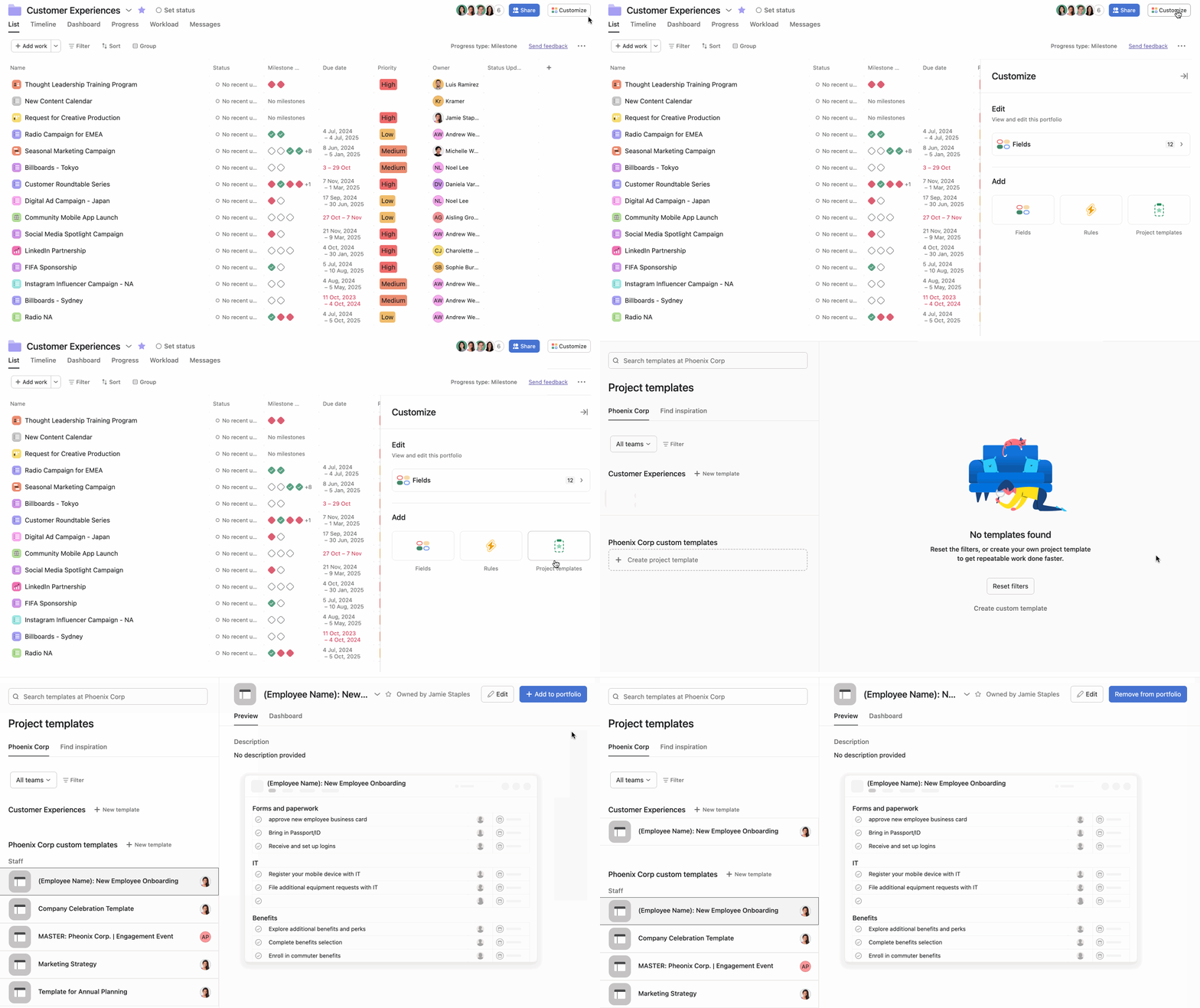
Once a project template has been added to the portfolio, it will appear in the drop-down menu beside Add work and can be used to create new projects from within the portfolio.
To remove a template from the portfolio, click the Remove from portfolio button. The Remove from portfolio option will only appear for templates that have been added to the portfolio.
Adding portfolios to portfolios allows you to integrate and track your work across multiple projects seamlessly. This enables you to monitor your work effortlessly and communicate progress to stakeholders.
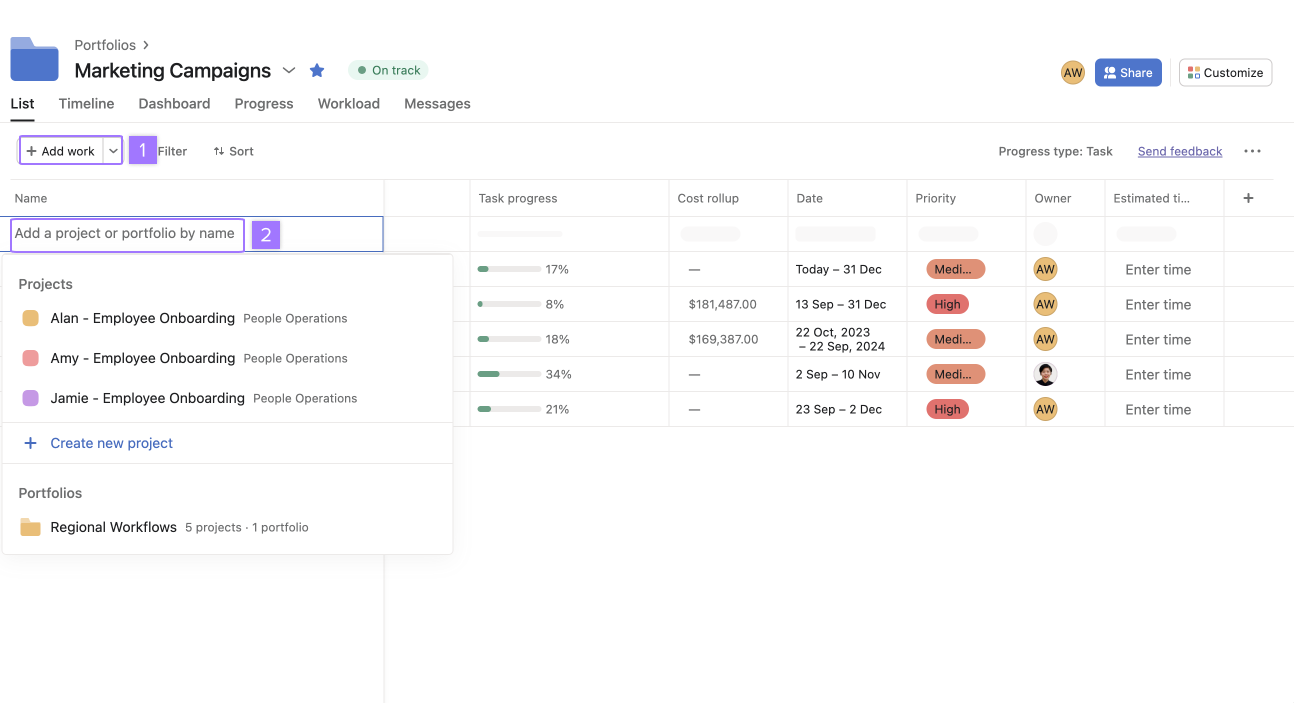
Portfolios that contain portfolios will have disabled timeline tabs. This can be undone by removing any nested portfolios.
Click on any project in your portfolio to view the right pane.
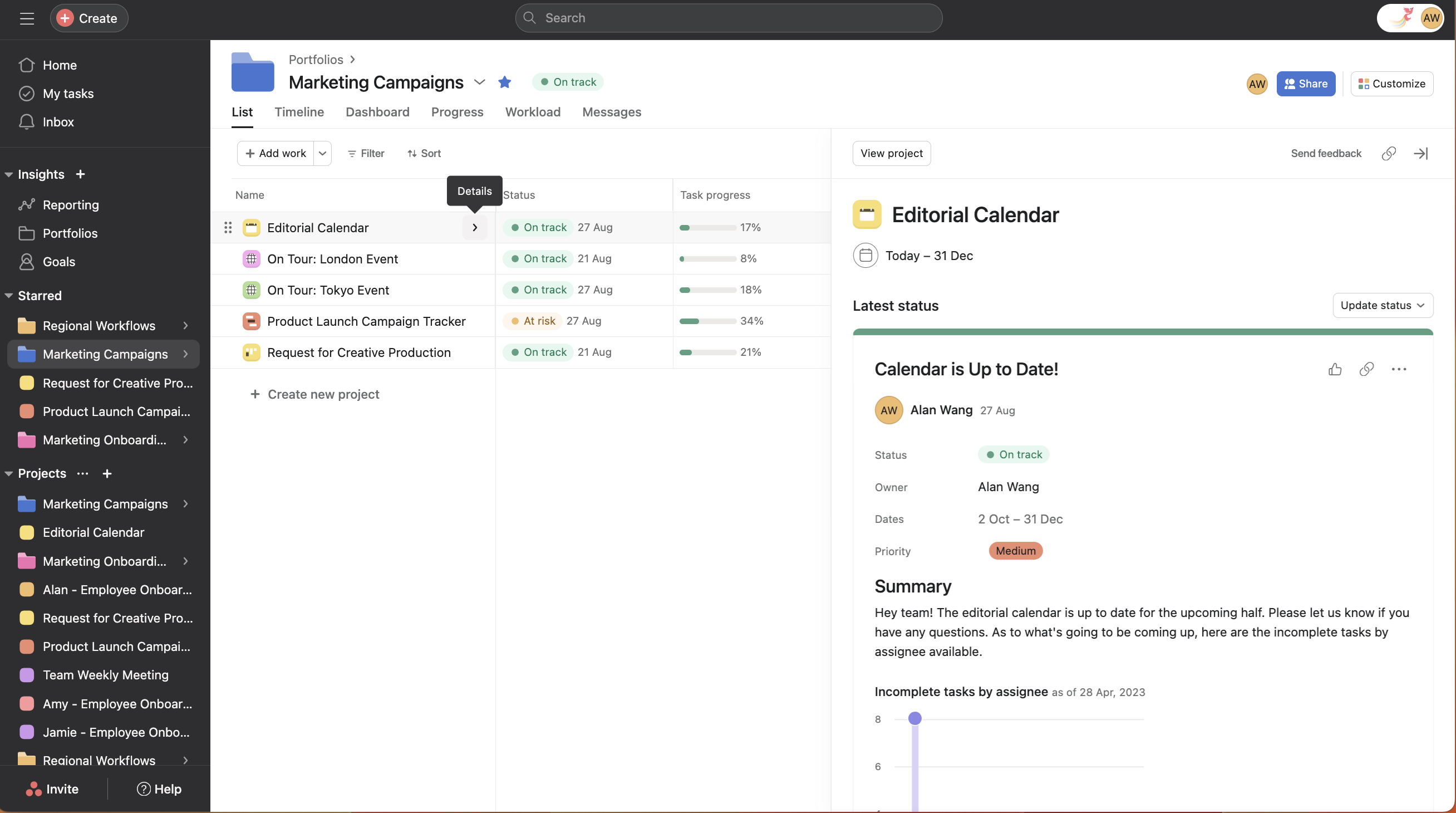
Portfolios provide a holistic view of all your important projects in one place, allowing you to organize your most important projects, monitor their health in real-time, and keep your team updated on progress.
Yes, you can add portfolios to other portfolios by clicking +Add work and selecting a portfolio's name, though portfolios containing other portfolios will have disabled timeline tabs.
Right-click on the project name column and select "Remove from portfolio," or navigate to the project's overview tab, scroll to Connected portfolios, click the three dot icon, and select "Remove from portfolio."
An archived portfolio displays a banner at the top indicating it's archived, shows an archive icon beside its name, and remains accessible via search, team pages, within other portfolios, or by link.
Learn more about the different portfolio views and how to customize your portfolio view.
Like what you see? Get started with a free Asana trial today. Try for free

