Products


AI Platform


Asana Foundations
Company Type

Visit our pricing page for more information.
Available on Asana Starter, Advanced, Enterprise, and Enterprise+ tiers, as well as legacy tiers Premium, Business, and Legacy Enterprise.
Visit our pricing page for more information.
Timeline is a live view of how your work fits together that helps you start projects on the right foot and hit your deadlines. With timeline view, you can create a project plan showing how all of your project's pieces fit together. You can share plans to get buy-in and give everyone confidence that your team will deliver on time, adapt your plan as problems arise, and keep your project on track.
You can view any project that you have in Asana in timeline view.
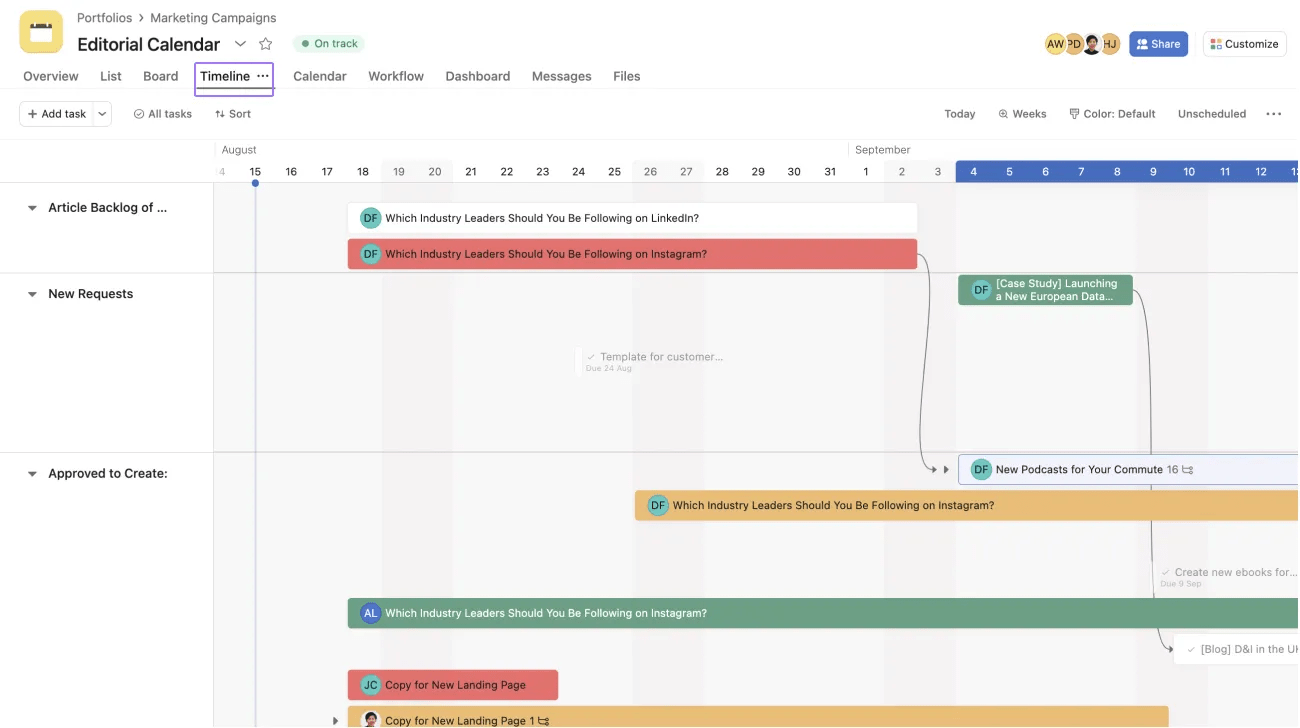
To access your project’s timeline, click the Timeline tab in your project.
Note
Subtasks do not automatically inherit the project or assignee from their parent tasks. You need to manually add a subtask to a project and add a due date/date range for it to appear in the project’s timeline.
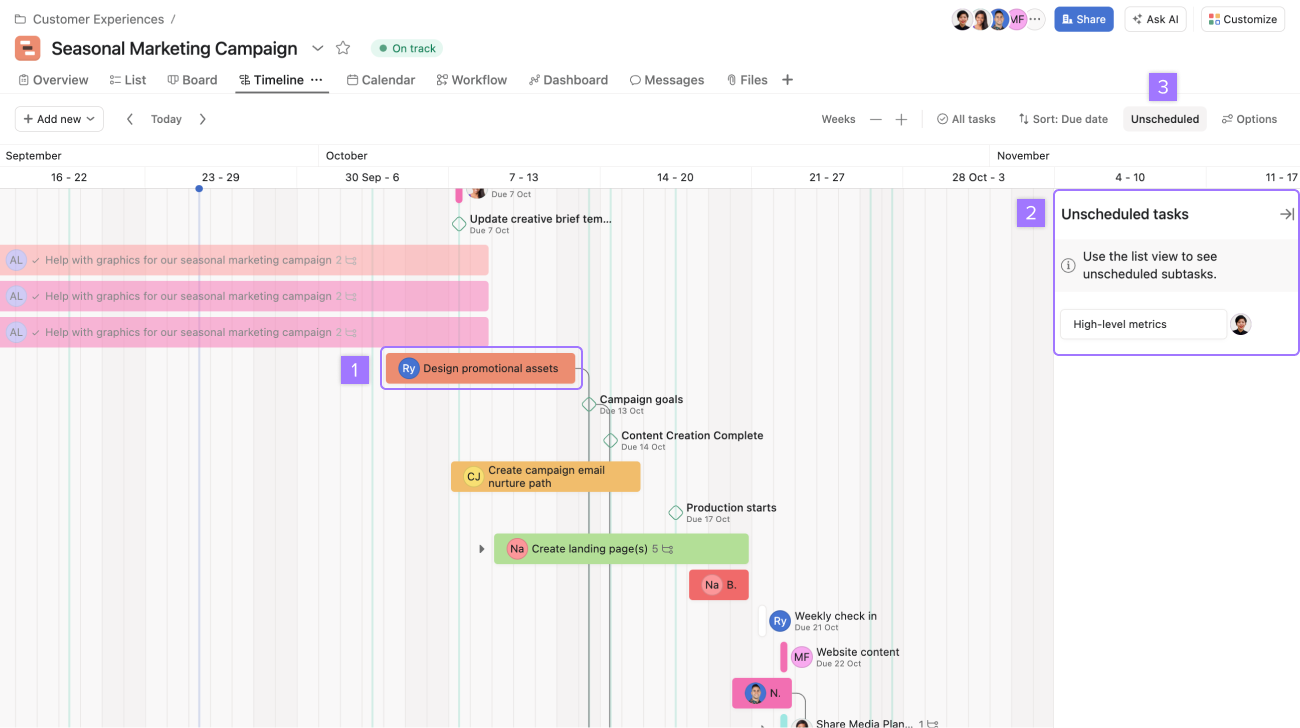
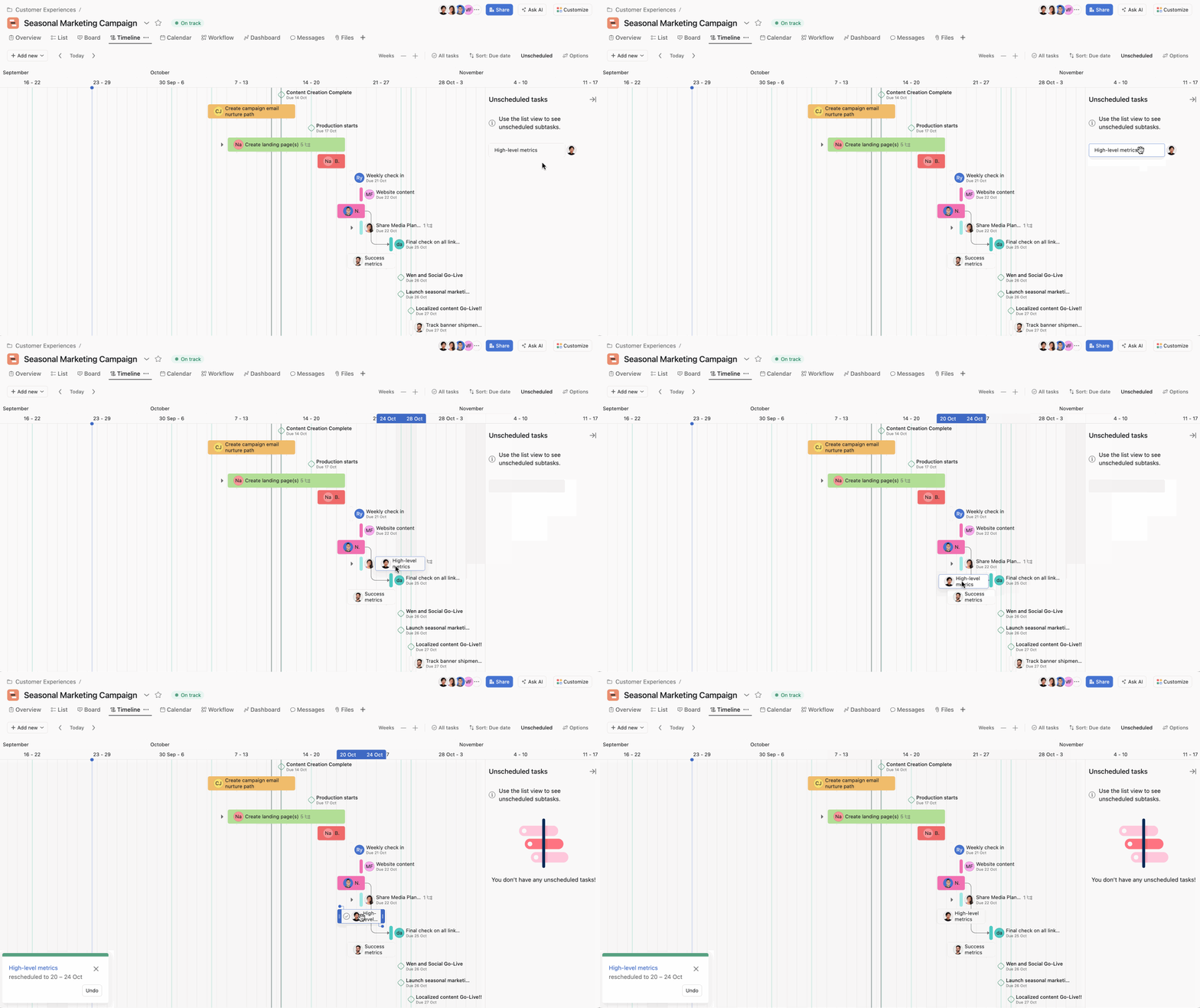
To move tasks from Unscheduled tasks onto your timeline, you can drag the task from the unscheduled bucket onto the correct dates on your timeline or click back into your list or board view and add a due date or date range to that task. Once the task has a due date, it will appear on your timeline.
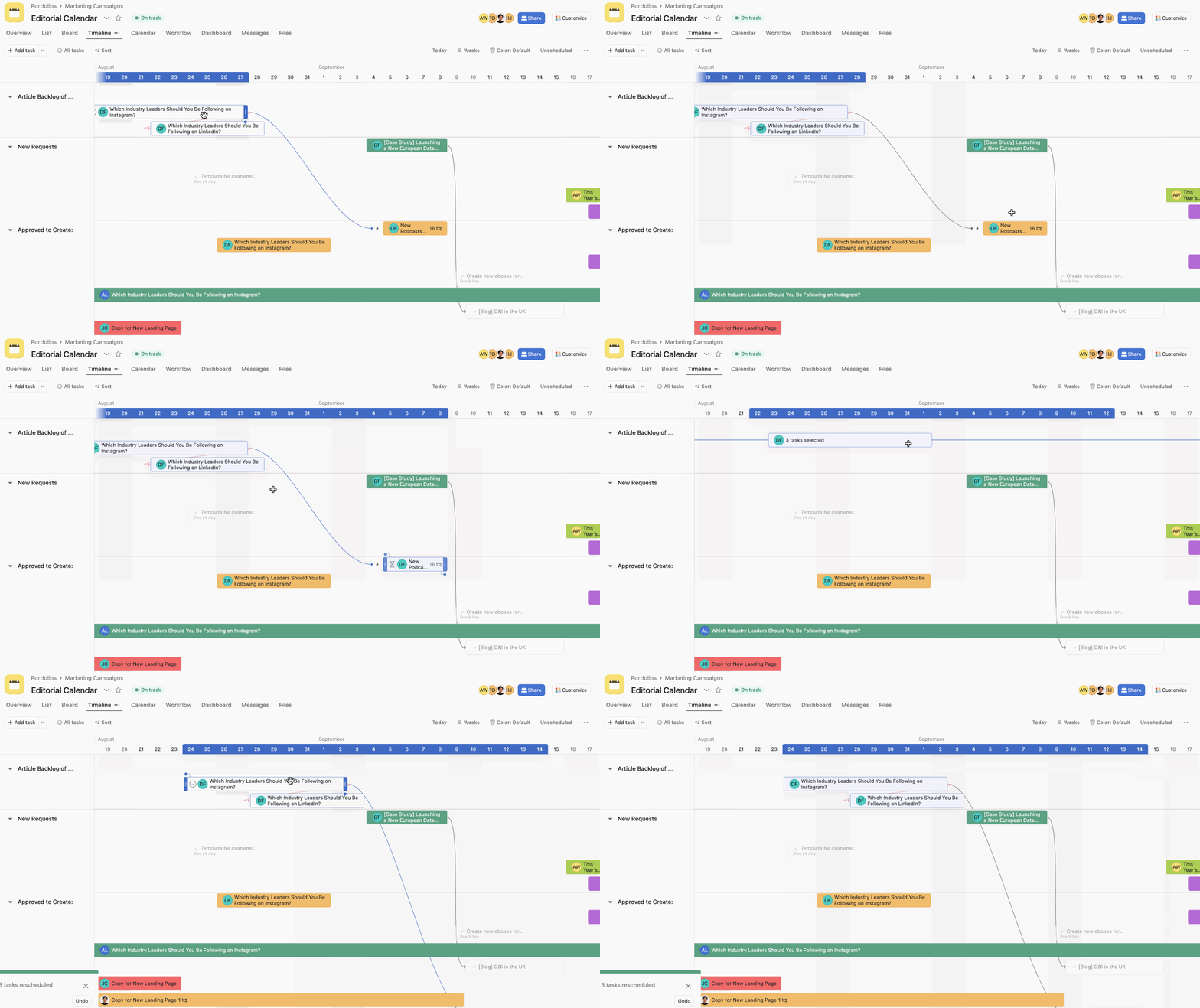
You may need to reschedule planned tasks in bulk to align with the parent task dates or bumps in the project. You can multi-select tasks, then drag them across to where you see a more realistic date on your timeline.
You can shift multiple due dates in a list by changing the view to Sort by Due Date, multi-selecting the tasks you want to change, or press and hold command (Ctrl on a PC) then use the up and down arrows to adjust all the due dates one day at a time.
To create a new task from your timeline, you can click directly on your timeline on the date you’d like to schedule the task and type in the name of your task. You can then click on the task's details to add additional information and assign it. The task will appear directly on your timeline and in your list and board view.
The best way to set colors on your timeline is to create custom fields and set colors for each field. Then, when you set a custom field value on tasks, that color can be viewed on your timeline.

To set colors on your timeline, click the Options button and open the Color tasks by drop-down to choose your color preferences.
You can choose Asana default, which pulls from other colors you have set in Asana, or you can set your color logic based on custom fields. Once you’ve chosen which custom field you'd like to use, you can save that view for everyone, so your entire team will see the same color logic when they view the project in timeline.
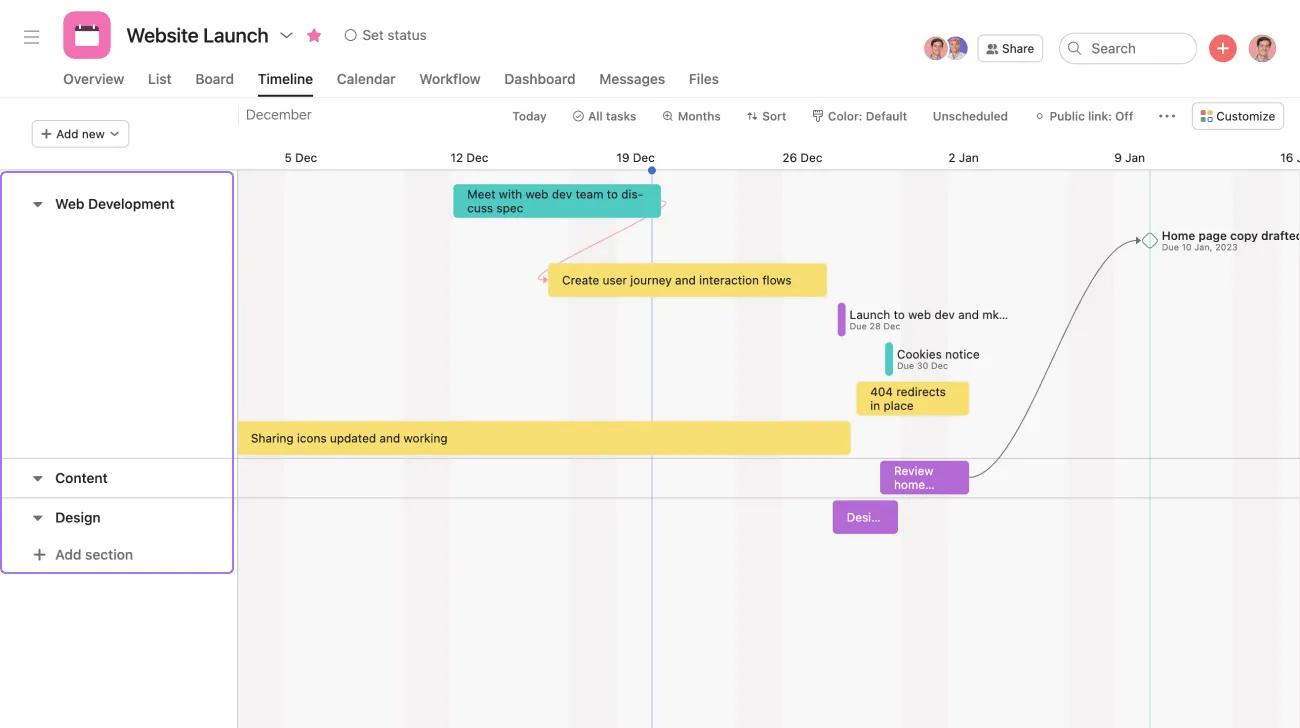
Sections add a new level of categorization to your project plan. You can view your work your way, share a plan with more visual indicators of task types, and adapt your plan while knowing how tasks are grouped.
You can also sort your tasks on your timeline by either start date or due date or assignee and then save that as your default view.
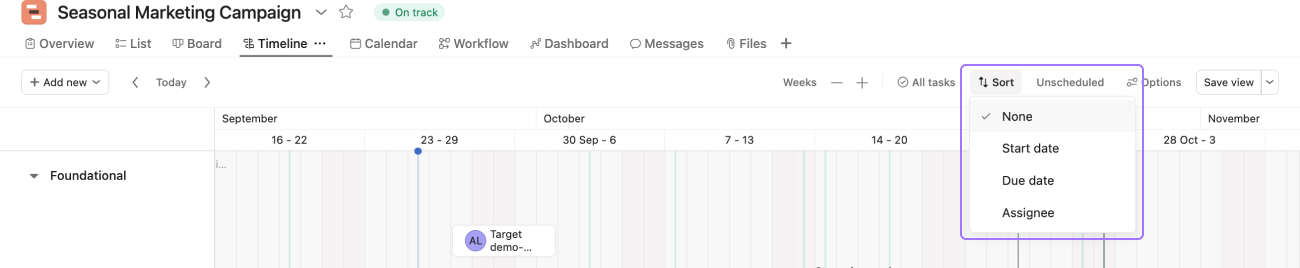
To save your view as default, click Save view.
Once you sort your tasks on your timeline by start date, due date, or assignee, the project sections will disappear. To navigate back to your sections, sort by None.
Using your project toolbar, you can filter your timeline according to your desired preferences.

You can filter your timeline to show Incomplete, Complete or All tasks.
Viewing subtasks on your timeline will help you manage complex projects with many dependent workstreams.
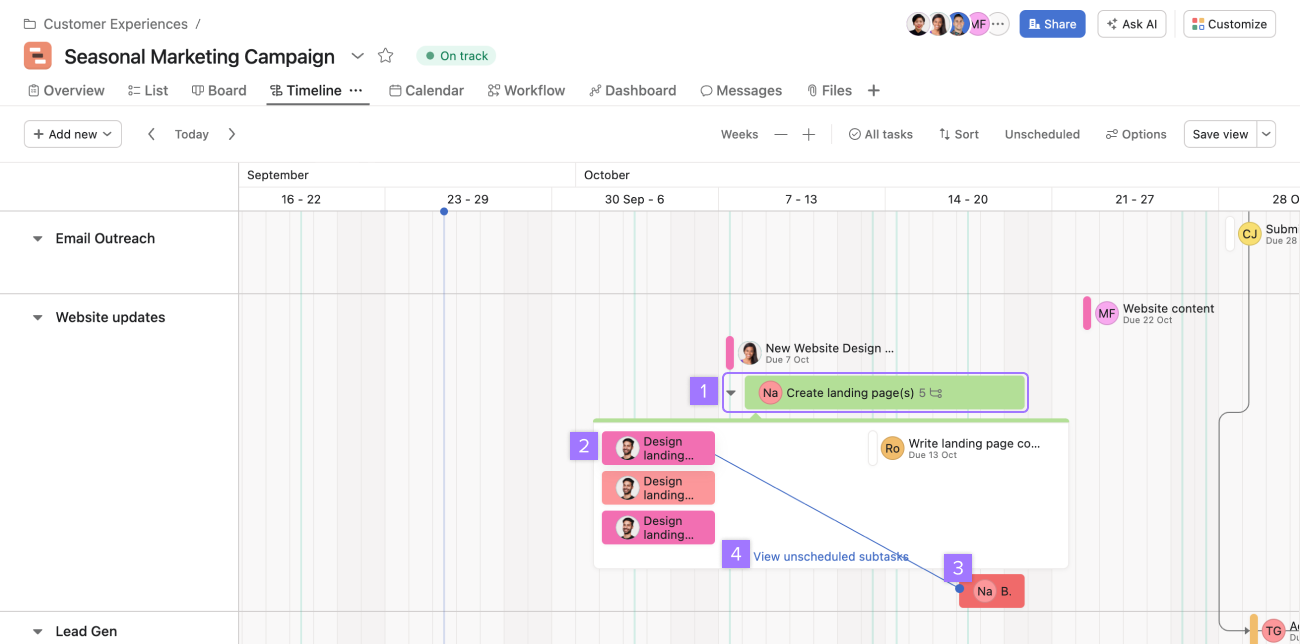
From your timeline, you can:
Unlike parent tasks, subtasks can’t be created from the timeline view. To create a new subtask, navigate to the parent’s task details pane and add the new subtask. You can also add new subtasks from the project’s list view.
Only the first level of subtasks will be displayed.
When you expand a task to see its subtasks, it will remain expanded when others visit the timeline. If you close the subtasks container, it will remain closed when others visit the timeline. Any of these actions taken on the timeline will become the timeline’s default layout.
The zoom button should be on Days or larger to view subtasks on the timeline.
Questions about timeline view? Ask the Community.

