Products


AI Platform


Asana Foundations
Company Type
In This Article

Visit our pricing page for more information.
Available on Asana Starter, Advanced, Enterprise, and Enterprise+ tiers, as well as legacy tiers Premium, Business, and Legacy Enterprise.
Visit our pricing page for more information.
Asana's Zendesk integration helps teams escalate requests and complete the feedback loop between Zendesk and Asana. Whether your team is using Zendesk for customer support or internal requests, increase cross-functional visibility across tools with the Asana integration. Turn manual processes into automated workflows to save your teams time and reduce data duplication between Asana and Zendesk.
Connect Asana and Zendesk to increase cross-functional visibility.
Available with a paid Asana subscription.
Note
It's no secret — Asana offers free trials. Start yours today.
You must have a Zendesk Support account to install the Asana for Zendesk integration.
This integration only works with Zendesk Support.
Installing this integration has two steps - adding the integration to Asana, and adding it to Zendesk.

From Zendesk, you can easily create a new Asana task to escalate an issue to Asana for completion or review. From the Zendesk ticket view, click Create task to open a task creation form:

Next, fill in the task information, and select any attachments from the Zendesk ticket you’d like automatically moved to the Asana task:
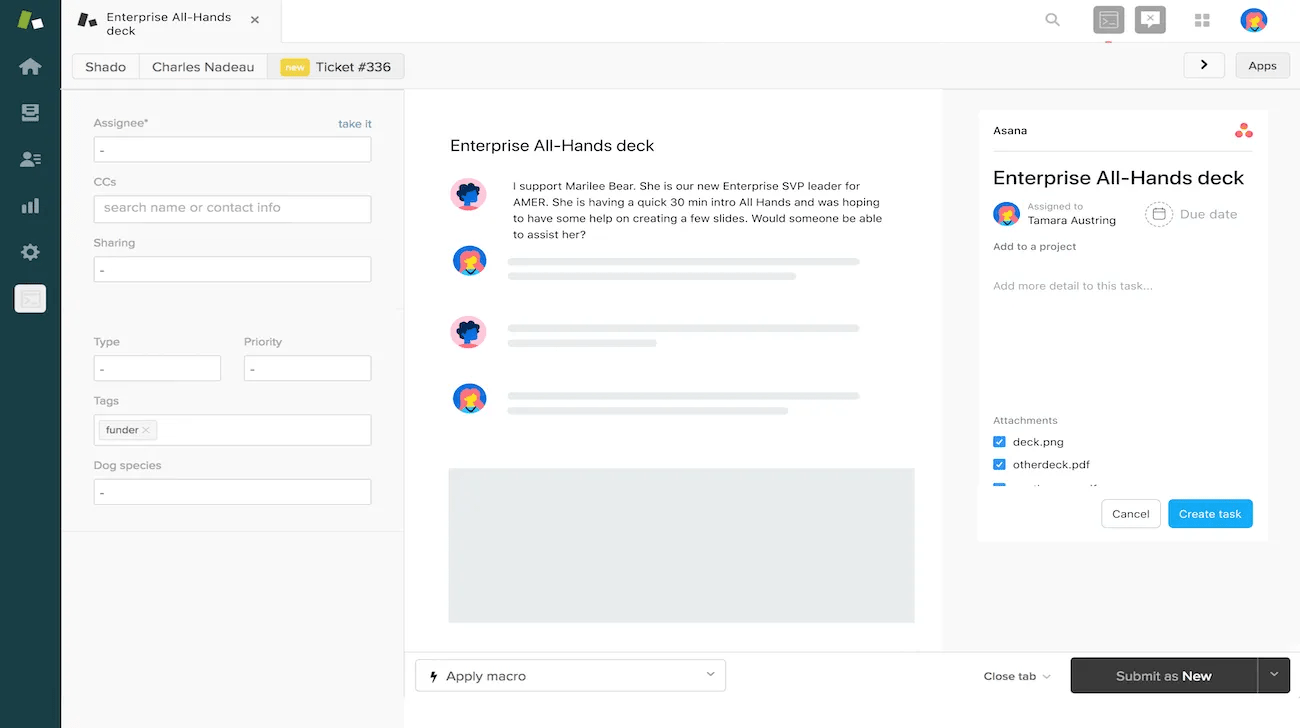
Finally, click Create task - the task will be created in Asana, and you’ll see the task listed in the ticket view moving forward anytime you or another Zendesk user with access to the task loads the integration on this ticket:
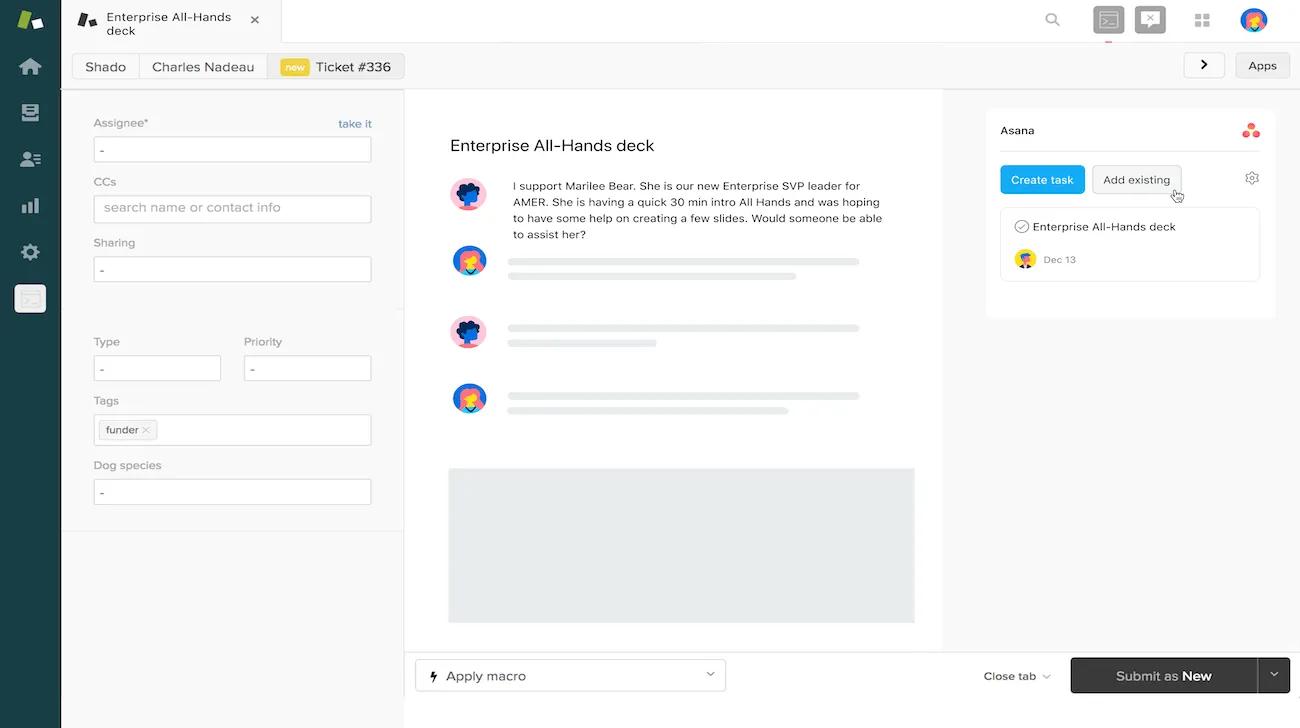
If a task in Asana already exists that the ticket is blocked by, simply click Add existing, and search for the relevant task by name. Click Add or press return/enter, and the task will be linked for visibility in both systems.
When you create a new task or link an existing task from Zendesk, Asana will automatically create a visual representation of the Zendesk ticket on the Asana task for easy visibility:
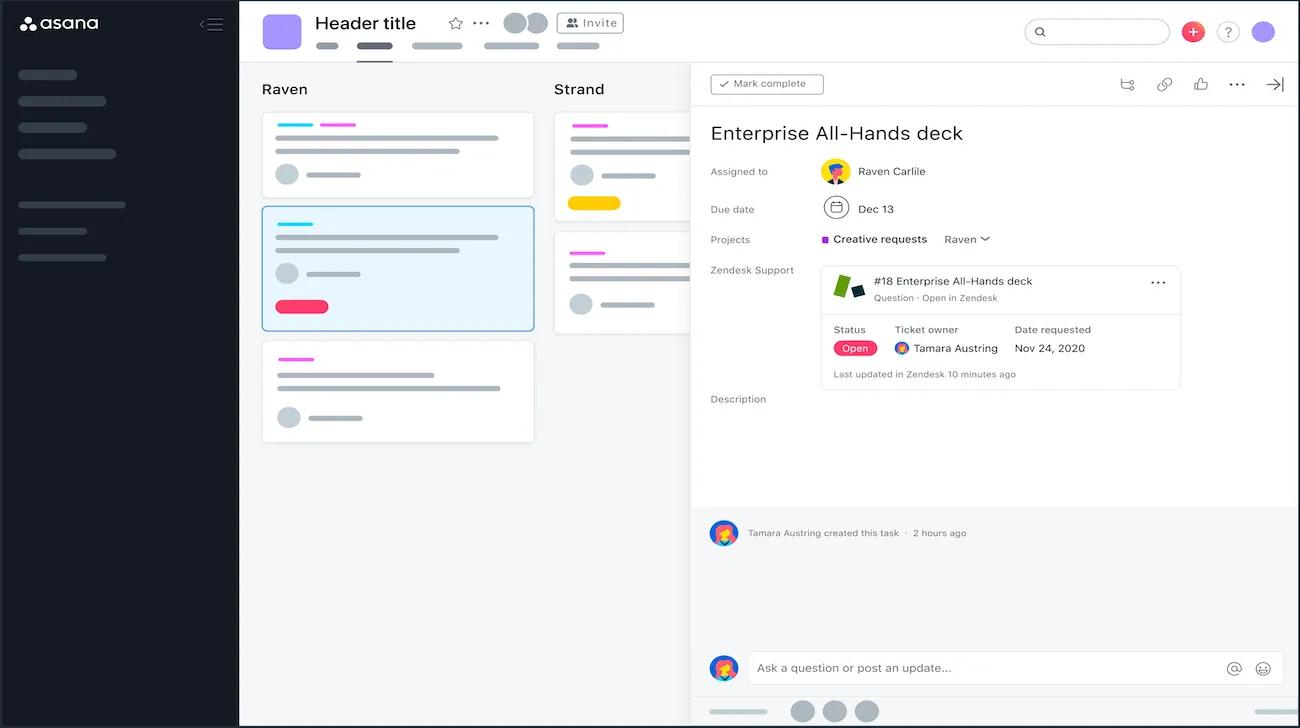
You can also set up a rule to automatically leave an internal comment on the linked Zendesk ticket when a certain action happens in Asana - like the task being completed, or moved to a different section. You’ll need to add Zendesk to any projects you want to configure a Zendesk rule for. Once that’s done, click Customize, scroll down to and click Add Rules, and find Zendesk in the gallery:

You can select commonly used rules, or can make your own rules in the custom rule builder.

