Products


AI Platform


Asana Foundations
Company Type
No articles found for this topic.
No articles found for this topic.
In This Article

Visit our pricing page for more information.
Zapier allows you to connect a variety of web applications to Asana.
If you don't already have a Zapier account, start by creating one here.
If you already have a Zapier account, start by logging in here.
Once logged into your account, your first step is to connect your Asana account with Zapier.
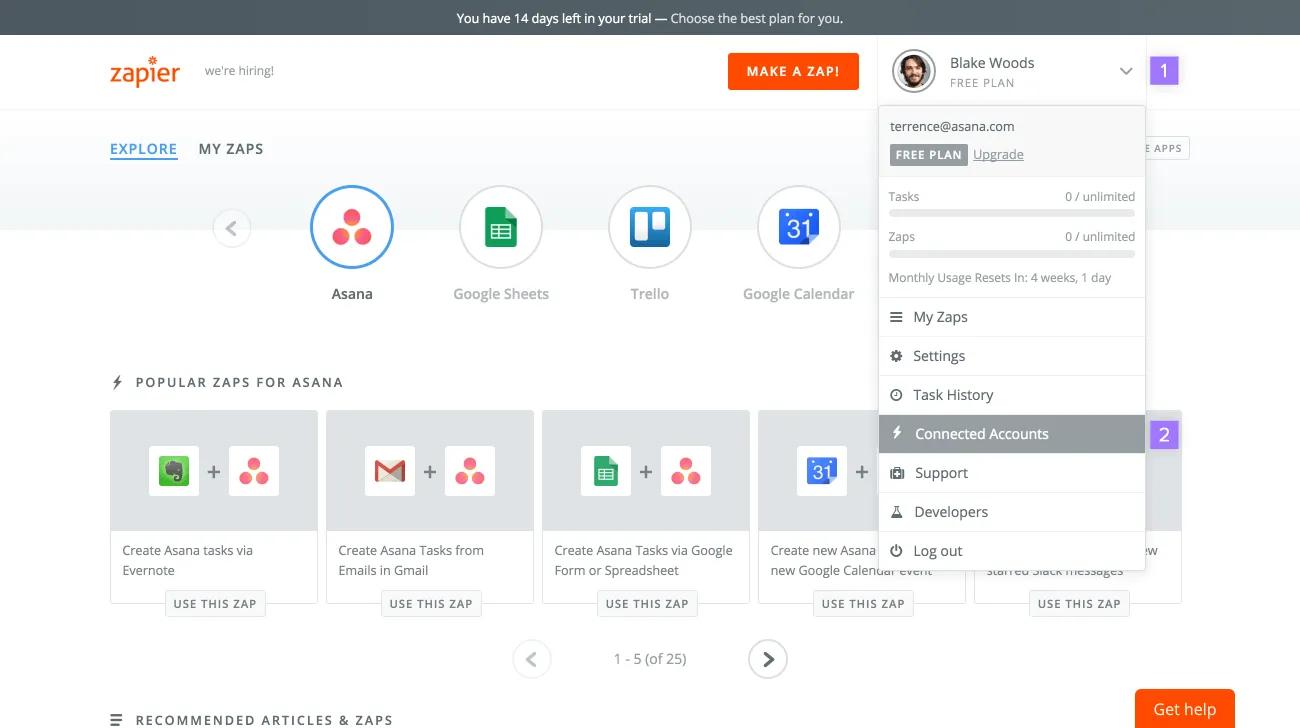
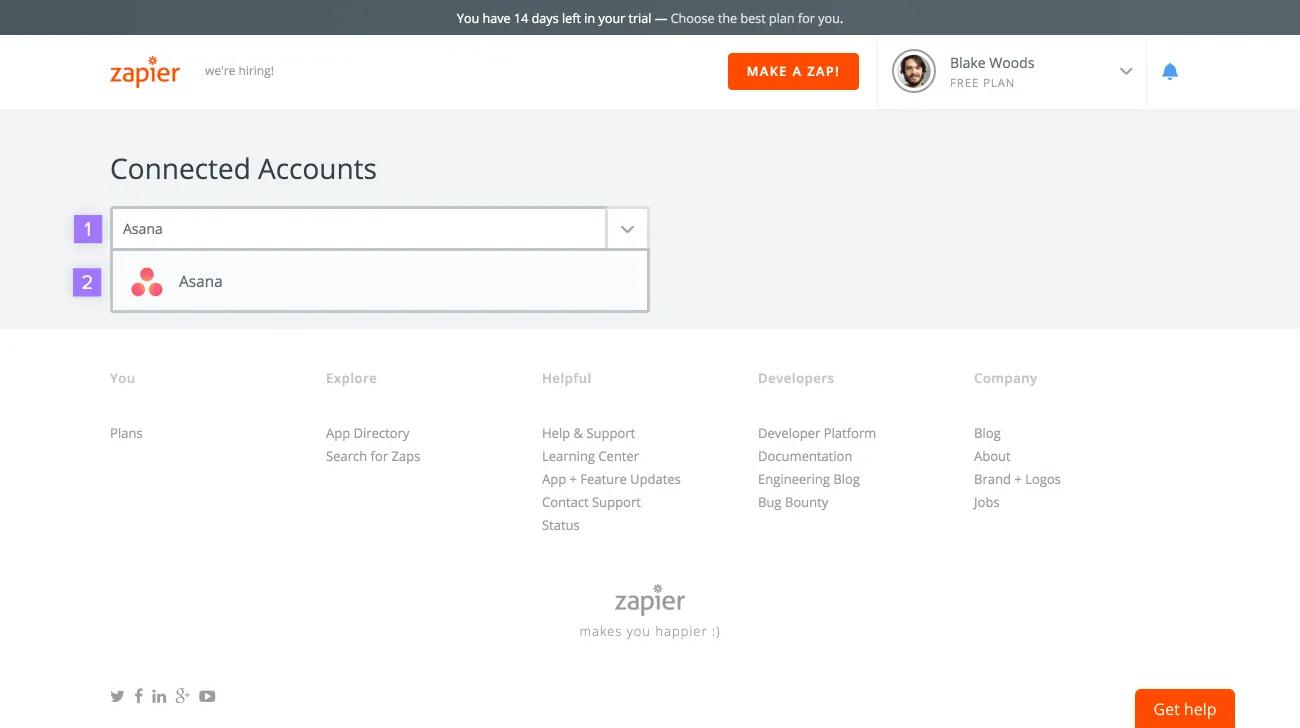
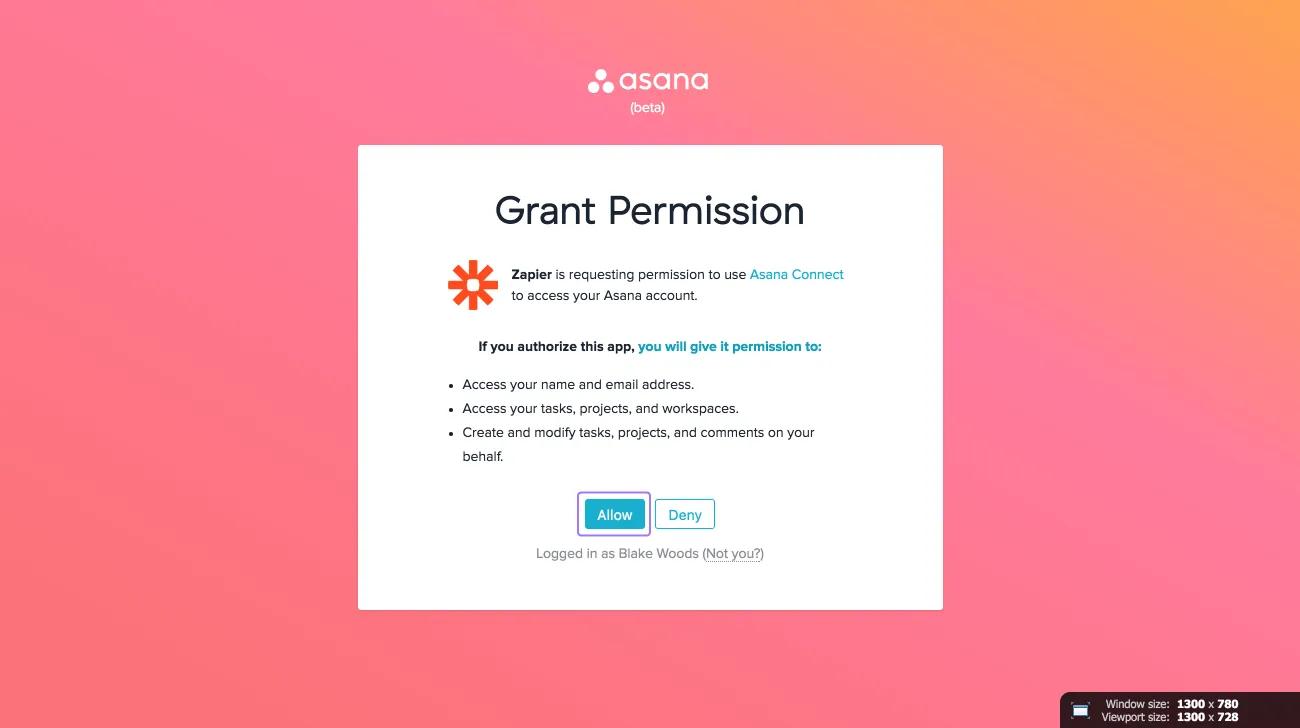
After you select Asana, a new Asana window will popup, click Allow to connect your Asana account with Zapier.
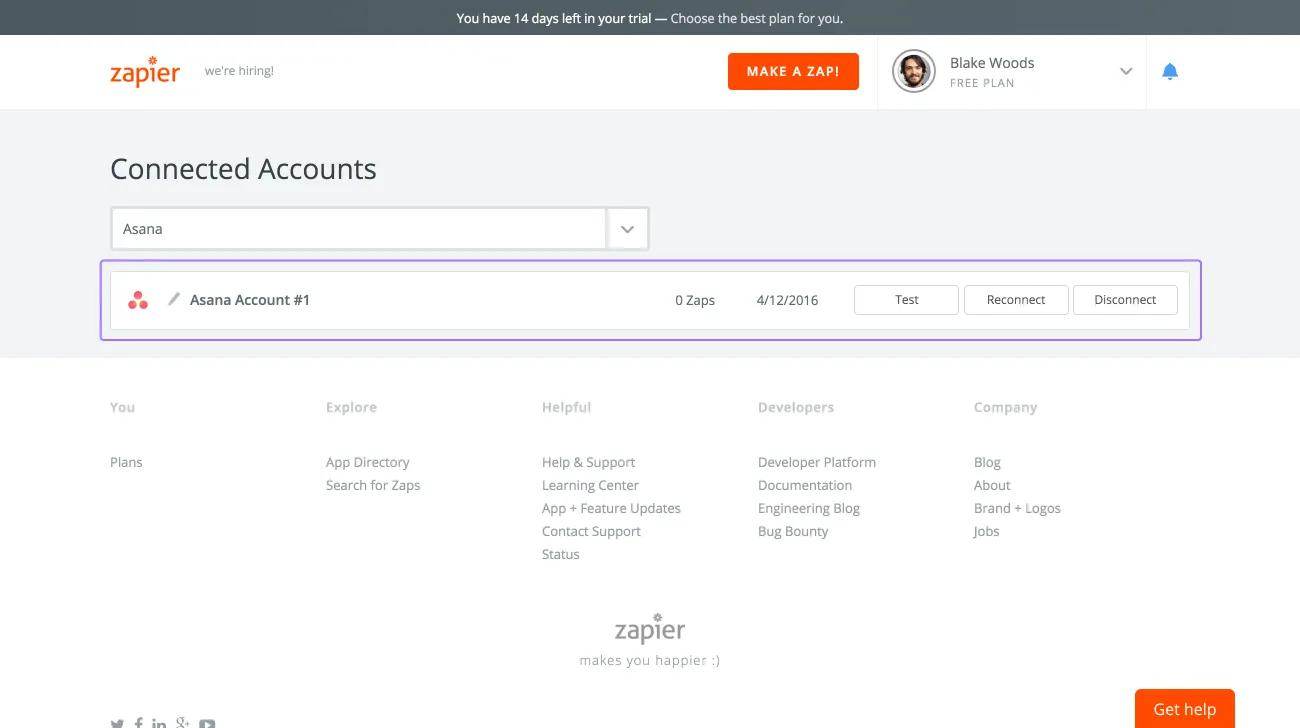
Once you've connected your Asana account with Zapier, you should see Asana under Connected Accounts in your Zapier account.
A zap connects two apps together. There are two parts in every zap: a trigger and an action.
Once the trigger is activated in one app, the action is performed in the other.
There are two ways to use Asana with Zapier:
In this type of zap, a trigger that happens in Asana will perform an action in another app.
Some possible triggers in Asana you can use so your zap perform an action in another app include:
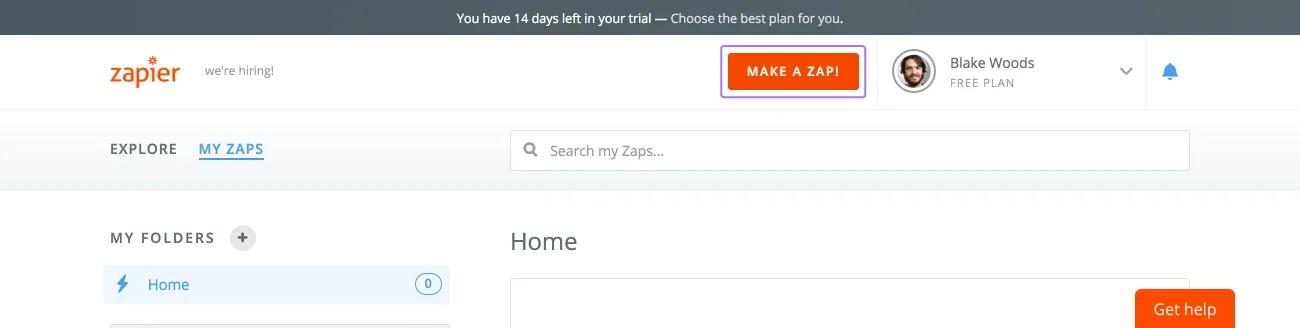
To create a zap, start by clicking Make a Zap! near the top of the screen.
In this example, we will be setting up a zap where if a task is added to a project in Asana (the trigger), then something will be performed in another app (the action).
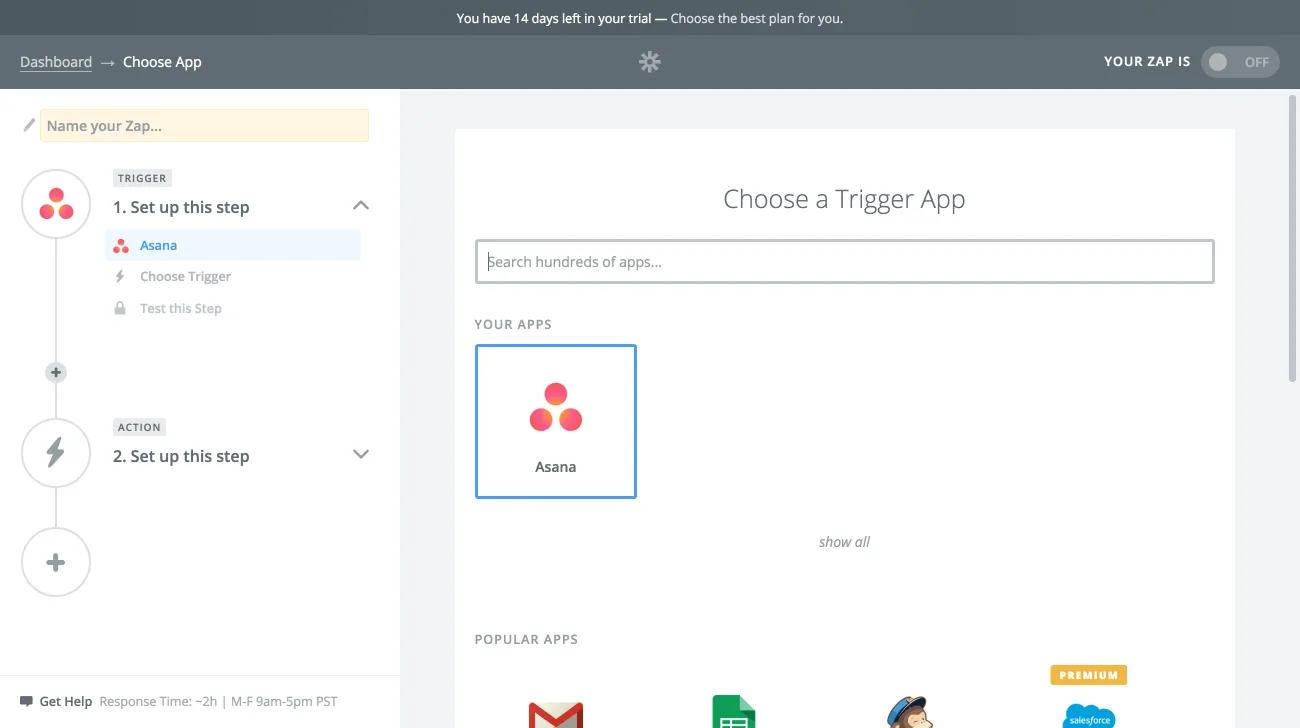
Start by selecting Asana as your trigger app.
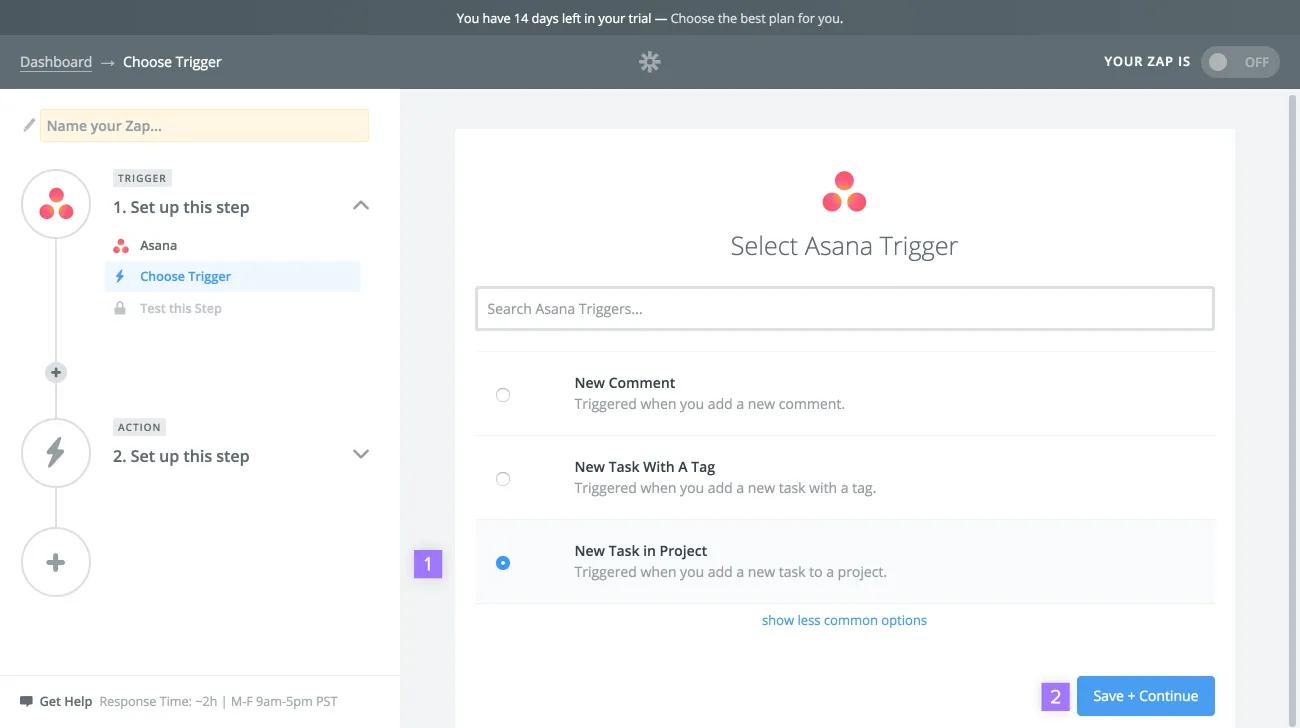
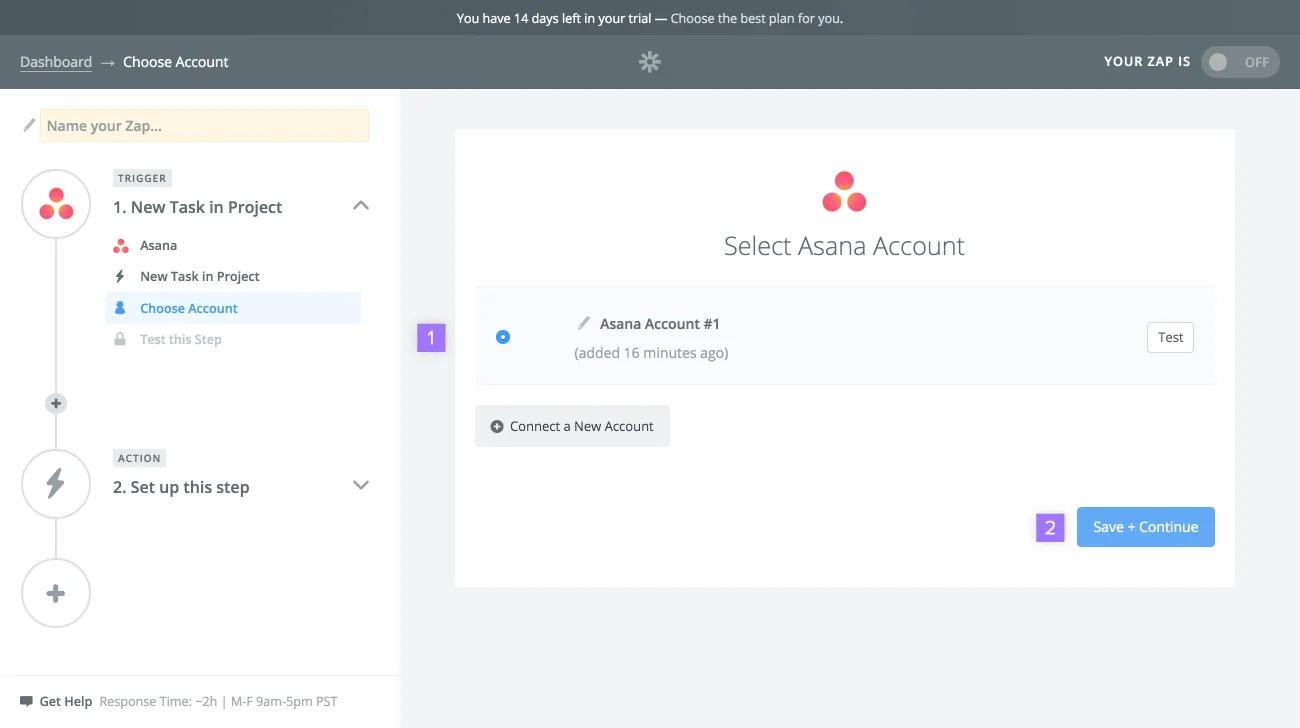
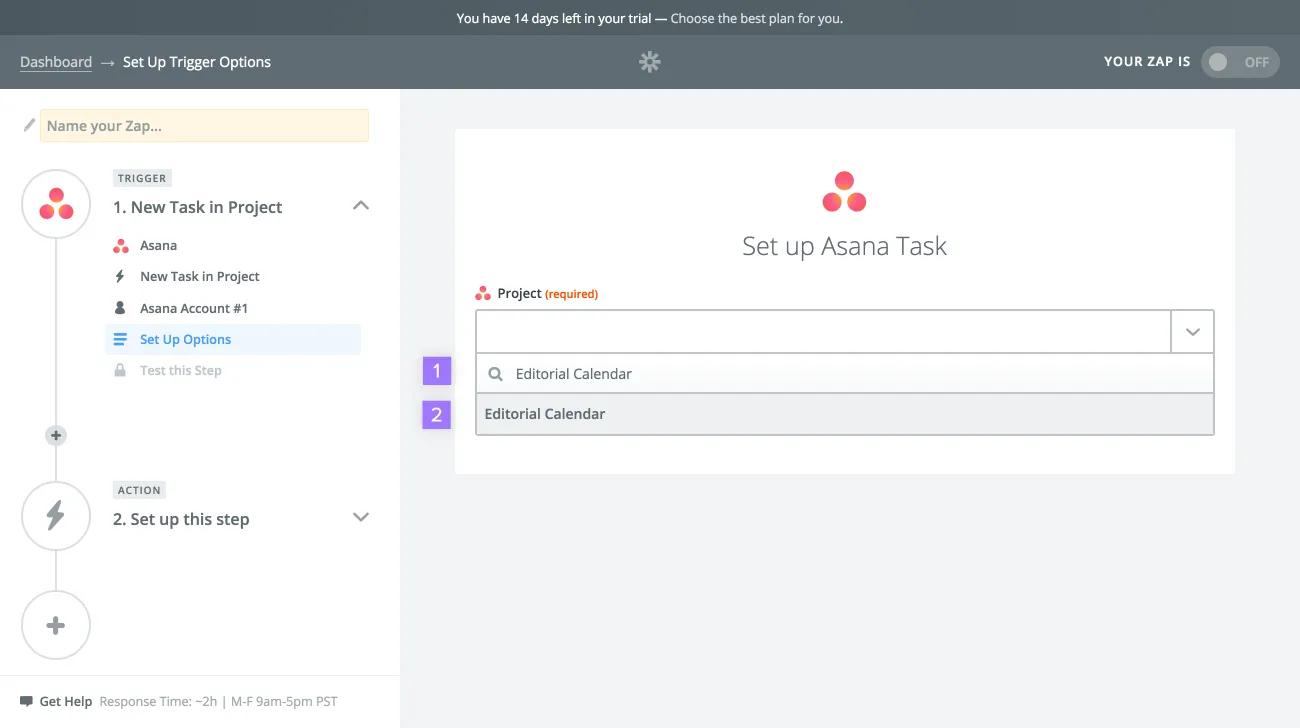
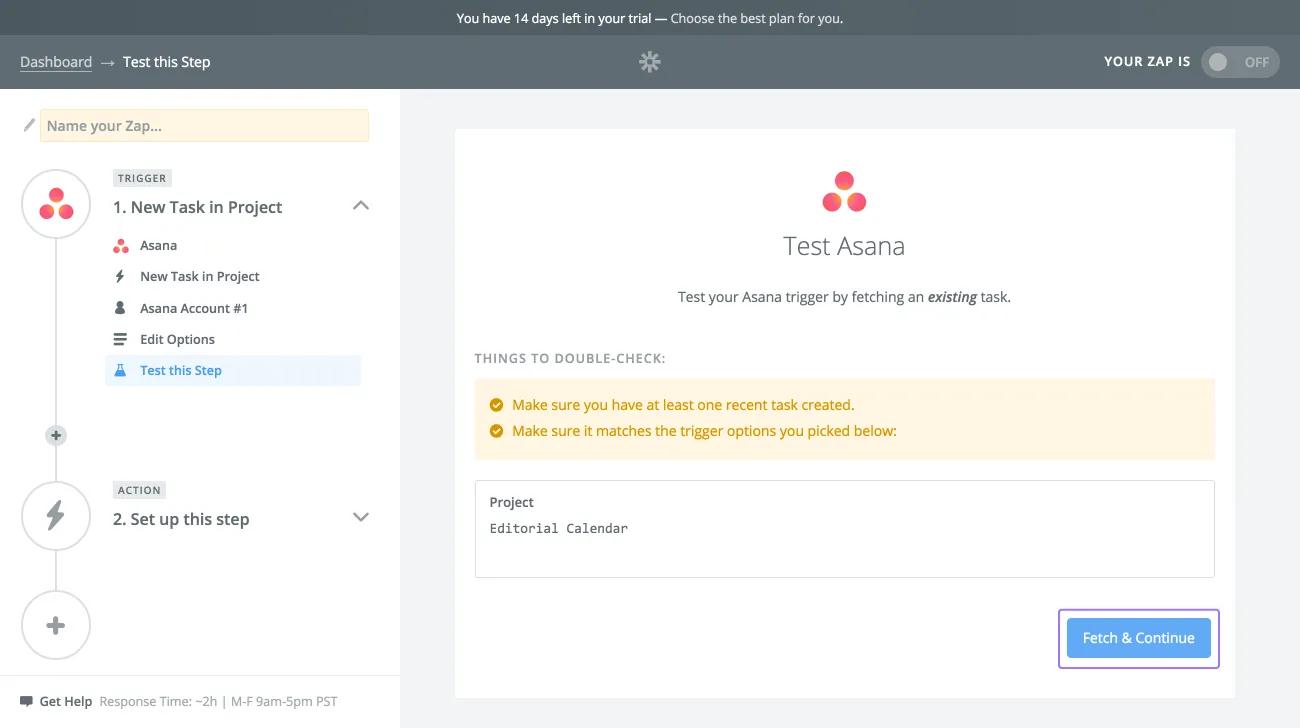
Next, click Fetch & Continue to test if the trigger is working correctly.
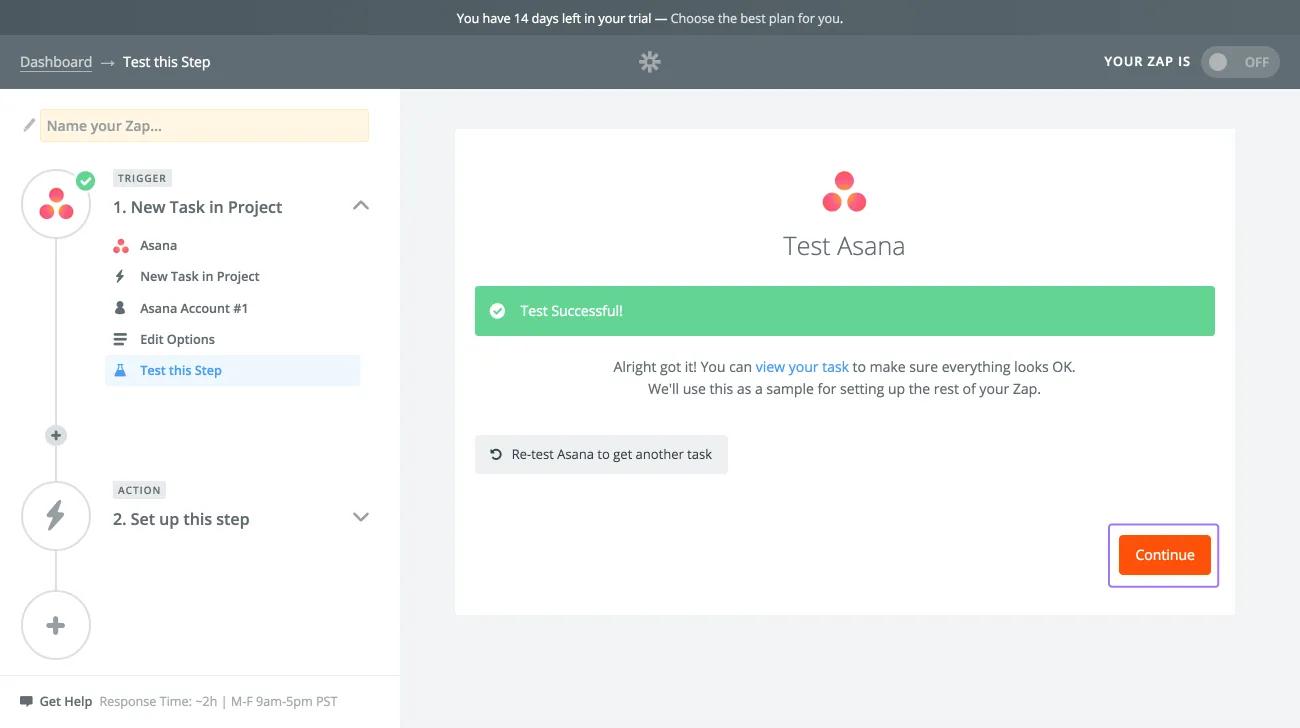
If the test is successful, click Continue to complete the setup of the trigger.
Next, you will select an action app for your zap. Since there are hundreds of possibilities, we will leave it up to you to set up what kind of zap you want to create with Asana.
In this type of zap, a trigger that happens in another app will perform an action in Asana.
Some possible actions you can have your zap perform in Asana include:
To create a zap, start by clicking Make a Zap! near the top of the screen.
In this example, we will be setting up a zap where if we receive an email in Gmail (the trigger), a task is created in Asana (the action).
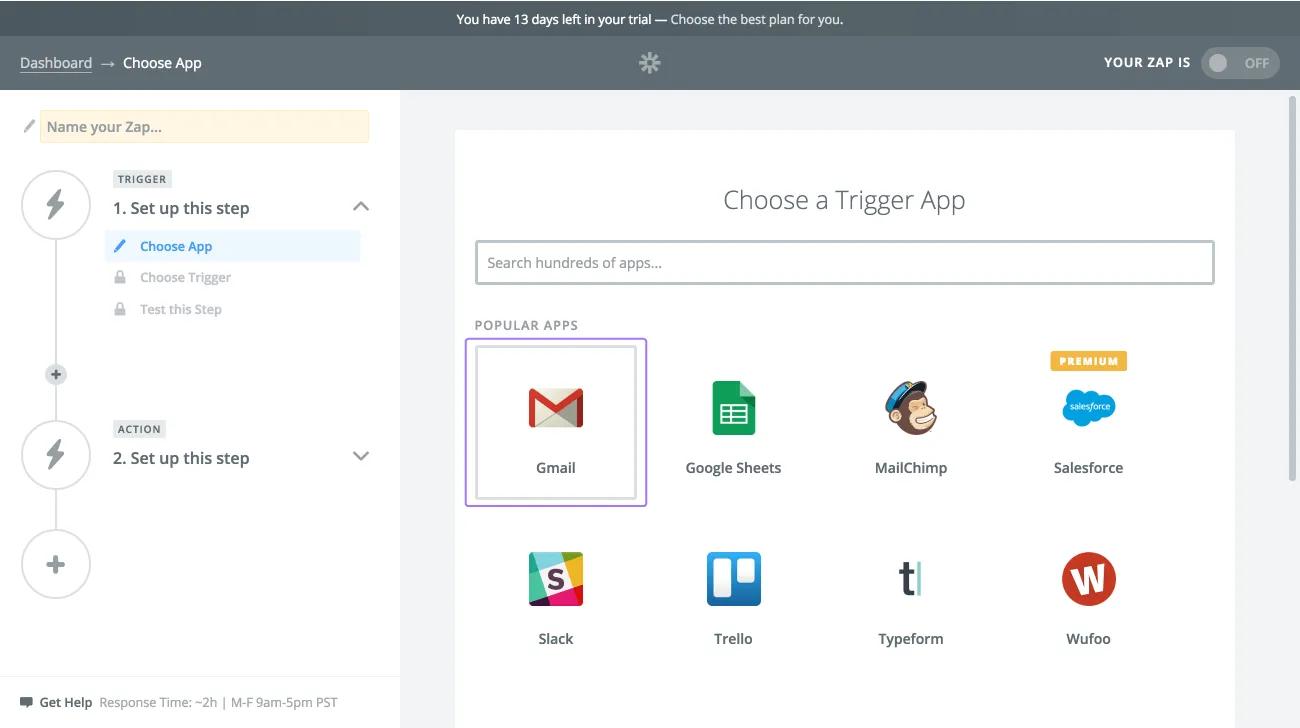
Start by selecting Gmail as your trigger app.
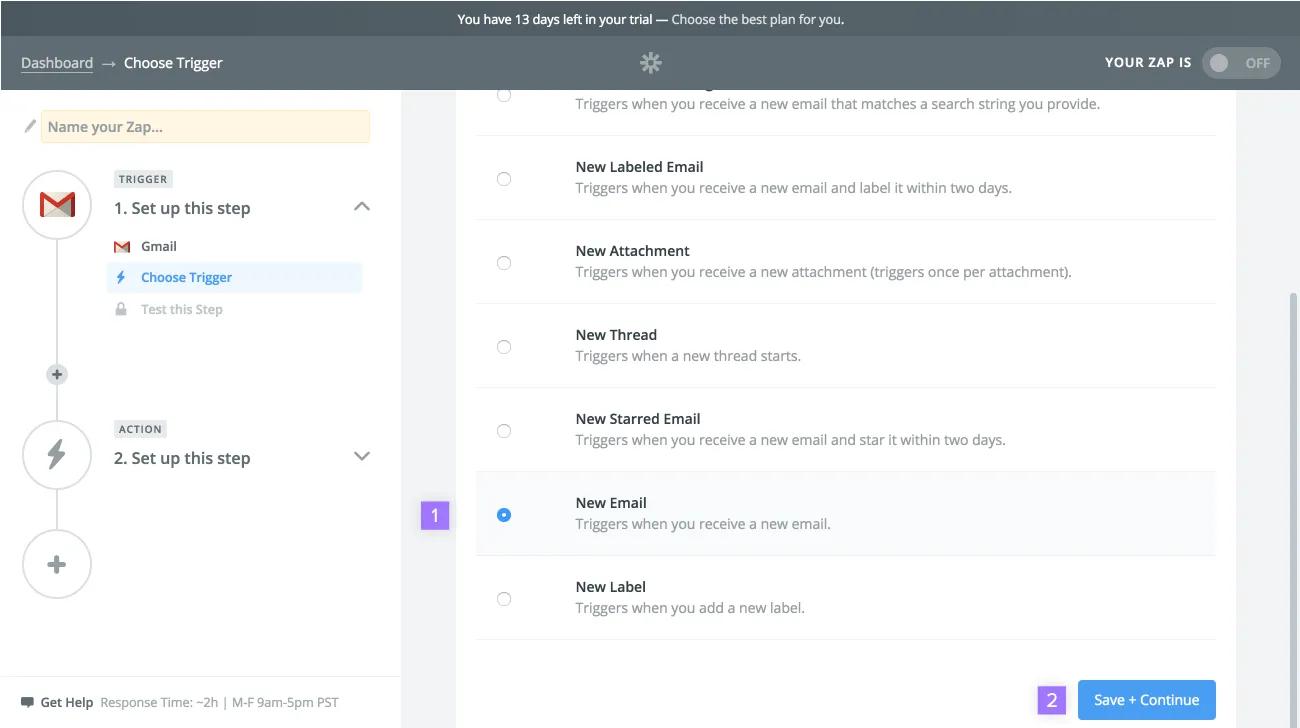
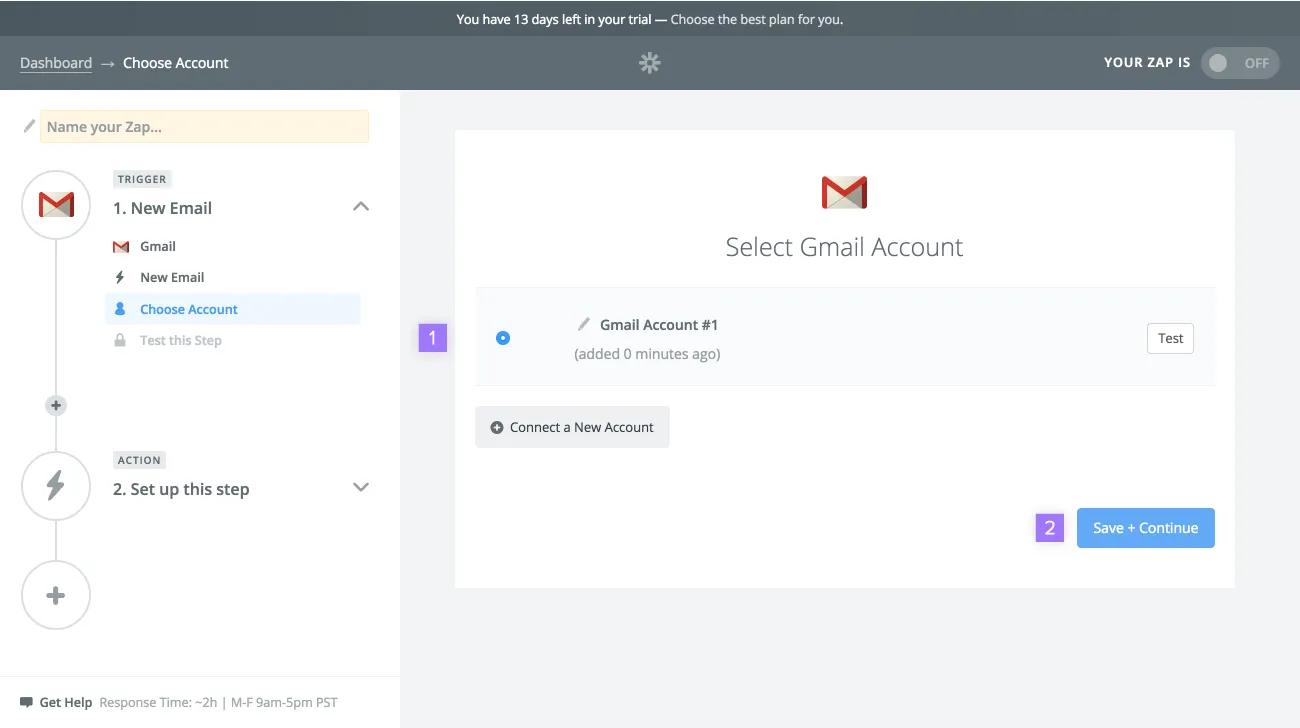
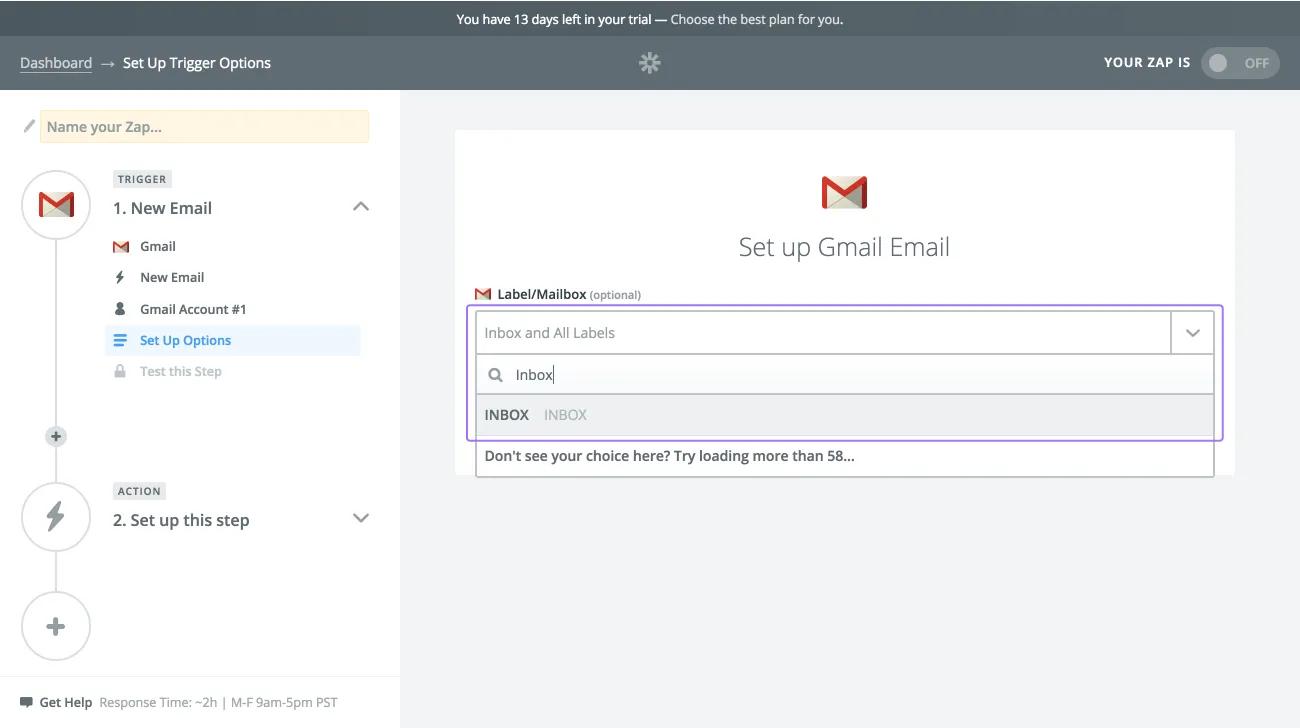
Begin typing the Gmail folder's name you wish to use for this zap and select it in the typeahead that appears
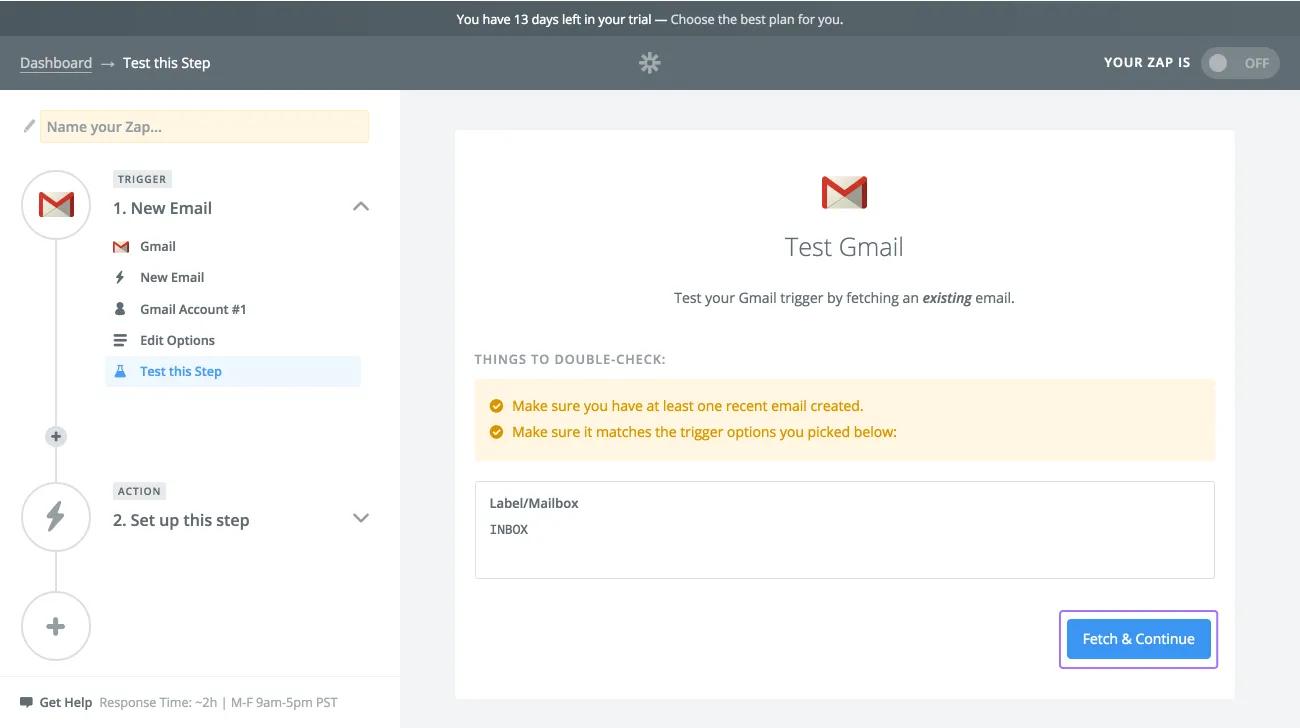
Next, click Fetch & Continue to test if the trigger is working correctly.
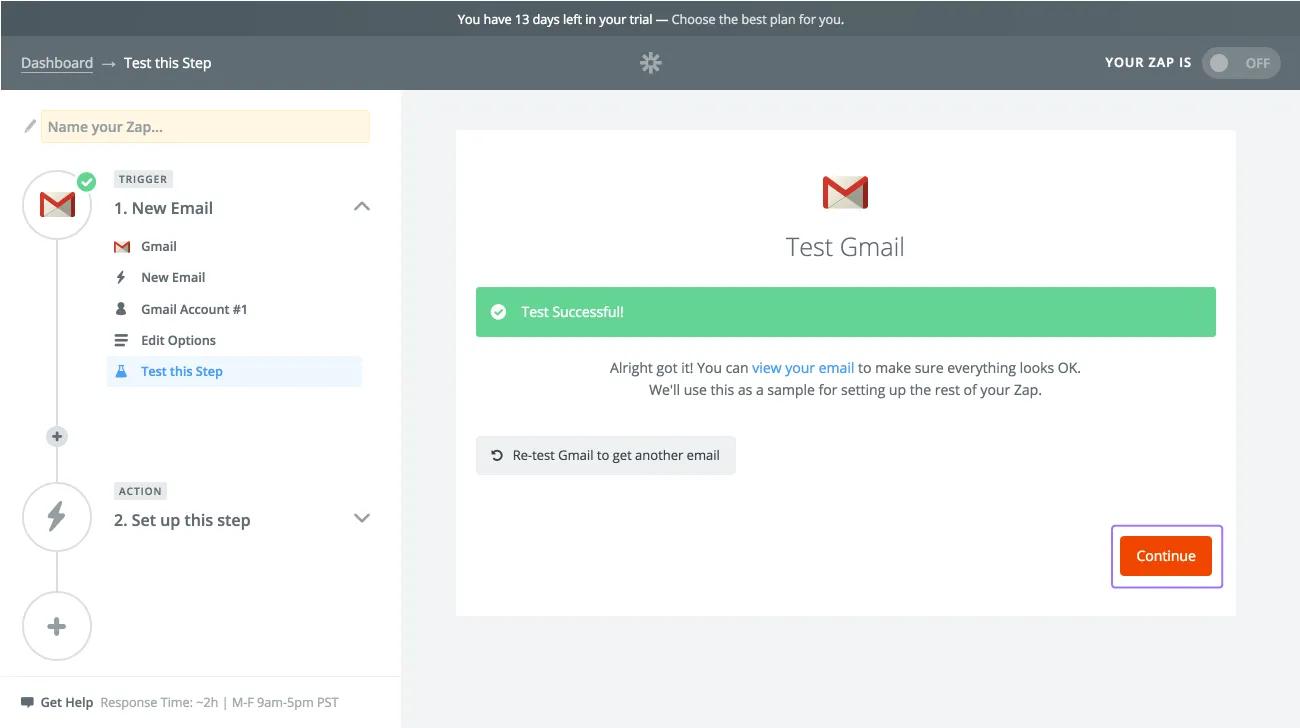
If the test is successful, click Continue to complete the setup of the trigger.
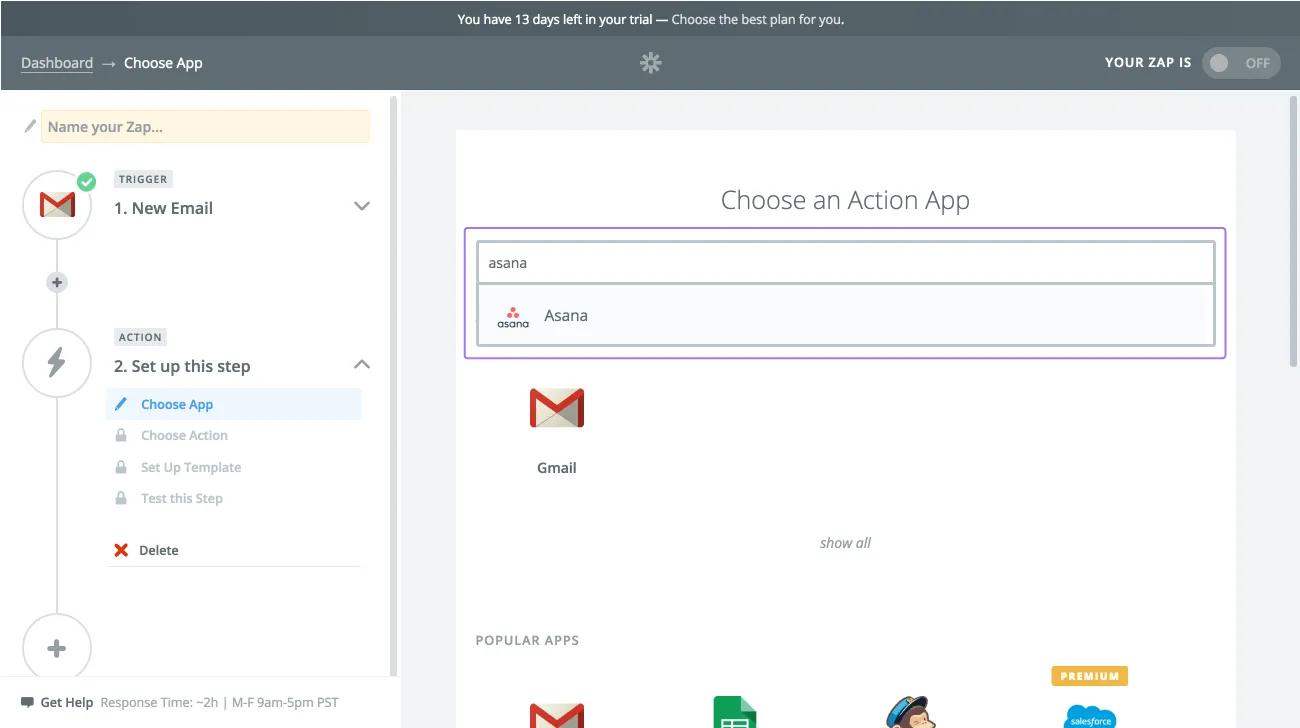
Begin typing Asana in the field and select it in the typeahead results that appear.
In the following pages, you will set up your action in Asana much like you set up Asana as your trigger app in the previous example.
Need more help? Check out Zapier's Support page here.
Like what you see? Get started with a free Asana trial today. Try for free

