Products


AI Platform


Asana Foundations
Company Type

Visit our pricing page for more information.
Forms are available on Asana Starter, Advanced, Enterprise, and Enterprise+ tiers, as well as legacy tiers Premium, Business, and Legacy Enterprise.
Visit our pricing page for more information.
This article covers how to leverage field mapping to capture specific information using forms and connect it to your workflow via custom fields.
With custom field mapping, you can connect the answers to your form's questions directly to custom fields in the project.
When adding a new question, click the Connect to field box and choose from available fields. You can also see which fields are already in use.
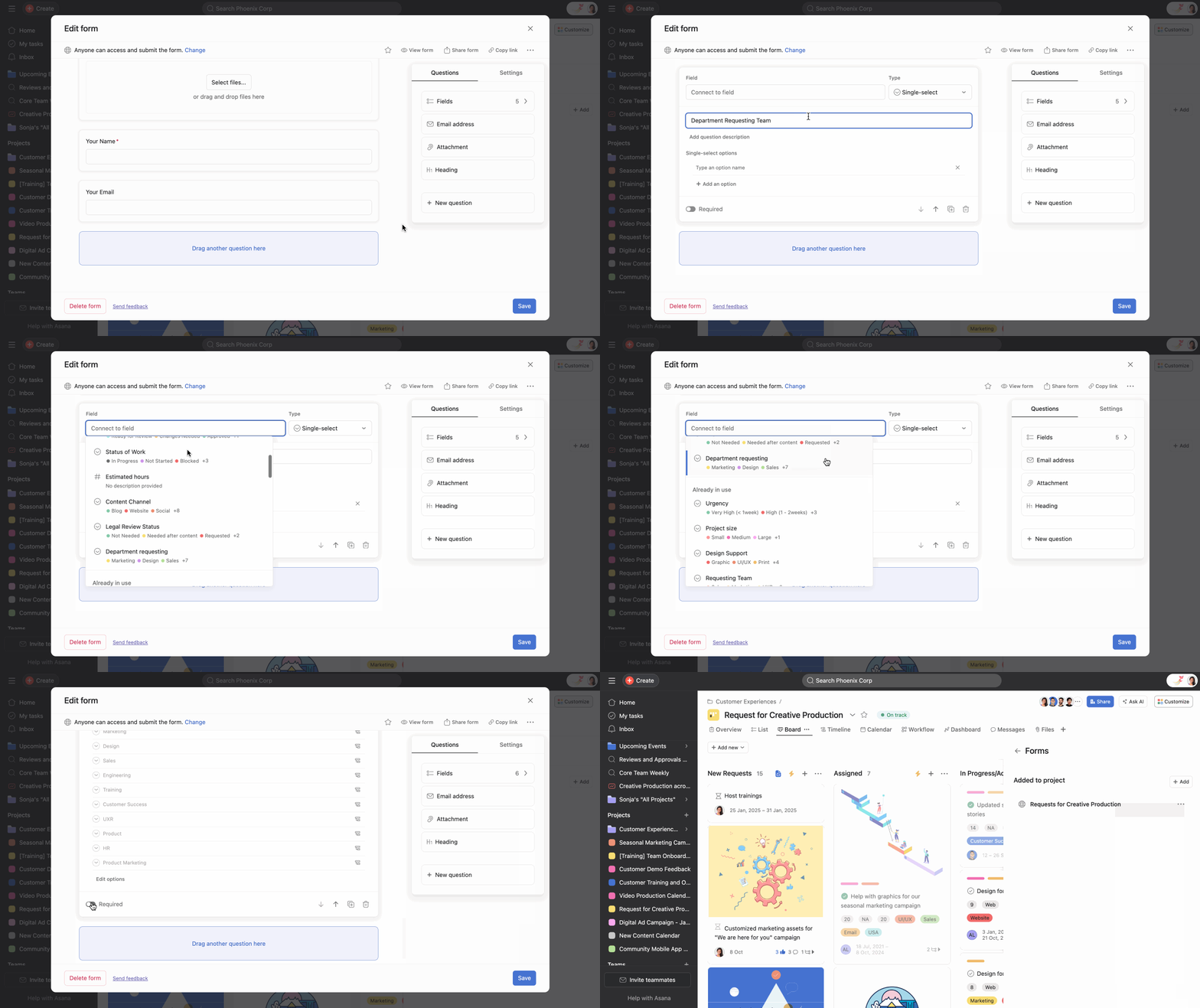
To create a new field directly from the form, start typing in the Connect to field box and the + Add option will pop up.
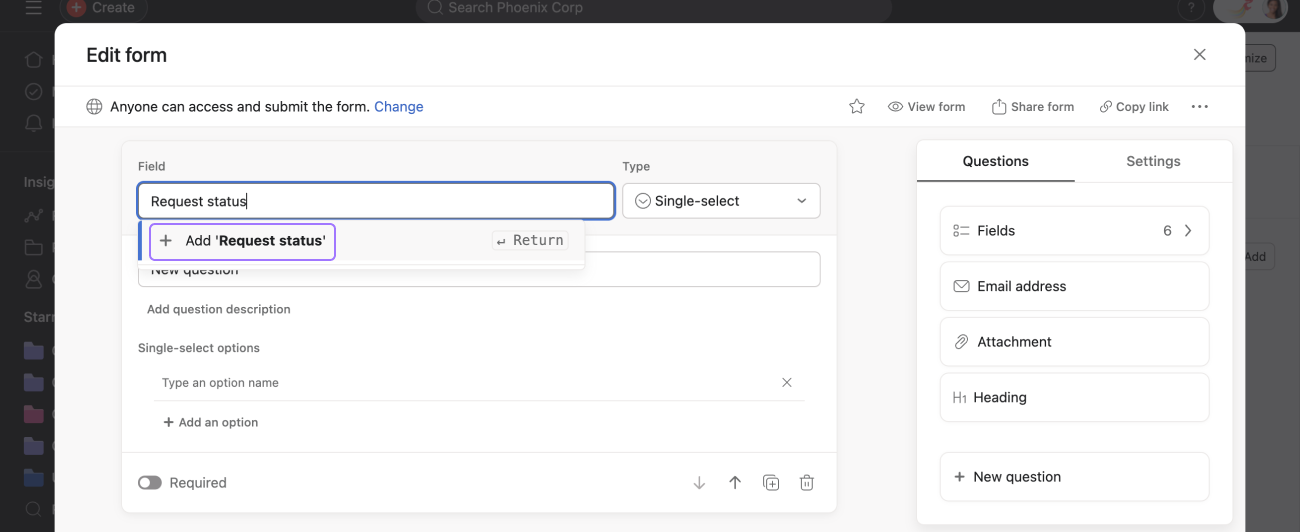
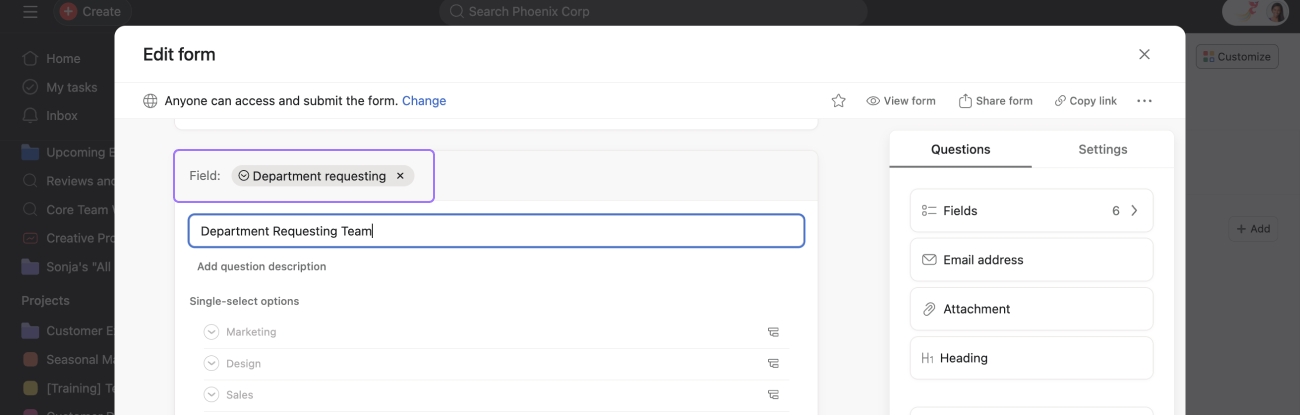
Once you've connected the field, it will appear in the form.
Note
To connect a custom field to a form question, the custom field's permissions must be set to allow access for both organization members and guests. If a custom field's access is restricted to organization members only, it will not appear in the Connect to field suggestions in the form builder.
To check or update a custom field's permissions:
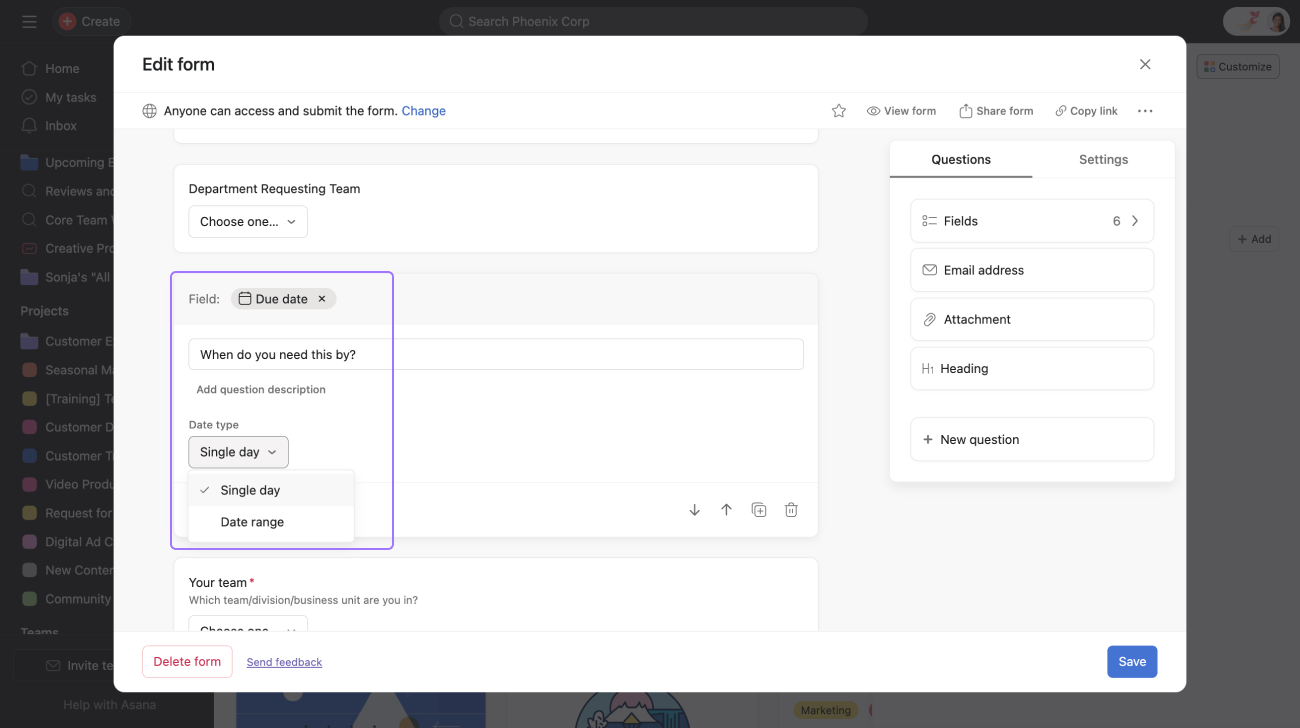
For date questions, you can choose to have the form question responses connect to the following date types:
When Single day is selected, the date input field will be Due date.
When Date range is selected, there will be a Start date and End date input field.
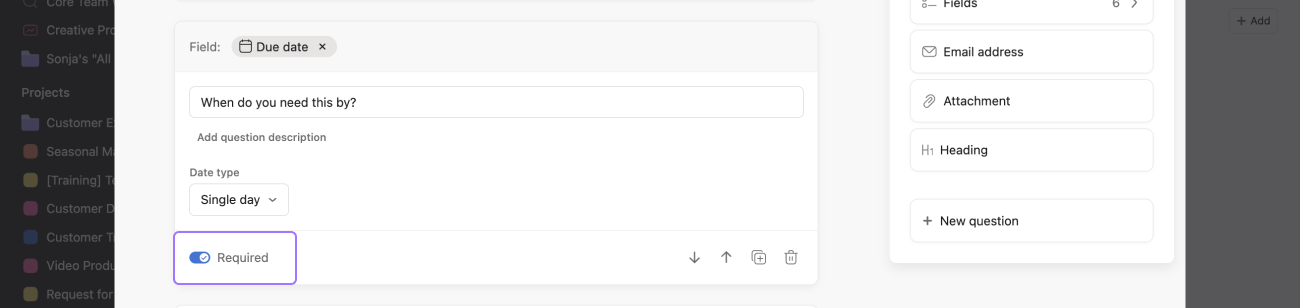
Click Required to make the date a required field in your form.
You can bulk add or remove custom fields to streamline the form creation process. This process allows for easy management of form fields.
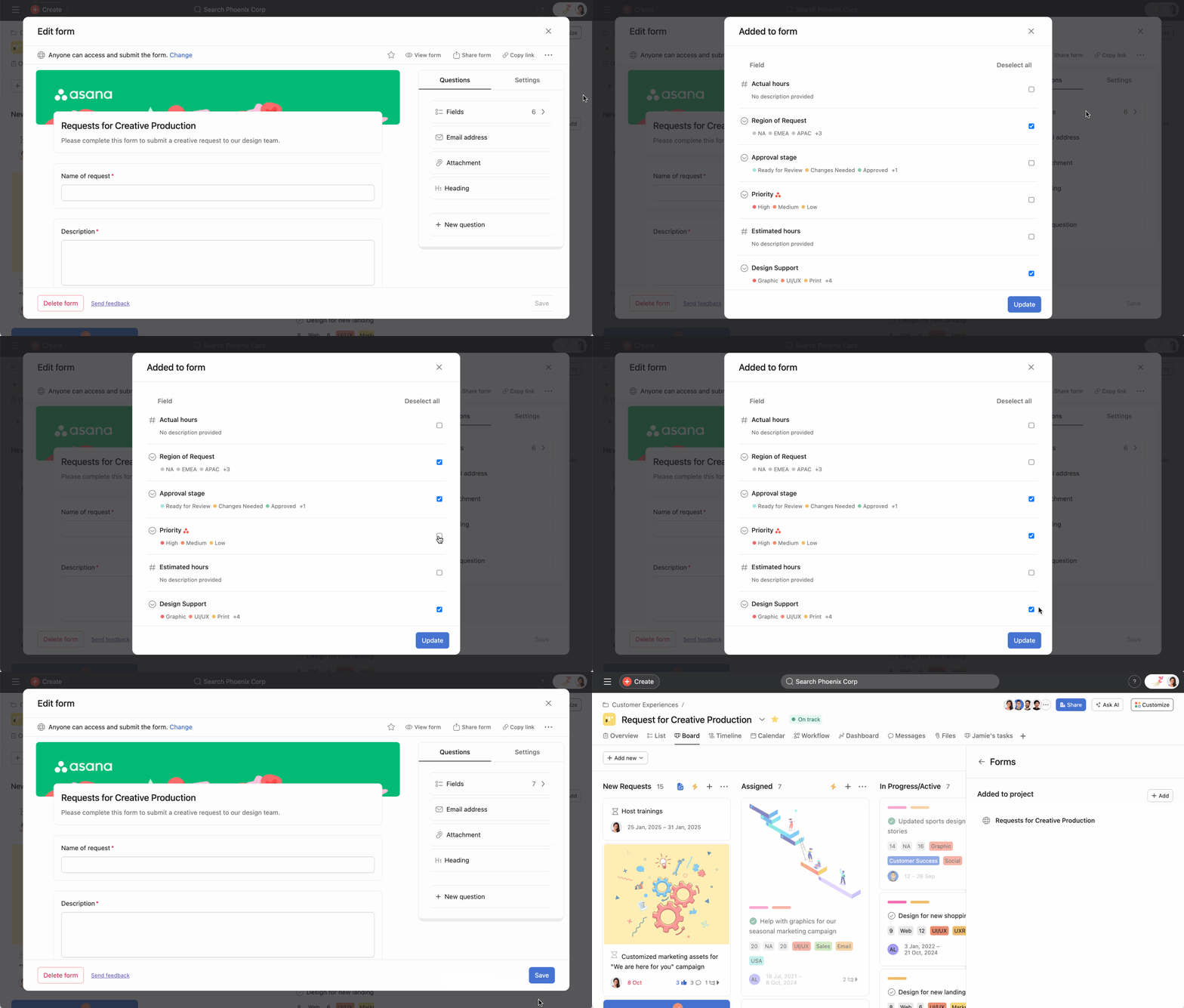
To bulk remove custom fields from your form, deselect the custom fields and click Updated.

