Available on Asana Starter, Advanced, Enterprise, and Enterprise+ tiers, as well as legacy tiers Premium, Business, and Legacy Enterprise. Visit our pricing page for more information.
The management dashboard for global custom fields allows users to maintain consistency in workflows and accurate reporting across multiple projects by offering visibility on exactly which projects a global field is being used in.
Related articles
Previewing a field’s content
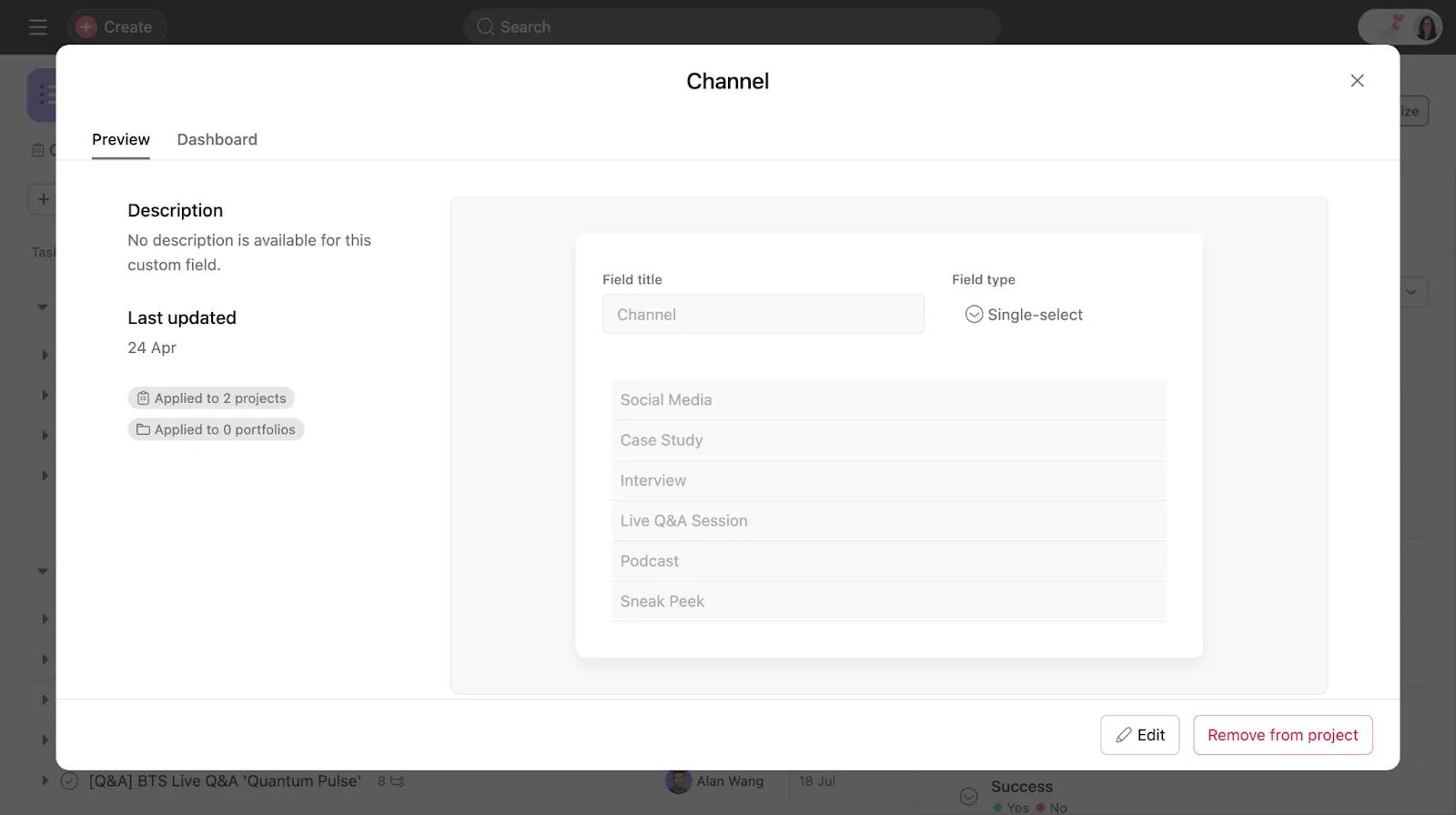
The global field’s preview tab provides a quick overview and description of the field, its options, and a summary of how many projects/portfolios it's currently being used in.
Accessing the management dashboard
The management dashboard can be accessed by editors and admins of the field in the following ways:
When adding or viewing an existing field within a project
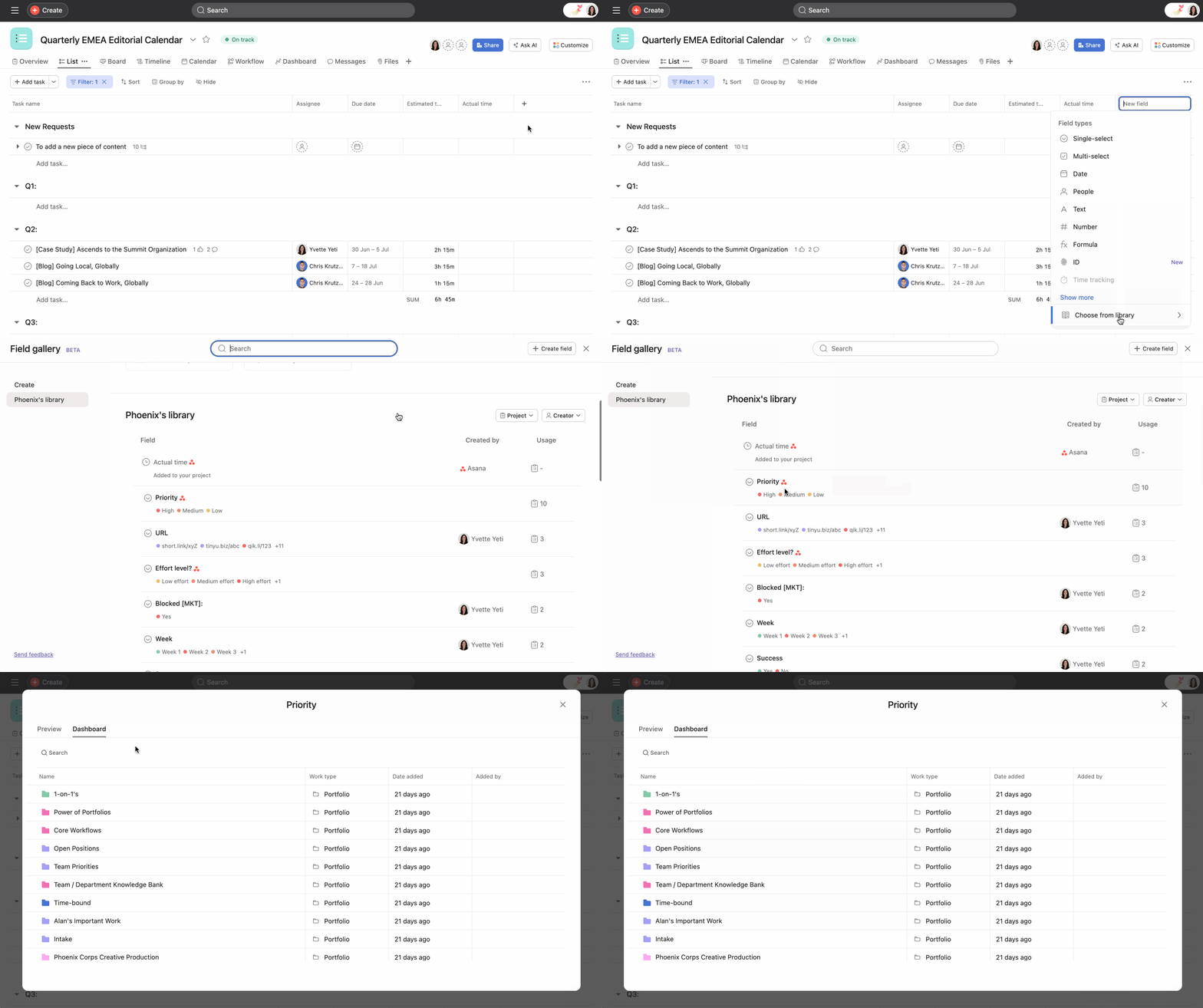
- When adding an existing field to a project, open your project in Asana and click the + Add field button in the top bar to add a new field.
- Select Choose from library to open the field library.
- Click the book icon on the top right of the pop up to open the field gallery.
- Click on any field in the library to launch the preview page for that field.
- Click on the Dashboard tab to open the new management dashboard for fields.
When adding or viewing an existing field through the customize menu
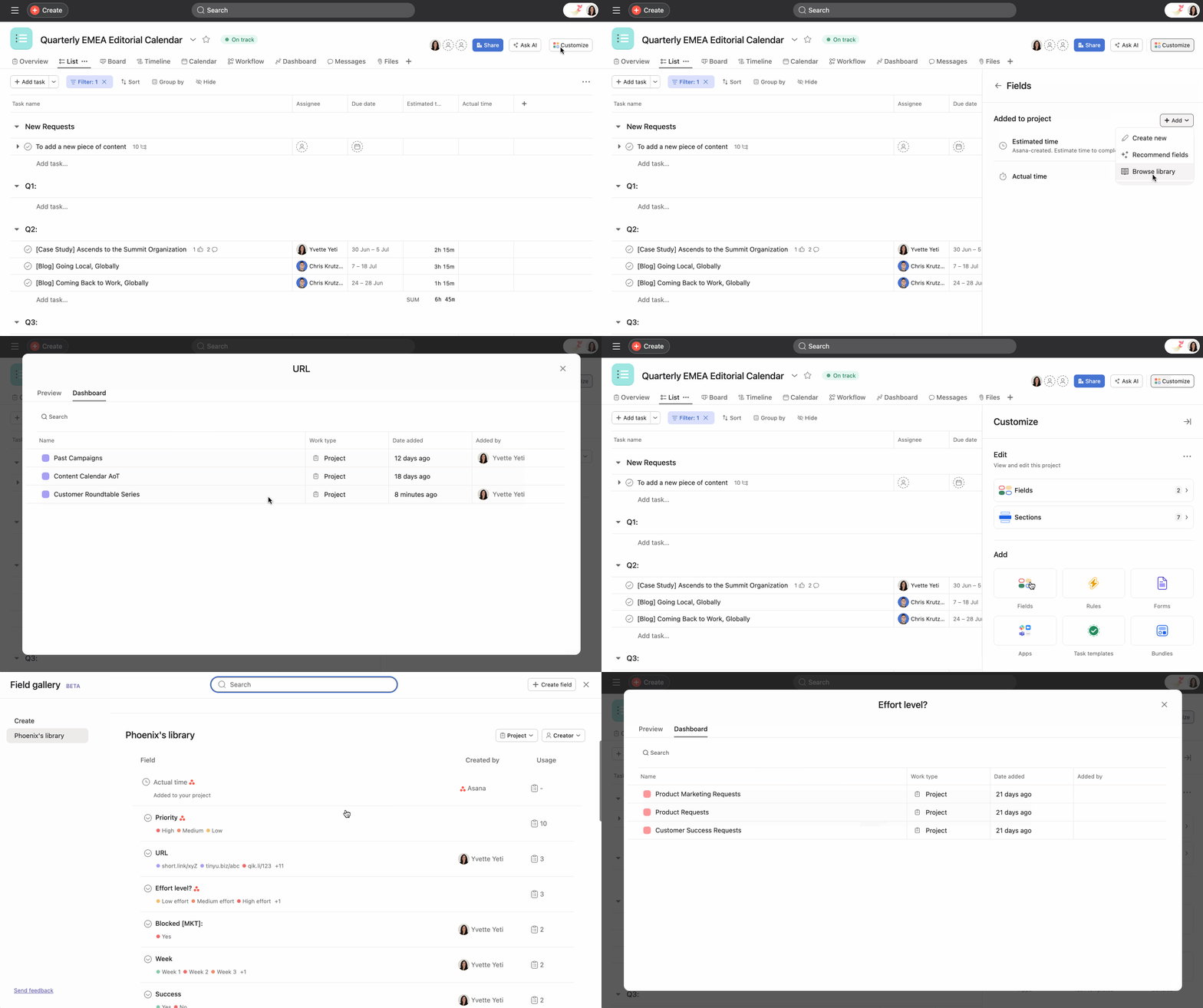
- When adding a field to a project, open your project in Asana and click on the Customize button.
- From here, you have two options:
- Select Fields under the Edit section, click on the +Add button and then select Browse library.
- Select Fields under the Add section, click on the Choose from library tab and then click on the book icon on the top right to open the Full screen library.
- Click on any field in the library to launch the preview page for that field.
- Click on the Dashboard tab to open the new management dashboard for fields.
When editing an existing field
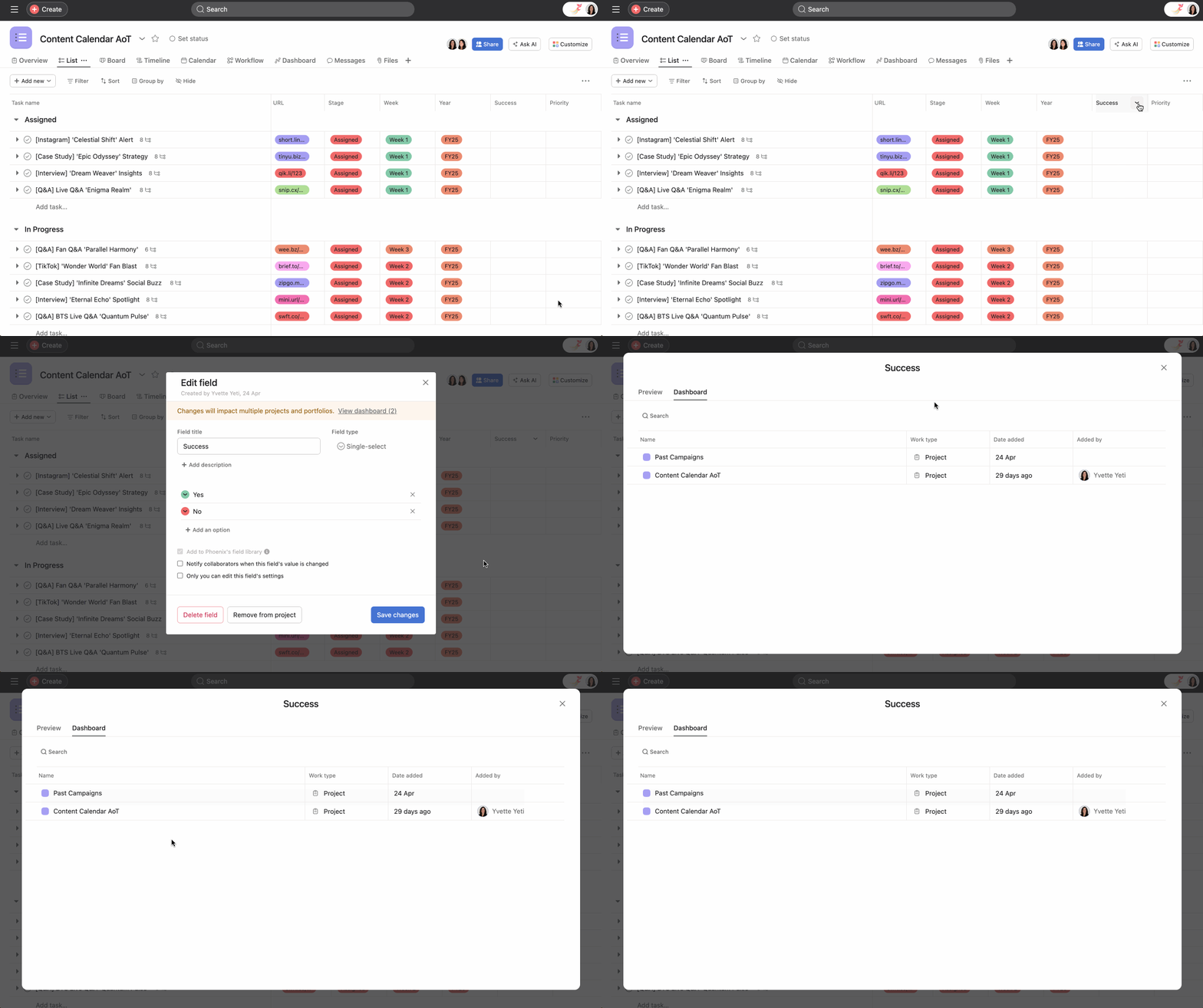
- Open your project in Asana and hover over the custom field until the drop-down arrow appears.
- Click the drop-down arrow and select Edit field.
- The Edit field window will open and a banner stating "Changes will impact multiple projects and portfolios. View dashboard" will be visible at the top of the window.
- Click on View dashboard to open the management dashboard for global fields.
Note: Certain field types are not supported by the management dashboard. These include; assignee, due date, projects, tags, dependencies, created by, created on, completed on, last modified on, actual time and task visibility.




