Products


AI Platform


Asana Foundations
Company Type

Visit our pricing page for more information.
Available on Asana Advanced, Enterprise and Enterprise+ tiers, as well as legacy tiers Business and Legacy Enterprise. Visit our pricing page for more information.
The integration will be made available for Advanced customers in May 2025.
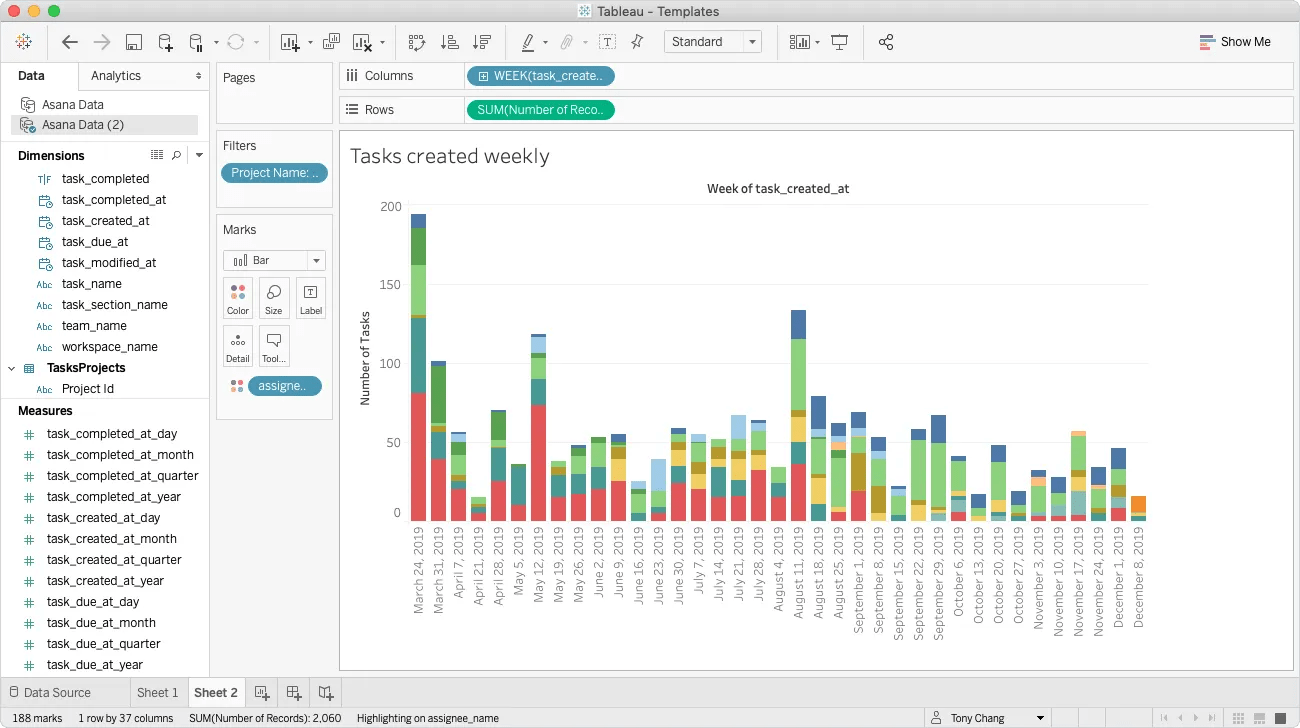
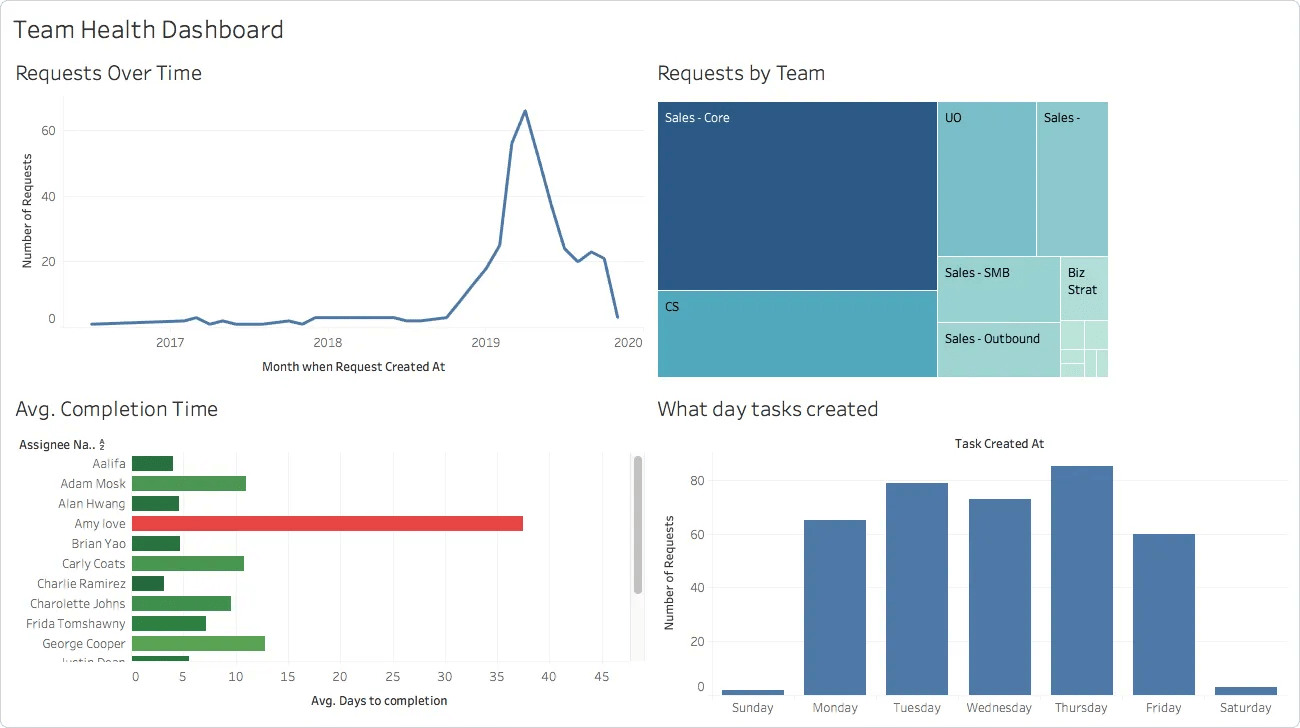
Tableau is a powerful business intelligence tool that lets you build reports based on data from multiple sources. The Asana for Tableau integration pulls task data for all tasks in a given team or portfolio.
Both you and the team you're getting data for must have access to either Asana Advanced, Enterprise, Enterprise+, or legacy tier Business or Legacy Enterprise. You also need access in Asana to the data that you wish to sync to Tableau.
You need to have Tableau Desktop enabled to use the Asana for Tableau integration.
To use the Asana Web Data Connector, open Tableau on your Desktop. From the Connect menu on the sidebar, select Web Data Connector.
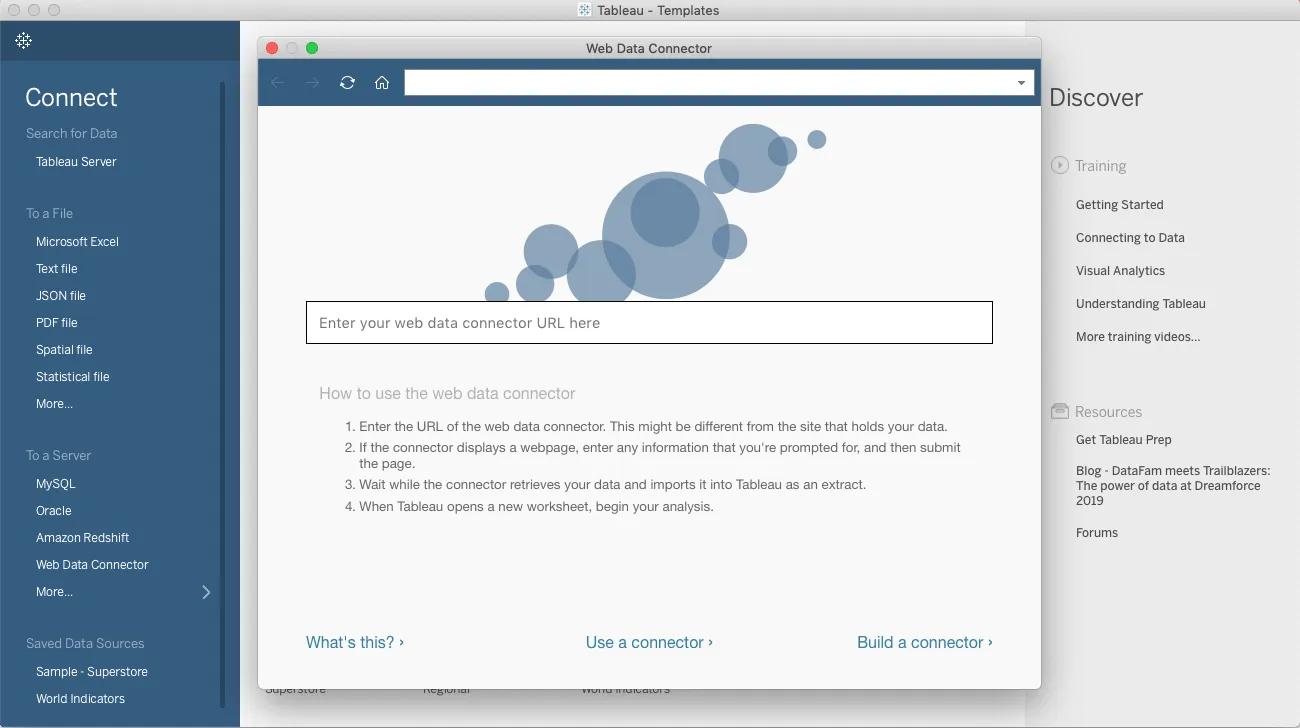
Paste Asana's Web Data Connector link: https://tableau-wdc-v2.integrations.asana.plus/
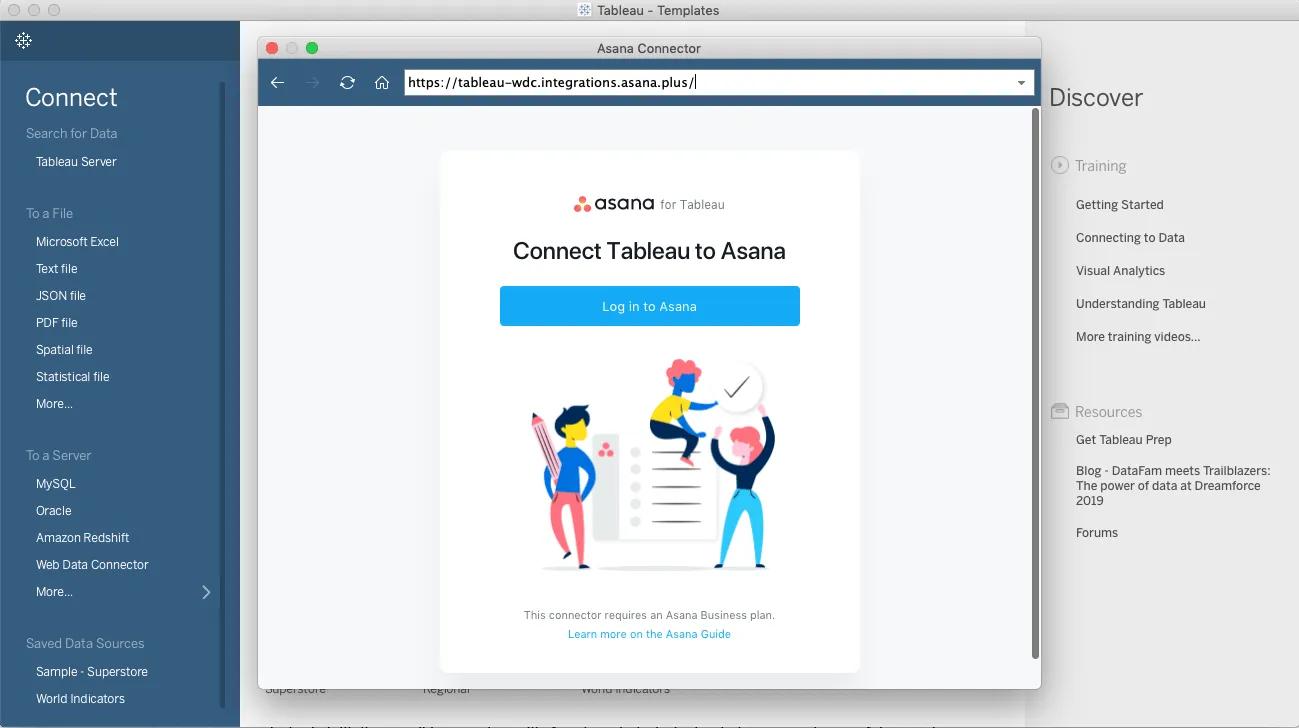
Login using your Asana credentials.
Next, authorize the Asana for Tableau integration to access your Asana account.
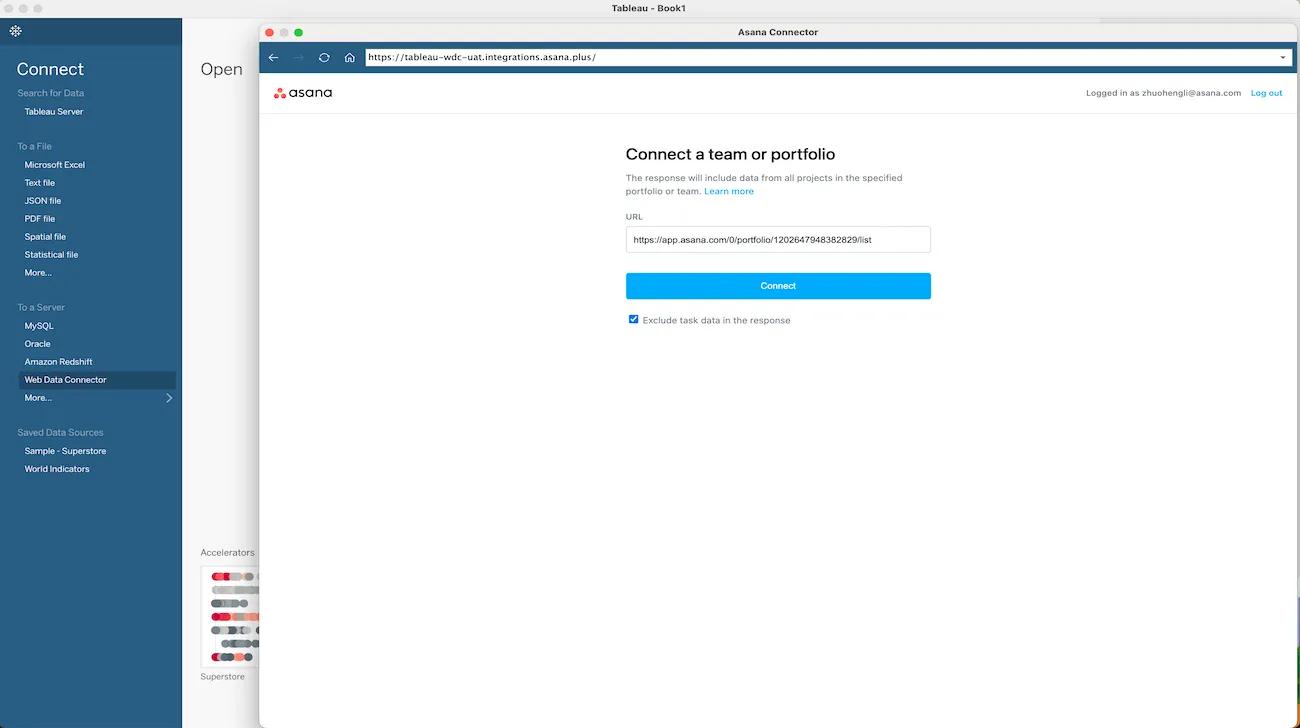
After successful authorization, paste the URL for a team or portfolio in the space provided.
If you are looking to exclude tasks data from your export, add ?export_tasks=false at the end of the URL. For example, app.asana.com/0/portfolio/{...}/{...}?export_tasks=false will export portfolio and project level data without tasks.
Note
If task data is not important for your reports, we highly recommend excluding task data in the response to speed up the data extraction process.
Finally, click Connect and start the data extraction process.
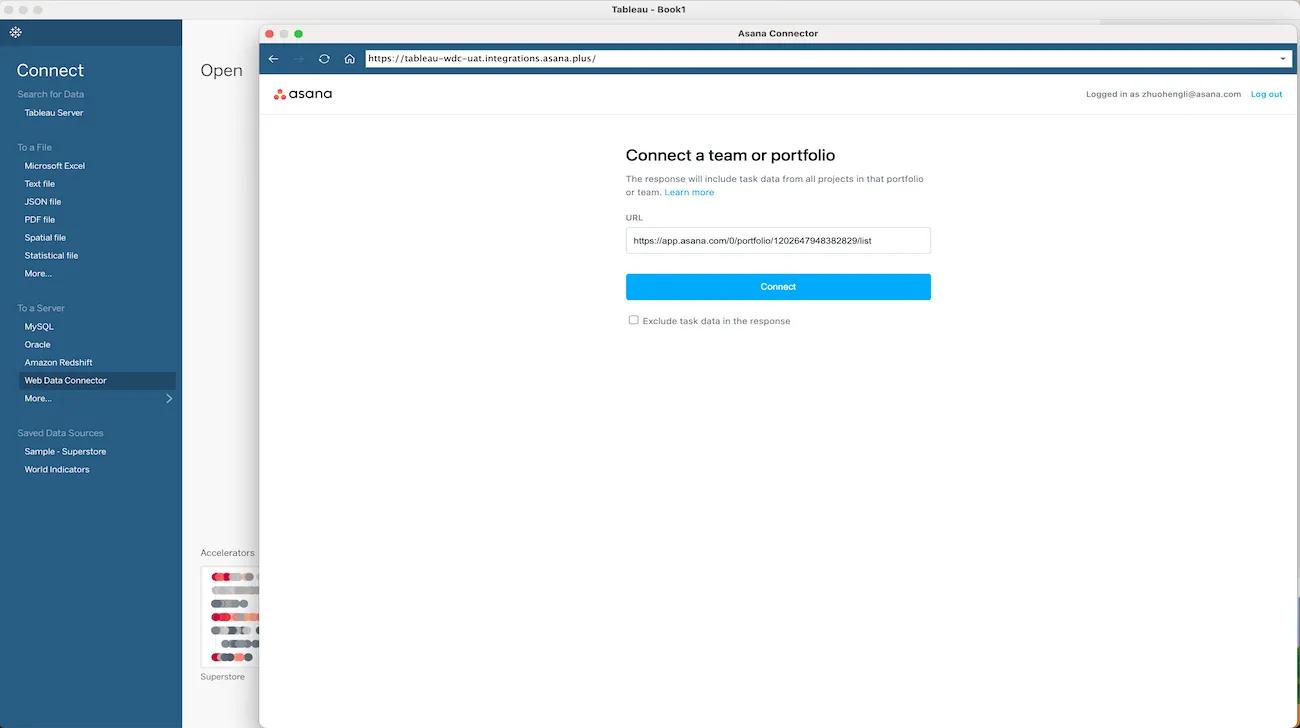
Syncing your data can take a few seconds but may take up to a few minutes, depending on the size of the team or portfolio, and whether there are nested portfolios within the portfolio.
If you would like to automatically refresh extract from the Web Data Connector data source, you will need to follow the instructions listed in the Tableau Knowledge Base
Exported data with more than 1000 tasks refresh every 4 hours. You’ll receive the most up-to-date data with the first data load. Subsequent updates happen every 4 hours (If you reload your dashboard within the 4-hour window, you’ll still complete data loading successfully but you won’t receive the most up-to-date data).
Do not support Custom field value change history, or Full domain exports
Projects with 0 tasks will not be included.