Products


AI Platform


Asana Foundations
Company Type
No articles found for this topic.
No articles found for this topic.
In This Article

Visit our pricing page for more information.
Instagantt is a web app that creates Gantt charts to help you visually plan projects and schedule tasks with your team. You can create start dates, set a progress percentage, and link tasks.
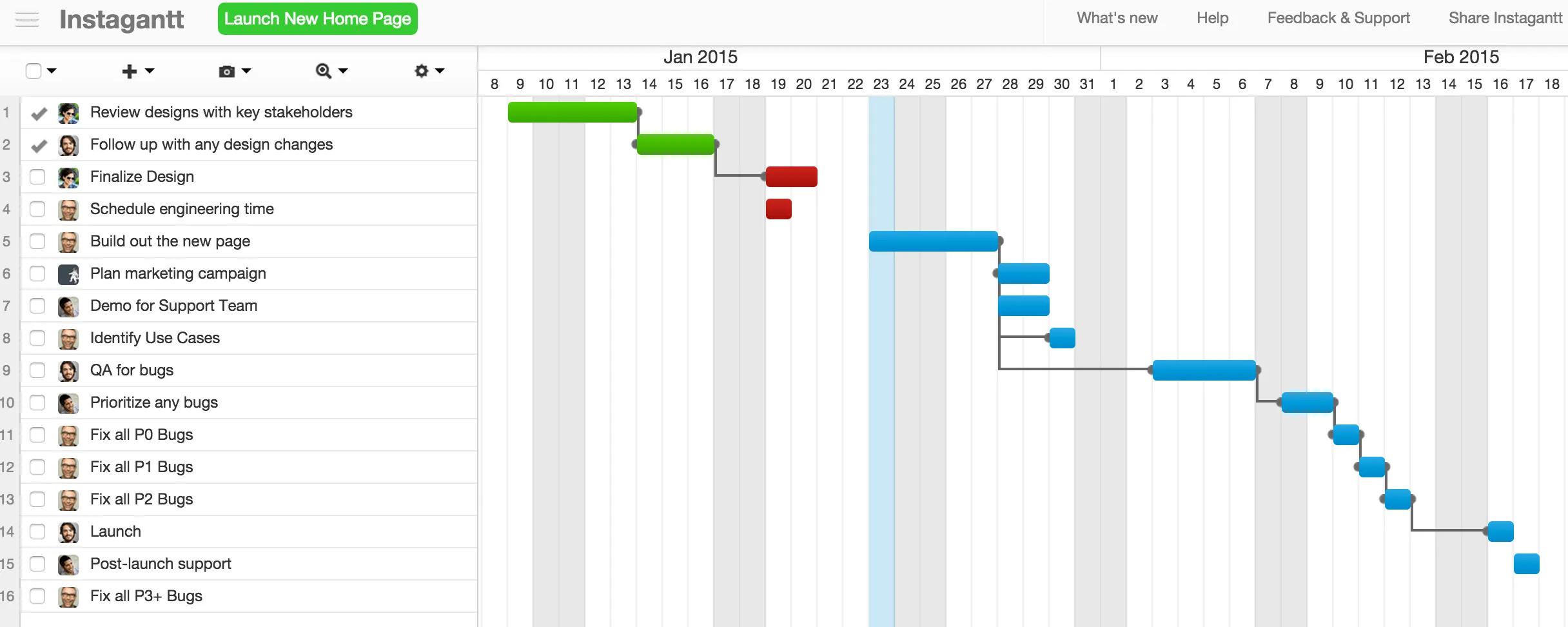
Create an Instagantt account. You can sign up with your email address or through Asana using Asana Connect.
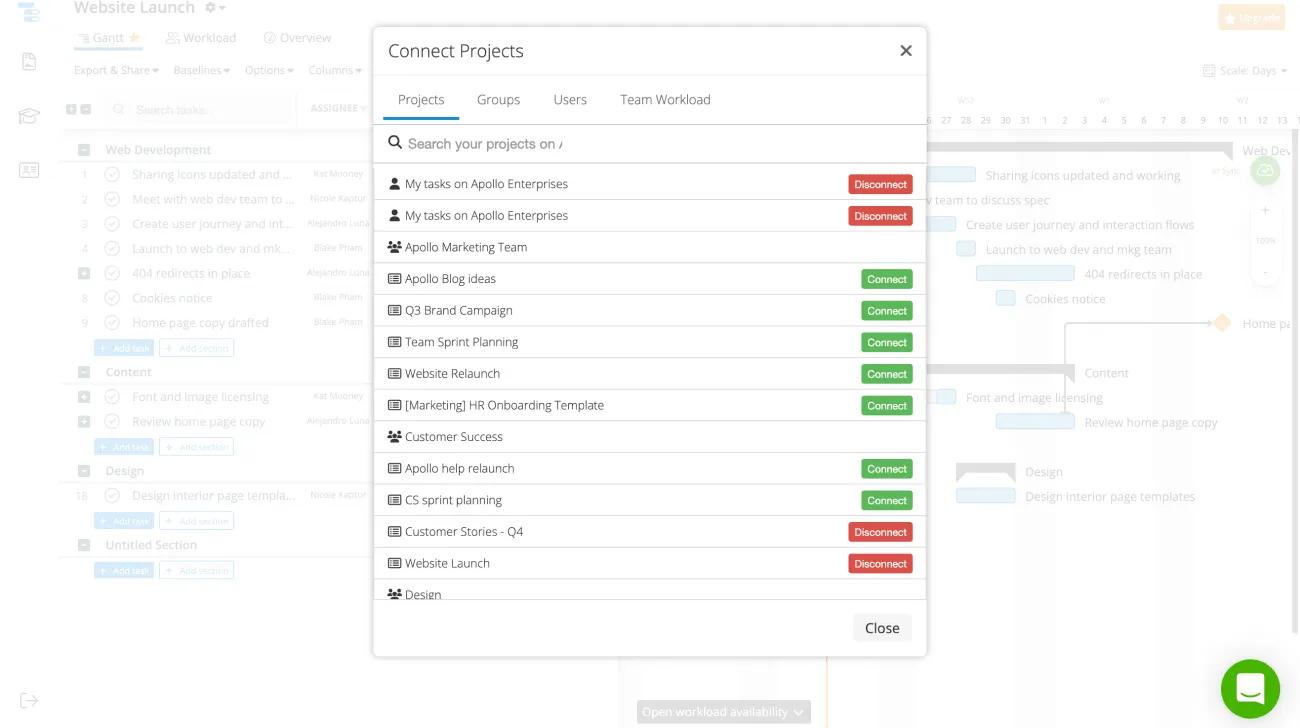
Select which of your My tasks lists and projects in any of your workspaces or organizations you'd like to sync with Instagantt.
You can create a group of up to 10 projects from different workspaces and organizations. Within a group, you can order tasks by project and by section within those projects.
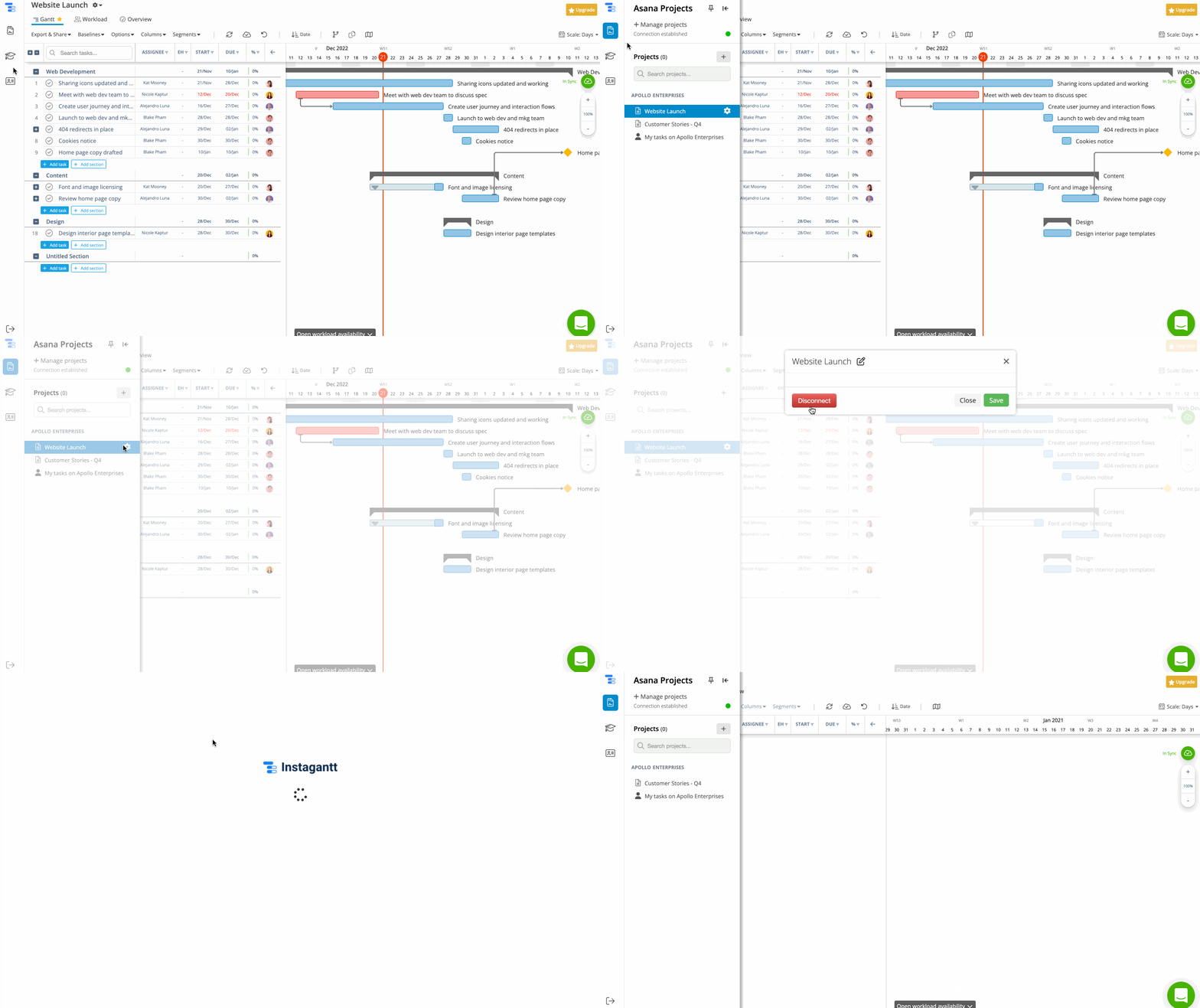
To disconnect a project or My tasks:
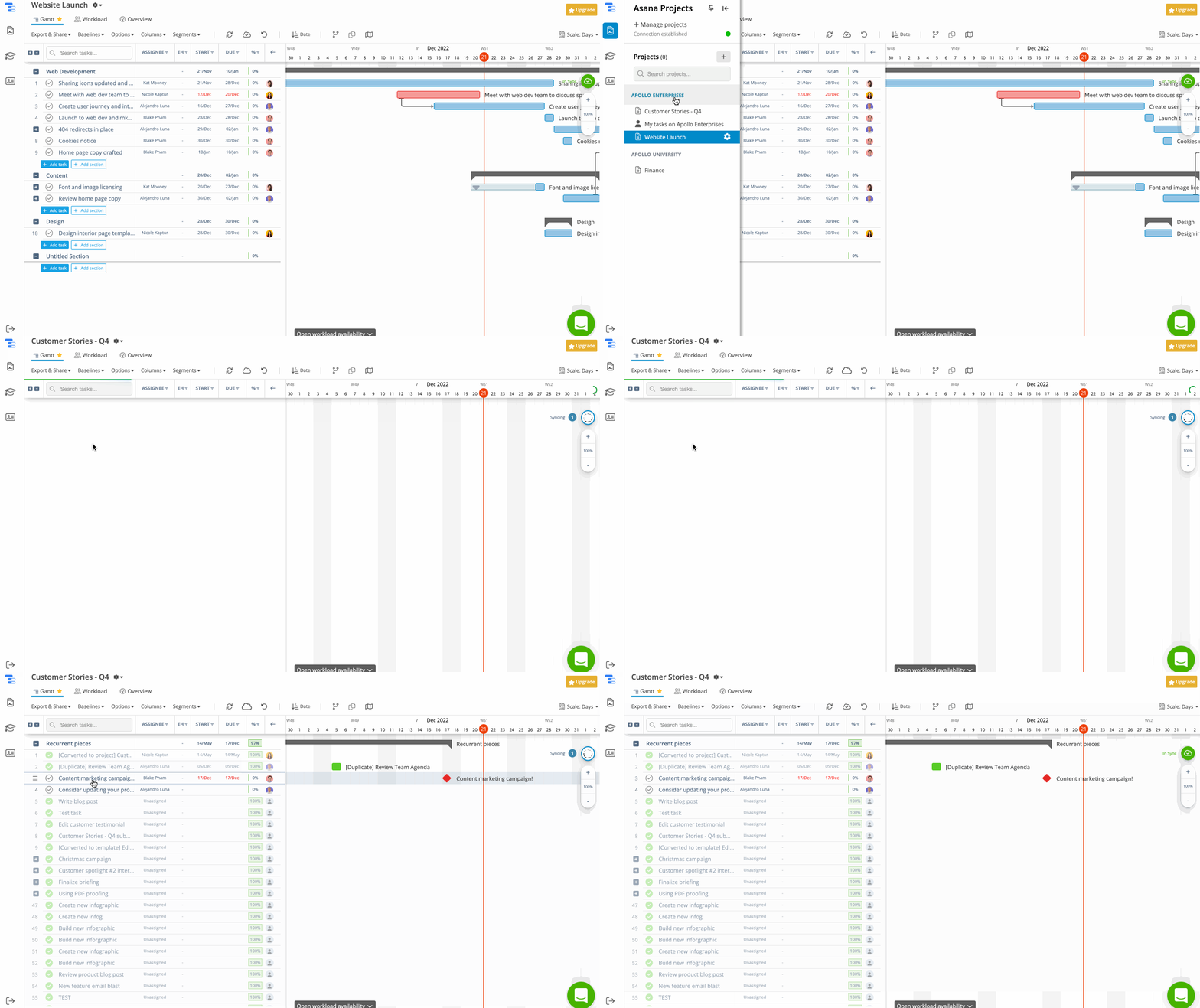
The projects you've synced will be sorted by workspace and organization in Instagantt's sidebar. They will be in the same order as they are in Asana. You can reorder them in Instagantt, but this won't change the order in Asana.
Note
Project colors you've set in Asana will reflect in Instagantt.
Tasks will display in Instagantt in 3 colors:
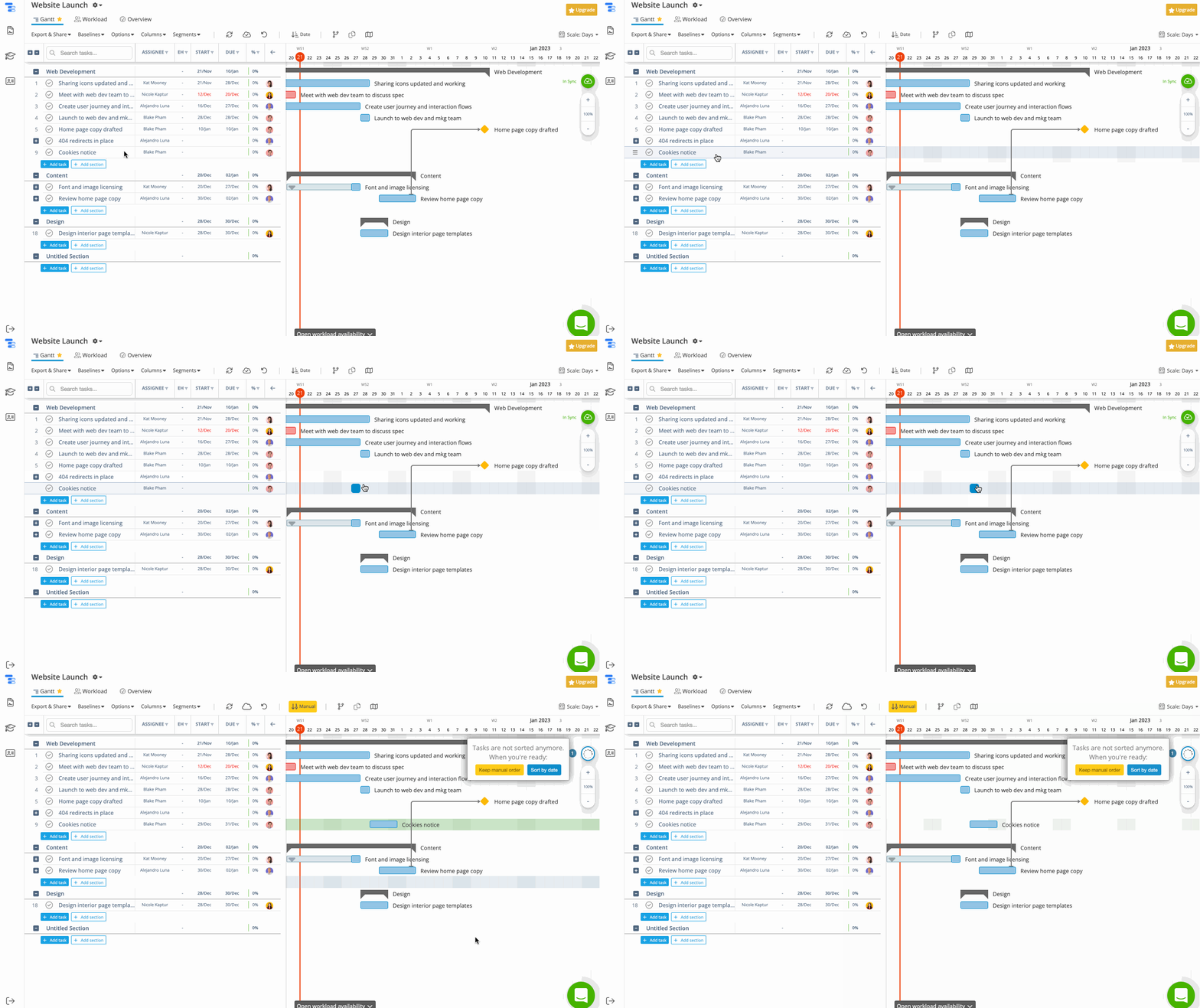
If tasks don’t have a due date, they won’t appear in the chart, but you can easily add them by clicking wherever you’d like their bar to begin.
You can mark tasks complete directly from Instagantt, and they will be marked complete in your project in Asana.
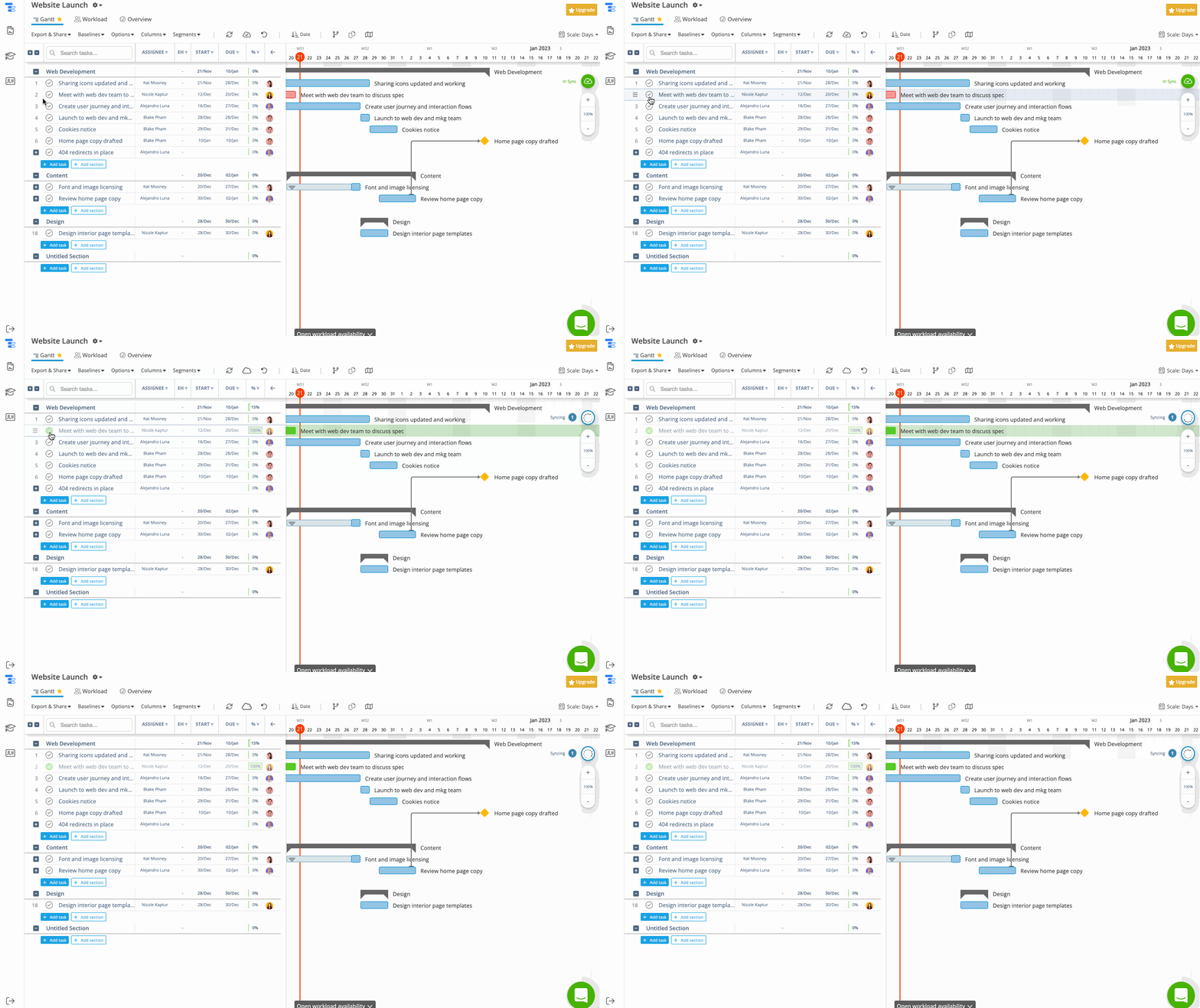
The tasks you checked will be marked as complete in your project in Asana.
You can create tasks directly from Instagantt, and they will appear in your project in Asana.
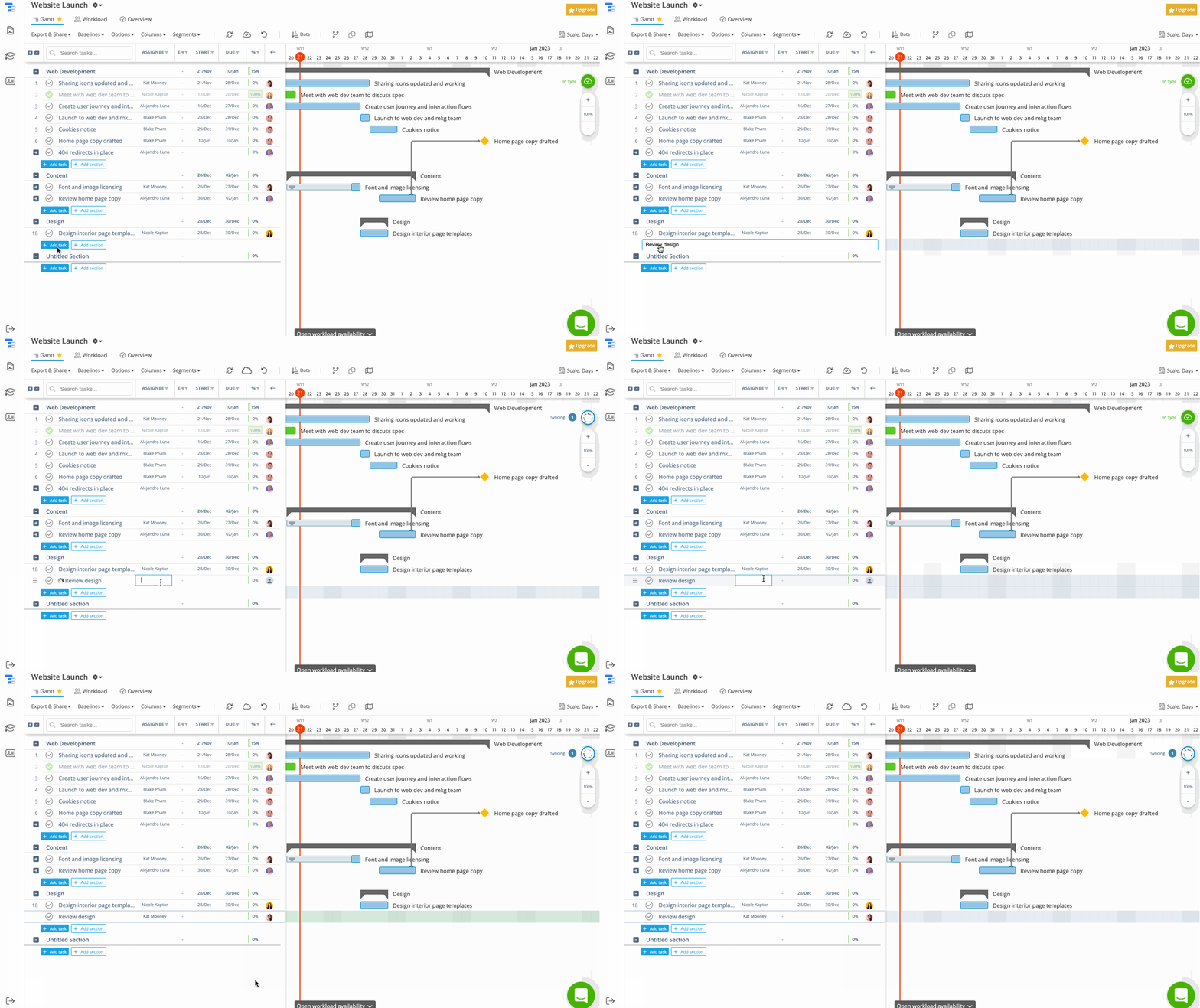
To create a task in Instagantt, click the + Add task button sign. Instagantt will let you to set a task name and assignee.
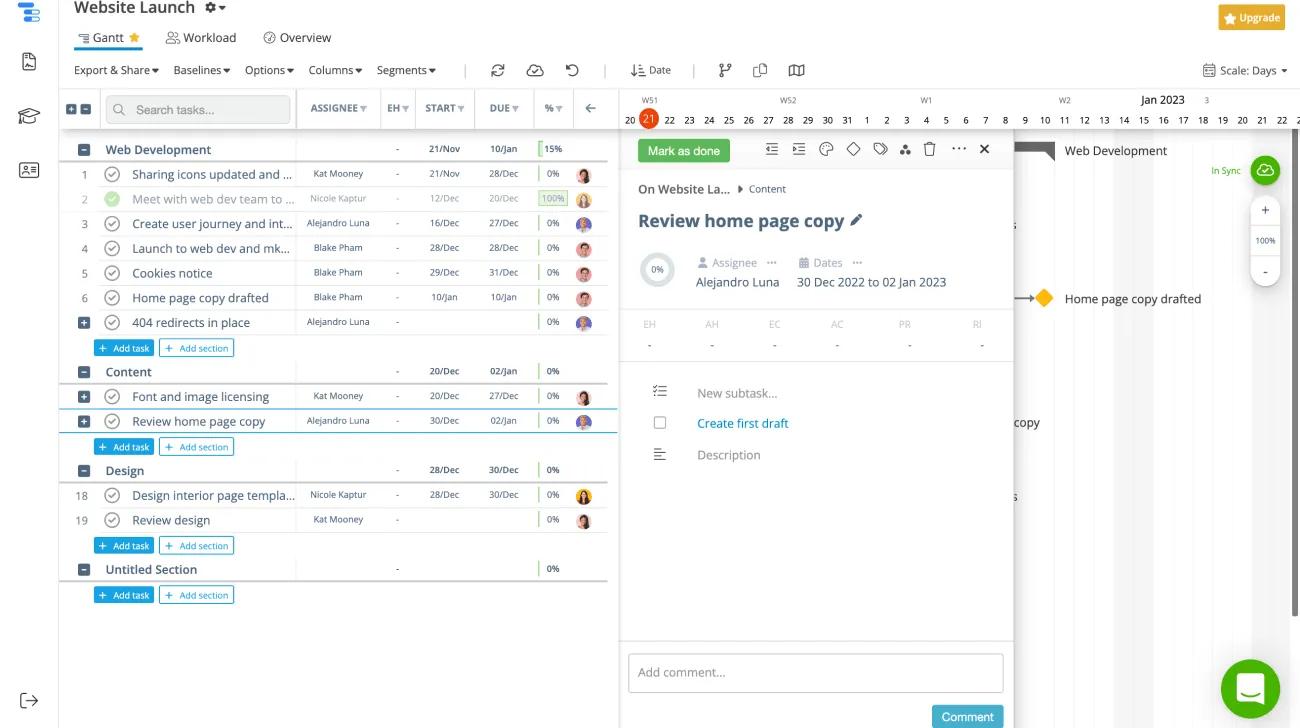
You can view and edit a task's details directly from Instagantt.
To view or edit a task's details, select a task and it will open up the task's details. Any details you change in Instagantt will reflect in Asana.
Instagantt allows you to:
You can link tasks together to show one task's dependency on another.
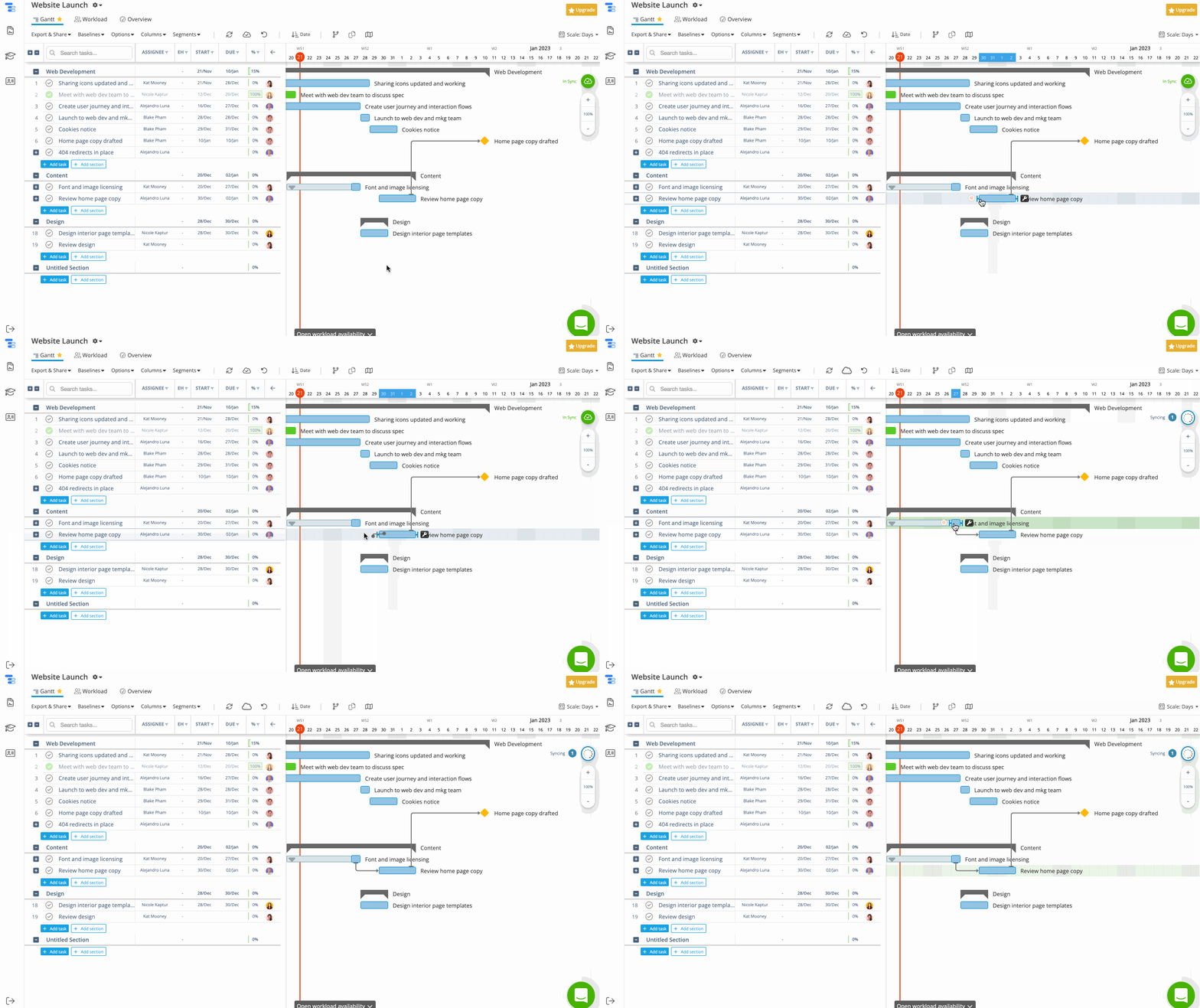
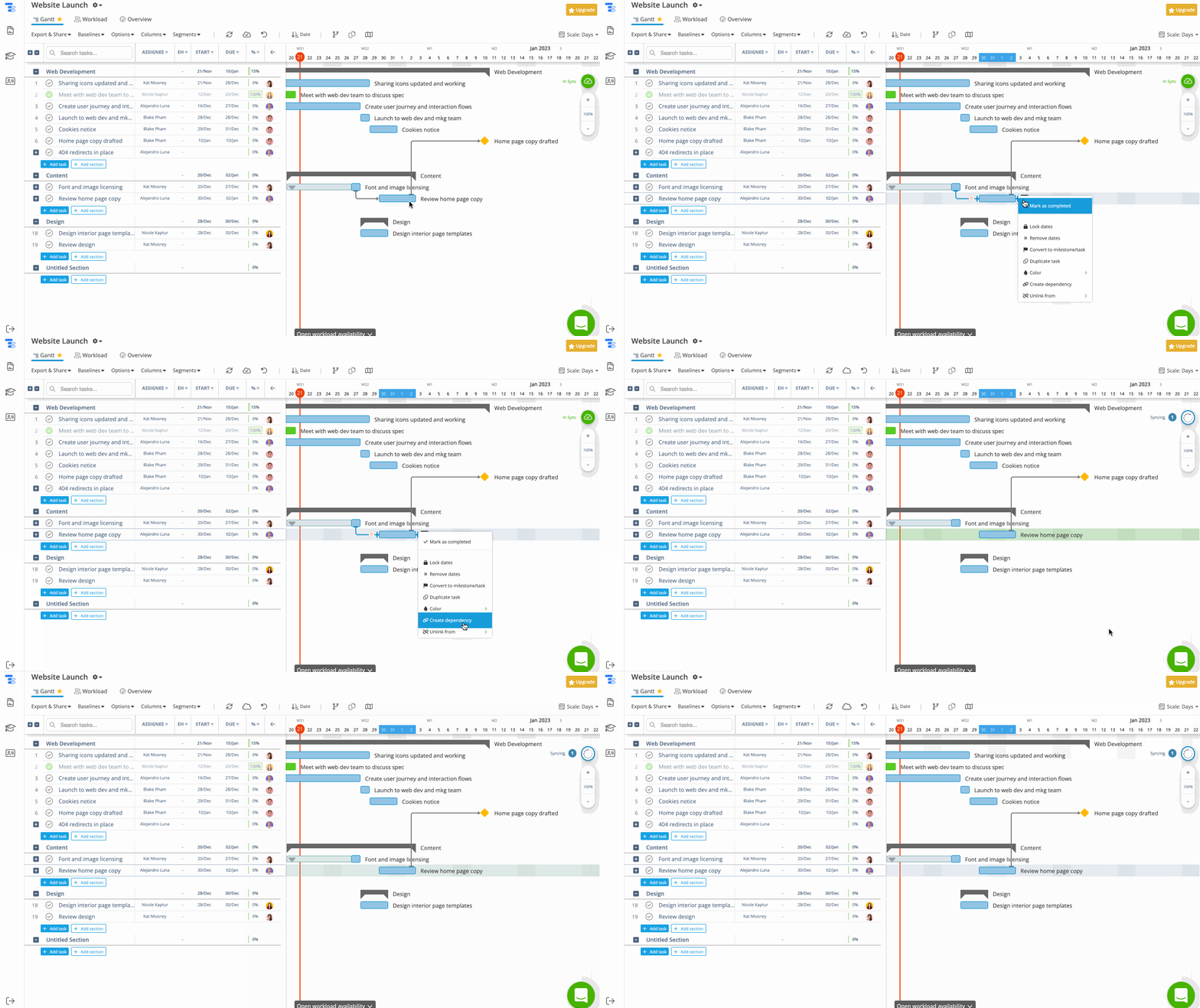
If the task has multiple dependencies, you can either unlink one dependency or all dependencies.
You can click and drag a task in Instagantt to change the start date and due date of any task. Learn more about start dates in Asana.
Drag the task to the left to change the start date, or drag the task to the right to change the due date.
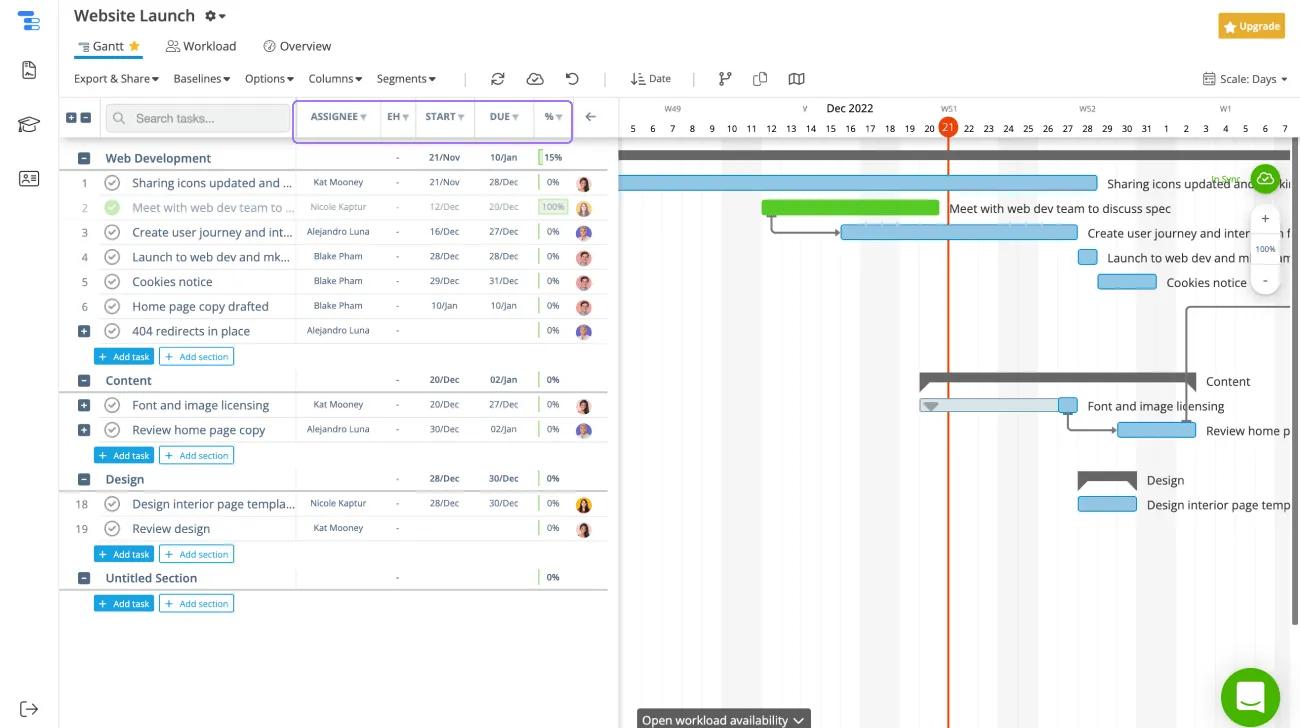
You can filter tasks in Instagantt by start and due dates, estimated hours, progress status, and assignee.
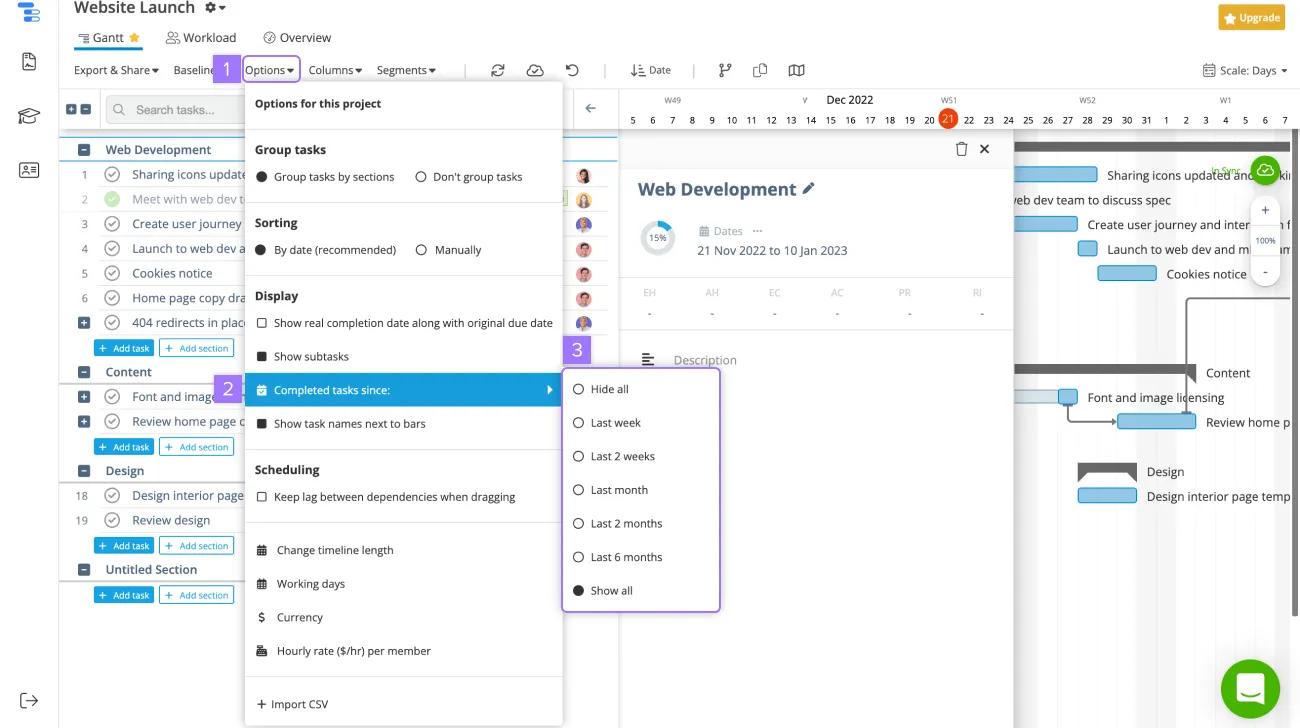
You can show all tasks or hide completed tasks in Instagantt.
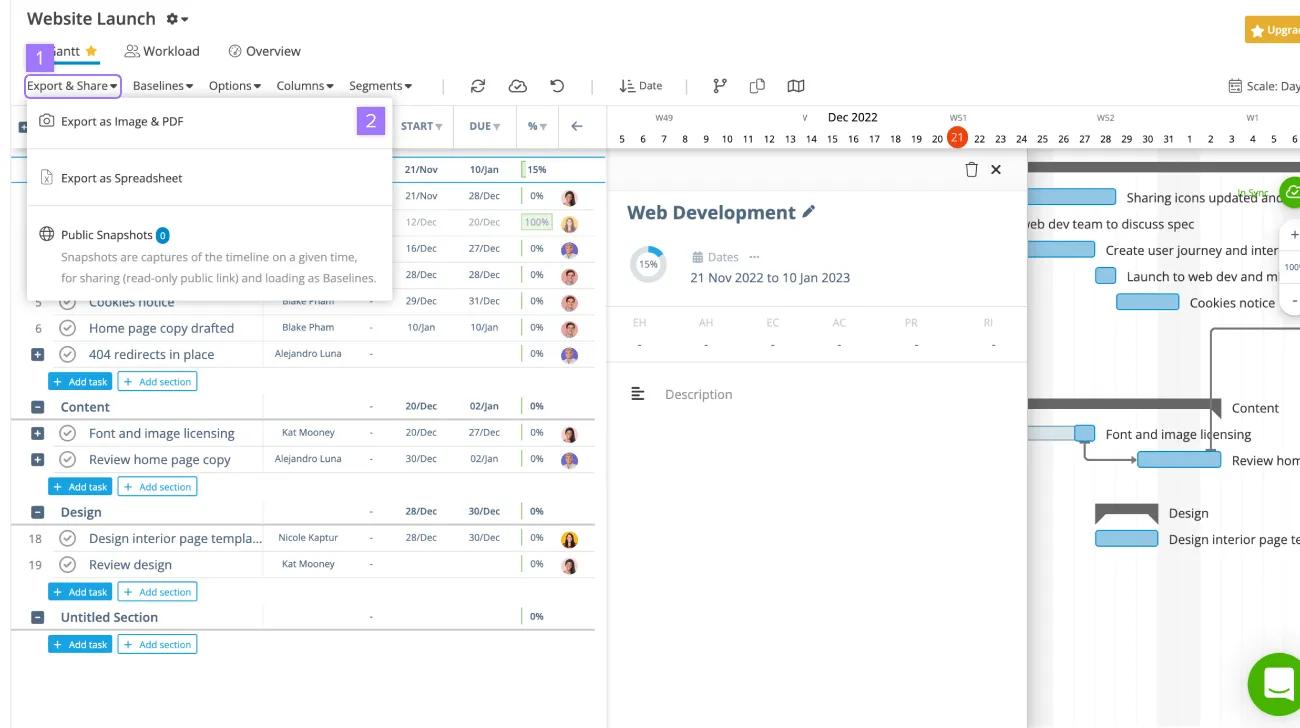
If you want to print or include the Instagantt chart in a presentation, you can export it as an image and PDF.
If changes were made in Asana and you want them to reflect in Instagantt, click the sync cloud in the right corner to resync the projects.
Looking for a better way to manage your work? Get started with a free Asana trial. Try for free.

