Available on Asana Advanced, Enterprise, and Enterprise+ tiers.
Reference custom fields allow you to create more meaningful relationships between tasks, projects, portfolios, and goals in a custom field–making it easy to track relationships and dependencies across your work.. You can add a reference custom field to tasks, projects, and portfolios. By referencing relevant work, you can improve visibility and collaboration across your workflows.
Create a new reference custom field
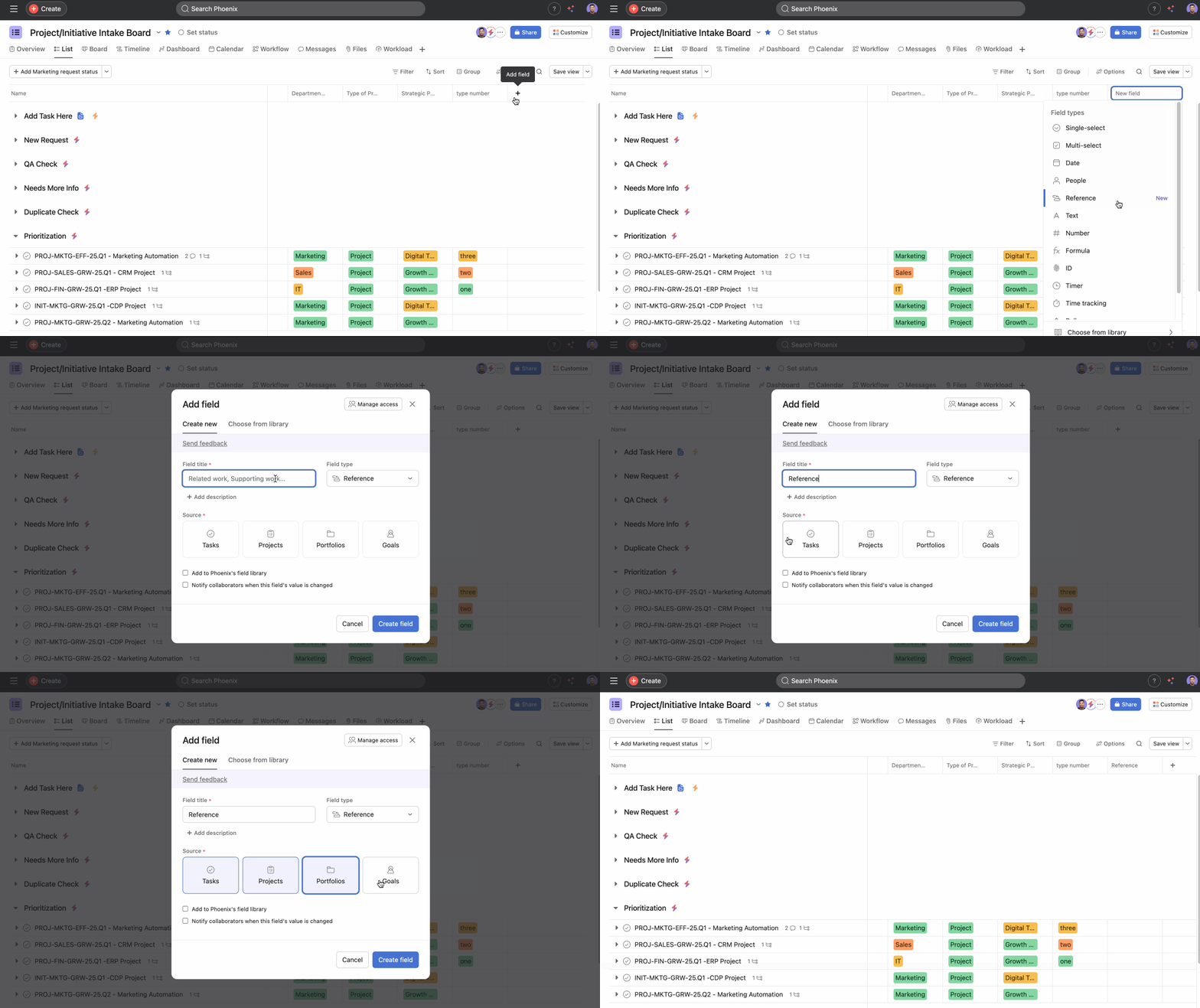
- Open your project or portfolio in Asana
- Click the + button next to the column headers in list view, or select Customize and then Fields
- Click Add field
- Select Reference as the field type
- Enter a name for your field
- Select your sources, which dictate the type of Asana object this field allows(tasks, projects, portfolios, or goals).
- Add an optional description to help others understand how to use this field
- Click Create field
 Note
Note
You can select one or multiple sources.
Once added, you can populate the reference field by clicking on it and searching for the Asana object you want to reference or pasting the object’s URL. The referenced object will appear as a clickable link, allowing you and your teammates to navigate to the referenced content quickly.
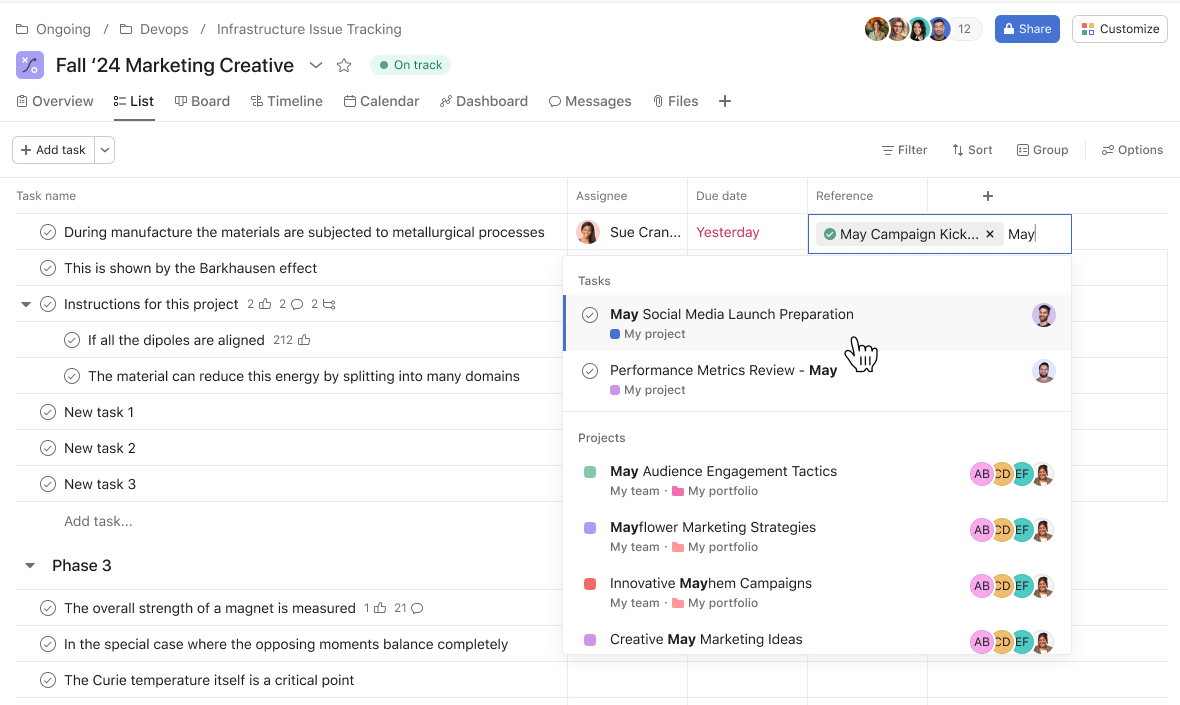
To open a reference field, click on the cell and then click on the reference pill you want to access. If the reference object is private, you will only see Private on the reference pill, and you will have to request access to view it.
Using reference fields effectively
Some examples of when to use reference custom fields are:
- Related projects: Reference related projects to show connections between initiatives
- Related tasks: Link to prerequisite or follow-up tasks without creating formal dependencies
- Resource libraries: Reference documentation or resource tasks that provide important context
- Team connections: Link to relevant team projects or portfolios for cross-functional work
- Related teams: Reference entire teams making it easier to track team ownership, responsibility, or involvement across your projects and workflows.
Convert an existing single-select or multi-select field to a reference custom field
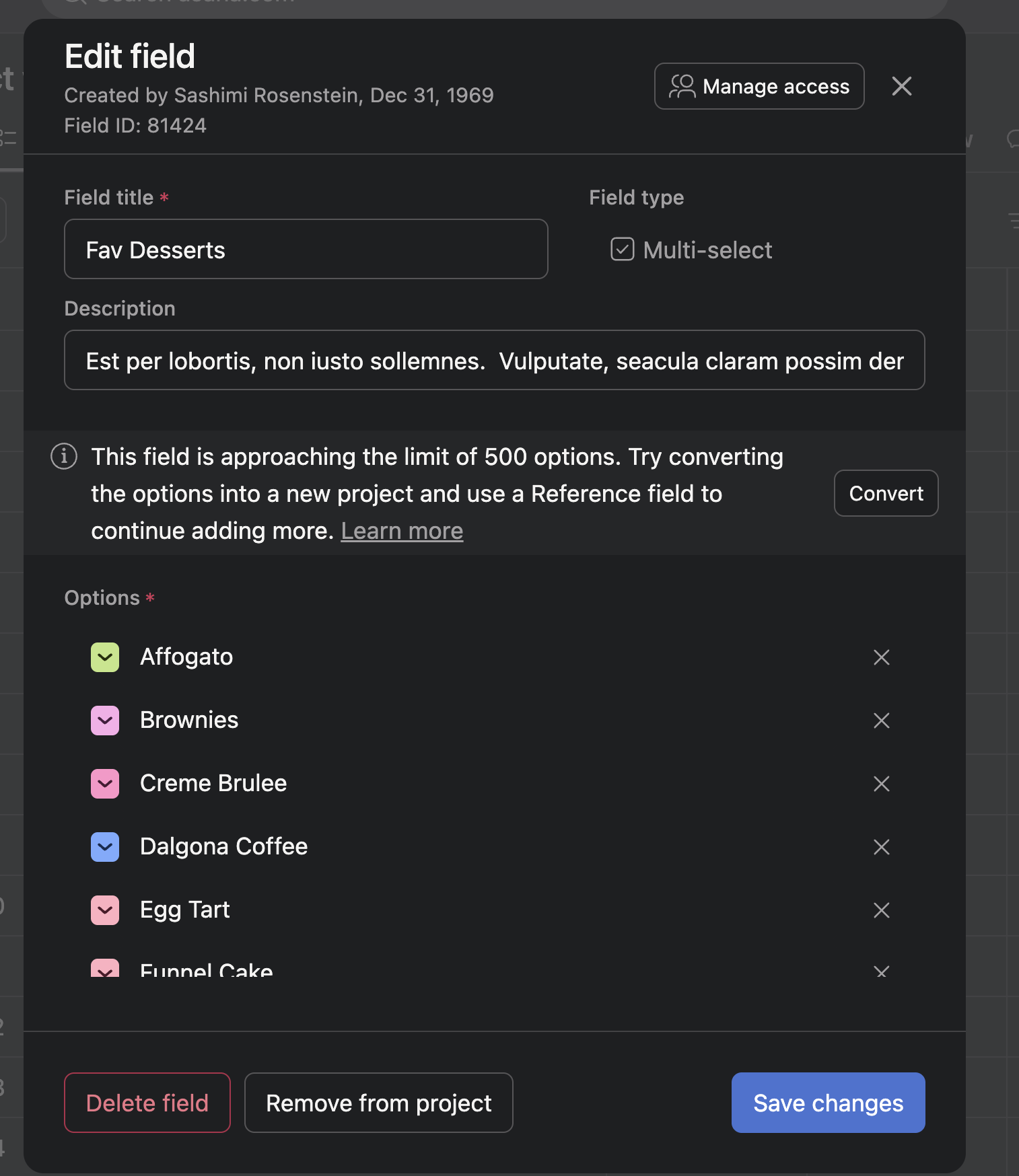
- Open up the edit modal for a single-select or multi-select field.
- If the field is at or approaching the field options limit, you will see a banner with a Convert button that allows you to convert the existing field to a reference custom field and an associated project.
- Please note that your existing field will not be changed or deleted.
- After clicking the Convert button, Asana will create a new reference custom field and a new project associated with that reference custom field. The project will contain tasks that mirror each existing field option and the new field will reference those tasks.
- If you need help converting a field, or if you would like to convert a field but don't see the Convert button, please reach out to Asana support.




