Products


AI Platform


Asana Foundations
Company Type
No articles found for this topic.
No articles found for this topic.

Visit our pricing page for more information.
If you have multiple accounts and would like to merge them into one account, you can add the email address associated with one account to the other account from your account Settings.
Merging your accounts will mean:
If you are a member of an organization in Asana and wish to add an additional email address to your Asana account or merge accounts, each newly added email address must be compatible with your organization’s verified email domains due to the Asana account email policy.
If you need to replace a personal email address (like gmail.com) with a corporate email address in your Asana account read this article to learn how.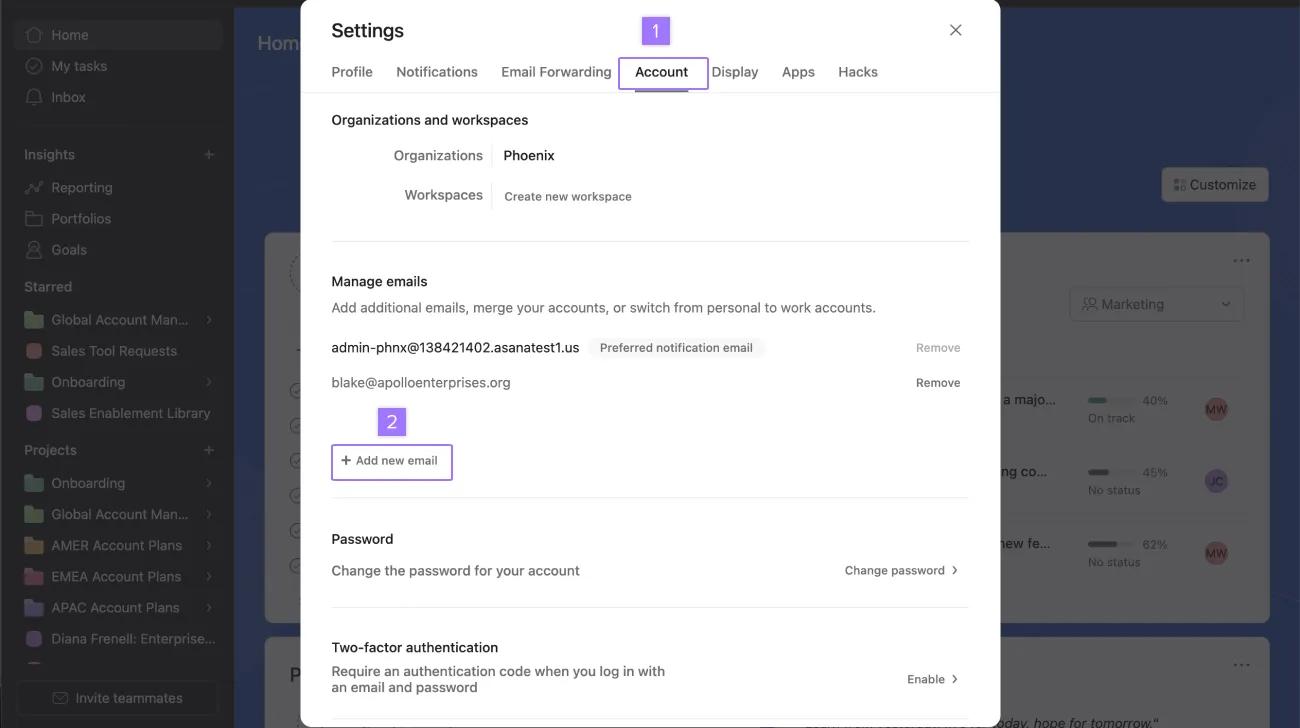
Note
Please note the invitation link may require you to log in again to your Asana account, please log into the account you would like to merge.
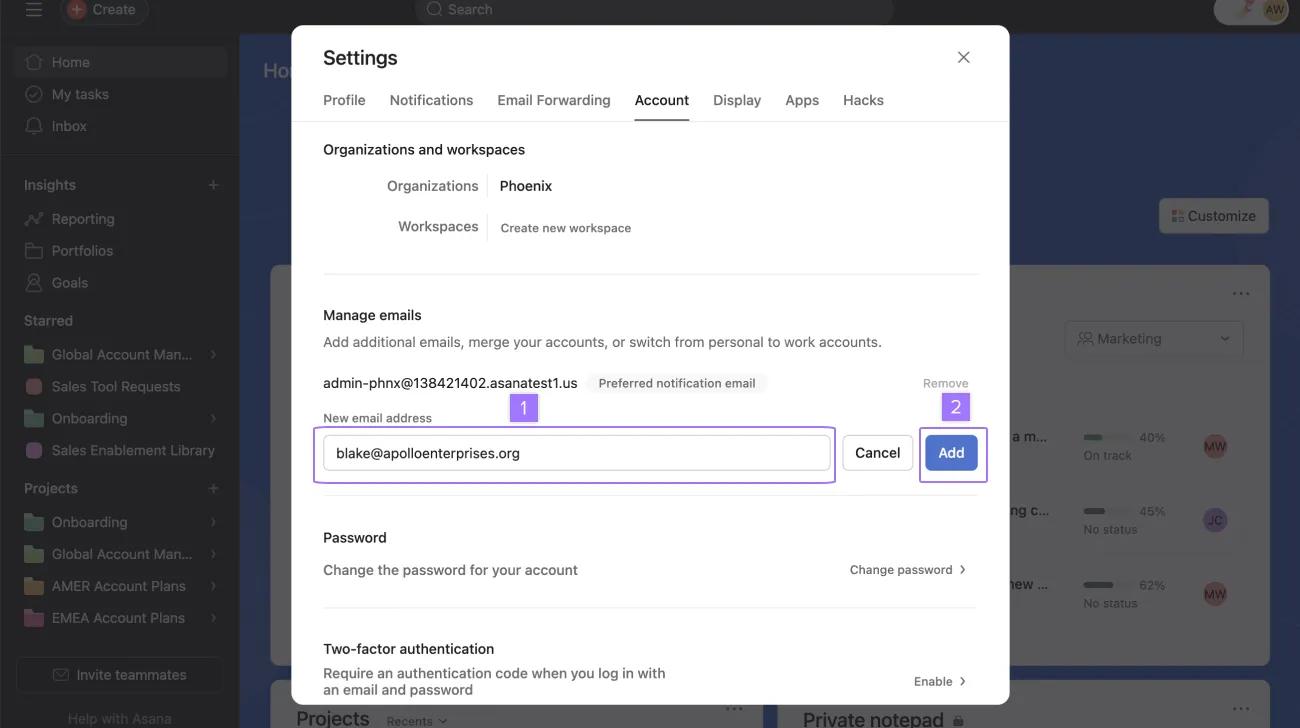
Asana will ask you to find a link in your secondary email inbox to confirm the merge.
Once the merge is complete, you can log into your account using any email address associated to your account. You won't be able to separate your accounts after the merge is complete.
If you use the Continue with Google feature, you will instead be required to verify your Google account. A pop-up window will appear to log into Google, enter the credentials for the email address currently associated to your Asana account to initiate the process.
If you belong to more than one organization that requires login by Google Single Sign-On (SSO) or SAML, you won't be able to merge your accounts. You will need to log into each of your separate Asana accounts, one affiliated with each organization, and will be required to log in separately for each organization.
Account security is our top priority, and this measure is in the interest of protecting your data by making the login process more secure for those who belong to multiple paid organizations.
With a single Asana account, you can create or join multiple spaces such as workspaces or organizations. Since these workspaces and organizations are their own separate entities, you must explicitly switch between them to access your projects and tasks inside each space.
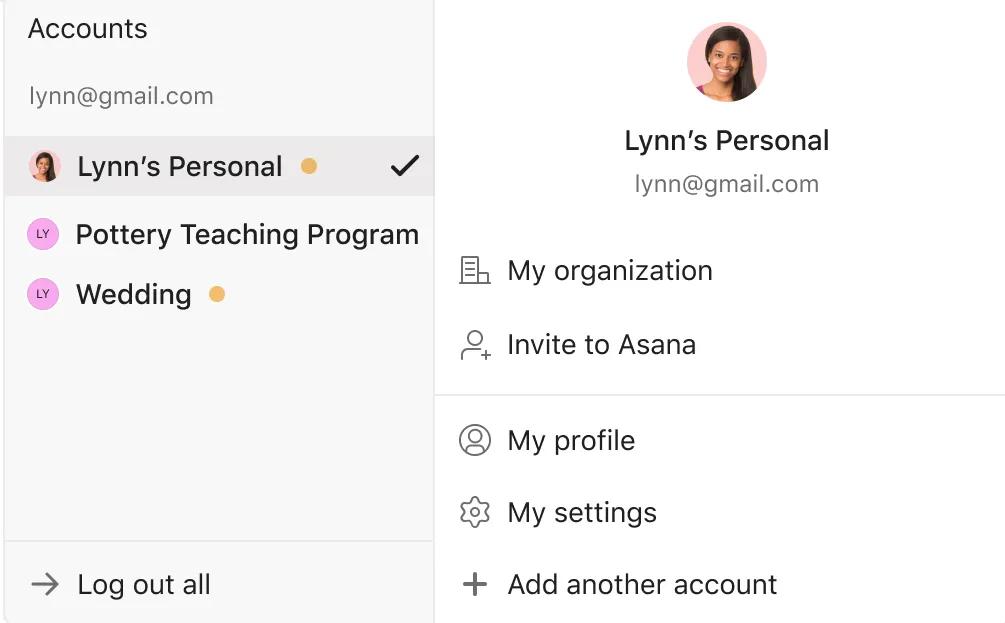
Note: The orange dot beside the organization or workspace name indicates an unread inbox notification in that Asana space.
Previously, users could consolidate Asana spaces into one single account and navigate between those accounts or domains to do their work or to contribute to personal workspaces.
With the introduction of the new Asana Account Email Policy, users will no longer be able to consolidate accounts created with non-compatible email addresses. These accounts will now be treated as separate accounts.
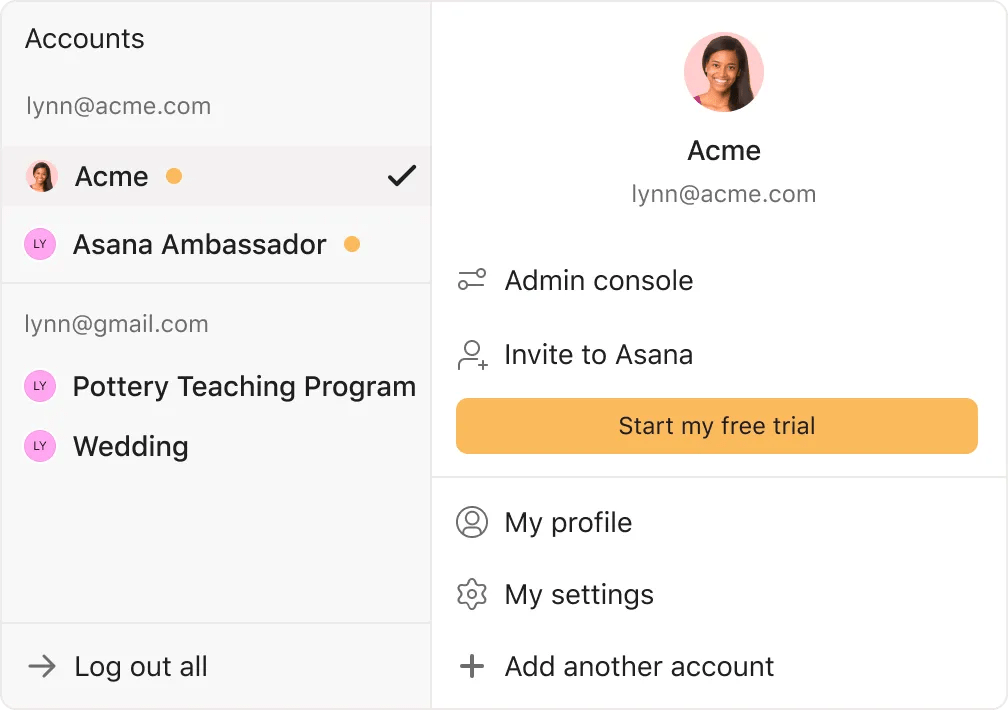
The tick indicates the Asana space that you are currently viewing.
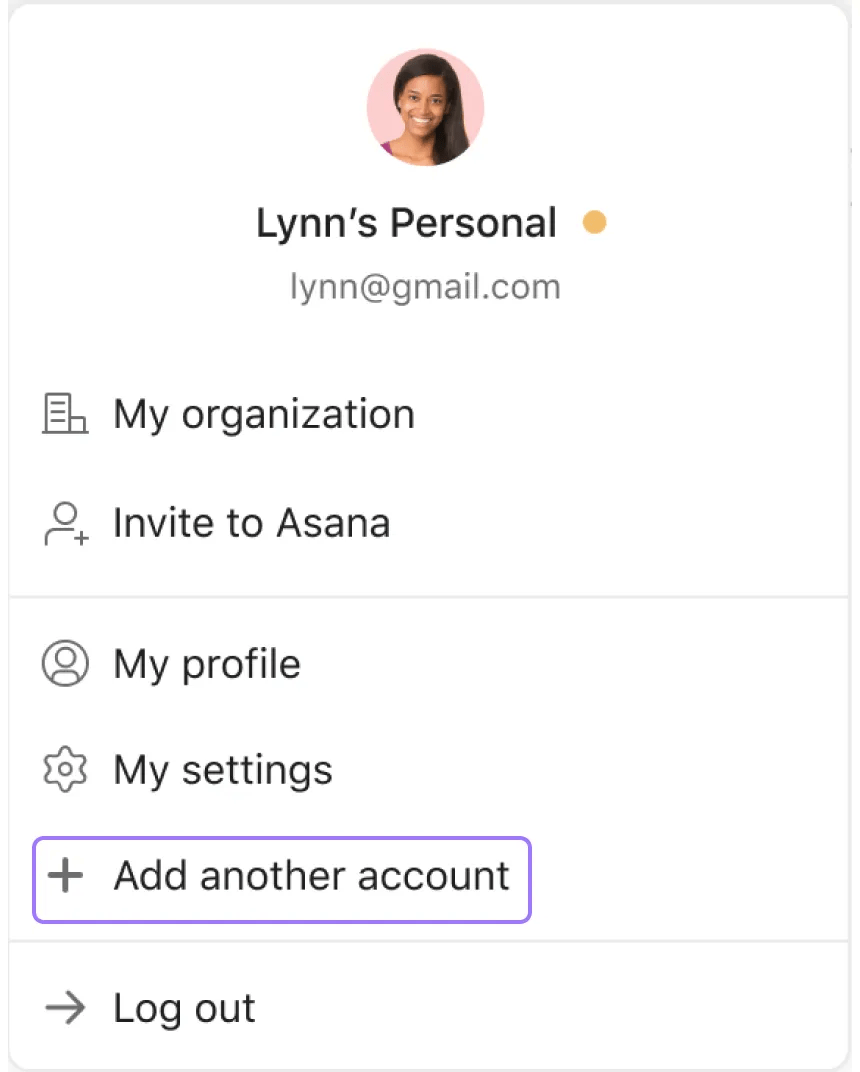


Yes, Click on Log out all to log out of all accounts at once.
No, the goal is to allow you to easily maintain accounts and seamlessly switch between them. Your accounts will remain completely separate, as will your Inbox and My Tasks.
When you merge Asana accounts, your most important data will be maintained, including but not limited to emails attached to your accounts, tasks, task collaborators, project memberships, team memberships, and others.
Please note that you might see some issues with integrations with 3rd party applications. Indeed, API authorization tokens and PATs are not transferred during user account mergers.
On mobile, you will receive push notifications for all accounts that are logged in the mobile app (Android and iOS). On web, you will only receive desktop notifications for the currently active account.

