Products





AI Platform


Asana Foundations
Company Type
No articles found for this topic.
No articles found for this topic.

Visit our pricing page for more information.
Notes view is available to all Asana users, regardless of subscription tier.
Notes view allows you to flexibly add and customize multiple notes tabs within a project or portfolio. Use this tab to take meeting notes, consolidate essential information, organize external links, jot down ideas, and more. Notes view serves as a dedicated, customizable view for all your project notes.
Easily take meeting notes, organize key information, and capture ideas all within your Asana projects and portfolios. You can create multiple notes tabs in a single project or portfolio to keep different types of information separate and organized.
To add notes view:
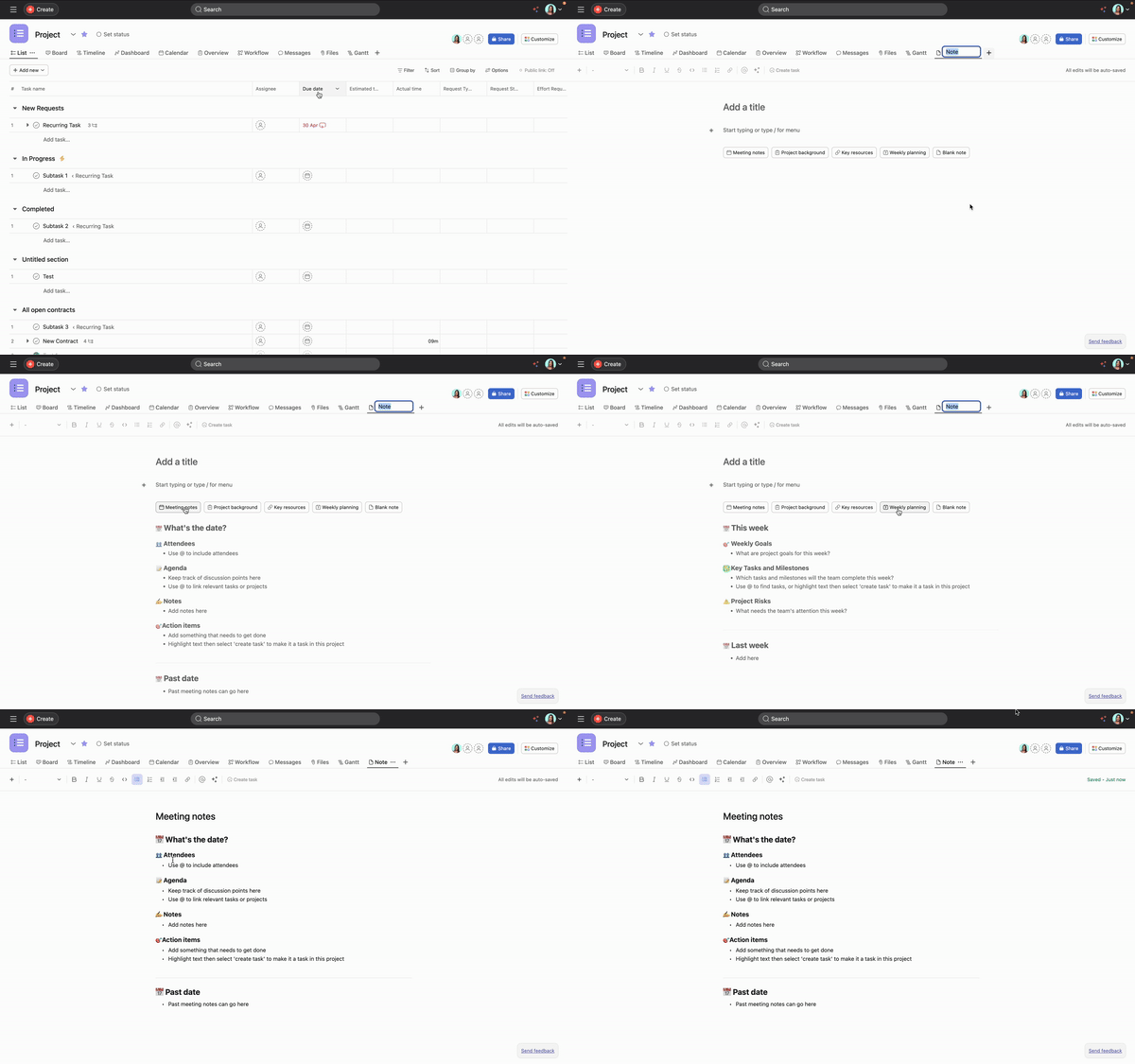
You can add multiple notes tabs by repeating the steps above. Customize each tab to fit your team's needs - use them for meeting agendas and notes, important reference information, brainstorming ideas, and more.
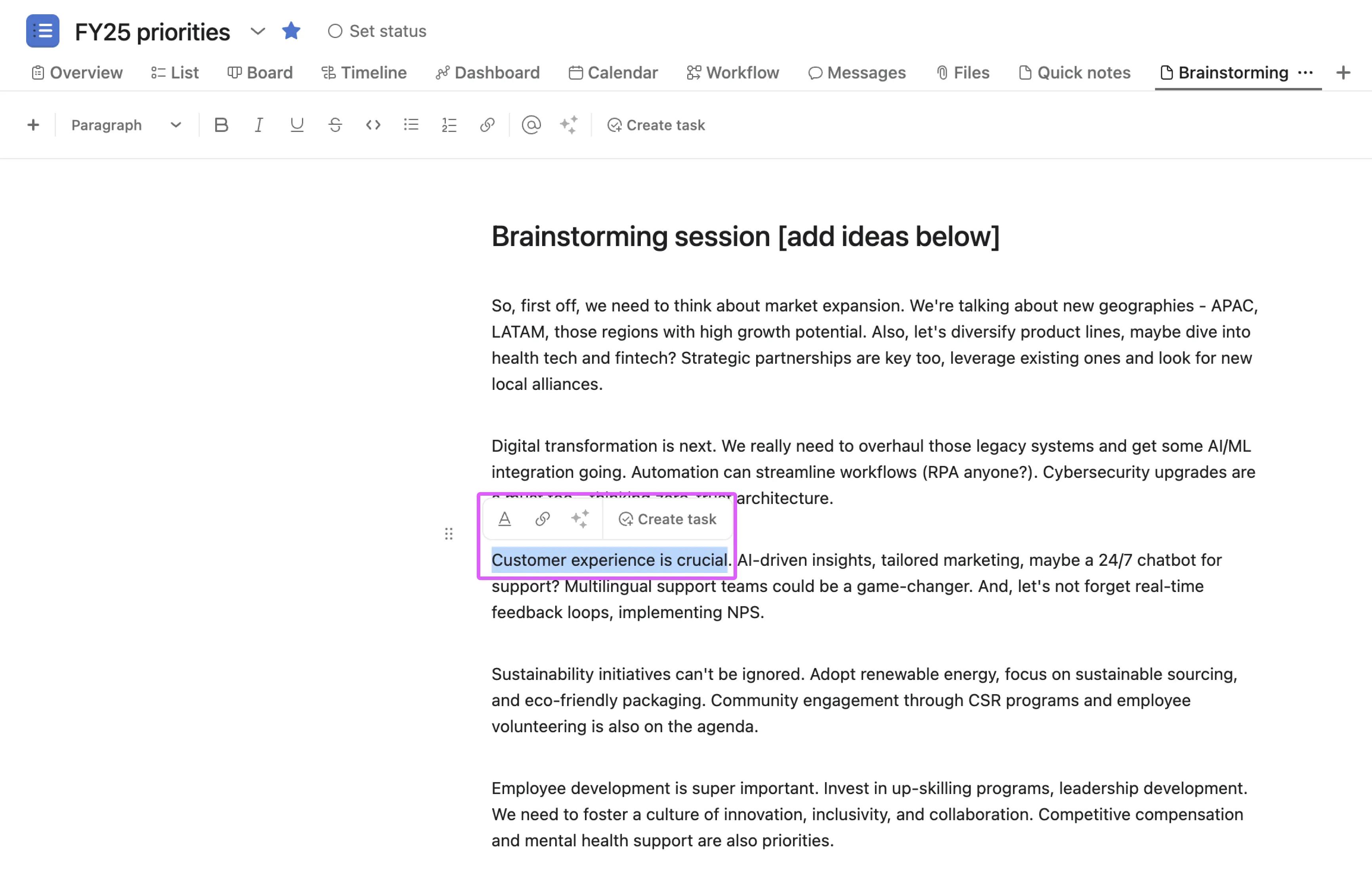
You can quickly create a task in the same project by highlighting any piece of text and selecting Create task. The newly created task is added to the project and the text transforms into a link.
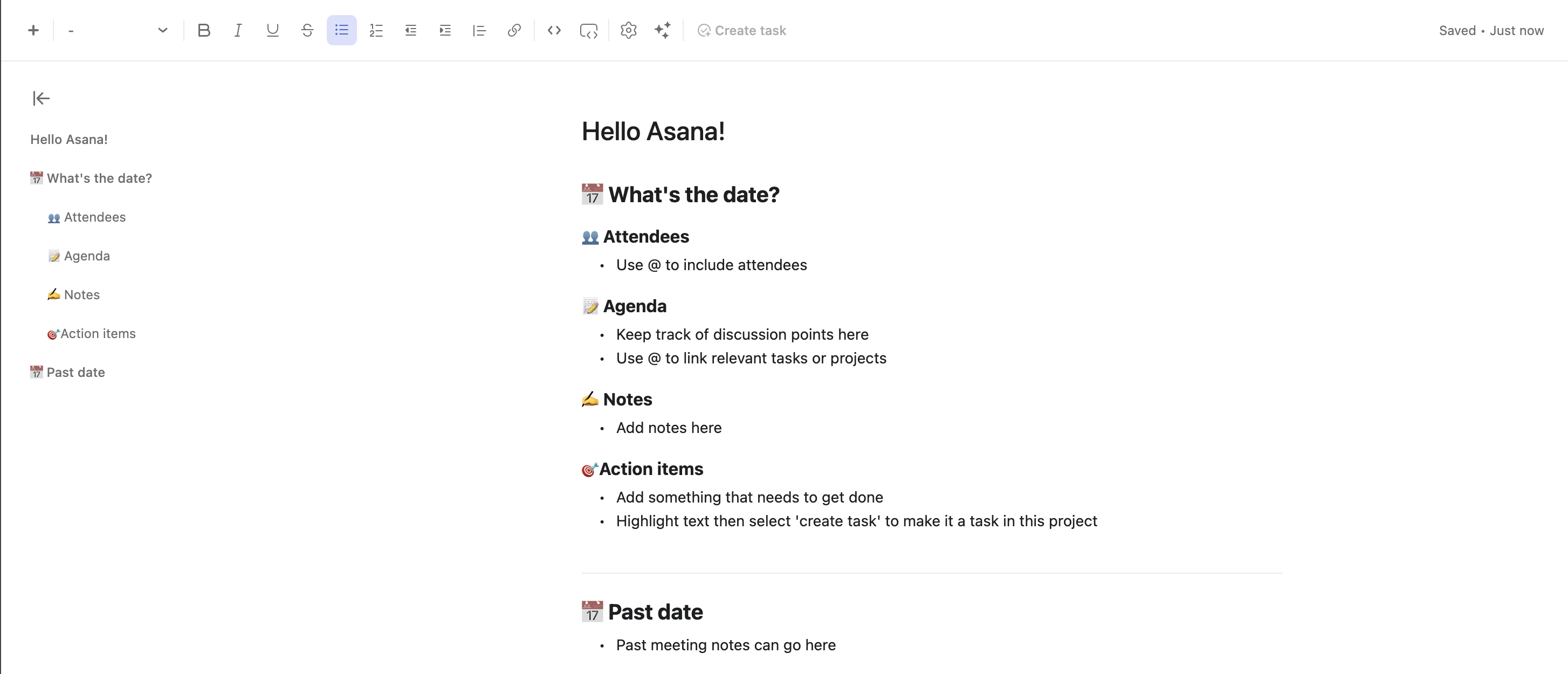
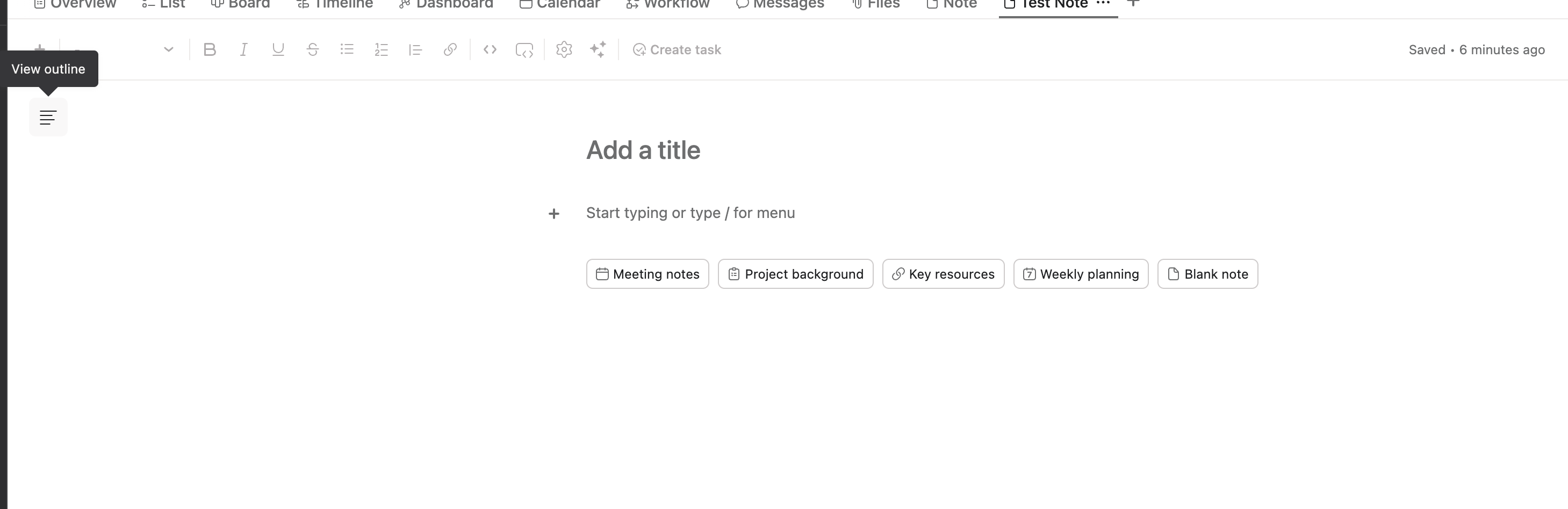
Adding a table of contents to your project notes allows you to scroll quickly through notes and focus on specific text sections. The table of contents includes the note title along with H1, and H2 headers to facilitate easy navigation within a document.
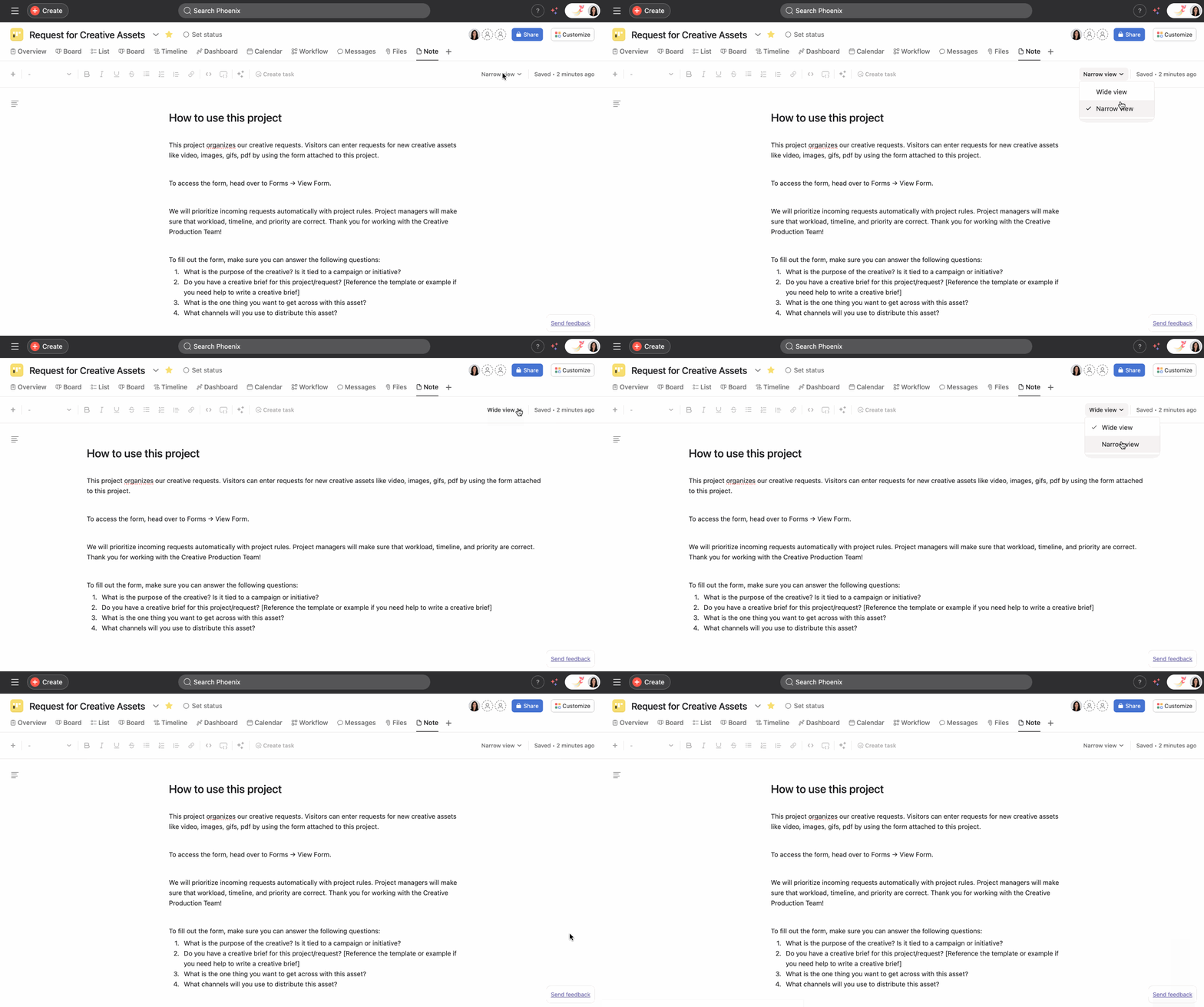
You can customize the width of your notes by clicking on the drop down arrow on the top right of your project and choosing between Narrow view and Wide view. The default view for project notes is Narrow view.
To delete your notes view, right click on the Note tab and select Remove.
Keep in mind that if you delete the notes tab, you can't recover any of its content.
You can use Command+F or Ctrl+F on Windows to quickly find specific text within a page by showing the number of matches, highlighting the active match, and providing the ability to navigate through all matches.
To search within notes:

