Products


AI Platform


Asana Foundations
Company Type

Visit our pricing page for more information.
Available on Asana Starter, Advanced, Enterprise, and Enterprise+ tiers, as well as legacy tiers Premium, Business, and Legacy Enterprise.
Visit our pricing page for more information.
Dependencies are the relationships among tasks that determine the order in which activities need to be performed. With task dependencies, you can mark a task as blocking another task, or blocked by another task.
Teams with collaborative workflows can easily see what tasks they’re waiting on from others and know when to get started on their portion of work. When the first task is completed, it will notify the assignee of the next task that they can start on their task.
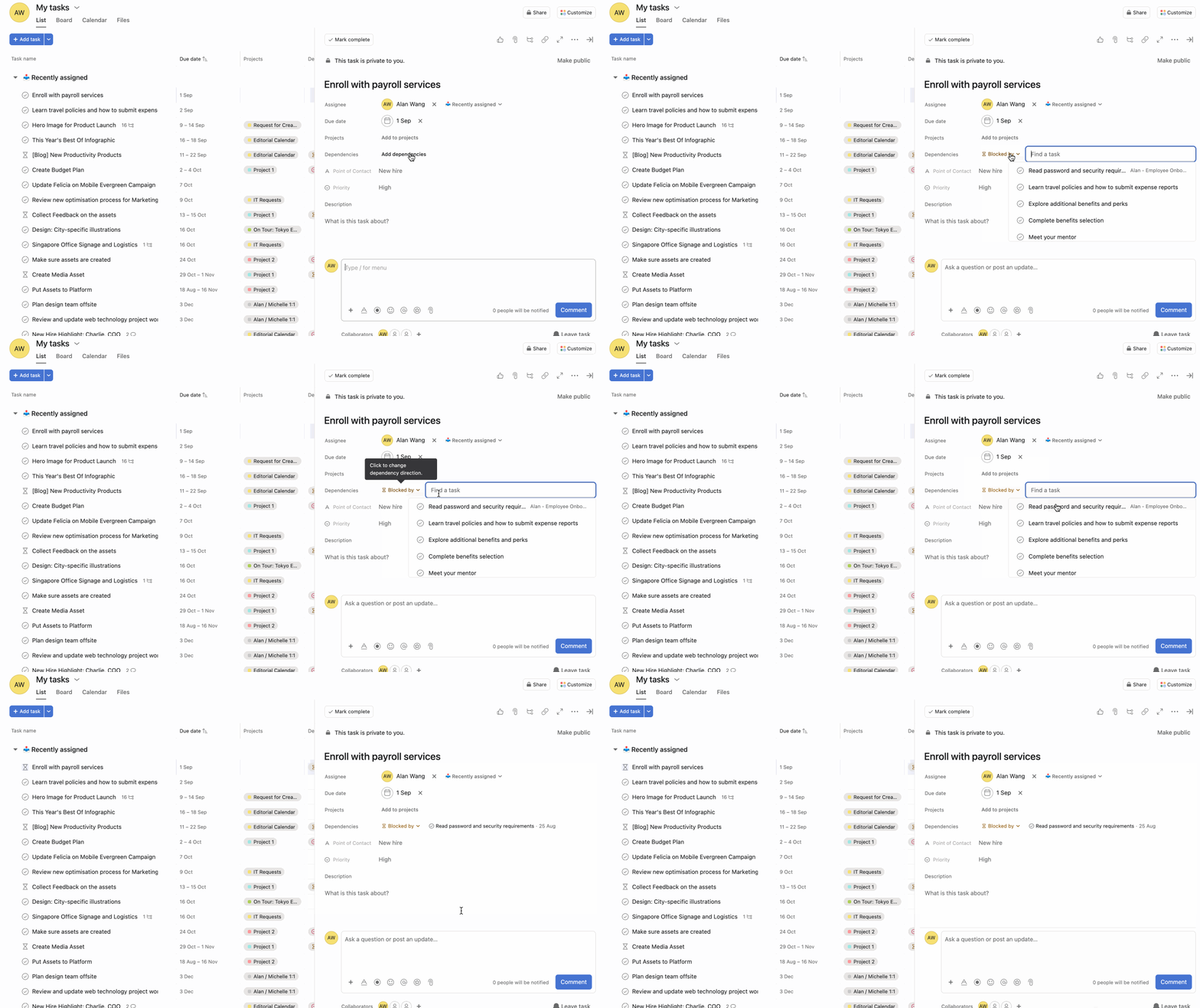
The indication banner will only appear in the dependent task's details pane.
The dependencies field has been split into two distinct fields: Blocked by and Blocking to provide a clearer visualization of task dependencies within list view. This split makes it easier to understand task relationships and manage work dependencies more effectively.
The split dependencies field separates dependency information into two distinct columns in list view:
To use the split dependency fields:
You can set dependencies directly on your timeline by clicking the connector icon that appears when hovering over a task and then dragging it to another task.

A single task can be dependent on multiple tasks, and multiple tasks can be dependent on a single task.
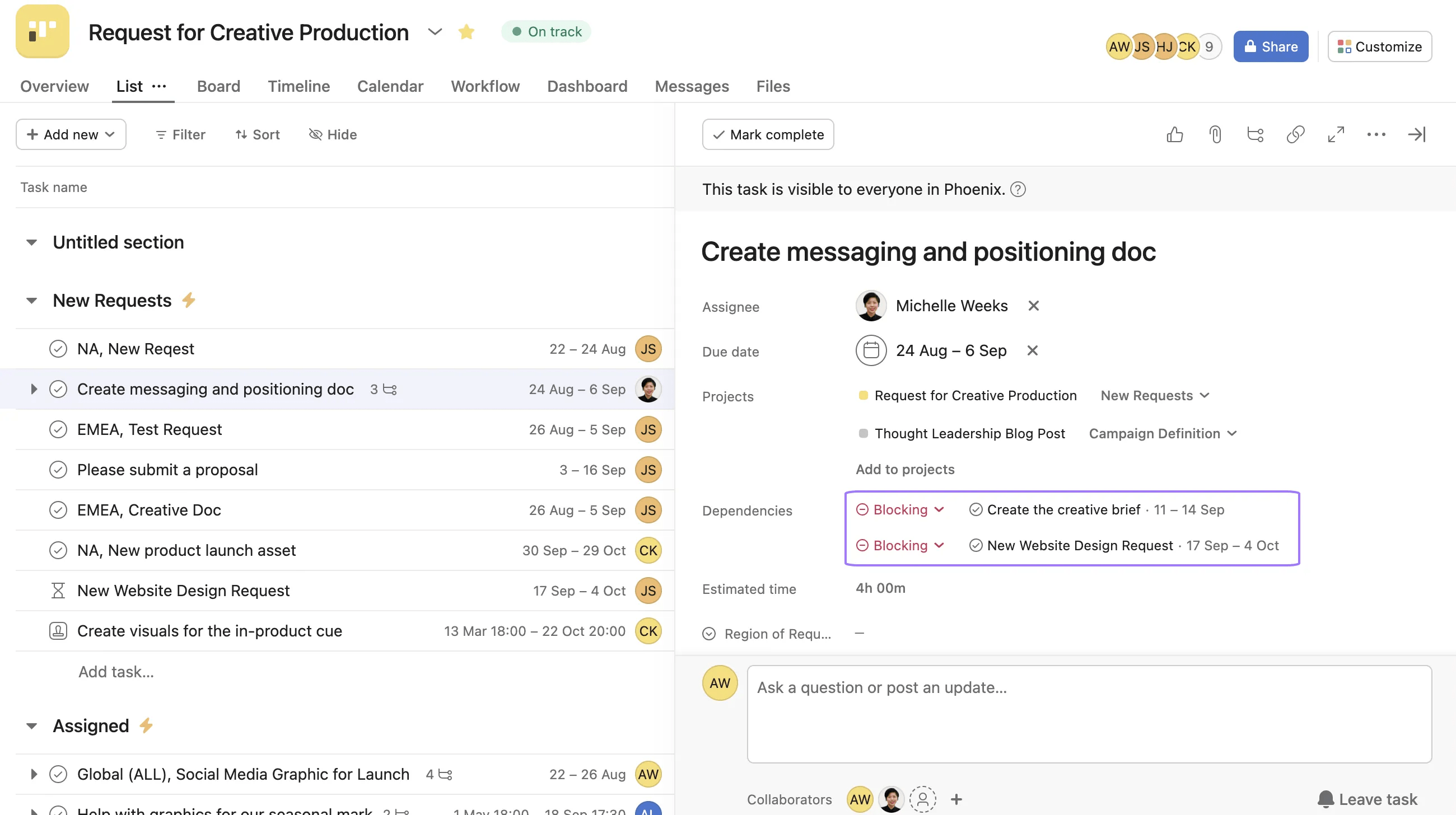
The precedent task will now show the tasks it is blocking, indicating other tasks are waiting on it to be completed. If a single task is dependent on multiple tasks, each precedent task will appear in the dependent task's details pane.
To remove a dependency, hover over an existing indication banner and click the X symbol that appears.
The assignee of the dependent task will receive notifications for the following actions:
If a task is dependent on multiple tasks, you will only receive one notification when all precedent tasks have been completed.
Dependencies are the relationships among tasks that determine the order in which activities need to be performed, allowing you to mark a task as blocking another task or blocked by another task.
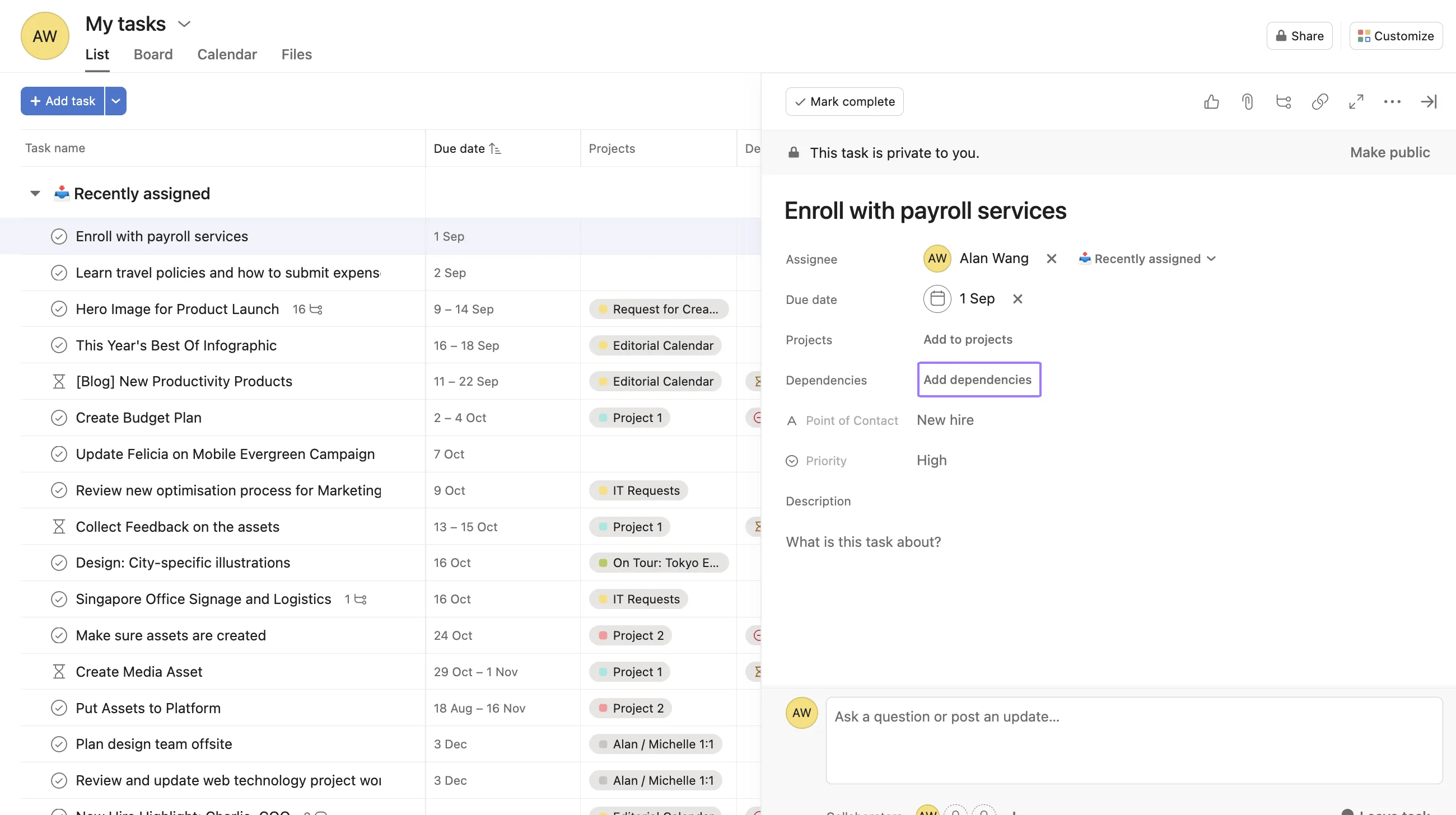
Click into the task, select "Add dependencies" in the sidebar, type the name of the blocking task, and select it from the typeahead that appears.
"Blocked by" shows which tasks are preventing this task from starting or being completed, while "Blocking" shows which tasks cannot proceed until this task is completed.
The assignee of the dependent task receives notifications when the precedent task is marked complete or when its due date is changed or removed.
Note
Need clarity on task dependencies? Ask the Community!

