Products


AI Platform


Asana Foundations
Company Type
No articles found for this topic.
No articles found for this topic.
In This Article

Visit our pricing page for more information.
Available on Asana Advanced, Enterprise, and Enterprise+ tiers, as well as legacy tiers Business and Legacy Enterprise.
Visit our pricing page for more information.
Asana’s native time tracking feature allows you to estimate the time needed to complete a task, as well as record the actual time spent. This valuable time data helps inform decisions regarding workload and resourcing, provides better information for real-time estimates on project progress, and can be instrumental for forecasting and budgeting.
You can manually track time or rely on time logging to automatically calculate total actual time spent, based on different occasions that the task was worked on. It is also possible to report on time tracking data in dashboards, and estimated time can be sorted like other custom fields.
Explore time tracking for free. Start a free Asana trial today.
To enable time tracking in your project:
The custom fields Estimated time and Actual time will be added to the project. You can also add these fields via the custom field library.
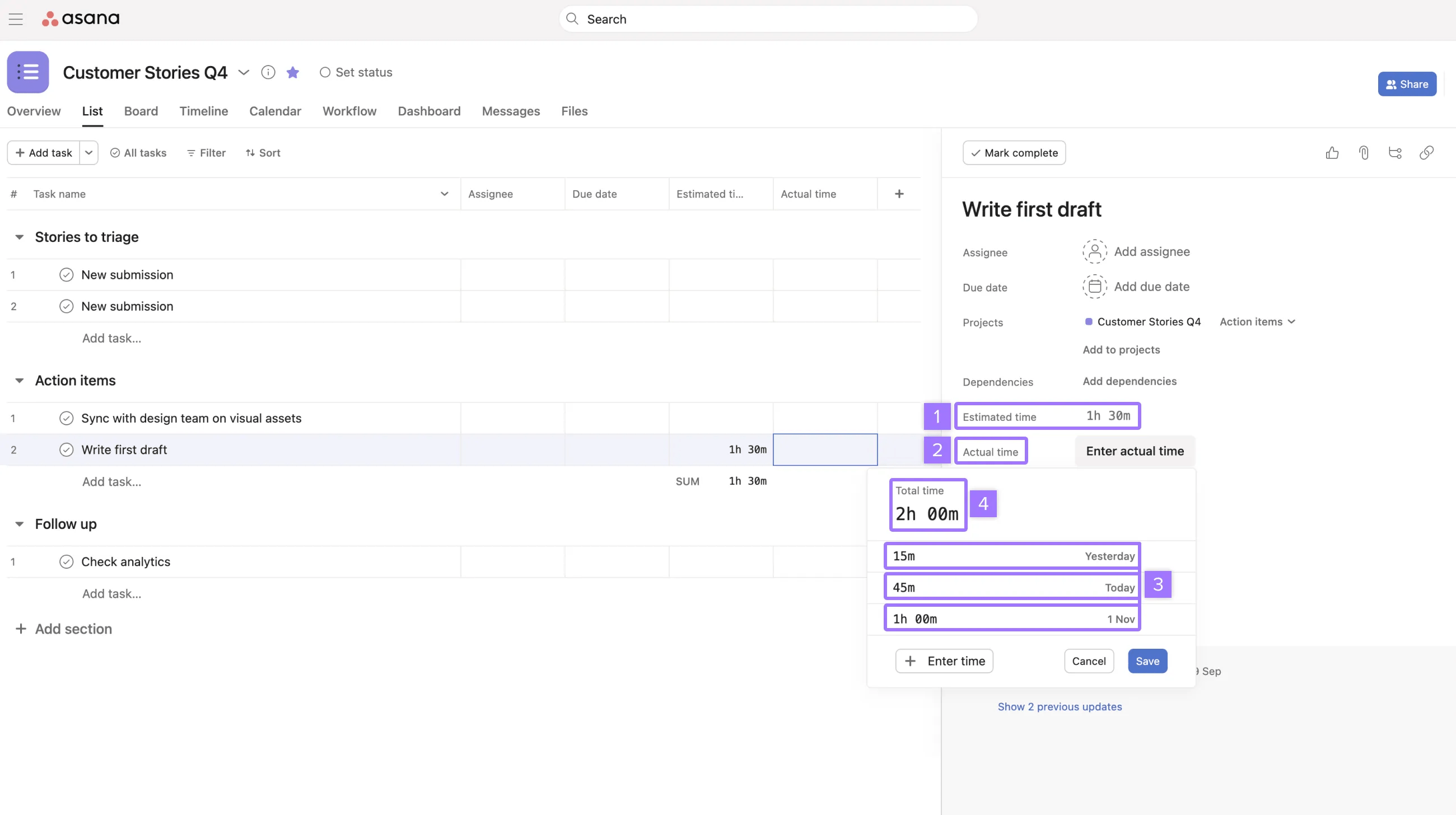
You can report on time data in projects in much the same way as other custom fields by using dashboards.
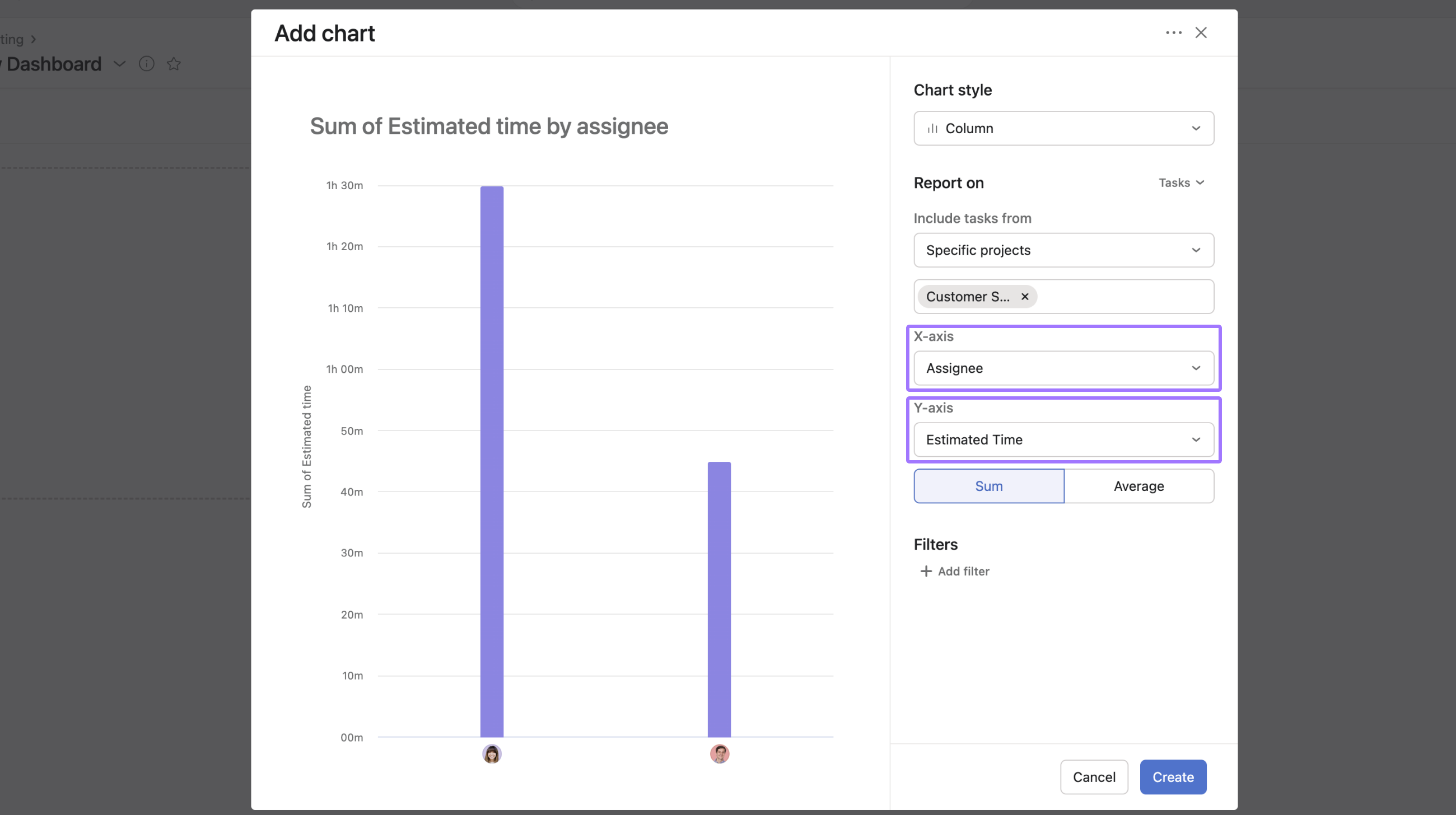
This example reports on the estimated time to complete tasks in a project based on each assignee. Recreate this chart by selecting the following:
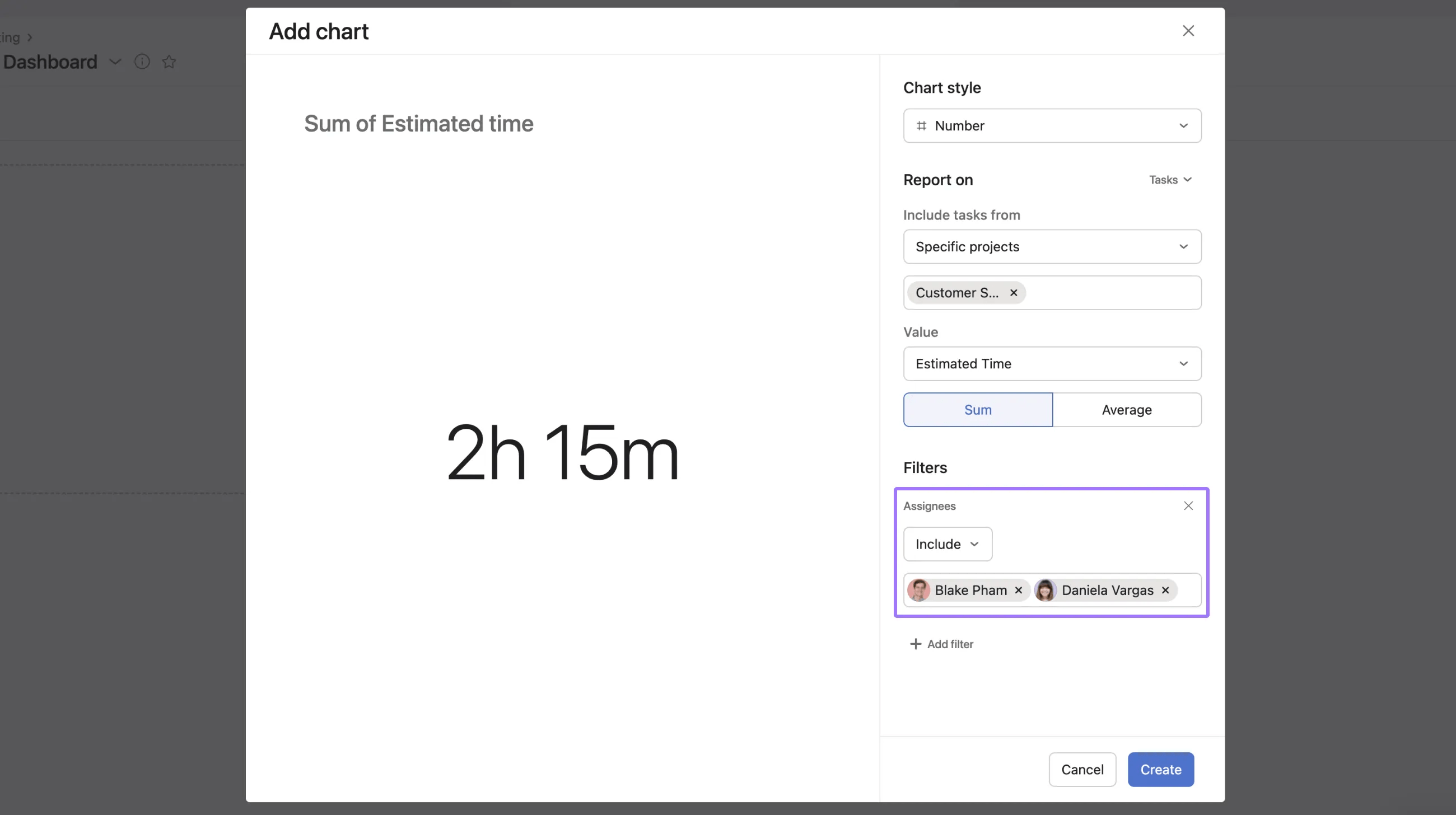
You can also report on the total estimated time for tasks based on a select group of assignees within the project.
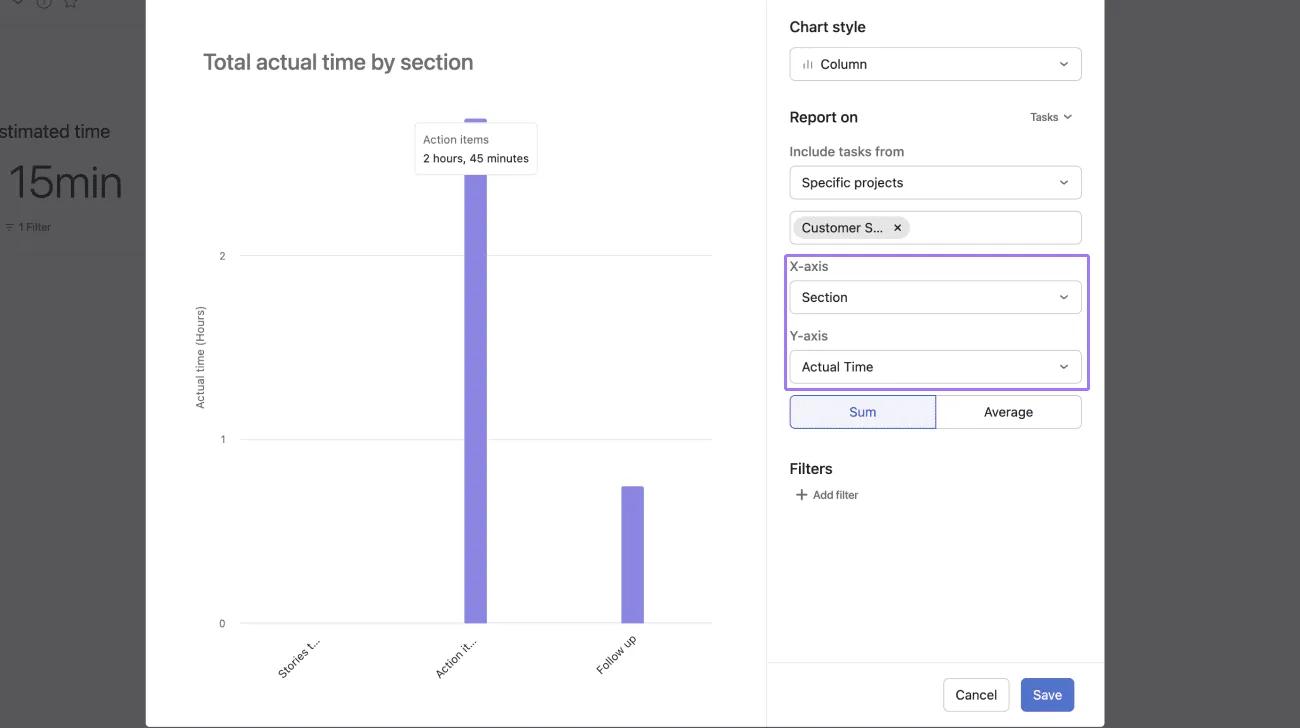
You can also report on total actual time. This dashboard shows total actual time by section.
Recreate this chart by selecting the following:
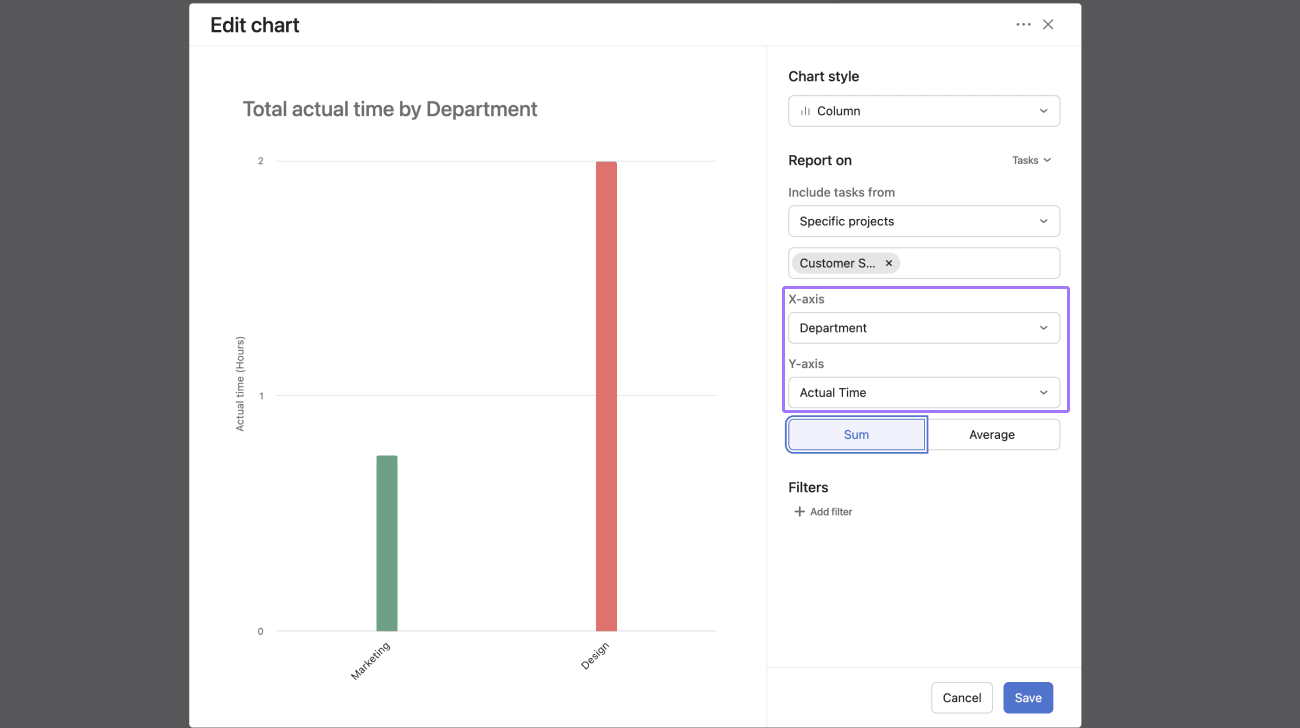
Report on total actual time by custom field in a project.
Recreate this chart by selecting the following:
You can now record Actual time spent on a task by using the start and stop live timer.
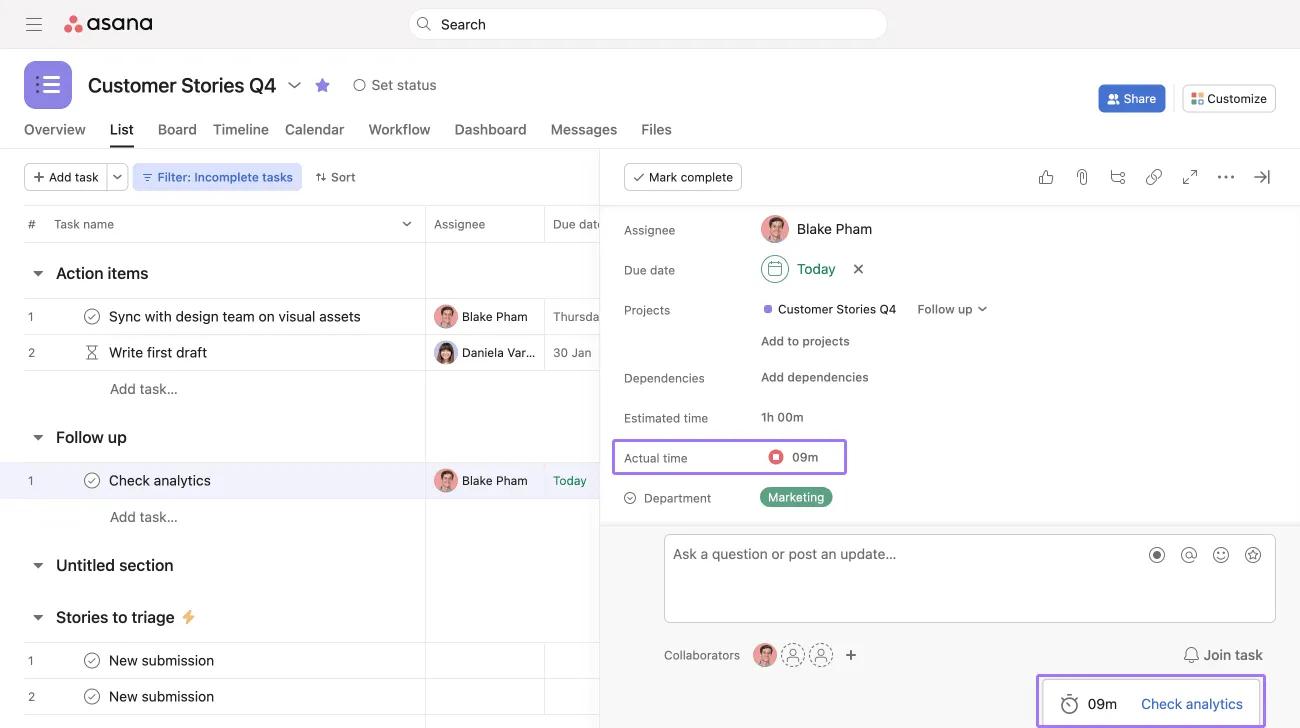
When the timer is running, a popup appears in the bottom-right corner of the screen with the running timer and task name. Clicking on the pop up will redirect you to the task which has the timer running. This way you can accurately and seamlessly keep track of the time spent on a task.
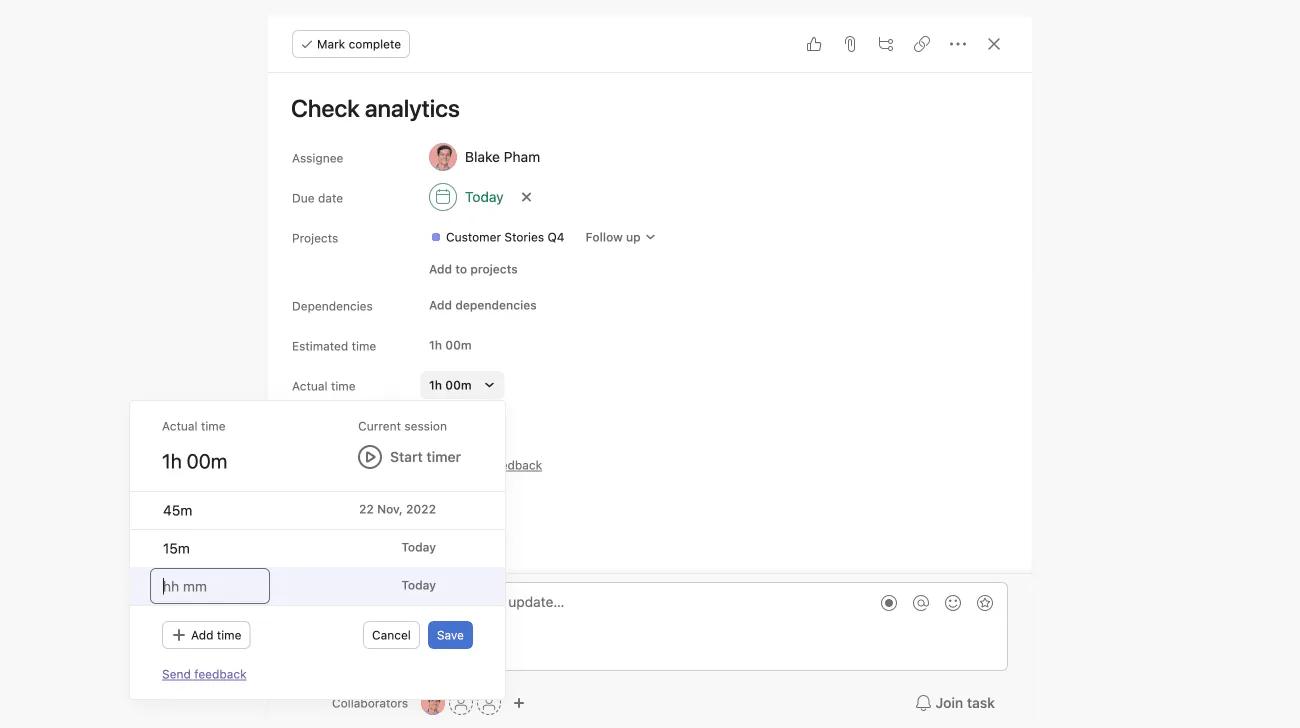
Clicking Actual time on a task will show each instance that the timer has run while the task is being worked on, as well as which user set the timer running. In the above example, the task was estimated to take 1 hour, and was worked on in two different periods; one of 45 minutes, and one of 15 minutes.
It is now possible to read time tracking information for tasks in the API. See further information on our Community Forum.
Values from Actual time and Estimated time fields in subtasks roll up to the parent task value.
When subtasks are expanded in list view, the subtask Actual time and Estimated time values and the parent task Actual time and Estimated time values are displayed separately.
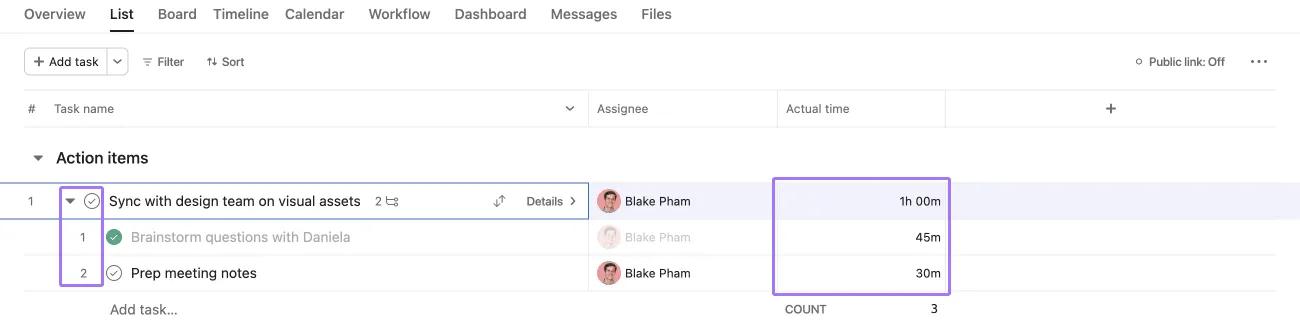
When subtasks are collapsed in list view, subtask Actual time and Estimated time values are rolled up and added to the parent task values.
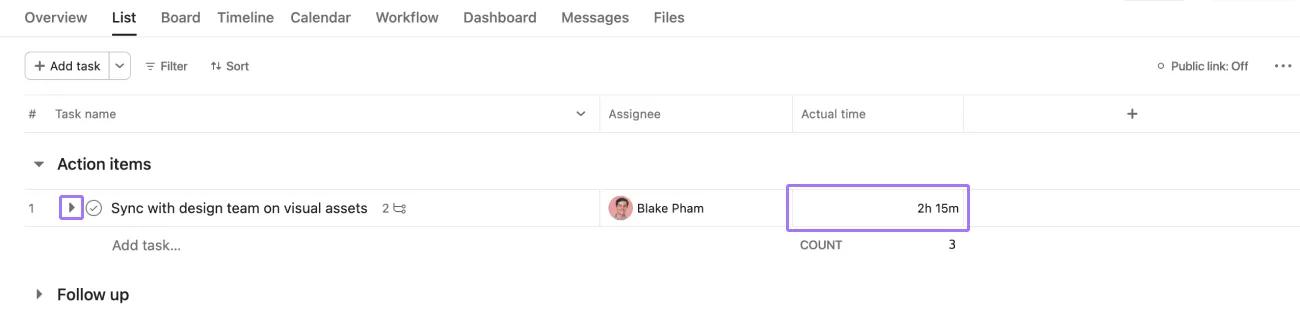
The Actual time and Estimated time values displayed next to the parent task show the sum of parent task and subtask Actual time and Estimated time values.
In the above example, the Actual time values of two subtasks (45 minutes and 30 minutes) are added to the Actual time value of the parent task (1 hour, 0 minutes), totalling 2 hours, 15 minutes. Estimated time values are rolled up in the same way.
Time tracking fields are supported in templates. Estimated time and Actual time fields will be carried over to any project created from a template where these fields are present.
It is possible to import and export time tracking values via CSV.
Note: This feature is currently in limited availability and may not be visible to all users.
Easily export comprehensive time tracking data from your projects into CSV format for analysis and reporting. Time tracking export allows you to download detailed time entries organized by person and date. This provides better visibility into how time is being spent across projects. For example, project managers can do a CSV export of a project to identify how much time was spent on working on it by Bob last month.
If you’d like the total time logged per task (without dates of when the time was logged or who logged it), you can use the standard CSV export of all project tasks.
Note
A value of 1h 30min will be exported as 1:30
When importing time tracking values, Asana will recognize the following formats:
Numbers alone are assumed to be hours. Importing a value of 15 will be recognized as 15 hours.
To enable time tracking, navigate to the customize menu in any project and click "time your work." This adds two custom fields to your project: estimated time and actual time.
Estimated time lets you budget how long you expect a task to take, while actual time records how long you actually spend working on it. You can track actual time using the built-in timer or by entering time manually.
Click the actual time field on a task to start the timer, which continues running until you pause it. Asana automatically records the time you spent on the task when you stop the timer.
Yes, time tracked on subtasks automatically rolls up into the parent task. You can see the total of both estimated and actual time for all tasks within each project section.
Want to learn more? Check out all the features of Asana Time Tracking.

