Products


AI Platform


Asana Foundations
Company Type
No articles found for this topic.
No articles found for this topic.

Visit our pricing page for more information.
The Asana for Slack integration will ensure that your team can work seamlessly between Asana and Slack, without having to constantly switch tools. It also supports Slack's Enterprise Grid plans.
App integrations aren’t just for projects. Add apps to your My tasks to integrate with the tools your team uses most.
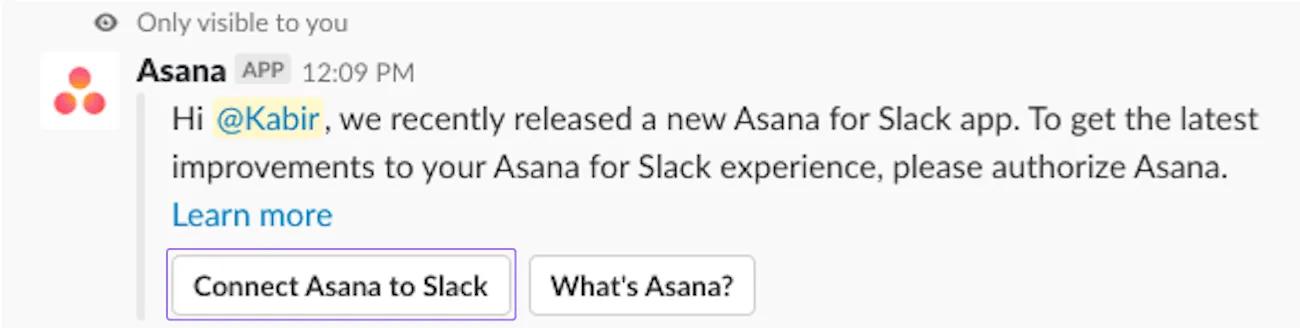
To get started, download the Asana for Slack app. Log into Slack and follow prompts from the Asana bot for Slack to authenticate your Asana account, allowing Asana to send information to Slack. If someone in your organization has already installed the integration you might have received a prompt to re-authorize your Asana in Slack. By doing this you’ll be able take advantage of all the new features.
If you receive a message indicating that you are not authorized to install Asana, please contact your admin and ask them to approve the app for your Workspace.
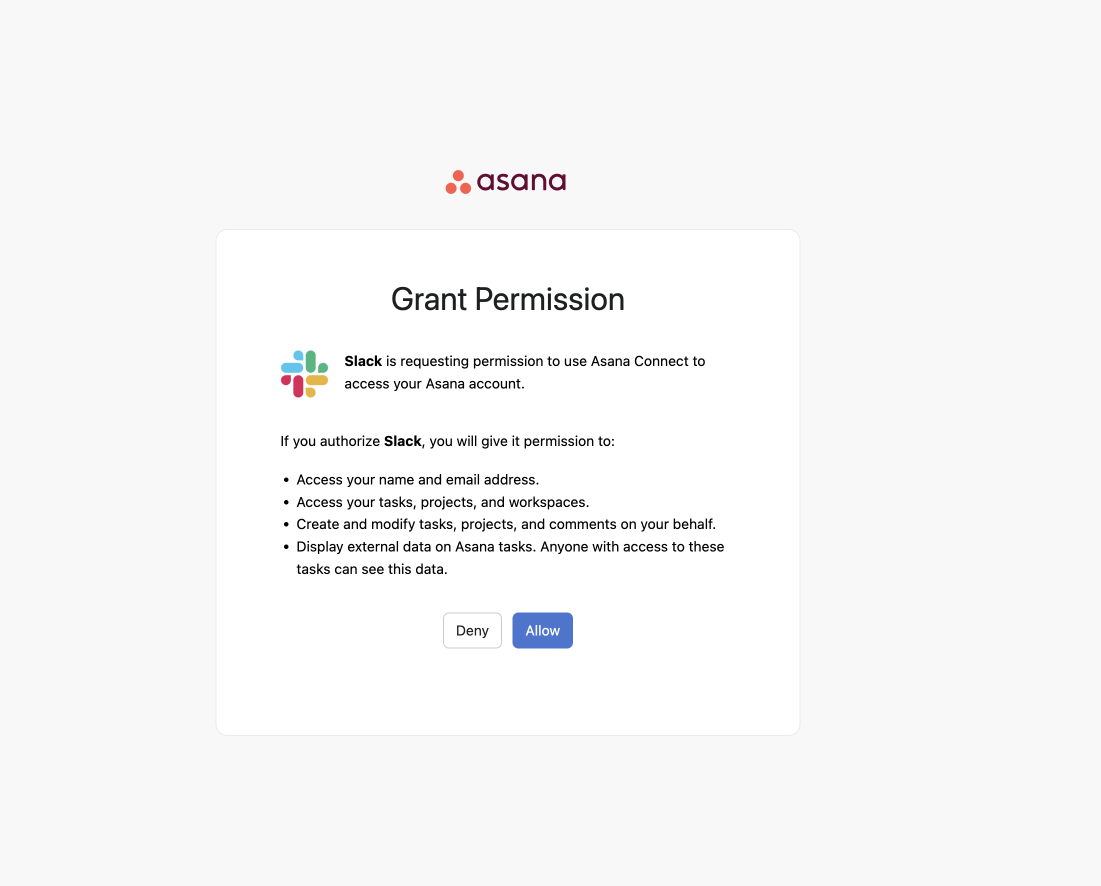
The Asana for Slack integration is different than the previous Asana app and we will be deprecating the older version in due course. We will import any configurations you had set up from the old app to the new Asana for Slack app. To learn how to set up linked project configurations, see Linked Project Configurations below.
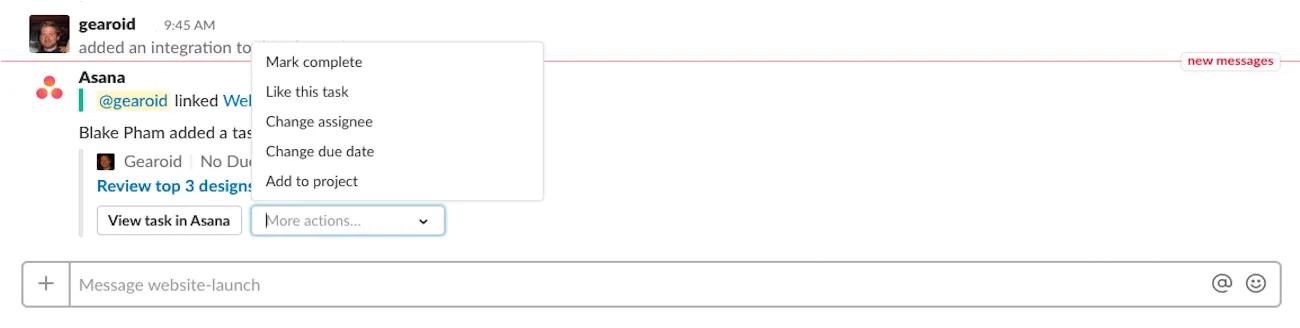
The fastest way to onboard your team is to paste a link to an Asana task in Slack. Ask your teammates to click on More actions from the drop down menu and select Like this task. By interacting with the task, they’ll receive the re-authorization message. Once they re-authorize, the new Asana for Slack will replace the old version.
If your slash commands and message actions have stopped working, it means we have started the migration window, and you’ll need to migrate to the new version to start using them again. We will import your project channel configs from the old app to the new app and you will receive notifications in the same channels you have used previously.
The Asana for Slack integration allows you to turn Slack messages into tasks, take action on tasks from within Slack, or create a new task without leaving Slack. Task specific actions are also available via notifications in your personal or project channels.
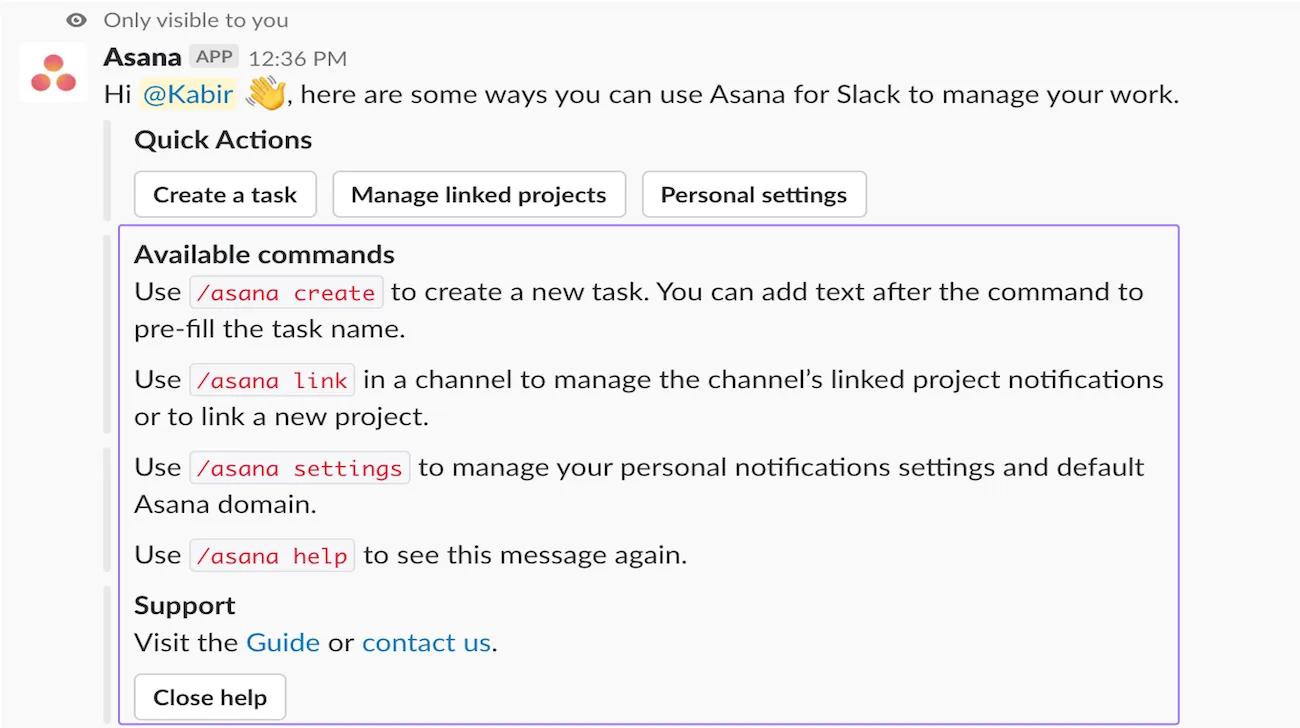
From Slack you can view a list of commands and bring up links to this guide by typing /asana help
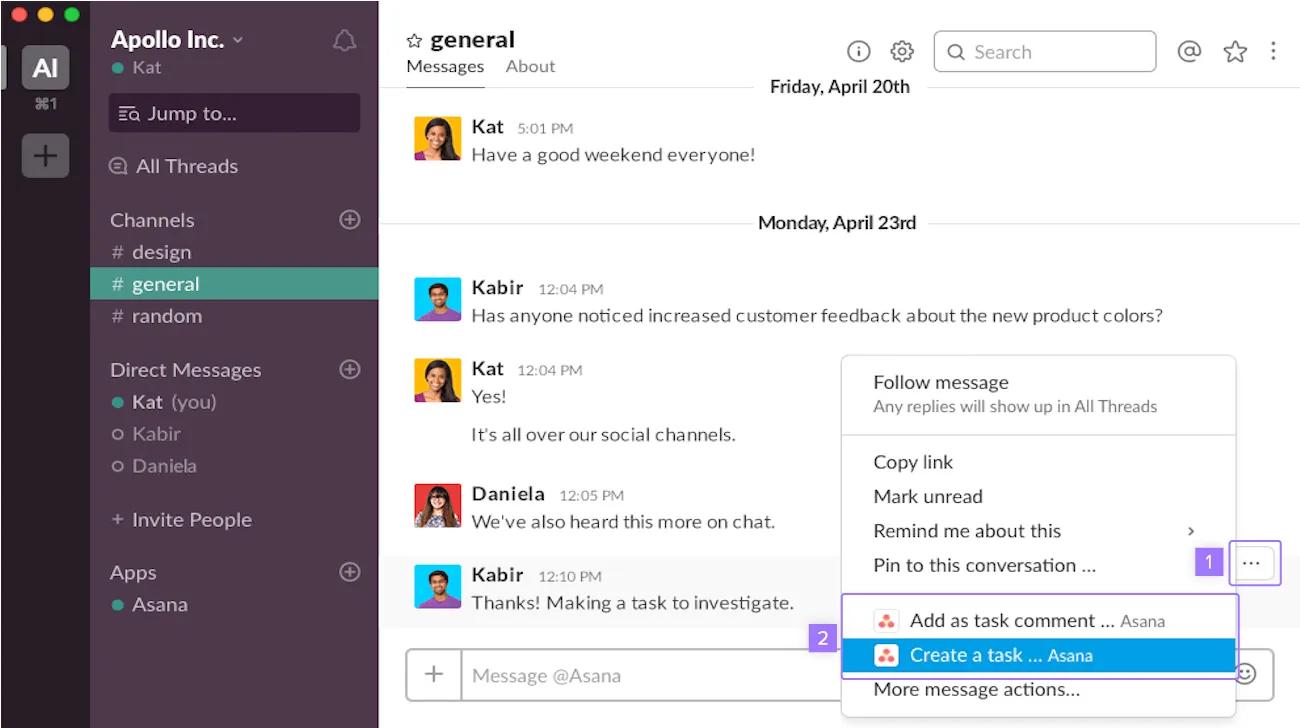
Capture conversations in Slack and turn them into a task, or add the conversation to a task. In Slack, select the conversation. Click the more messages button and select either Create a task or Add to task. A link will be created in the Asana task so that you can re-access the Slack conversation for further context.
Paste a link to an Asana task, milestone, project, or status in Slack to share information and it will become actionable from within Slack via a dialogue box and dropdown menu options.
If you share a task that lives in a project with Private to members permission settings, with a user that is not a project member, they will not be able to make edits and will have to request access from the project owner. You can control whether the description for private tasks or projects are unfurled via /asana settings.
Smart chat in Slack allows you to surface insights and recommendations related to your work in Asana, all within the context of your Slack conversations. Smart chat in Slack is available to customers who have a paid Asana plan and a paid Slack plan.
You can ask AI chat almost any work-related question to streamline your tasks. Whether you're looking for the latest project updates, trying to find out who owns a task, identifying blockers, or figuring out the next steps to keep a project on track. You can even ask who the most knowledgeable person about a specific topic is, so you know who to Slack. AI chat helps you get the information you need quickly, so your team can focus on what’s important without switching between tools.
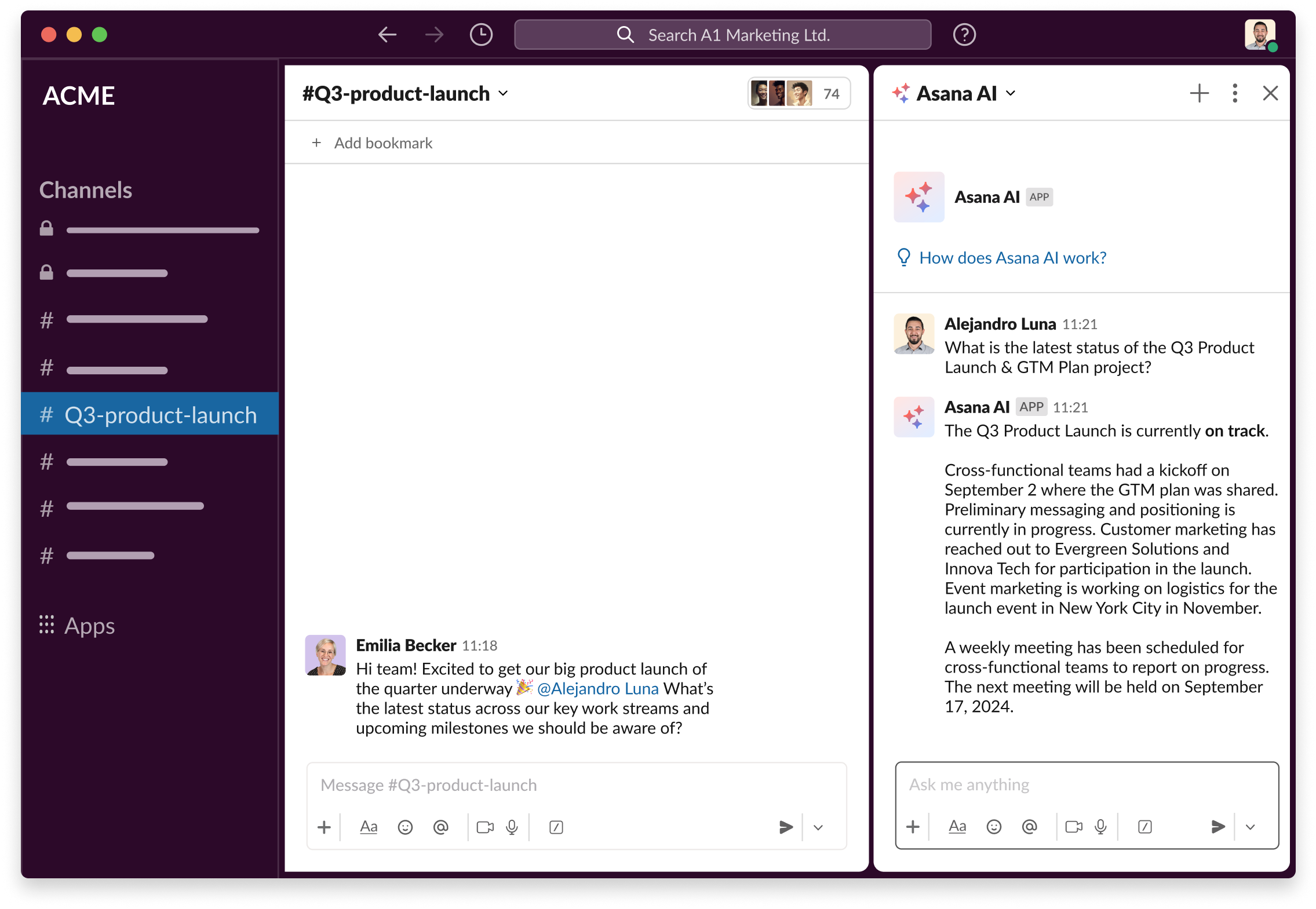
To access Smart chat in Slack, follow these steps:

If this icon is not visible, you can add it by going to your user preferences, clicking Navigation, and selecting it from the App agents section. If you don't see the app listed, you'll need to request your admin to enable it for your workspace first.
Stay up to date on task details with AI-generated summaries directly in Slack. Smart summaries in Slack allows teams to get a quick overview of work happening in a task without having to leave their Slack workspace.
Your Asana organization must have Asana AI enabled in order to use Smart summaries in Slack.
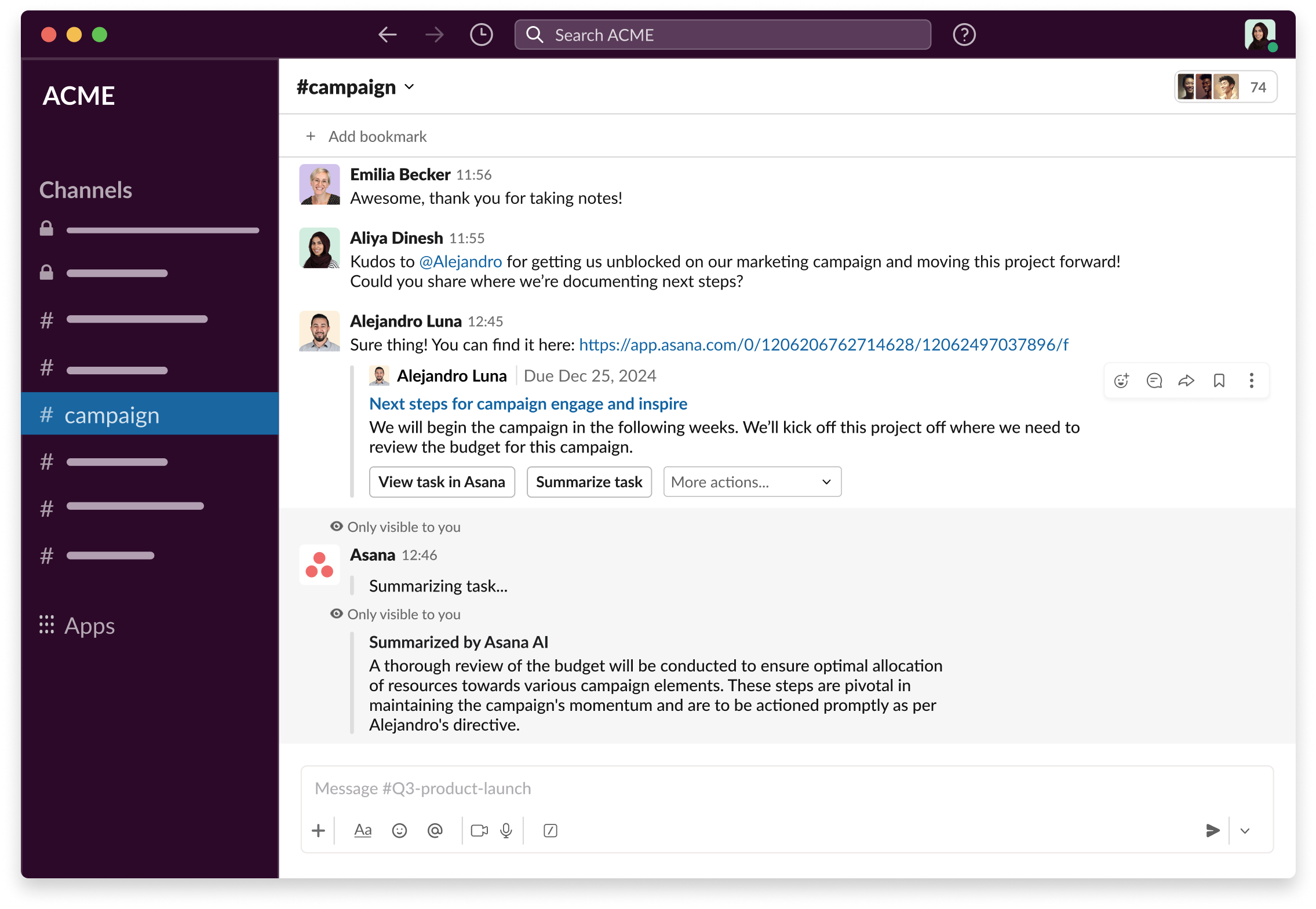
The task summary is not visible to other members of the Slack channel. It is only visible to the user who requested it. Any member of the Slack channel with access to the task will have the option to summarize the task, however the summary itself is only visible to the user that clicked on the Summarize task button.
If you do not see task previews on Slack, check your Slack settings as follows: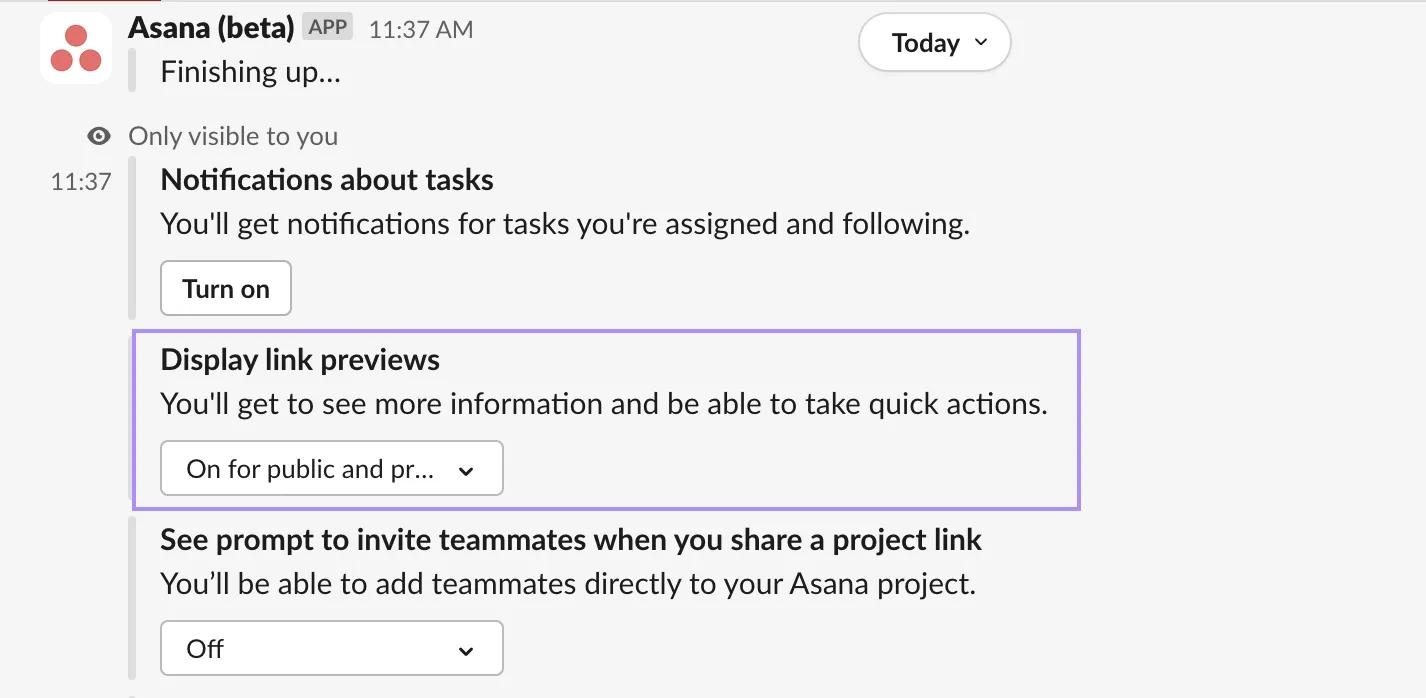
Type /asana create to create a new task in Asana without leaving Slack.
A dialogue box will pop up and in drop down menus you’ll be able to:
You can turn Slack messages into Asana tasks by using the :memo: 📝 emoji. To do so, react to any message with the 📝 emoji. The message content and any thread replies are automatically included in your task description.
When you first install the app, you’ll receive a message from Asana giving you the choice to turn on your Asana notifications. This is helpful because you’ll be able to take action upon these notifications without leaving Slack. You’ll receive notifications when:
For tasks assigned to you, you'll receive a notification when:
Personal notifications will be delivered to your personal Asana channel, found under the Apps section in the bottom left of your Slack Sidebar.
Note
Please note that personal notifications are not sent when you are active in Asana
At any time you can manage your personal notifications by typing /asana settings in Slack. You’ll be able to turn notifications off or on, change your default domain, or deauthorize your account.
You can connect an Asana project to a Slack channel directly from within Asana's Project Settings. Only project admins and editors can set up, edit, or remove linked project notifications.
To get started, open the project you want to connect and click Edit project Settings. From there, navigate to the Notifications tab and select Add channel under Slack. Follow the prompts to choose the Slack channel where you want notifications to be sent.
You can choose granularly which notification types are sent to your Slack channel. This allows your team to receive only the updates that are most relevant to them, reducing noise while maintaining visibility.
If you are connecting to a private Slack channel, you must first add the Asana Slackbot to that channel before completing setup. Once the channel is connected, you can select which notification types to send. Available notification types include task completed, status updates, comments, assignee changes, due date changes, and more.
Channel members who are not project members may be able to view link previews of Asana tasks shared in the Slack channel.
Before you use rules that send messages to a Slack channel or read messages from that channel, you need to add the Asana app to the channel.
Once the Asana app is added, you can create rules that read messages from that channel and send updates back to it.
You cannot set up rules for a Slack channel until the Asana app has been added to that channel.
You can start rules from Slack activity when you want to turn channel conversations into work in Asana.
When a Slack message is posted to a channel, the rule can create or update a task in Asana based on that message. You choose the channel to monitor and can add AI conditions to check the content of each message before the rule runs. For example, you can look for messages that mention specific keywords or phrases before creating a task.
When a reply is posted to a Slack thread that is linked to an Asana task, the rule can add that reply to the task so the full conversation is captured. This makes it easier to keep context in Asana while people continue talking in Slack.
You can use Slack message actions in rules to keep your team informed when work changes in Asana.
Use the Send channel message action to post an update into a Slack channel when task activity happens in Asana. For example, you can send a message when a task is created, moves to a specific section, or is marked complete. Including task variables in the message helps you give teammates clear context without leaving Slack.
Use the Send direct message action to notify a specific person from a rule so they see important changes right away. You can include details like the task name, assignee, and due date in the message so the person receiving it understands what changed and where to look in Asana.
Use the Send reply to thread action to add a reply to a Slack message that’s linked to the triggering task. You can use this to keep everyone on the Slack thread informed of progress on a task.
When creating a Slack app action, you can include task variables that will automatically populate the Slack message with task information when the notification is sent to make your messages more dynamic and informative.
When creating a Slack app trigger rule, you can include Slack message variables that will automatically populate the task with Slack information.
You can create a two-way comment sync between Slack and Asana so teammates can comment where they prefer while keeping a single, shared conversation.
First, create a rule that watches a Slack channel using the “New message is posted to channel” Slack trigger and creates a task from new messages. This helps you capture requests and questions that start in Slack so they can be tracked in Asana.
Next, create a rule that listens for replies in the linked Slack thread using the “Reply is posted to thread” Slack trigger and adds those replies as comments to the Asana task. This keeps the task’s comment thread complete while people continue to reply in Slack.
Finally, create a rule that listens for new comments on the Asana task and sends a reply to the linked Slack thread using the “Send reply to thread” Slack action. This keeps Slack followers in the loop when updates happen in Asana without requiring them to open Asana.
With these rules in place, you can keep Slack and Asana comments aligned while still letting teammates use the tool that works best for them.
Download the Asana for Slack app from Slack's app directory, then authenticate your Asana account when prompted by the Asana bot to enable the integration between the two platforms.
You can turn any Slack message into an Asana task by clicking the three-dot menu next to the message and selecting "Create a task" or add the message to an existing task by selecting "Add to task."
Asana sends personal notifications to your Asana channel in Slack when tasks are assigned to you, when task due dates change, when dependencies are completed or modified, and when someone comments on tasks you're following.
Rules can automatically create Asana tasks from Slack messages, add Slack thread replies as task comments in Asana, and send task updates back to Slack threads to keep conversations synchronized across both platforms.
Like what you see? Get started with a free Asana trial today. Try for free
Want to connect Slack and Asana like a pro? Ask the Community!

