Products


AI Platform


Asana Foundations
Company Type

Visit our pricing page for more information.
A variable is a way to reference key task data within a automation. Variables allow you to create dynamic, flexible automations to fit your workflow.
When automations run, you can reference variables from the following categories in your tasks: Task, People, Dates, Custom fields
Note
People variables are further refined into Task creator, Assignee, and automation triggerer
You can specify the exact value that the variable displays when the dynamic value is used.
For example, you may wish to refer to the name of a task in a block of text, without @mentioning it, or there may be cases where referring to the task ID number is preferable.
See all variables and the different ways you can display them below.
| Task variable | How the dynamic value is displayed |
|---|---|
Default | @mention or URL of task which triggered automation |
Name | Plain text name of task which triggered automation |
Description | Content of description field of task which triggered automation |
ID | ID number (e.g. 1205100117625723) of task which triggered automation |
People variables are divided into 3 subcategories:
| Task creator | Assignee | Automation triggerer | How the dynamic value is displayed |
|---|---|---|---|
Default | Default | Default | @mention or URL |
Name | Name | Name | Plain text name |
Email | Email | Email | Email address |
ID | ID | ID | ID number (e.g. 1205100117625723) |
| Date variable | How the dynamic value is displayed |
|---|---|
Trigger time | Date and time the automation was triggered |
Start date | Start date of task which triggered the automation |
Due date | Due date of task which triggered the automation |
Creation time | Creation time and date of task which triggered the automation |
| Custom field variable | How the dynamic value is displayed |
|---|---|
Text custom field | Current value in the text field of the task which triggers the automation |
Number custom field | Current value in the number field of the task which triggers the automation |
Single-select custom field | Current value in the single-select field of the task which triggers the automation |
Multi-select custom field | Current value in the multi-select field of the task which triggers the automation |
Formula custom field | Current value in the formula field of the task which triggers the automation |
Date custom field | Current value in the date custom field of the task which triggers the automation |
People custom field | Current value in the people custom field of the task which triggers the automation |
| Project variable | How the dynamic value is displayed |
| Default | Display as URL or @mention |
| Name | Display as text |
| Section variable | How the dynamic value is displayed |
| Name | Display as text |
This example shows what variables look like when building an automation.
According to the automation, when a task is moved to the Triage section, the automation is triggered and a subtask is created. The subtask contains many variables, each referring to a piece of data from the task which triggered the automation.
Task variables can be used in task titles when the automation creates a task, subtask, or approval. In this example only the task name and task ID variables are used.
Task variables can also be used within the task description. In this example, all 4 task variables are used in the subtask’s description for illustration purposes.
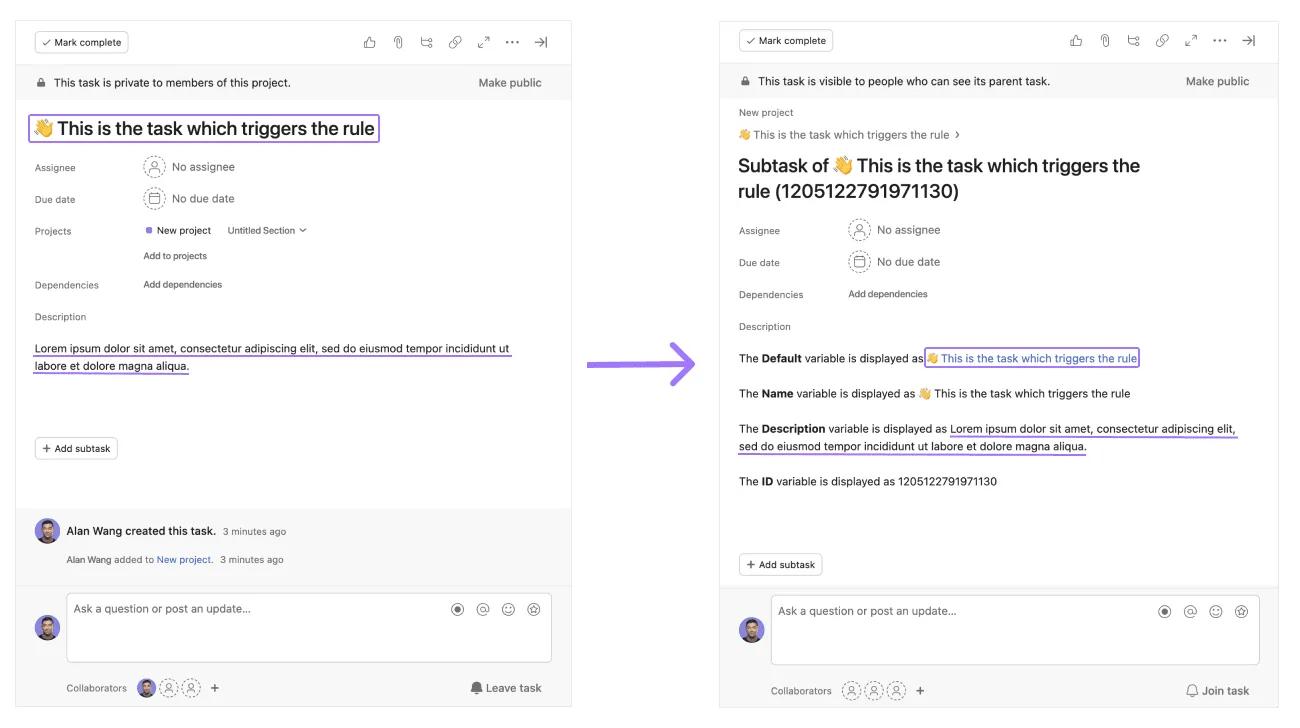
On the left, see the task which triggers the automation when moved into the Triage section of the project. The variables used in the automation will pull the task’s name, description, and task ID into the subtask which is created.
On the right, see the subtask created when the automation is run. The subtask contains the Task, Task name, Task description, and Task ID information which has been pulled from the task which triggered the automation.
See the various automation actions which support different variables.
The Add comment automation action supports all variables and their values, meaning you can reference any Task, People, Date, or Custom field variable, and choose exactly which value (Default, Name, Email, ID) you wish to display when the automation runs.
The Set assignee automation action supports all People variables, meaning you can select Task creator, Assignee, or automation triggerer. As the action only related to changing the assignee field, the specific values of the variables (Default, Name, Email, ID) are not relevant or supported with this action.
When using the Create task, Create subtask, and Create approval actions, there are four areas within these tasks where variable can be employed; Task name, Task description, Due date field, and the Assignee field.
The Task name field supports all variables and their values
The Task description supports all variables and their values
The Due date field supports all Date variables
The Assignee field supports all People variables
The Set text field action, which is used to update a text custom field, can support variables.
Asana's Gmail automation integration allows you to send an email from your Gmail account to your chosen recipient based on triggers you choose. The Send email action can now support variables.
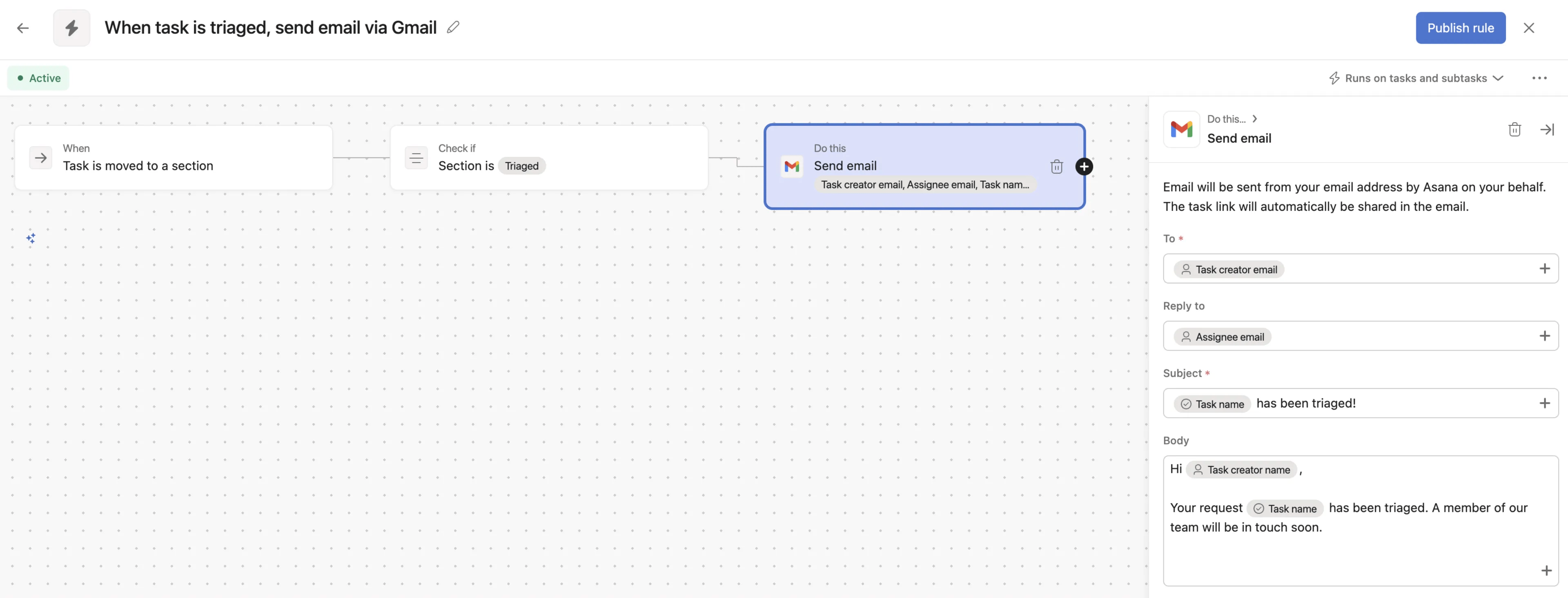
Variables are supported in the To, Reply to, Subject, and Body fields.

