Products


AI Platform


Asana Foundations
Company Type

Visit our pricing page for more information.
A guest is a user in an organization who does not share the organization's email domain. Guests can be invited to organizations to work on specific tasks, or in specific projects or teams. You may wish to add guests for temporary collaborations or when working with external consultants, for example.
You can collaborate with clients, contractors, customers, or anyone else who does not have an email address at an approved organization email domain (i.e. @gmail.com or @yahoo.com). Once invited, these users will become guests in your organization.

Guests have limited access to the organization and only see what is explicitly shared with them.
Note
In an organization, guests can generally interact with paid features in a passive way. If given access to the relevant project, a guest can select a custom field value from the list, but they cannot edit the custom field itself. For example, a guest can change an "urgency" custom field value from medium to high, but they cannot edit the name of the "urgency" custom field, or make edits to any of the custom field value options.
There are limited permissions. Guests have limited access within the workspace or organization they’re invited to and can only see what is explicitly shared with them.
Guests can see other users in the organization under specific conditions:
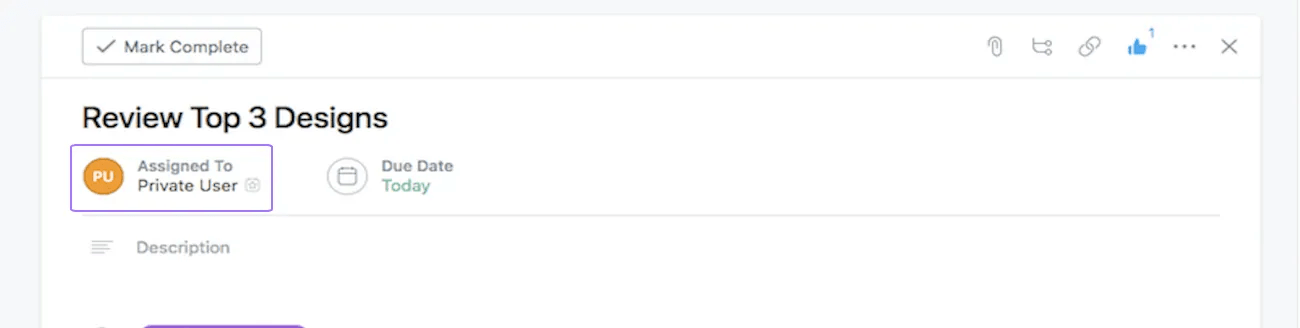
Guests have limited access within the organization they’re invited to, and can only see what is explicitly shared with them.
If two people are seeing each other as a “private user”, they are both guests. If guests see this, that means they are not working in either the same team or project together; this is to ensure that if you’re working with clients, they cannot see one another’s names unless you want them to. Once they are both working in the same project or team, their names will be displayed for one another.
In order for guests to see one another’s names, they must be members of at least one project or team together. Just add both guests to the same project or team and they will be able to see each other’s names.
For guests to see one another’s names, they must be members of at least one project together. Just add both guests as members to the same project, and they will then be able to see each other’s names.
If two people are seeing each other as a “private user”, they are both guests.
Guests have limited access within the workspace or organization they're invited to and can only see what is explicitly shared with them.
Available on Asana Enterprise+ and Asana Gov.
Guest authentication via magic links provides a seamless way for guest-only users to access shared Asana content. The magic link authentication for guest-only users helps customers meet FedRAMP and NIST standards without requiring guests to onboard via full SAML or PIV solutions.
To configure this for your domain reach out to the Customer Support team.
A guest-only user refers to a user who does not belong to any home domain. Guests with a home domain in AsanaGov will still go through their home domain's SAML flow and don't have the de-provisioning concern.
Links expire in 15 minutes and are single-use only on Asana Gov.
No. Guests do not contribute toward your overall membership count when upgrading an entire organization.
Note: Members of paid organizations using guest access in other organizations will still occupy a license in their home organization.
No, only a member of a free organization or the billing owner of a paid organization can request to upgrade or make changes to your paid plan.
Generally, any member can add a guest to an organization. Also, organization guests can invite other guests to your organization by sharing the projects and tasks that they have been given access to.
Super admins of divisions on an Enterprise, Enterprise+, or Legacy Enterprise plan can also set a policy on who is allowed to invite external guests into the organization by using guest invite controls in the admin console.
No. You must be a full organization member in order to become an admin of a paid organization.
No. It isn't possible to simply convert a guest to a member or vice versa.
The only way to turn a guest into a member, would be to set them up with an email address under your organization's domain and have them add this email address to their Asana account. In this way they would become a member of the organization, and would no longer be a guest.
You can invite clients to your organization as guests.
Organization membership is defined by your company's email domain (michael@yourco.com is a part of the yourco.com organization). Those who do not have an email address @ your company's email domain may be invited to your organization as a guest.
Organizations can consist of multiple teams and divisions. It is possible that when you removed a guest, you removed them from a team or division in your organization but did not select to remove them from the organization itself at that time.
Therefore, they do not appear in your teams or divisions, but they may still exist in the organization and appear in the typeahead when you're assigning tasks. To remove them, you'll need to invite them back to a team for the express purpose of deprovisioning them, as shown and explained in this Help Center article. Guests and members who have been removed from a workspace or organization will receive an email notification.
Yes, guests can be further restricted to not have any edit capabilities. Regardless of license, they do not count towards overall member count.
Guests are subject to clause 2.4 (Acceptable Use Terms) of Asana’s Subscriber Terms. Guest accounts are intended to be used to collaborate with external business partners such as clients, contractors or customers. Customers using Asana's service are not permitted to provide employees, or employees of its affiliates, with access to the Asana service as guests instead of acquiring end user subscriptions for such employees.

