Products


AI Platform


Asana Foundations
Company Type
Available on Asana Enterprise and Enterprise+ tiers, as well as legacy tier Legacy Enterprise.
Visit our pricing page for more information.
Admins can enforce two-factor authentication (2FA) for all domain members and guests, enhancing security. Enabling two-factor authentication means that Asana will ask for an additional code, in addition to email and password, when authenticating. This will be useful for guests without SAML/SSO as they don't usually have an email address that belongs to the admin's organization.
This feature is for security-conscious admins who want to add an additional layer of security for their users/domain. Enabling 2FA as required will require 2FA for both members and guests to log in to domains that may not be SSO/SAML required. For SSO/SAML required domains, this feature enforces two-factor authentication only for guests logging in.
Asana's two-factor authentication relies on time-based one-time passwords (TOTP). These one-time numeric passwords are supported by authenticator apps such as Authy, Duo, Microsoft Authenticator, and Google Authenticator using the TOTP standard. You can find more information about TOTP authentication codes at this link. 2FA will be enforced on users logging in on the web and through the mobile app.
Like what you see? Get started with a free Asana trial today. Try for free
Admins can activate 2FA from the Security tab in the admin console. You must also activate 2FA for your own account before you can require it for your organization.
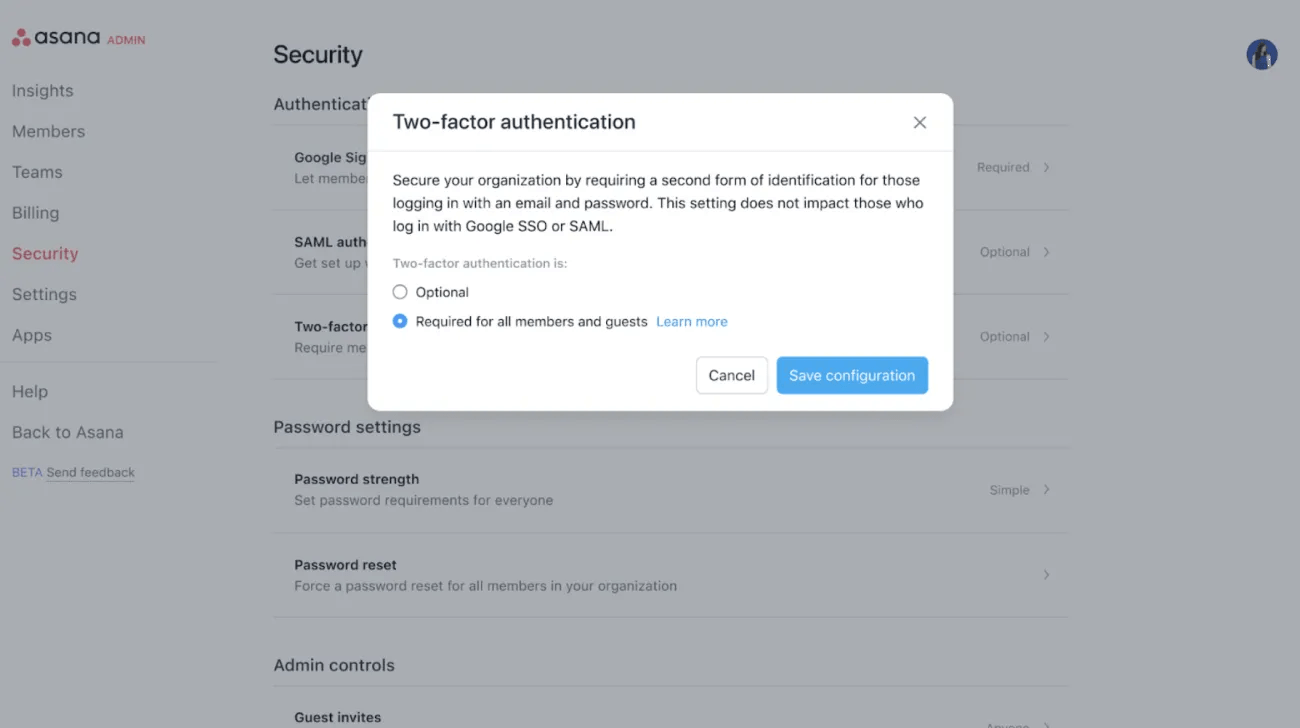
Divisional admins will need to contact Asana support to enable 2FA as required for their organization. This will affect all users, including those outside the division.
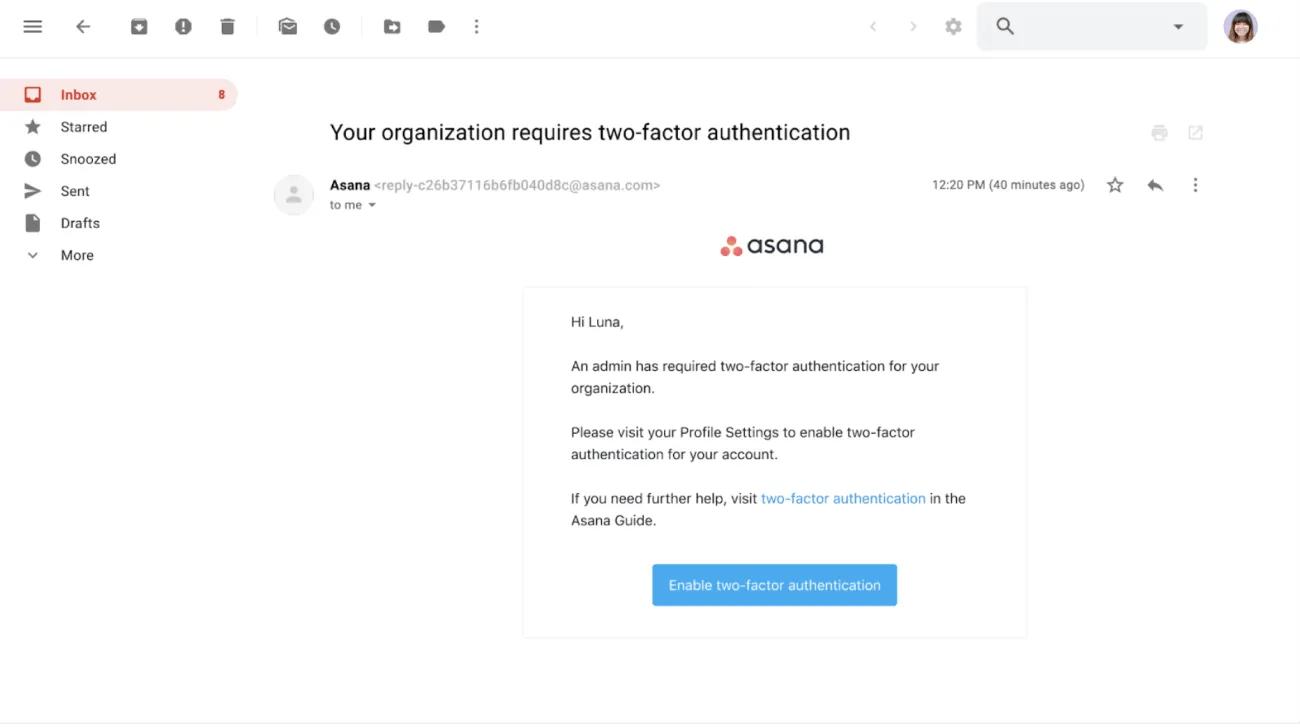
Upon activation, users (full members and guests) in your organization will receive an email asking them to enable 2FA for their account.
Note
Asana will display a banner prompting users to set up 2FA for their account.
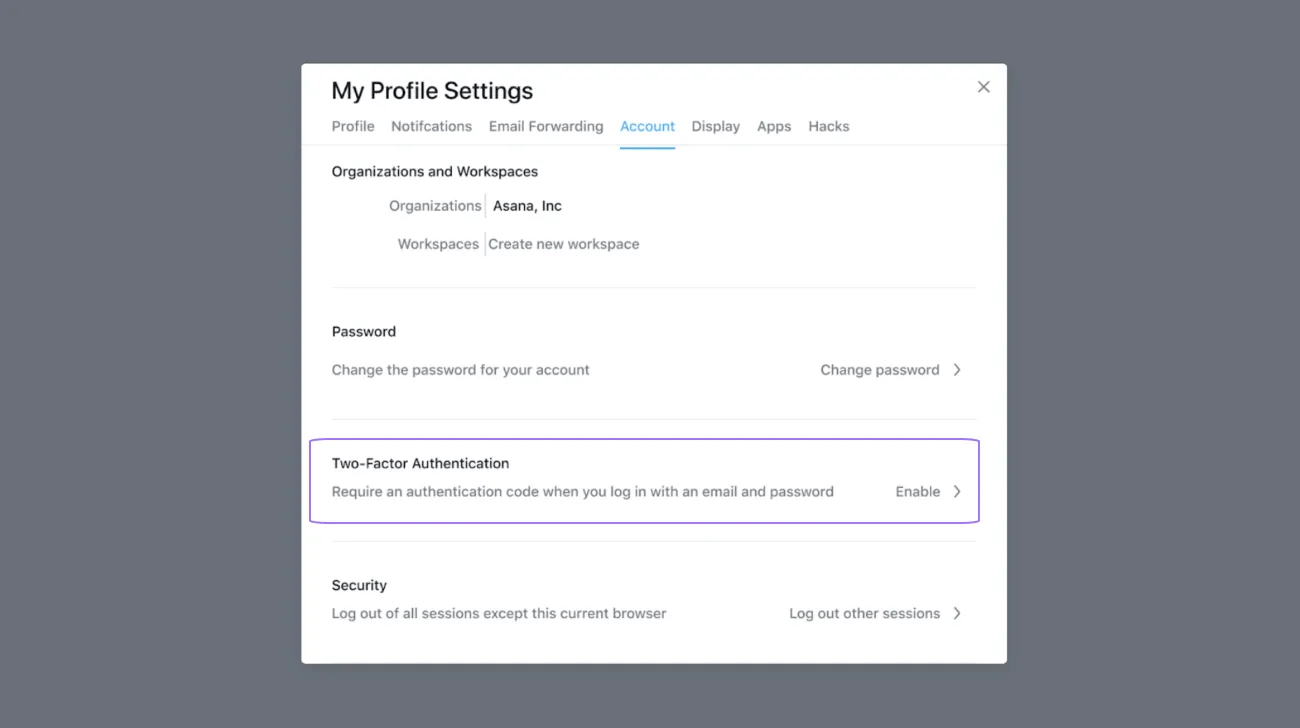
Users can go to their Settings to set up and enable 2FA from this email.
If your organization is set up to require SSO or SAML then full members in your organization won’t be required to set up 2FA as they are already using a secure method to login to Asana. We will still enforce 2FA for any guests logging into Asana.
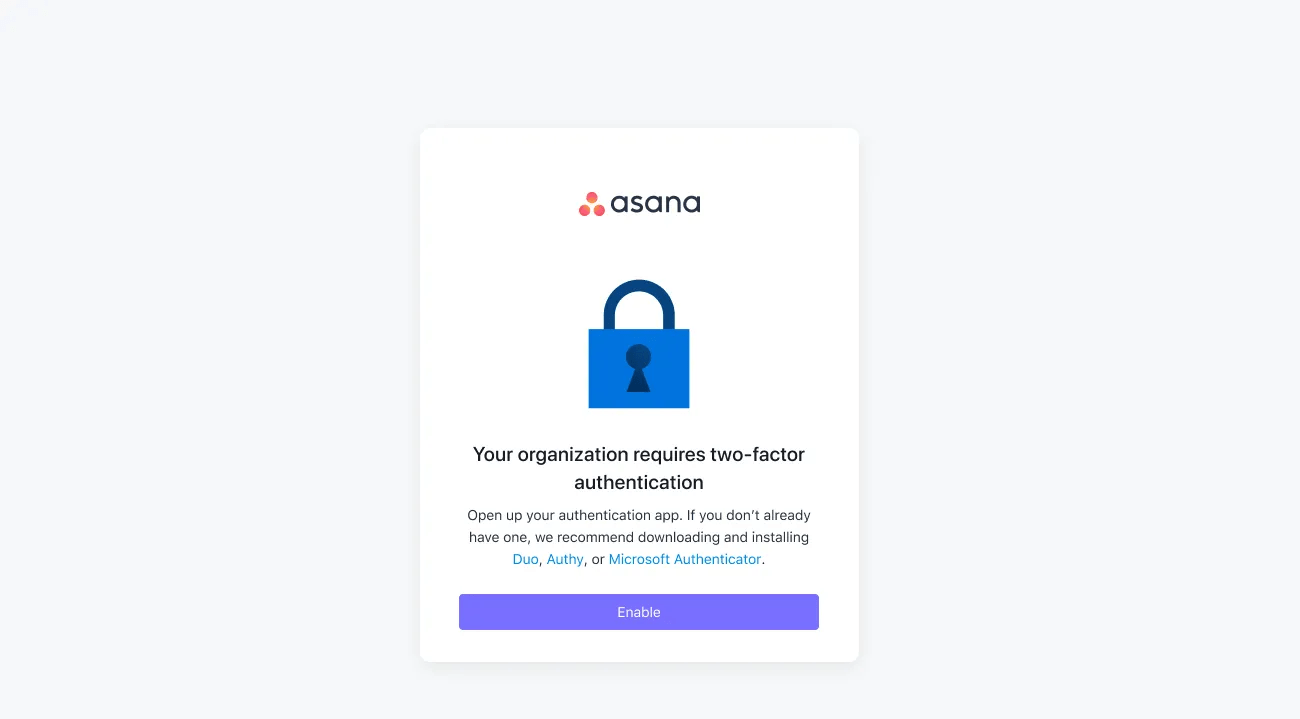
Users (members or guests) in your organization who don't set up 2FA within 7 days after it is required will be logged out and will need to set up 2FA before they can log in to Asana. Additionally, if users do not set up 2FA within 14 days, their passwords will be invalidated, and they will need to reset their password via the Forgot Password flow to log in again.
If 2FA is mandatory in an organization that a user belongs to, then the user will need to set up 2FA the next time they log in to Asana if they have an existing account in Asana. The instructions below show how this can be done.
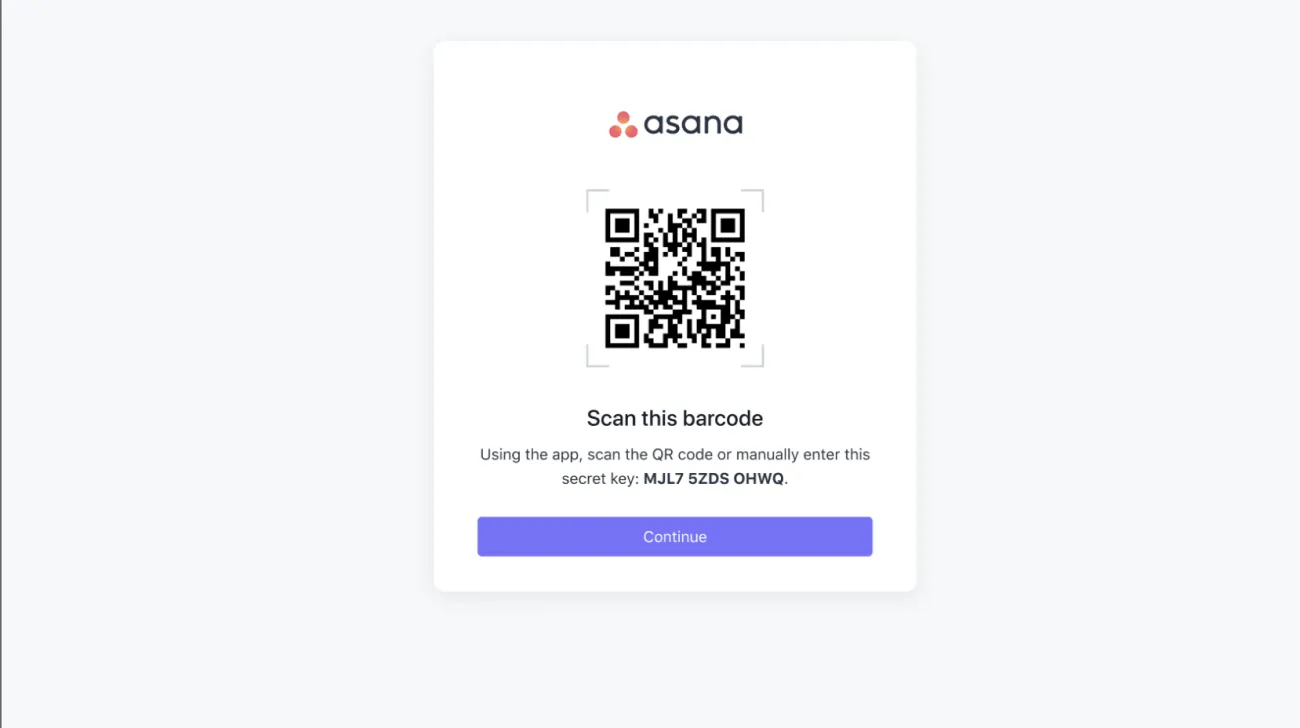
Scan the barcode shown, add it to your authenticator app, and click Continue.
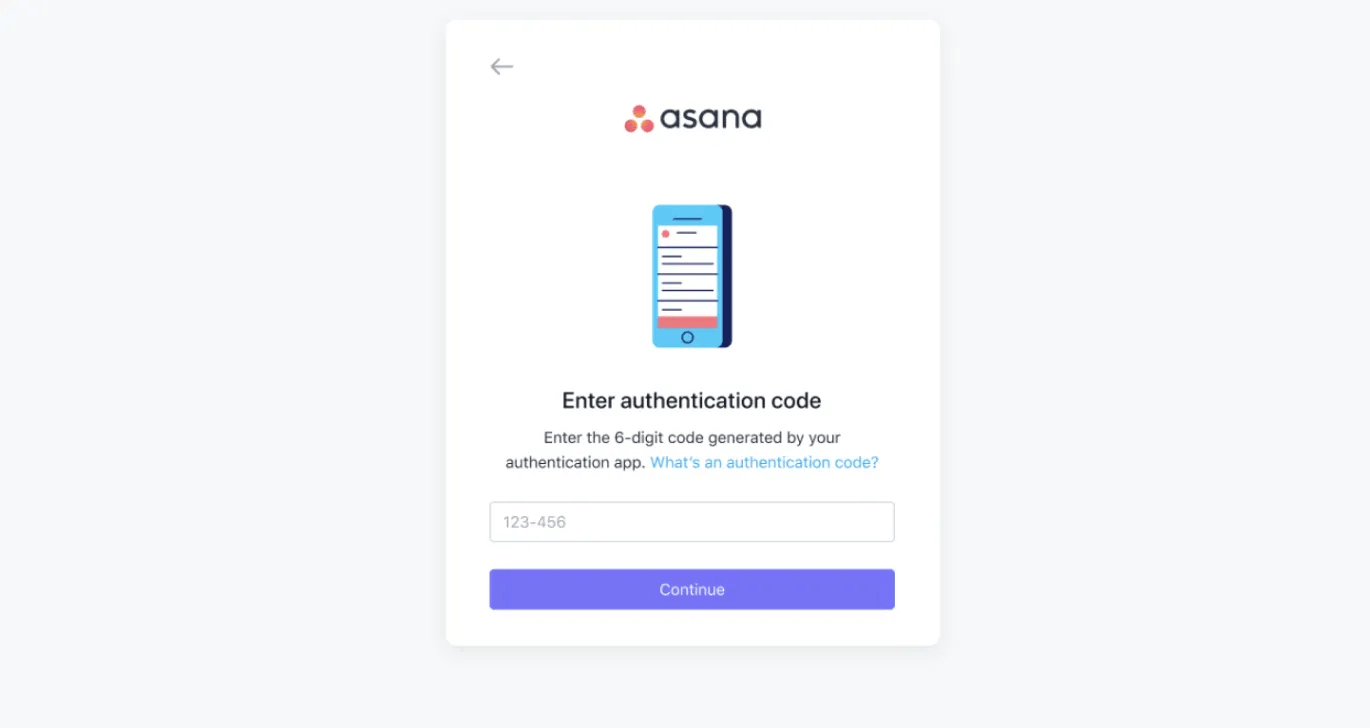
On the next screen, enter the 6-digit code shown inside the authenticator app for this newly added Asana account and click Continue.
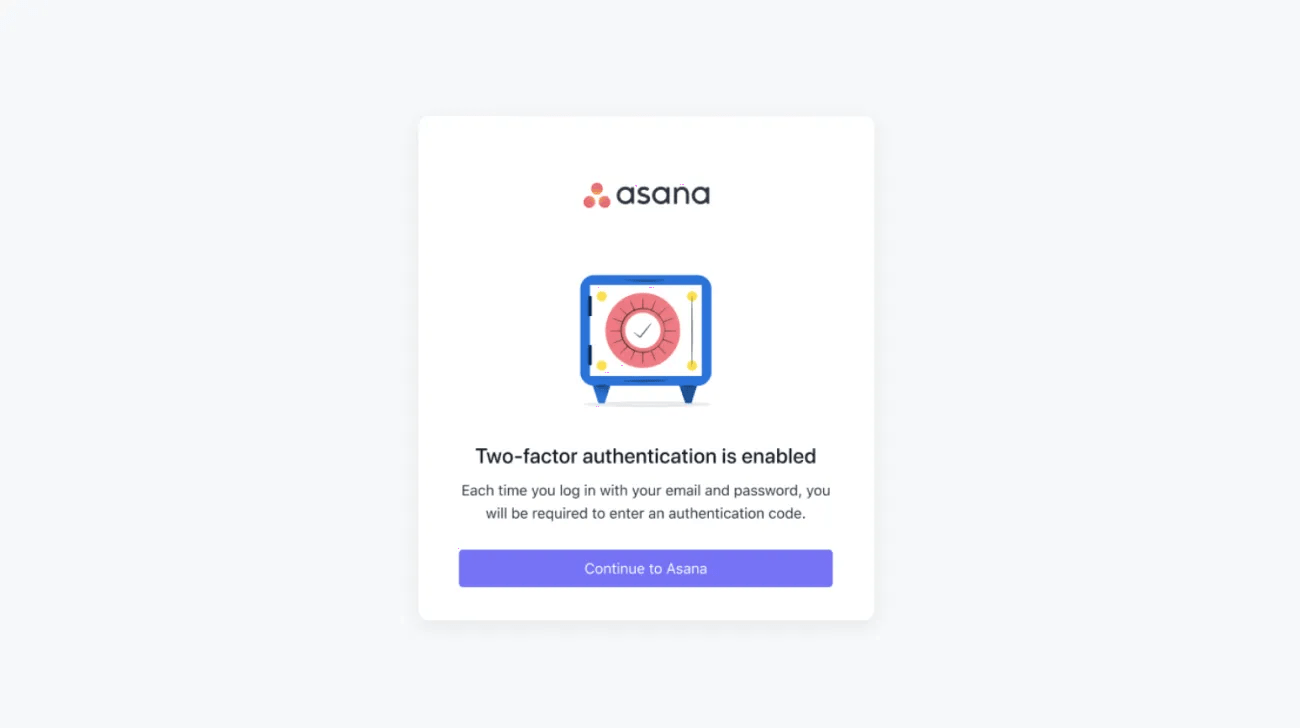
The next screen will confirm that 2FA has been set up for your account. Asana will ask you for your email, password, and the authentication code from your app every time you log in.
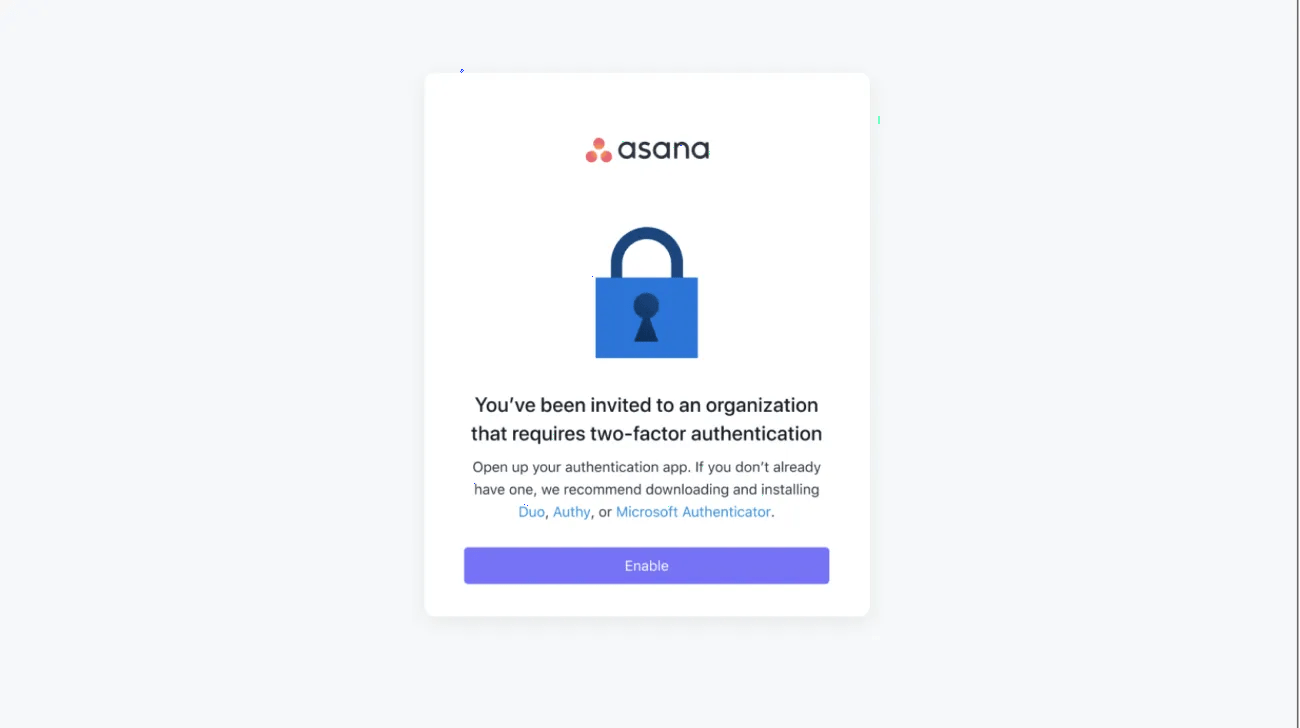
If two-factor authentication is mandatory in an organization to which a user has been invited, they will need to set up 2FA during the Asana account creation process. The instructions below show how to do this.
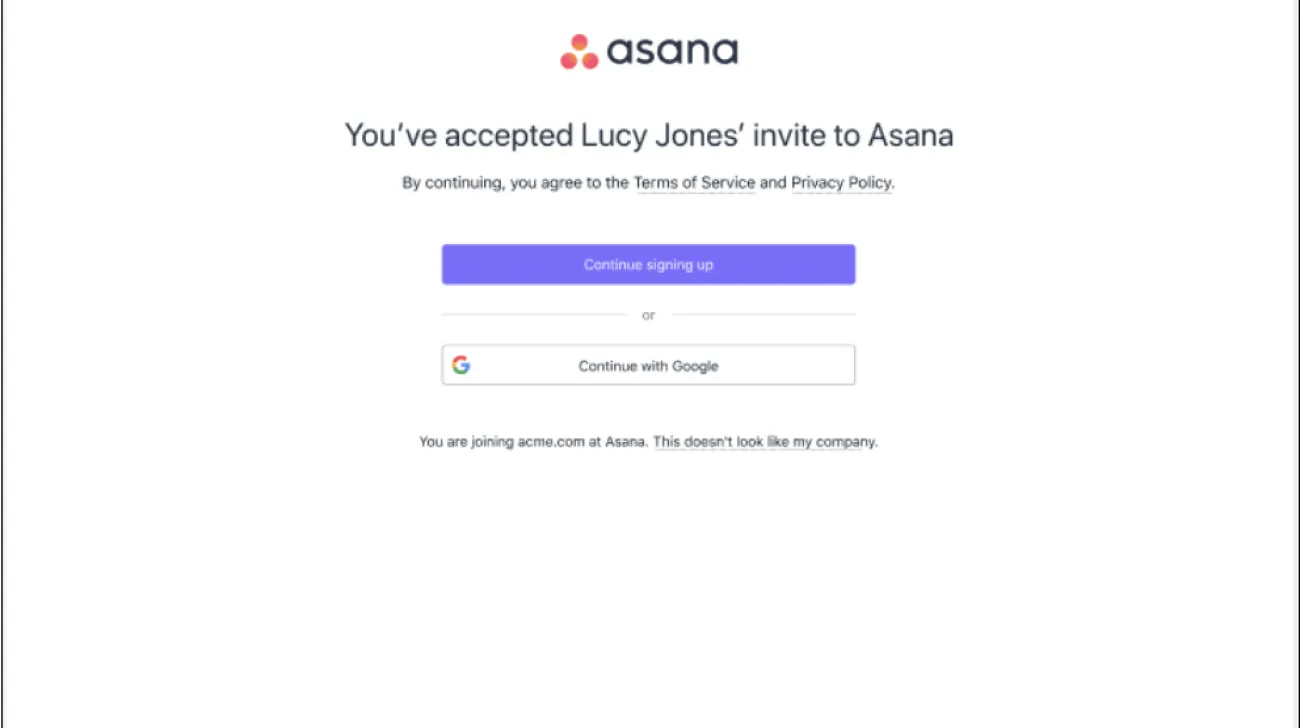
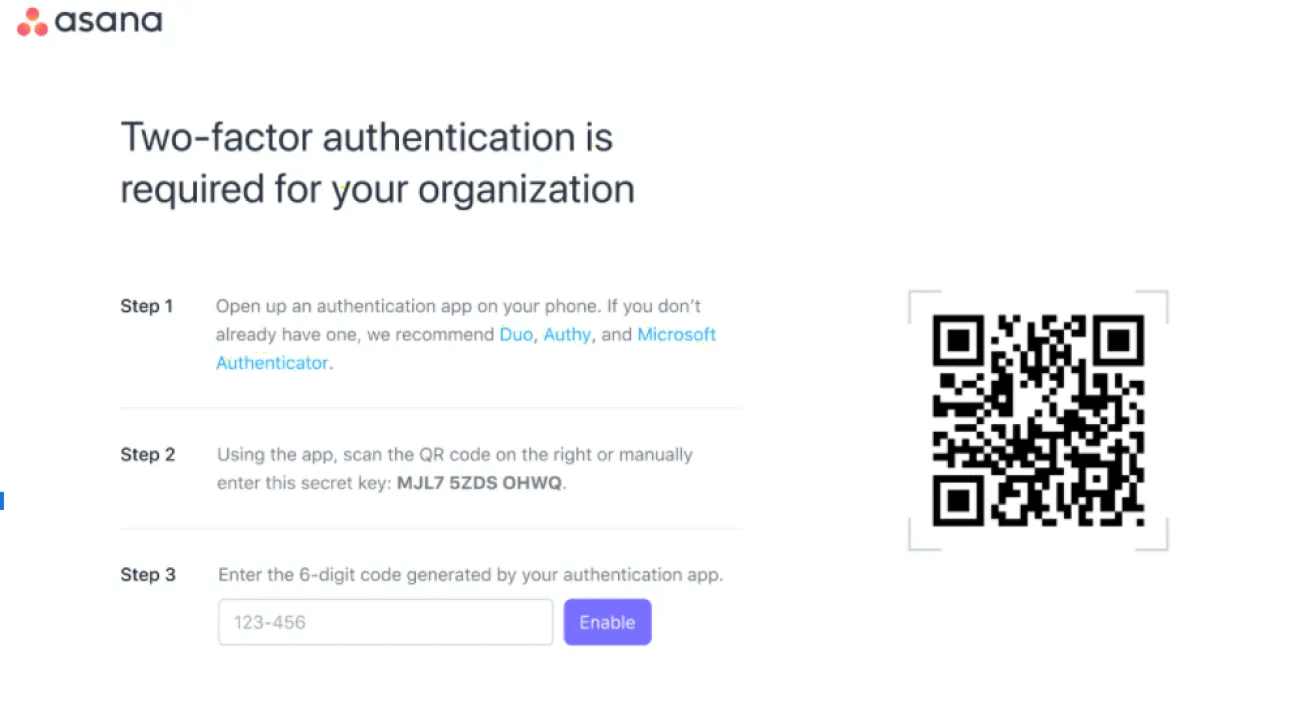
The next step is to set up two-factor authentication for your account:
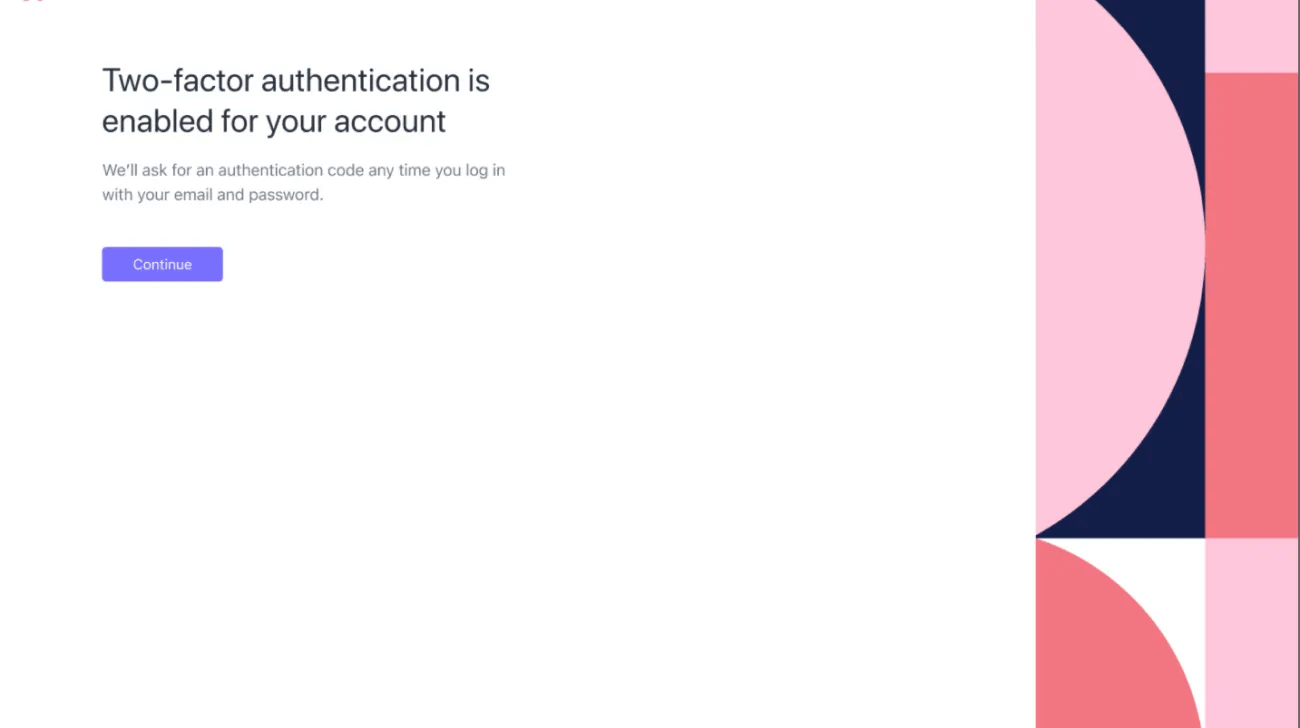
You will see this screen to confirm that 2FA has been set up. Click Continue to carry on setting up your Asana account.
Yes, mandatory 2FA is available for divisions on Asana Enterprise and Enterprise+, as well as legacy tier Legacy Enterprise. Division admins can request that 2FA be enabled by contacting Asana support. In this case, 2FA will be enabled for the entire domain (not just the division).
Users will receive an email asking them to set up 2FA after admins turn on 2FA. All users within the domain will be logged out after 7 days if they do not set up 2FA.
The second factor for authentication will come from 3rd party authenticator apps such as Duo, Authy, or Microsoft Authenticator that can be installed on the phone.
Admins can contact Asana's support team to get a list of users who still need to turn on 2FA in their domain.
No, users (and guests) in a domain who only use SSO/SAML to log in will not need to set up 2FA.
Users can change their 2FA device via their profile settings.
Users must provide 2FA when logging in on web, desktop, and the Asana mobile app.


