Products


AI Platform


Asana Foundations
Company Type

Visit our pricing page for more information.
Asana accounts are free and are tied to individual users. Asana accounts grant access to shared workspaces and organizations to collaborate with other Asana users.
With a single Asana account, you can join multiple workspaces and organizations to collaborate with various groups of Asana users. These workspaces and organizations you belong to are their own separate entities, each with their own unique set of people, projects, and tasks. Workspace creation depends on the email address type on your account (personal vs company).
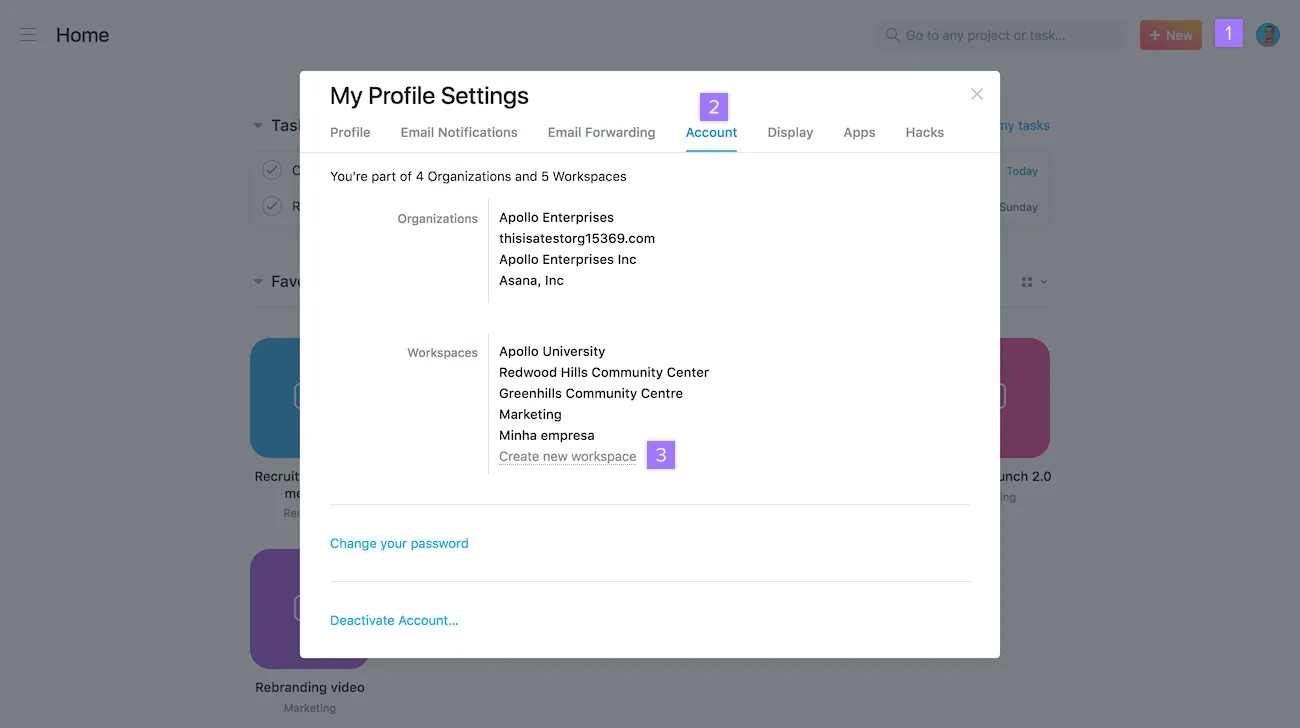
Create a workspace to collaborate with other people in Asana.
Only accounts using personal email addresses can create new workspaces, unless they are an admin. Non-admins can't create workspaces using company email addresses.
Note
A single Asana account can join multiple workspaces. Create workspaces for different groups of people you want to collaborate with.
If you need to create multiple teams or work across different departments, you can convert one of your existing workspaces into an organization. Learn about the differences between workspaces and organizations here.
You must first add your company email address to your Asana account before you can convert a workspace into an organization.
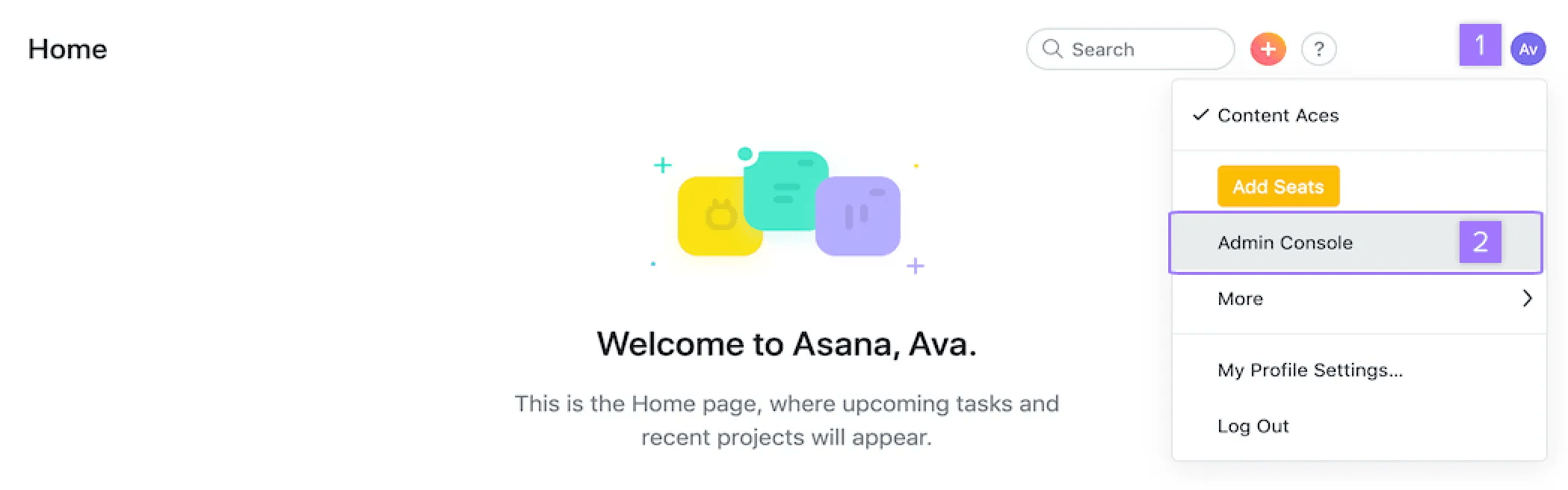
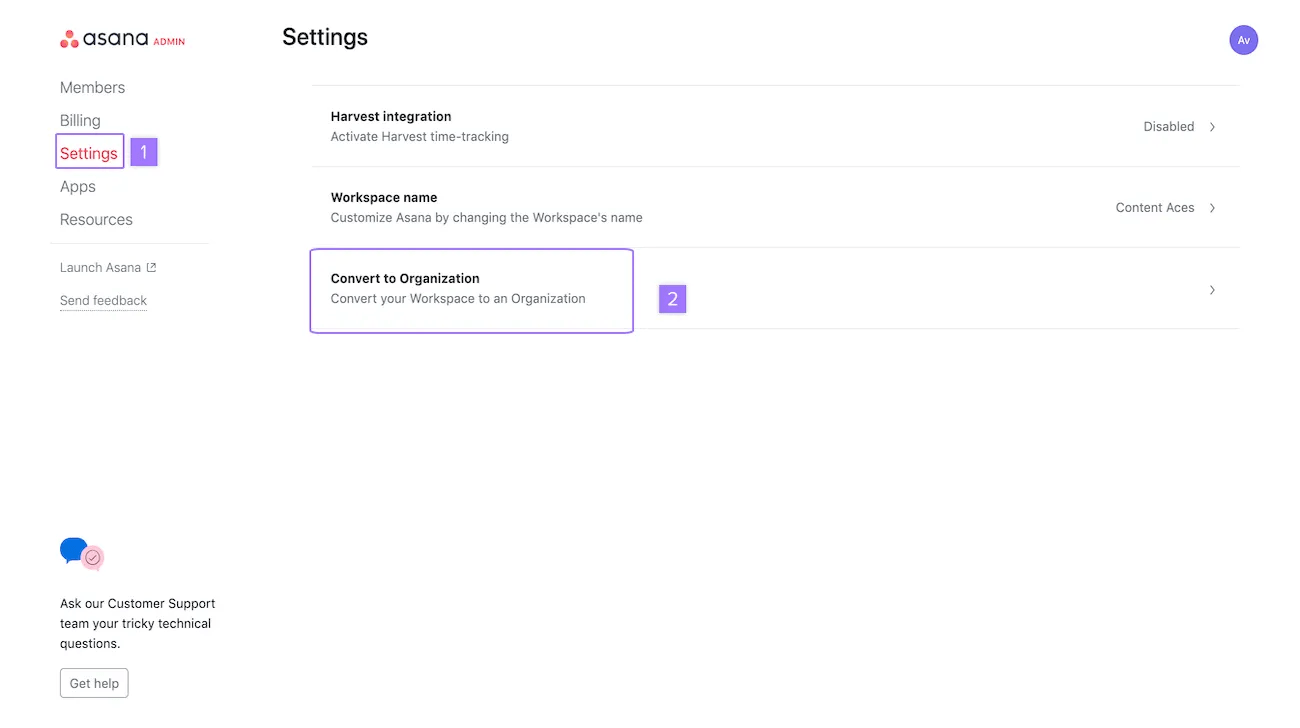
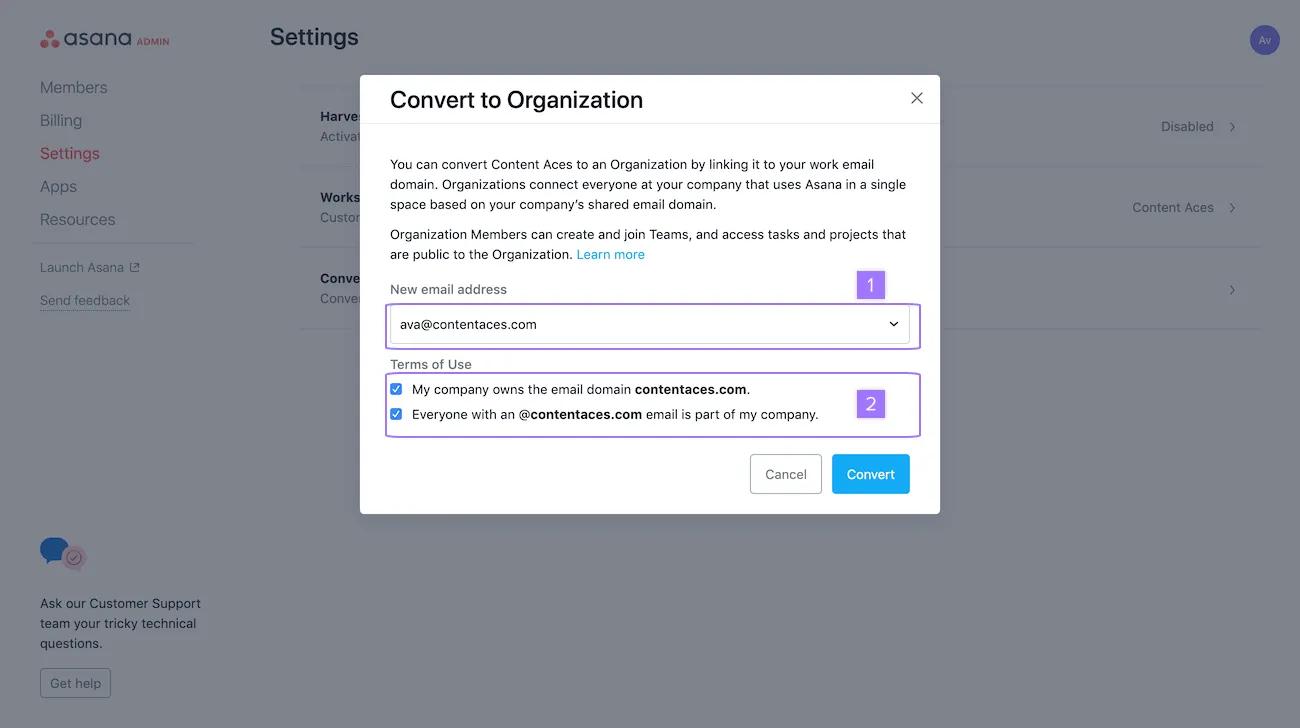
If this email domain is not already in use with another organization, you will be prompted to click the Convert button.
If you're in a paid workspace, only the billing owner will be able to convert it to an organization.
If you have difficulty converting one of your existing workspaces into an organization and you're not seeing the message that your email domain is already in use, please contact the Asana Support team and include the following information:
We will then help you to convert your largest workspace into a new organization.
Copy this text to speed up the process:
Primary organization/workspace:
Email domain:
If you have a shared university email domain (i.e.,
college.edu), a separate subdomain (i.e.,staff.college.edu) will be required to create an organization.
Access the admin console menu to:
Only workspace members can access the admin console. Guests cannot.
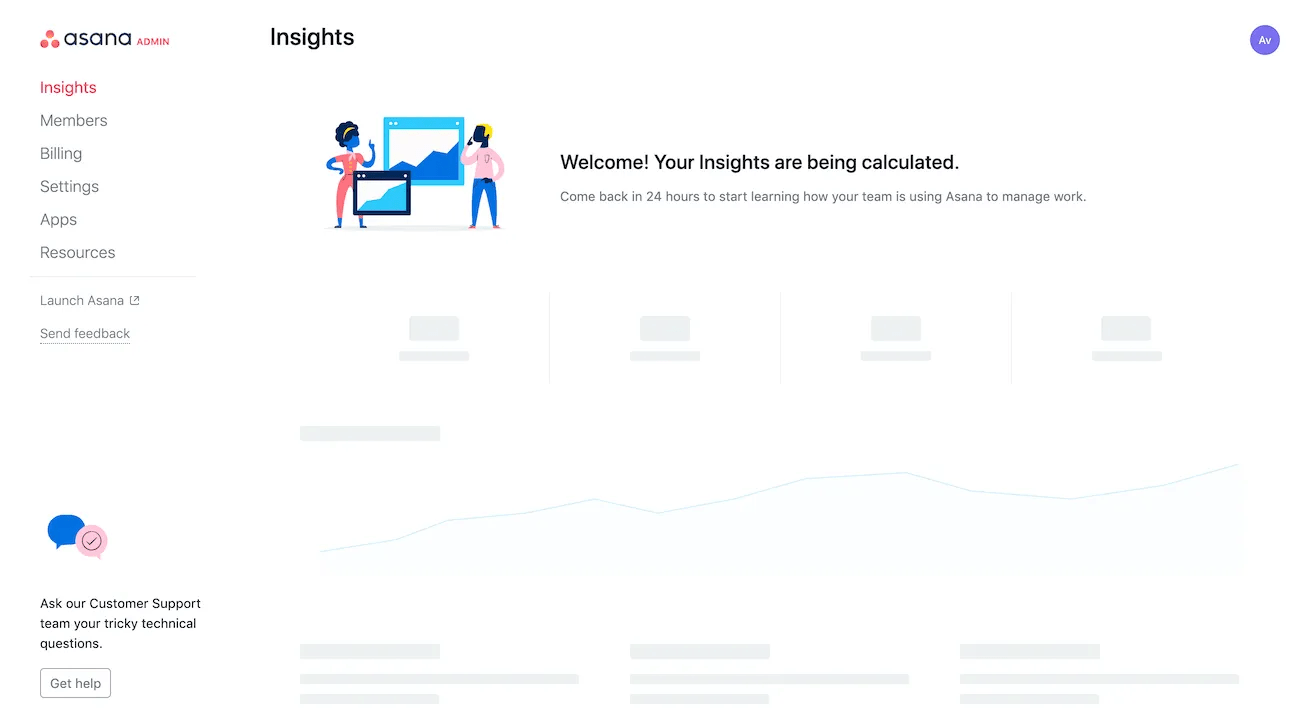
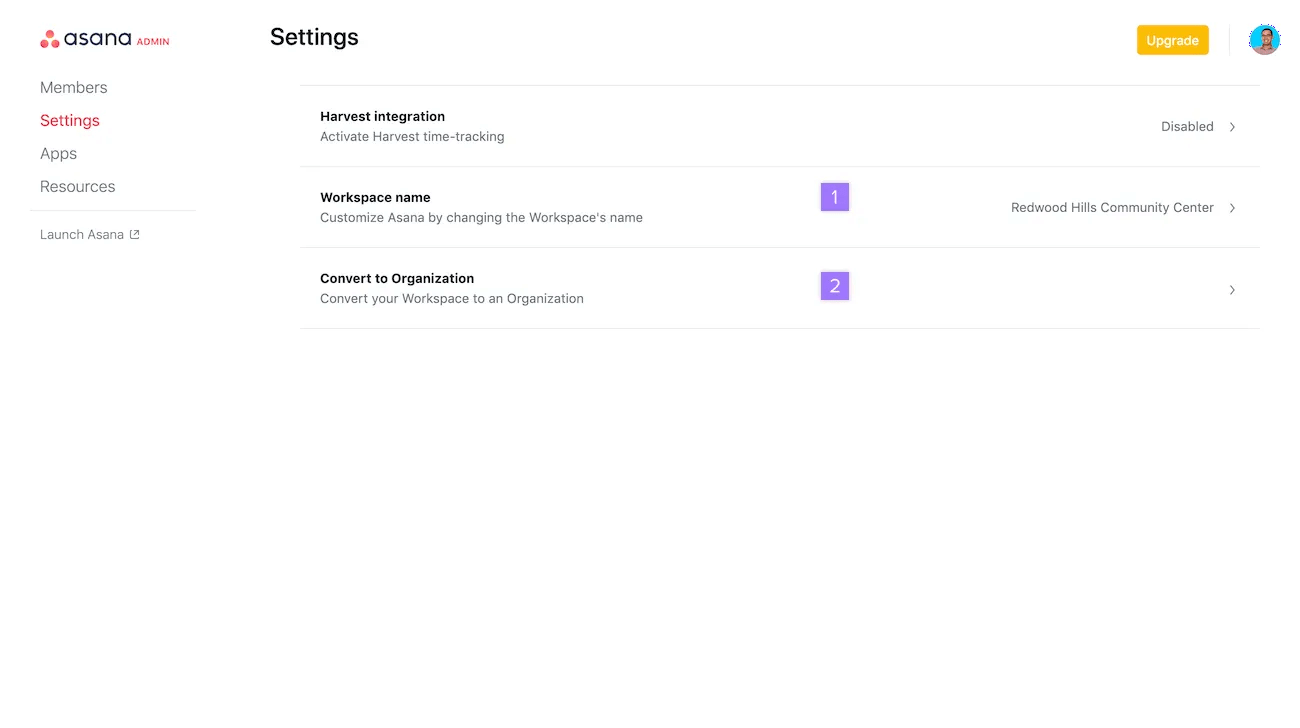
From the admin console, you can access the following tabs; Members, Billing, Settings, Apps, and Resources:
Since workspaces are shared spaces, leaving a workspace does not delete the projects and tasks in it.
If your workspace is no longer needed, you can deactivate it by:
Once everything has been deleted, and you're the only remaining member, you can leave the workspace.
A workspace can only be accessed by those invited. If all members have been removed, the workspace will no longer be accessible.
It is not possible to archive workspaces.

