Products


AI Platform


Asana Foundations
Company Type
No articles found for this topic.
No articles found for this topic.
In This Article

Visit our pricing page for more information.
Project templates can save your team a significant amount of time by allowing you to create standardized projects to streamline your workflow. Our project templates builder allows for you to see at a glance all elements and aspects of your project template and those of your team.
Project templates will allow you to create custom, reusable templates to help your team kick off new projects in a matter of seconds. To learn how to create and use project templates check out the Create and use templates article.
Explore custom project templates for free. Start a free Asana trial today.
Note
See how others build and customize project templates in the forum.
To find project templates, navigate to the List tab of your team and select the template you would like to use.
Alternatively you can also use the search bar to search for a template.
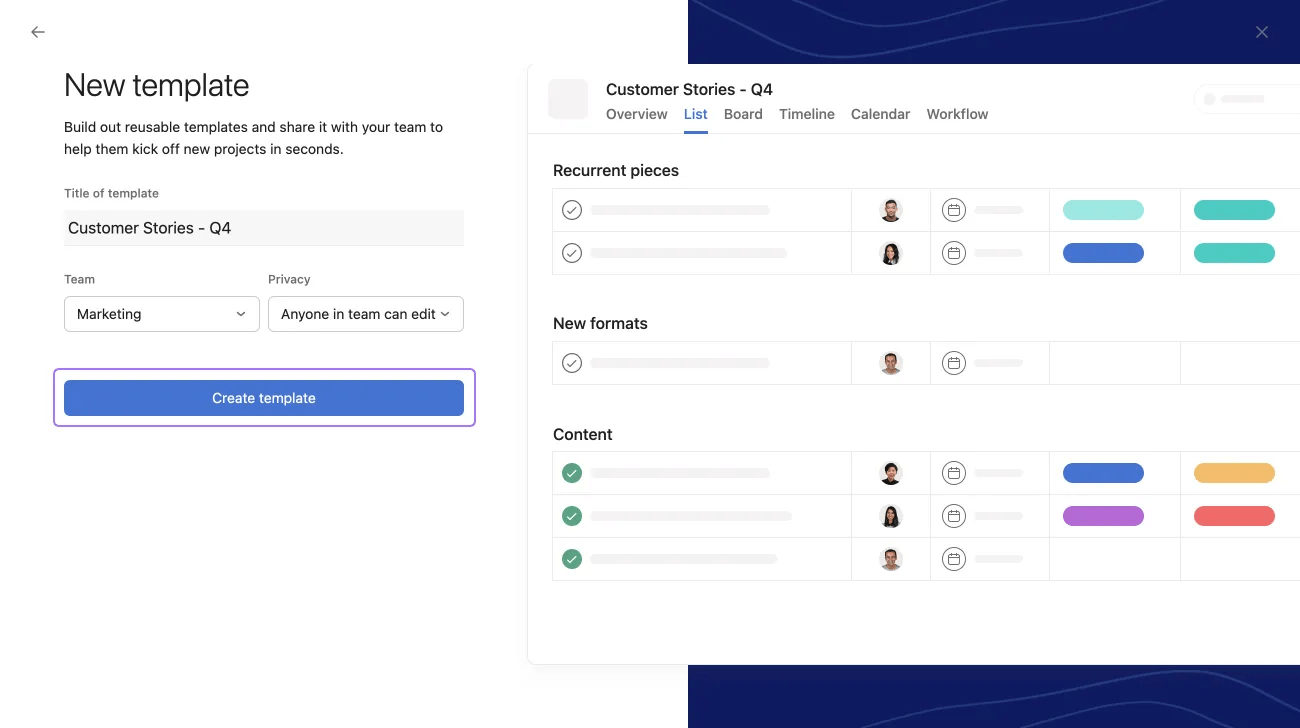
From here, you can name your project template and share it with your team. You can also tailor the privacy settings for the template to be shared with your team, give your team edit access or make it private to project members. Once this is done, click Create a new template.
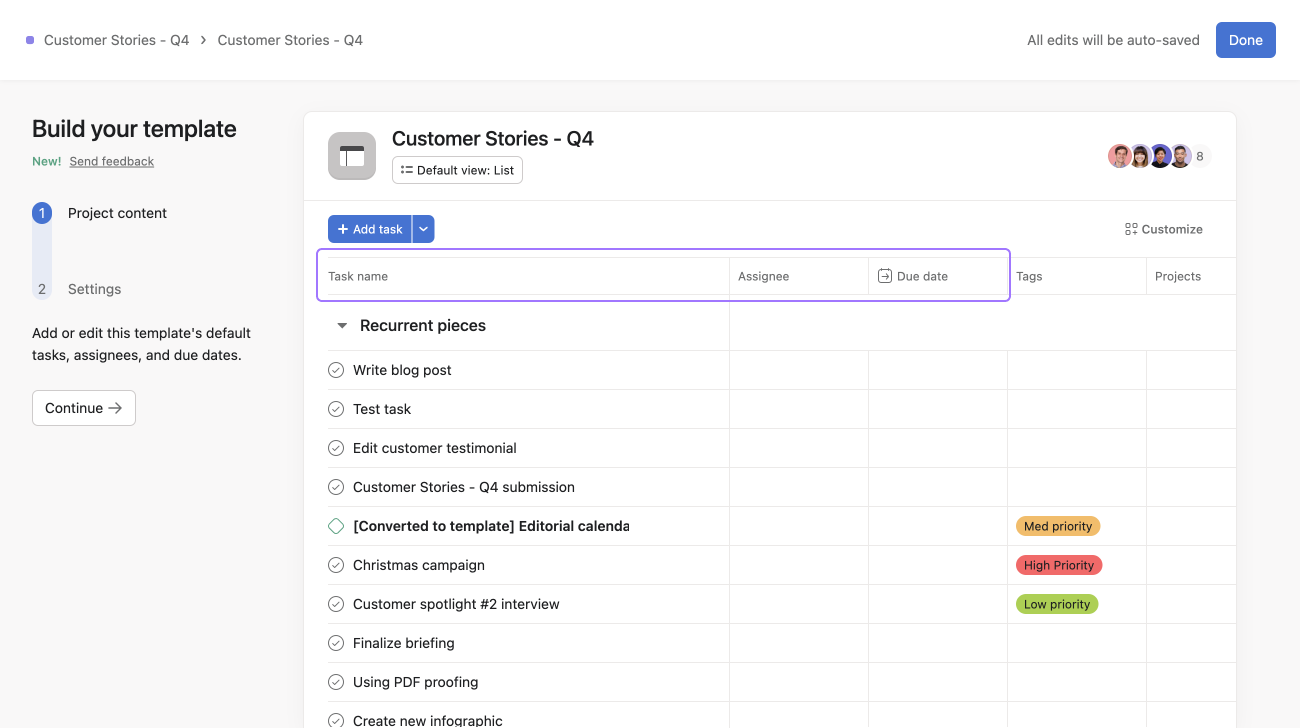
Your template will now be generated, allowing you to start to build and tailor it to your needs.
Dates within project templates are relative. This makes it easier to track tasks by showing how many days apart they are from either the start date or the end date of the project.
Dates within project templates are now relative to the start date or the end date of the project created from the template.
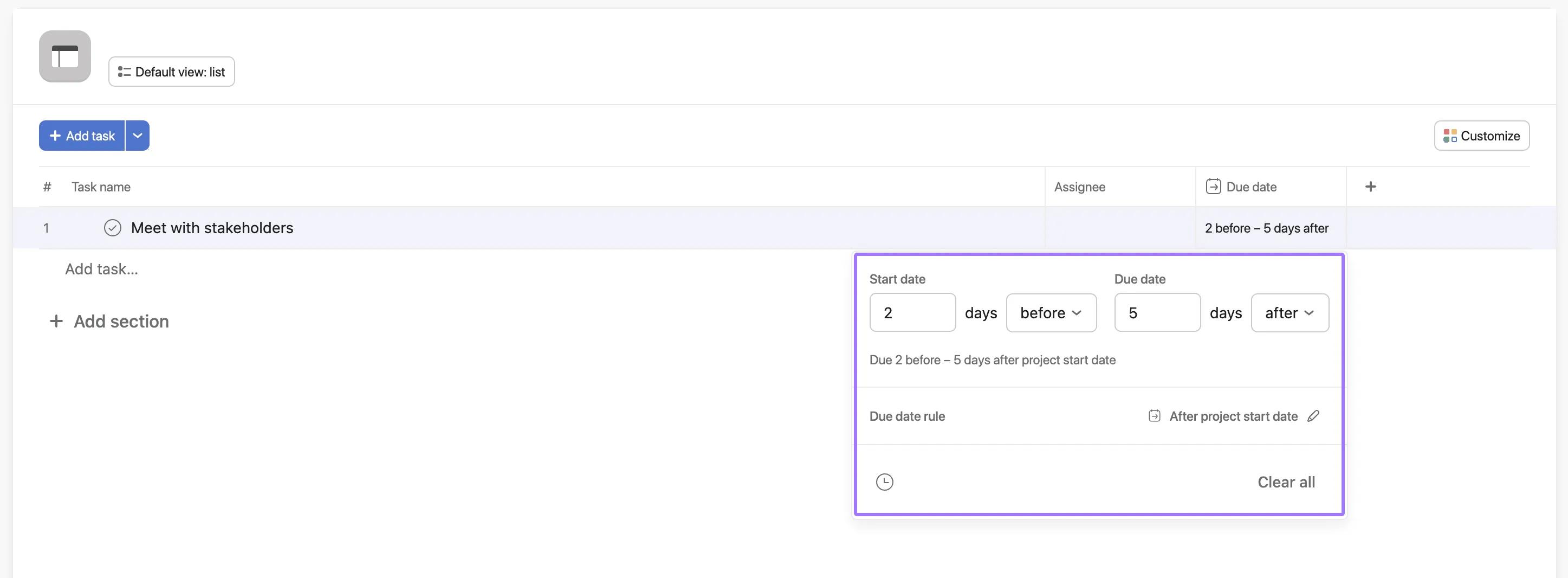
Navigating to the date picker will let you set start dates and/or end dates when creating your project template within which Asana will schedule all associated tasks. Only relative dates (e.g 3 days after the project has started) will be displayed within this picker.
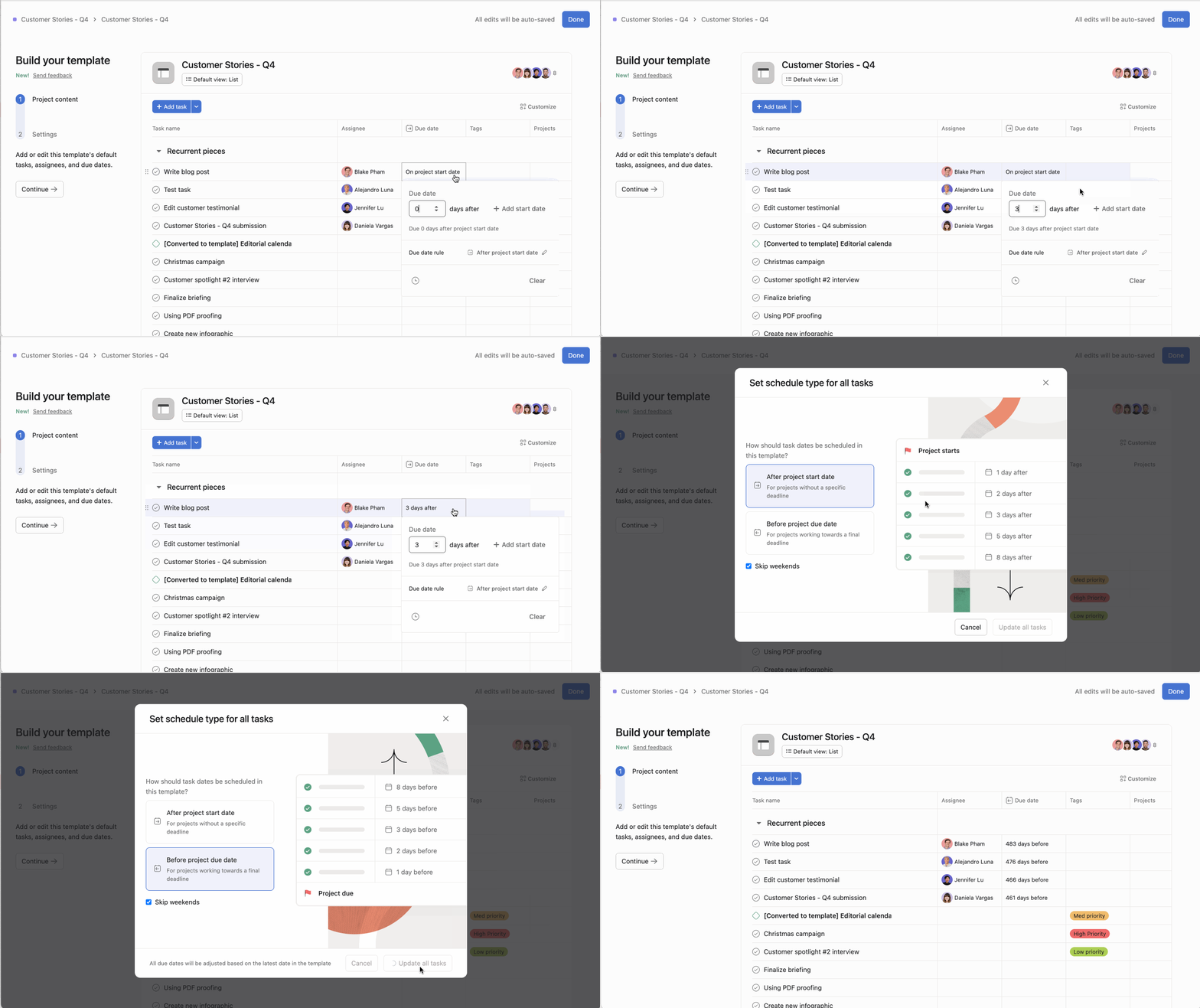
When scheduling tasks in a custom project template, you have enhanced options to set relative due dates based on the project's timeline:
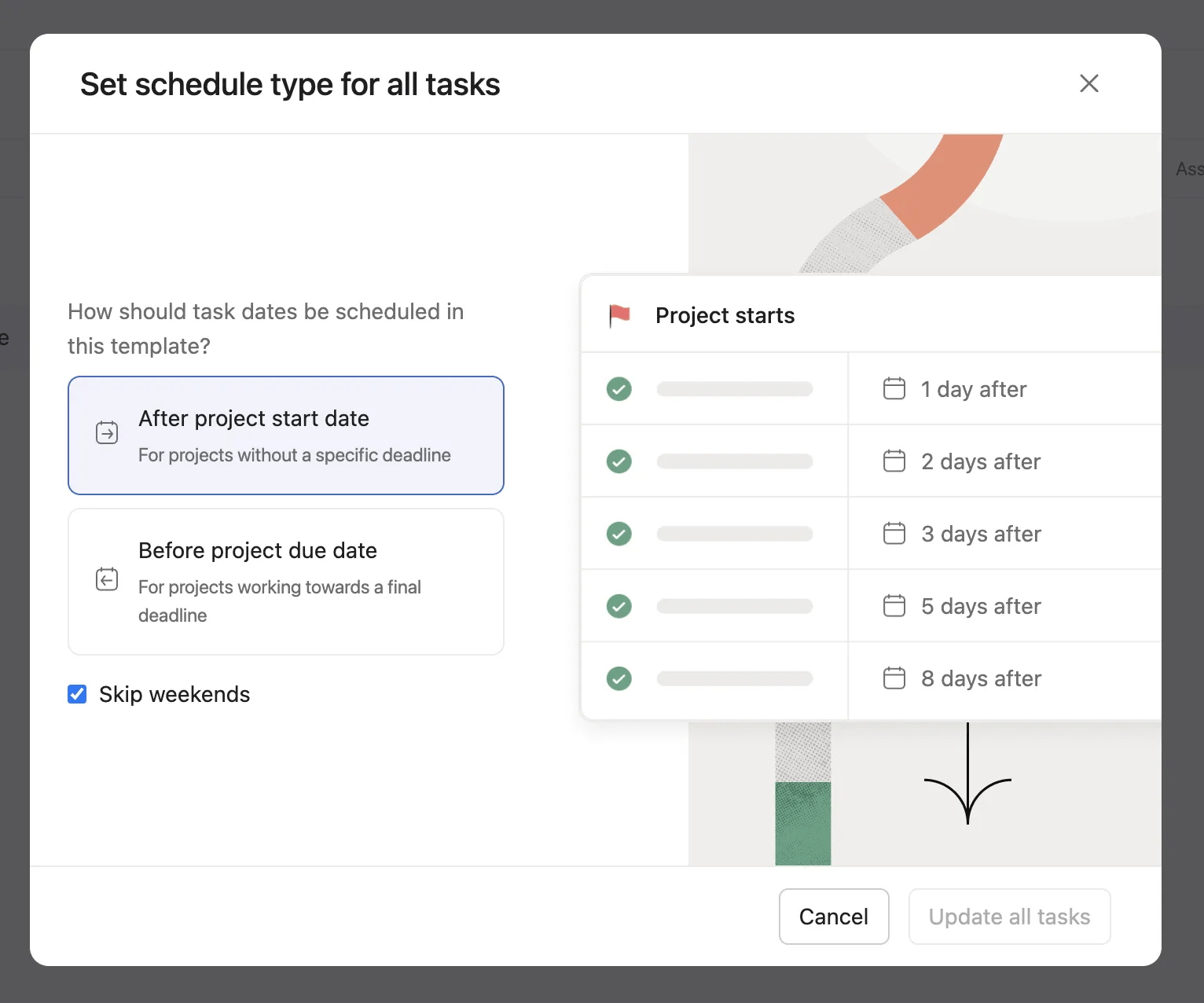
Set task dates to automatically adjust based on the start date of the project when it is created from the template. You can specify any number of days before or after the project's start date.
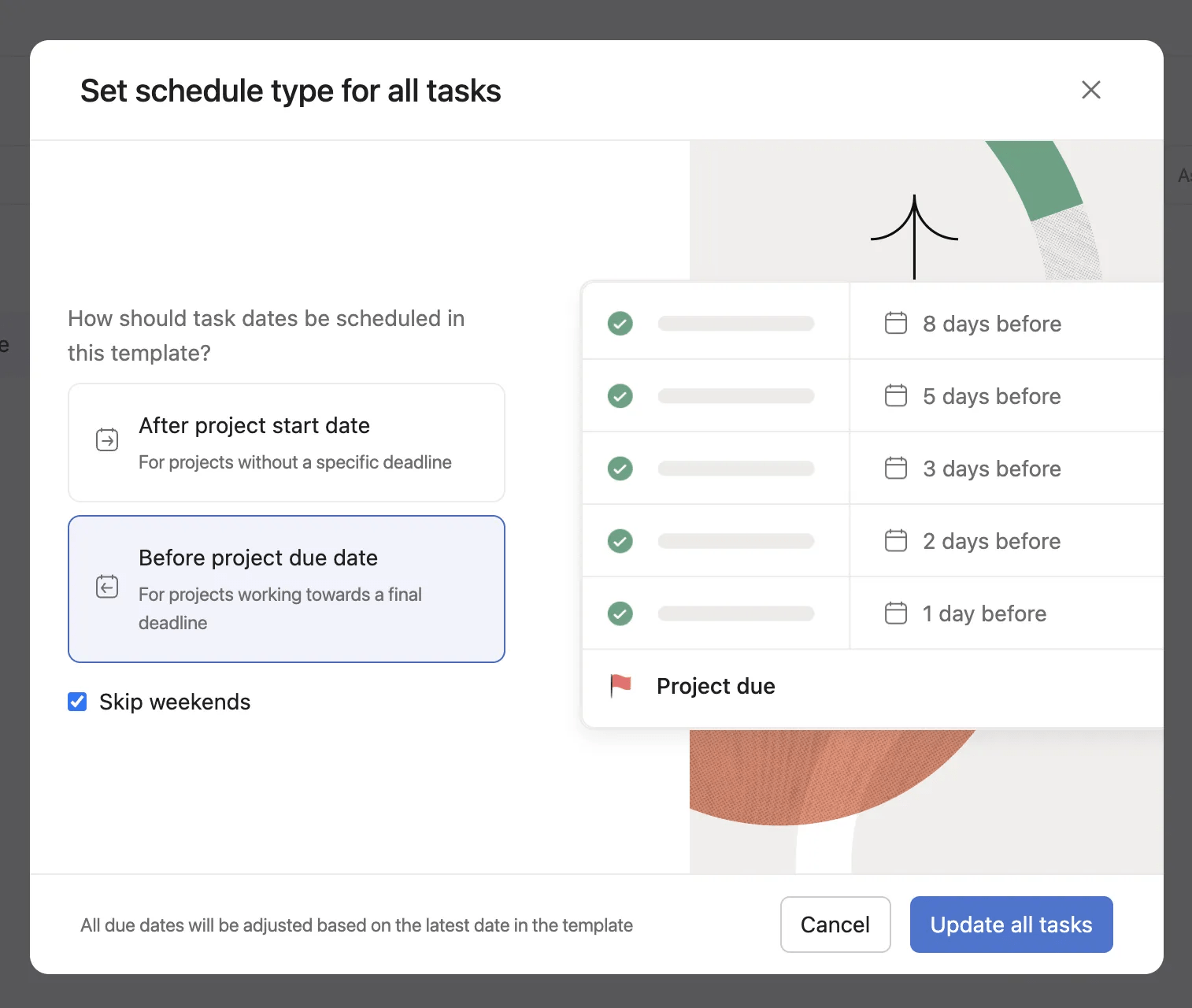
Set task dates to automatically adjust to the due date of the project when it is created from the template. This option allows you to set tasks to occur any number of days before or after the project's due date.
You also have the option to not include dates or to skip weekends.
Once you have chosen dates, you will also have the option to click on the Add time in the bottom left-hand corner of the date picker screen. This will automatically prompt you towards a due time with a corresponding start time.
Before and after relative due dates work in conjunction with the schedule type described above. You can set relative due dates in custom project templates to any number of days before or after the project start date, or any number of days before or after the project due date.
Templates can be tailored and customized by navigating to the Customize menu in the right hand corner of the template.
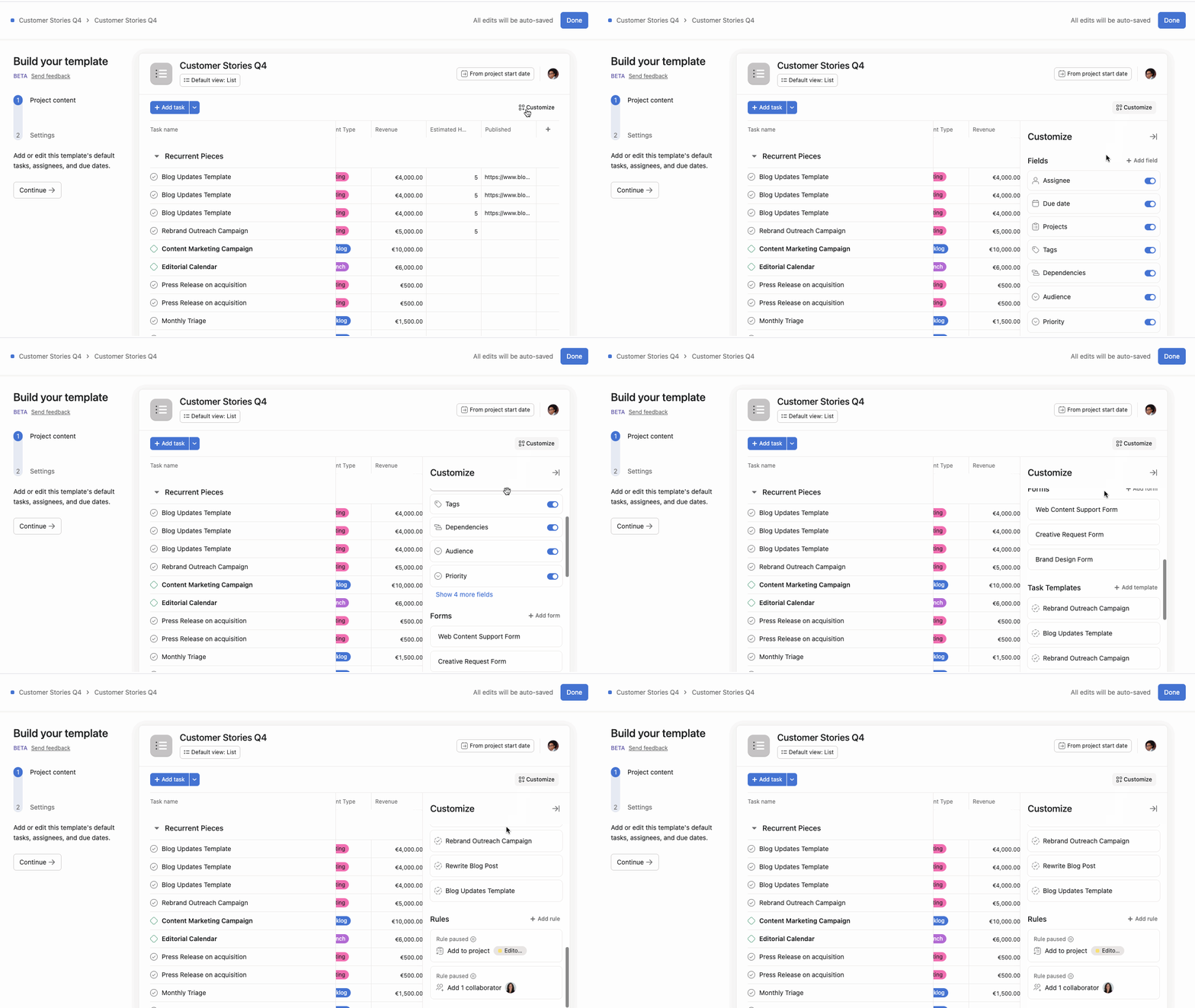
From here you will be able to customize by fields, forms, task templates and rules.
Additionally, you have the option of adding, editing or deleting any field of your choice. Once you have decided on the task dates and custom fields, click on Continue to the left of your project template.
Assigning tasks in a project template will not show up in the assignee’s My tasks.
Add teams to a project template, so they will be added immediately, without having to add people individually. Click Project members, type the team's name, and click Add.
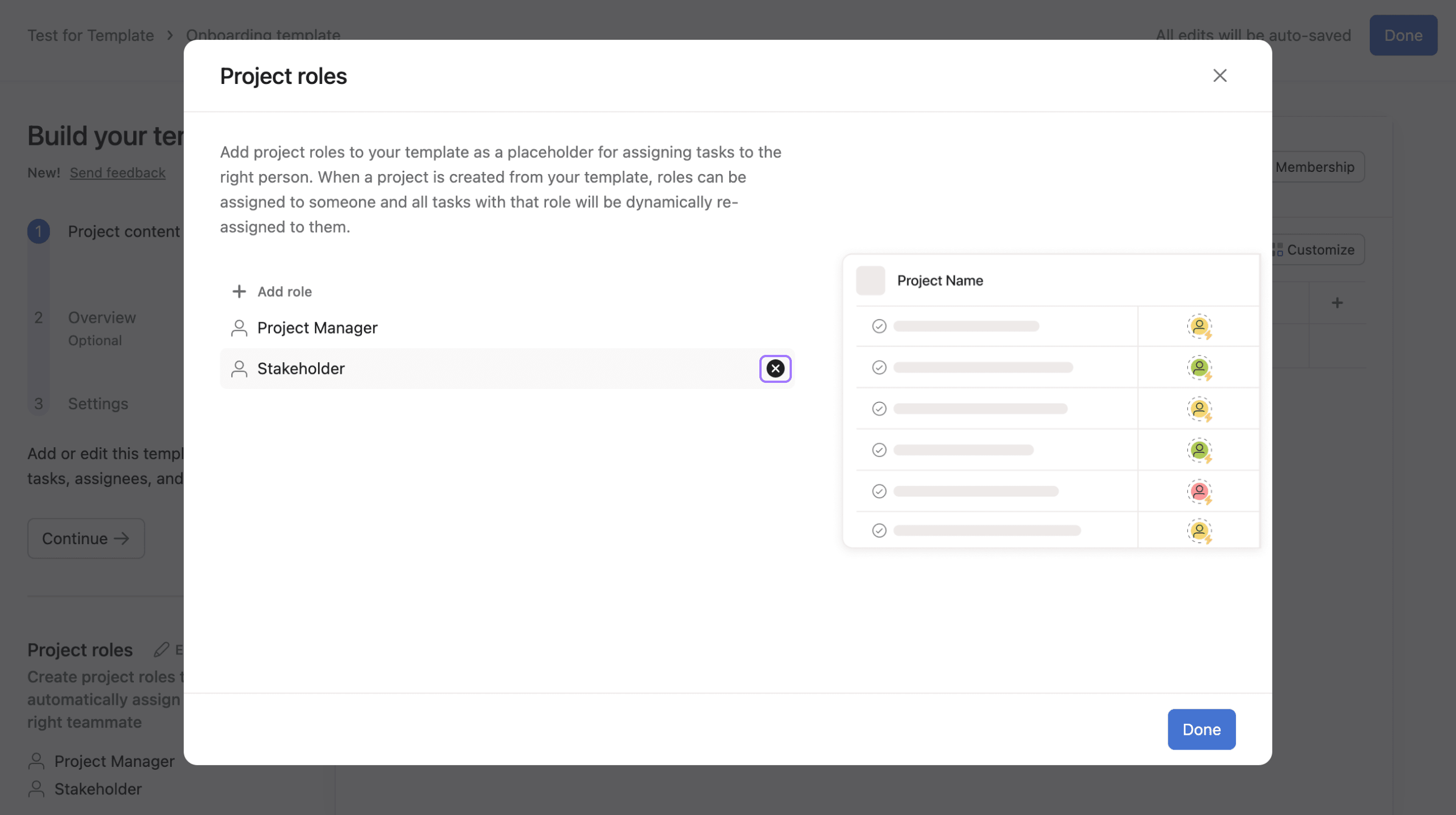
You can now add roles to project templates. Roles create placeholders which automatically assign tasks to the right teammate when the template is used. Project roles are available on Asana Advanced, Enterprise, and Enterprise+ tiers, as well as legacy tiers Business and Legacy Enterprise.
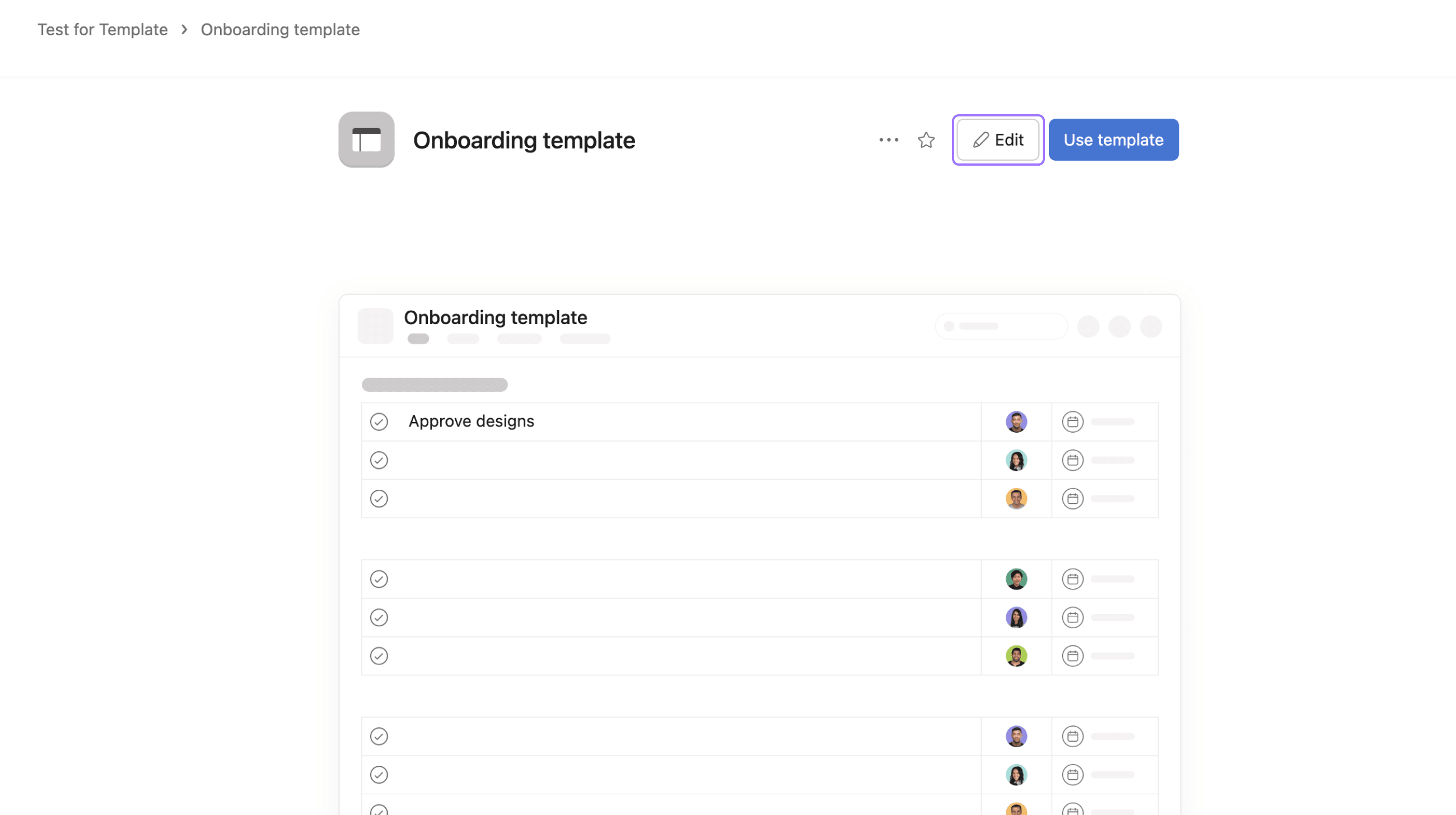
To add a role to a project template, firstly create a new project template or click Edit in the top-right corner of an existing template.
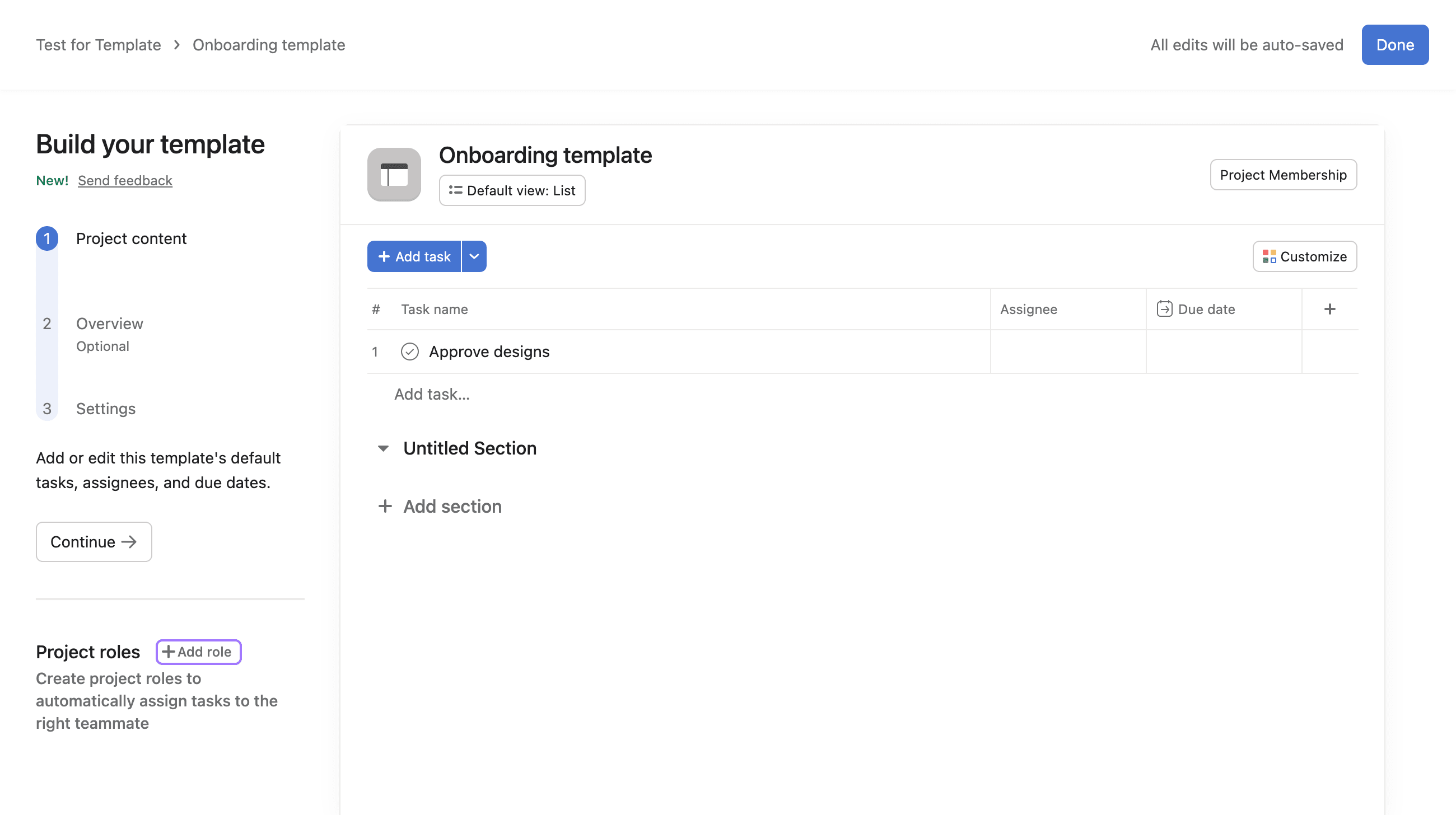
Click the + Add role button in the sidebar to begin adding project roles.
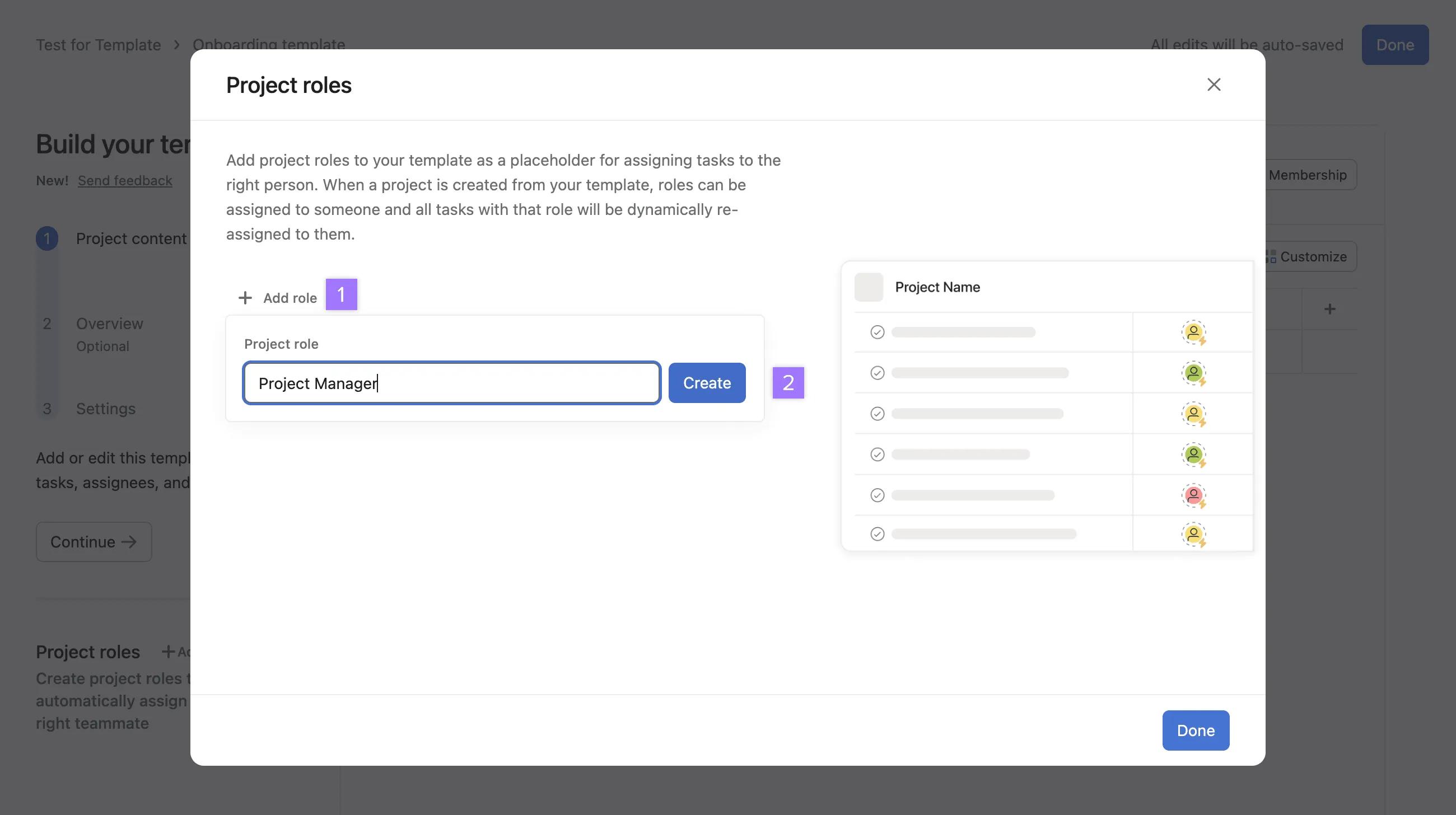
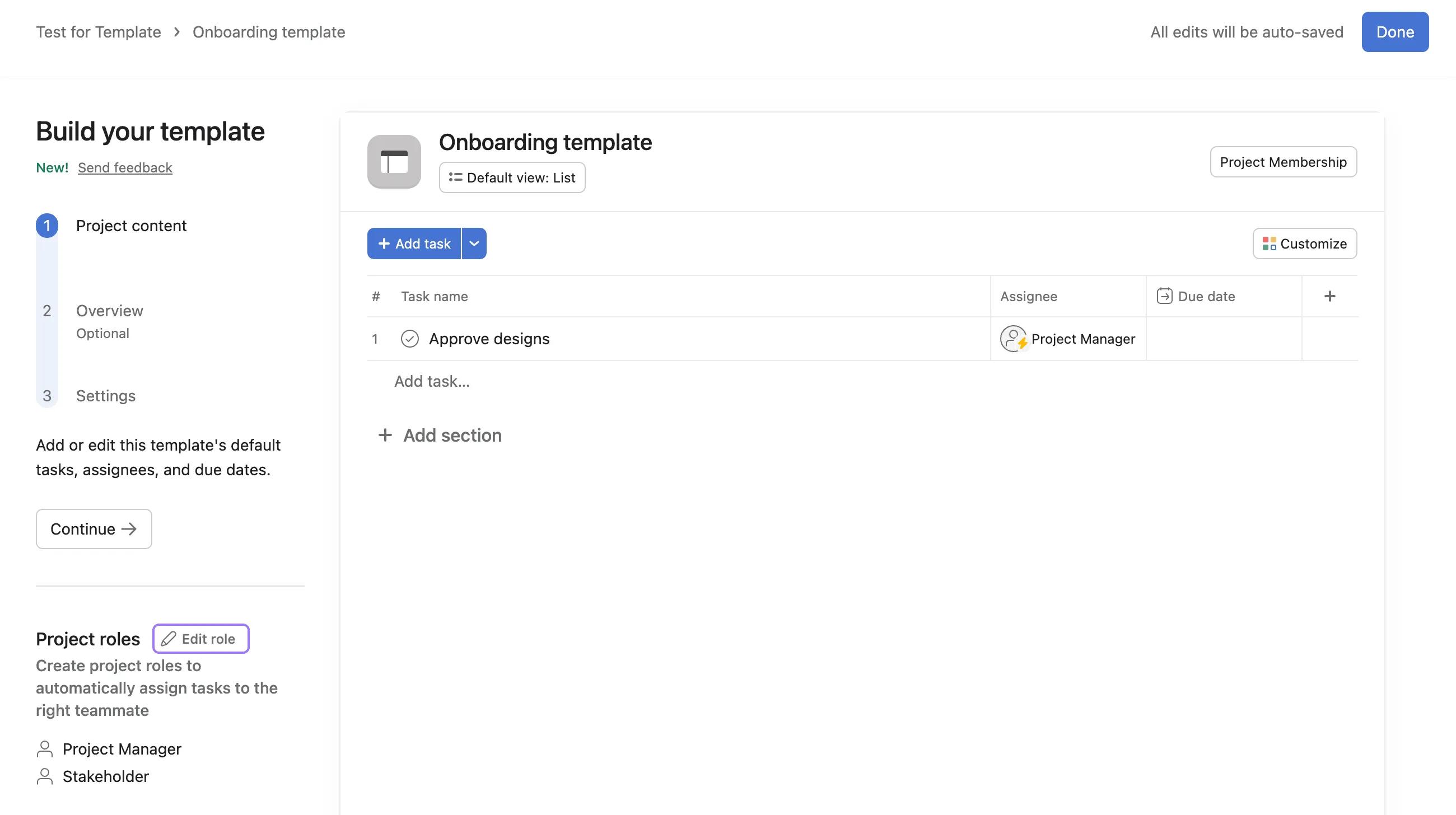
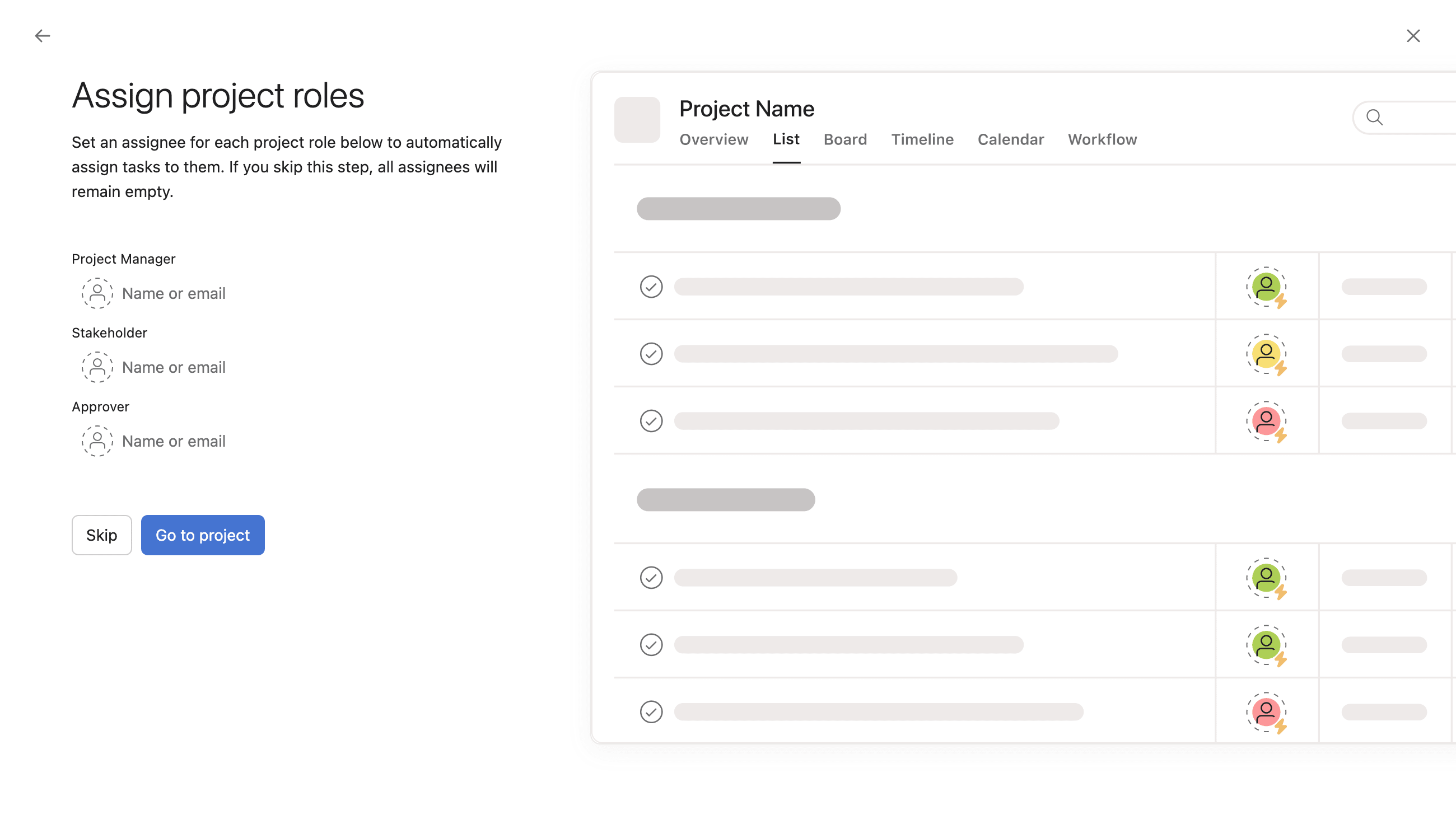
Please note that if this step is skipped the assignee cannot be added afterwards meaning the assignee field will remain blank. It is therefore recommended to add the assignee upon first creation.
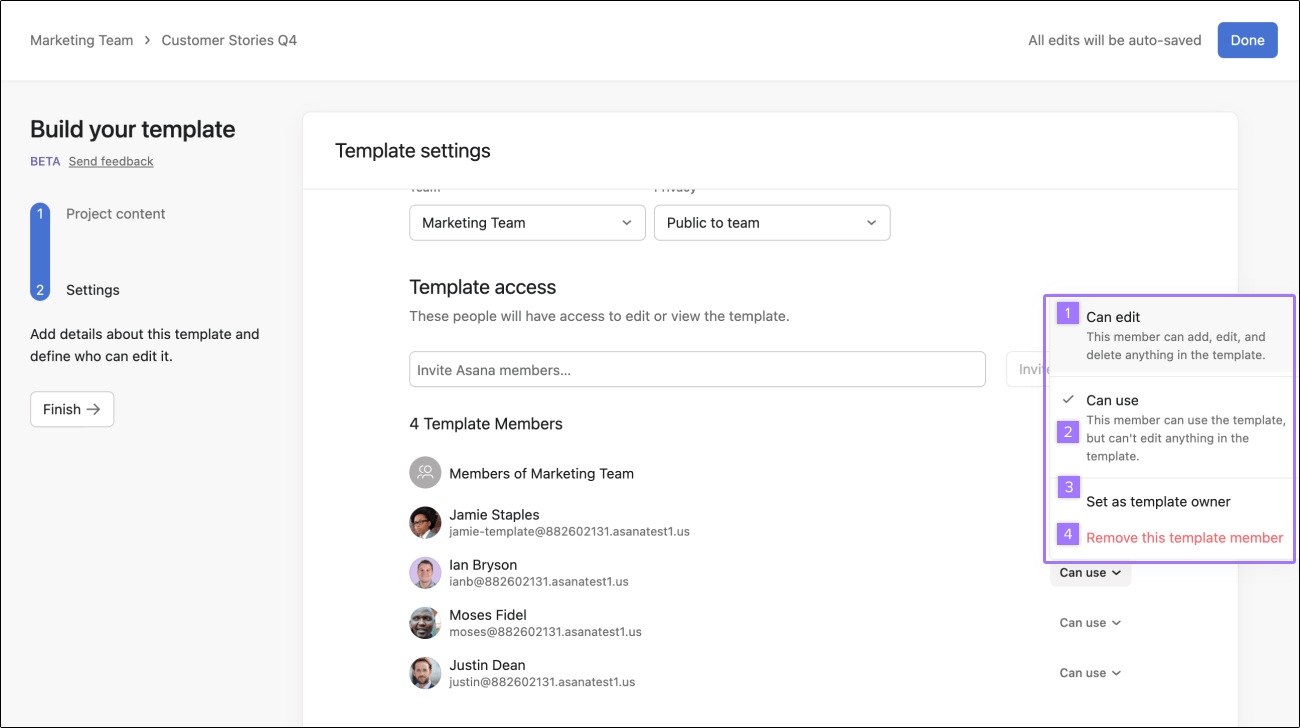
When setting project permissions, you can choose from the following settings:
Template owners can decide whether members can edit or use project templates.
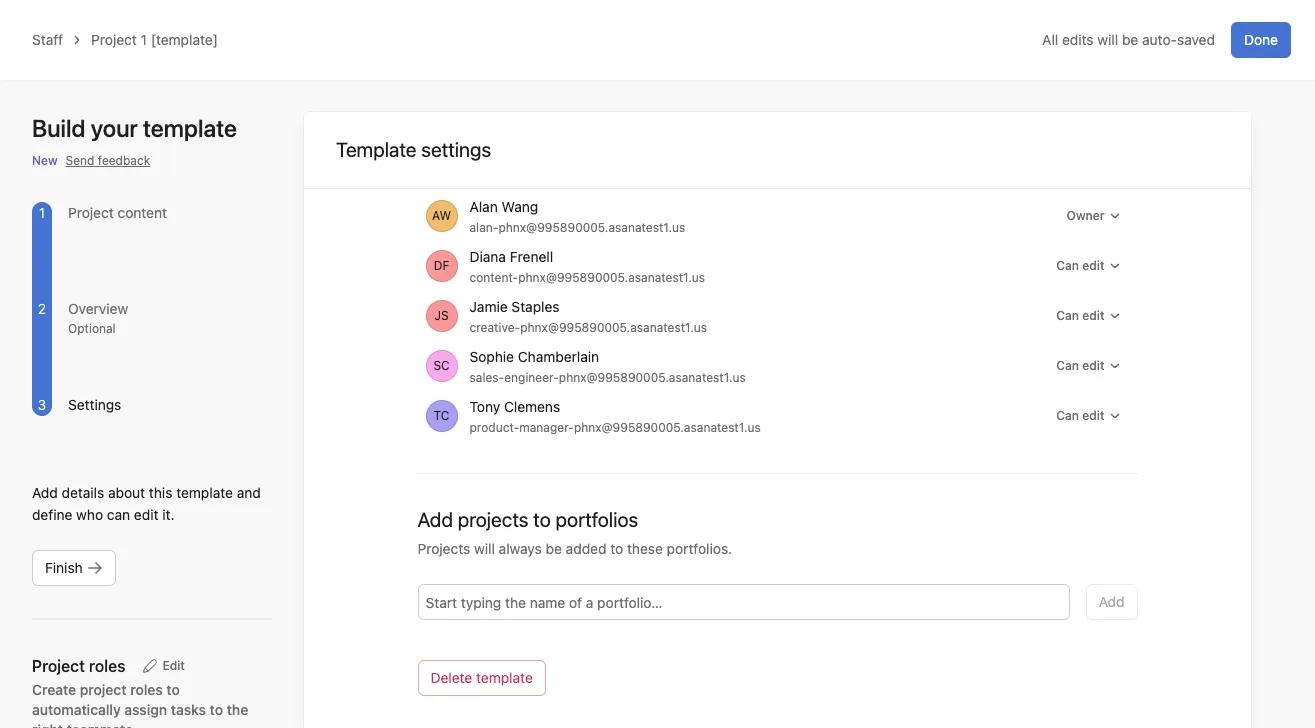
You can also use the builder to add projects to portfolios. This will mean that all projects created by this template will be added to the portfolio selected.
You can also use the builder to create a template from scratch:
Once your team creates their first template, you can also create from scratch from the team page, in the Templates section.
Project templates across any given team can be easily viewed and identified simply by going to the teams page.
From here, templates can be easily edited and deleted by clicking on the three dot icon in the upper right hand corner of the template.
Available on Asana Enterprise and Enterprise+ tiers, as well as legacy tier Legacy Enterprise.
Visit our pricing page for more information.
Users can add bundles to project templates via the Customize menu when creating a project from a project template. Bundles in project templates allow users to standardize and manage their projects and workflows, even after a project has been created, meaning that:
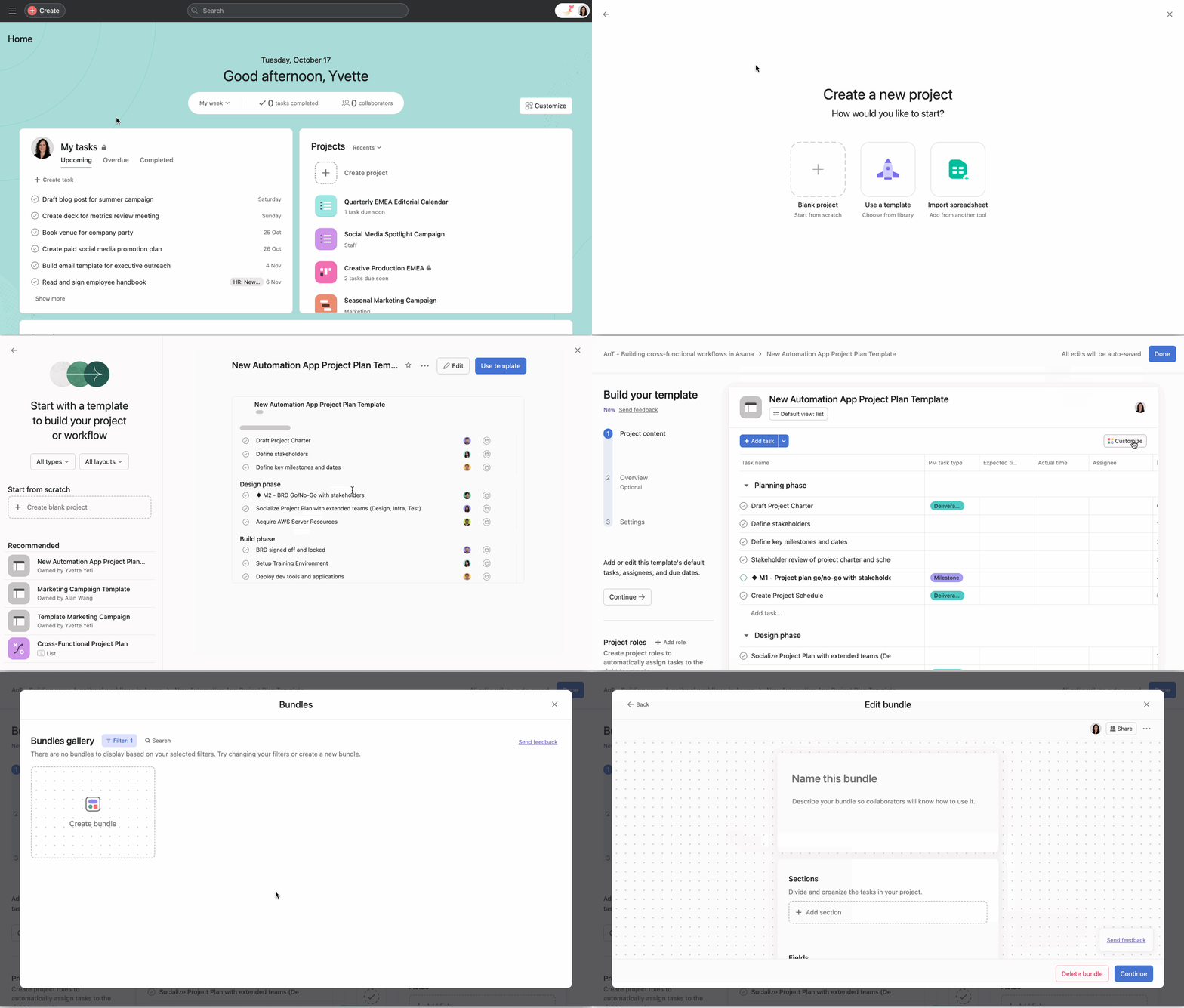
After you create or select an existing bundle from within the gallery, you need to add the bundle to the project template from the bundles management dashboard for the template to receive the bundle.
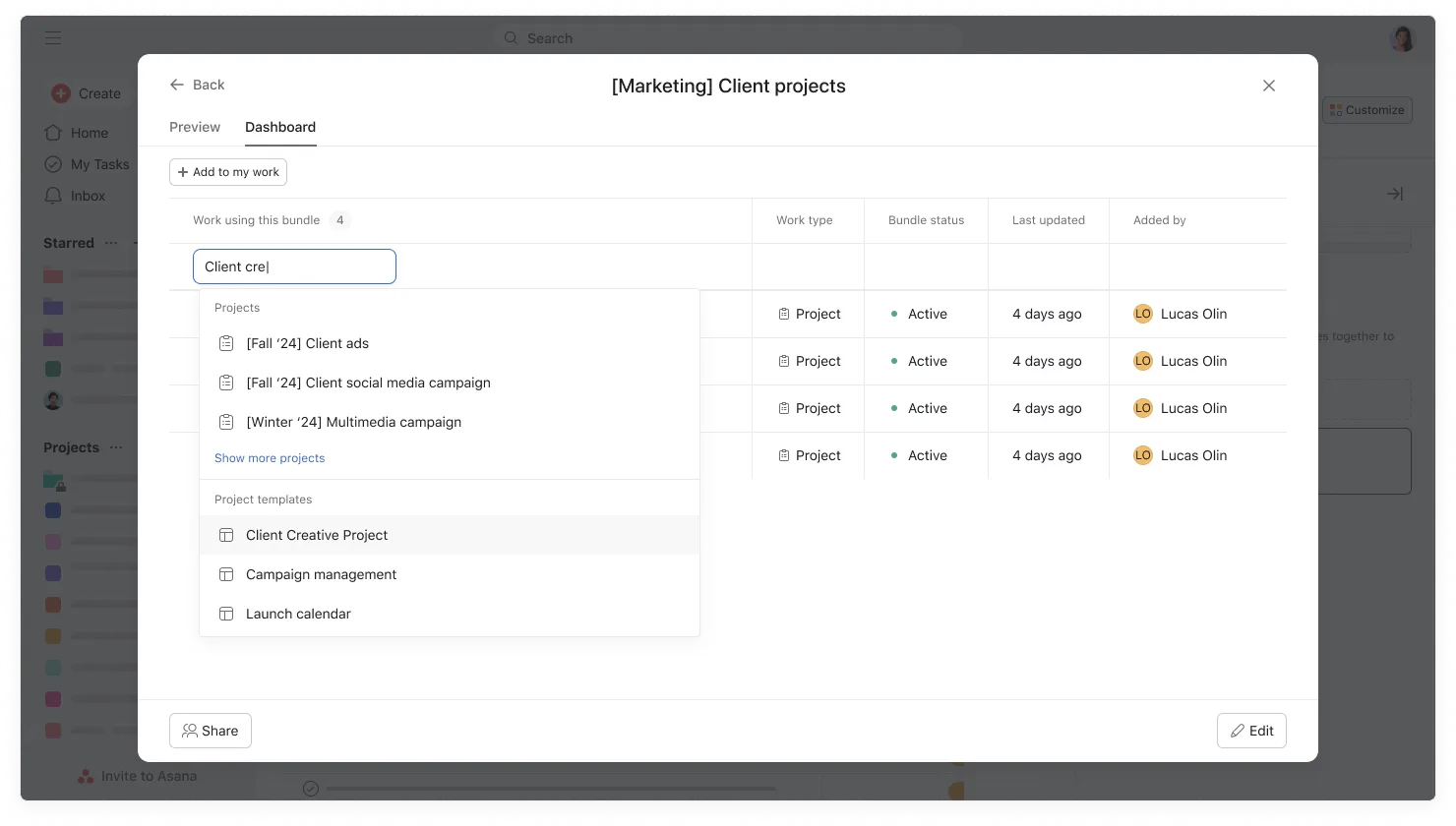
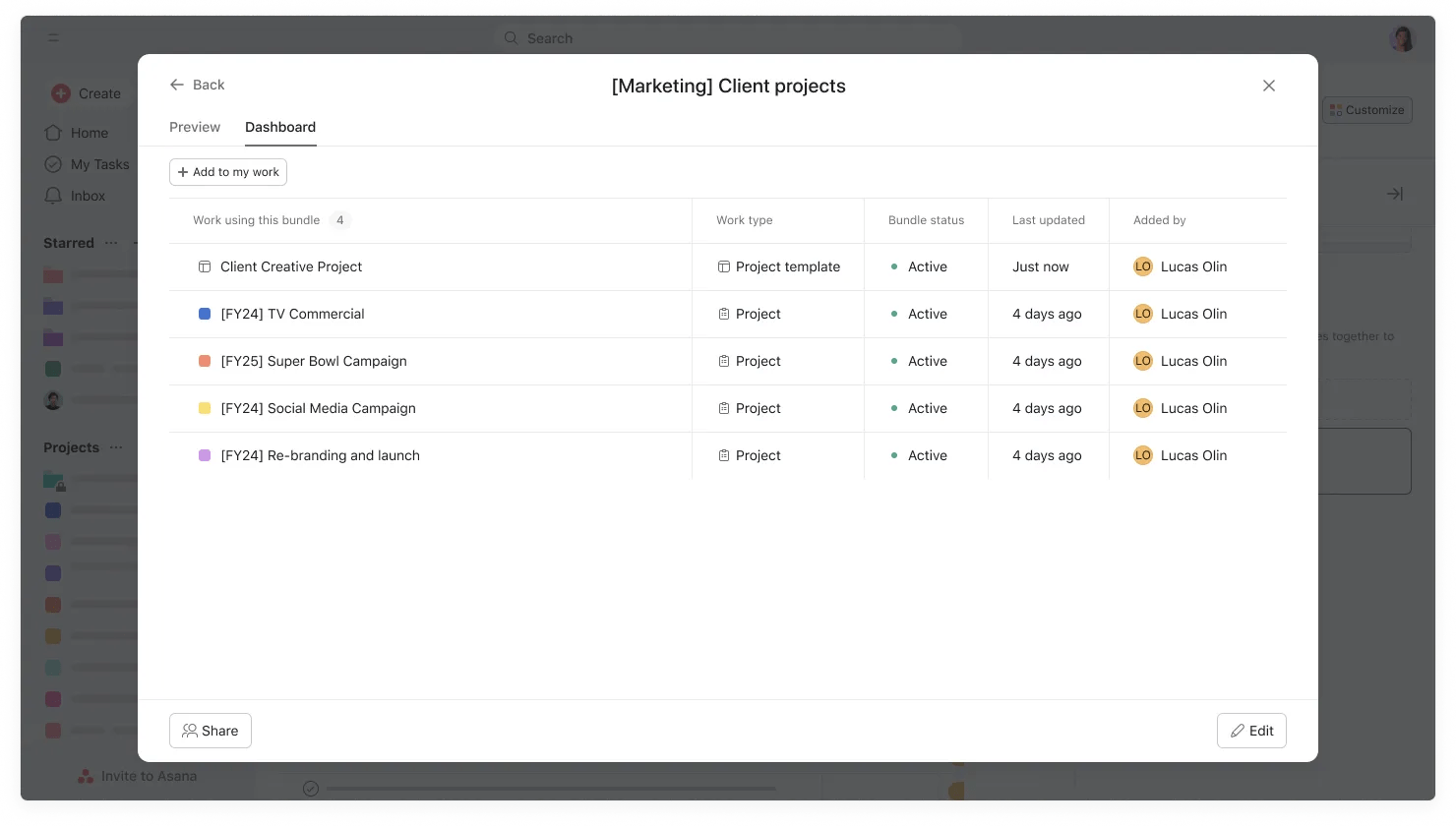
A bundle can also be applied to a project template from directly within the bundles management dashboard as shown below.
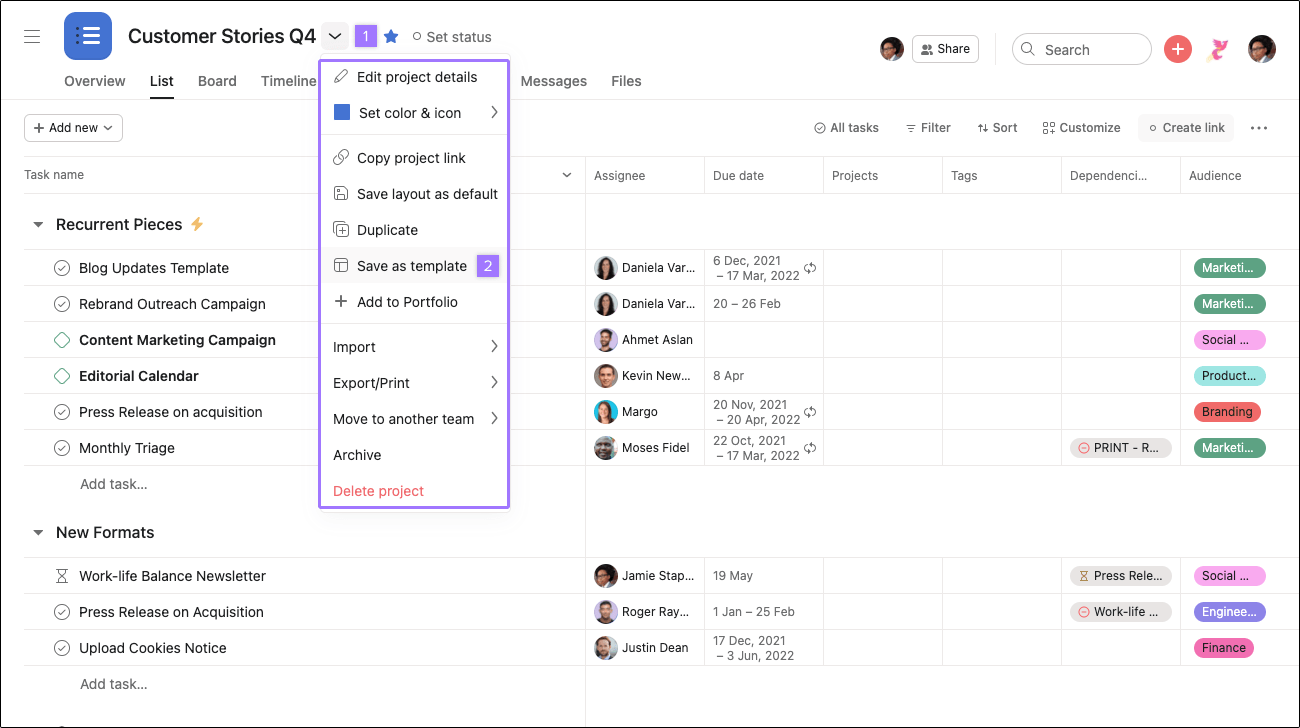
Click the drop-down arrow next to the project title, select "Save as template," then name your template and choose privacy settings before clicking "Create a new template."
Dates in templates are relative to either the project start date or due date, letting you set tasks to occur a specific number of days before or after these reference points when creating a new project.
Yes, project roles are available on Advanced, Enterprise, and Enterprise+ tiers and create placeholders that automatically assign tasks to the right teammate when you use the template.
Like what you see? Get started with a free Asana trial today. Try for free